






Want people who fill in your Elementor form to land in a Brevo contact list automatically?
The Form widget from The Plus Addons for Elementor has a Brevo action that adds each visitor as a Brevo contact.
To check the complete feature overview documentation of The Plus Addons for Elementor Form widget, click here.
Requirement – This widget is a part of The Plus Addons for Elementor, make sure it’s installed & activated to enjoy all its powers.
Before You Start
- Edition: Pro — The Brevo action needs The Plus Addons for Elementor Pro. The free plugin does not list it.
- Widget to enable: Form, switched on under The Plus Addons > Widgets.
- A Brevo account, its API key and the ID of the list you want to fill.
- Name your fields’ Unique ID (field Advance tab) exactly like this:
emailfor the email address andfirst_namefor the first name. Other fields are not sent.
Get Your Brevo API Key
Log in to Brevo, then:
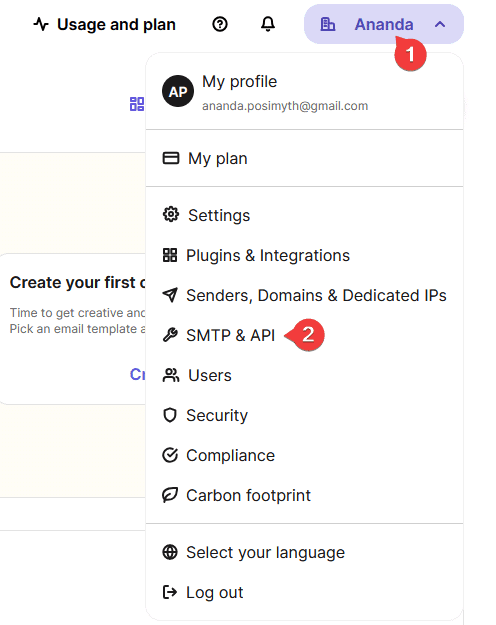
- Click your profile name at the top right and choose SMTP & API.
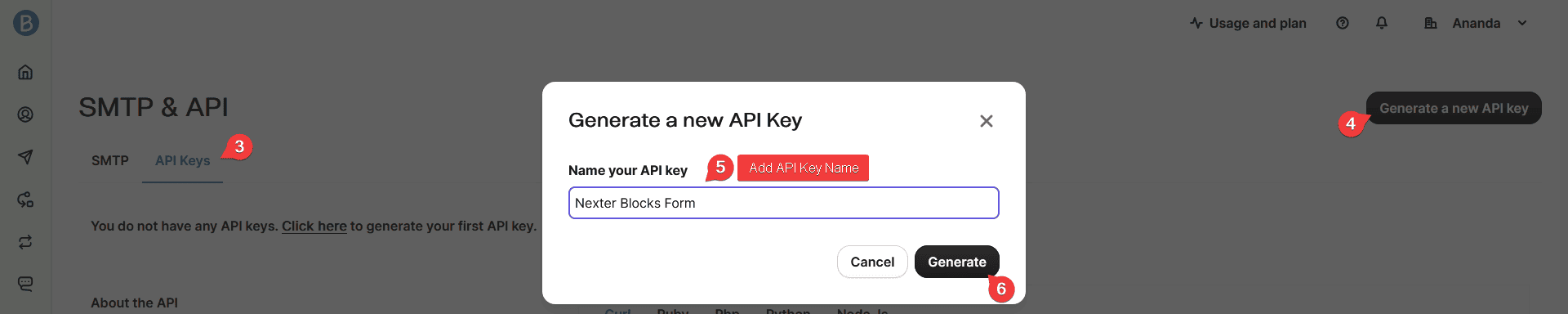
- Open the API Keys tab and click Generate a new API key.
- Give the key a name and click Generate.
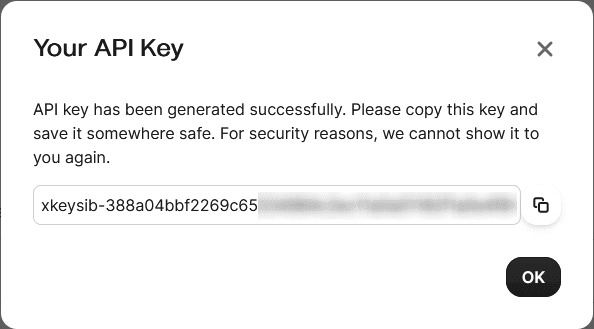
- Copy the key and keep it somewhere safe. Brevo shows it only once.
Find Your Brevo List ID
- In Brevo, go to Contacts > Lists.
- Create a list with Create a List, or pick an existing one.
- Note the list’s ID number.
Connect the Form Widget
- Add the Form widget to your page and set up your fields.
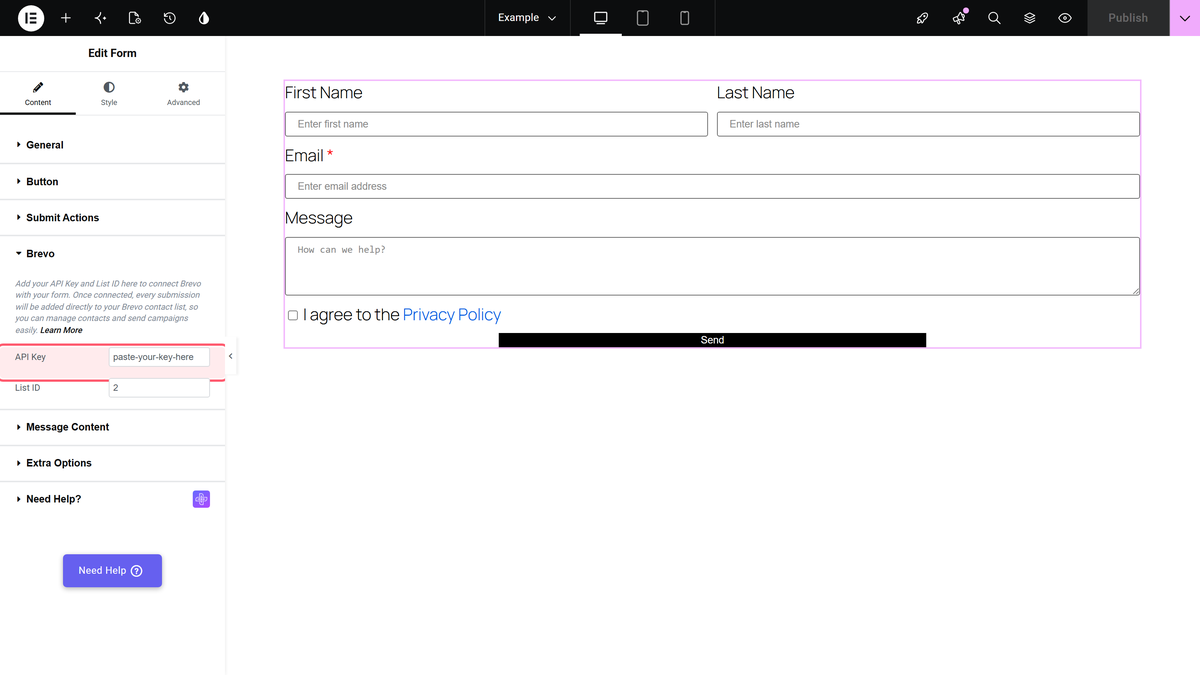
- In Content > Submit Actions, add Brevo to Add Action.
- Open the Brevo section and fill in the fields below, then publish.
| Setting | What to enter |
|---|---|
| API Key | Your Brevo API key |
| List ID | The number of the list only, for example 2. Do not add a # in front of it |
How It Behaves
- Each submission creates a Brevo contact with the email and first name.
- If the contact already exists, Brevo updates the first name and adds the contact to the list.
- If List ID is empty, the contact is created without being added to a list.
Limitations
- Only the email and first name are sent. Other fields, such as a phone number or message, stay in the form.
- Brevo’s double opt-in is not used: the contact is added directly.
Troubleshooting
Contacts are created but not added to my list
Enter the List ID as a plain number. A # in front of the number makes the list ID invalid.
Visitors see “There was an error in submitting the form.”
The service rejected the request. Re-copy the key and ID without spaces, check the Email field’s Unique ID is email, and test again. While this error shows, a Redirect action does not run.
