






Shoppers who aren’t ready to buy today still want a way to save a product for later – WooCommerce doesn’t include a wishlist by default.
The Woo Wishlist widget adds that feature, as either a save button on each product or a running count of saved items.
For the full settings tour of every Woo Builder widget, see Woo Builder Settings Overview.
Requirement – This widget is a part of The Plus Addons for Elementor Pro, make sure it’s installed & activated to enjoy all its powers.
Before You Start
- Prerequisite: Elementor (free) installed and active.
- Prerequisite: WooCommerce installed and active, with at least one published product.
- Edition: all Woo Builder widgets are part of The Plus Addons for Elementor Pro – a Pro licence is required.
- Widget to enable: go to The Plus Addons > Widgets, search for Woo Wishlist and turn its toggle on.
- A published product to test with – for example “Everyday Canvas Sneaker” on this site.
Steps
- Add the Woo Wishlist widget to your product archive or single product template.
- From Type, choose Button (the default – a save-to-wishlist button per product) or Count (a running total of wishlisted items, typically placed in the header).
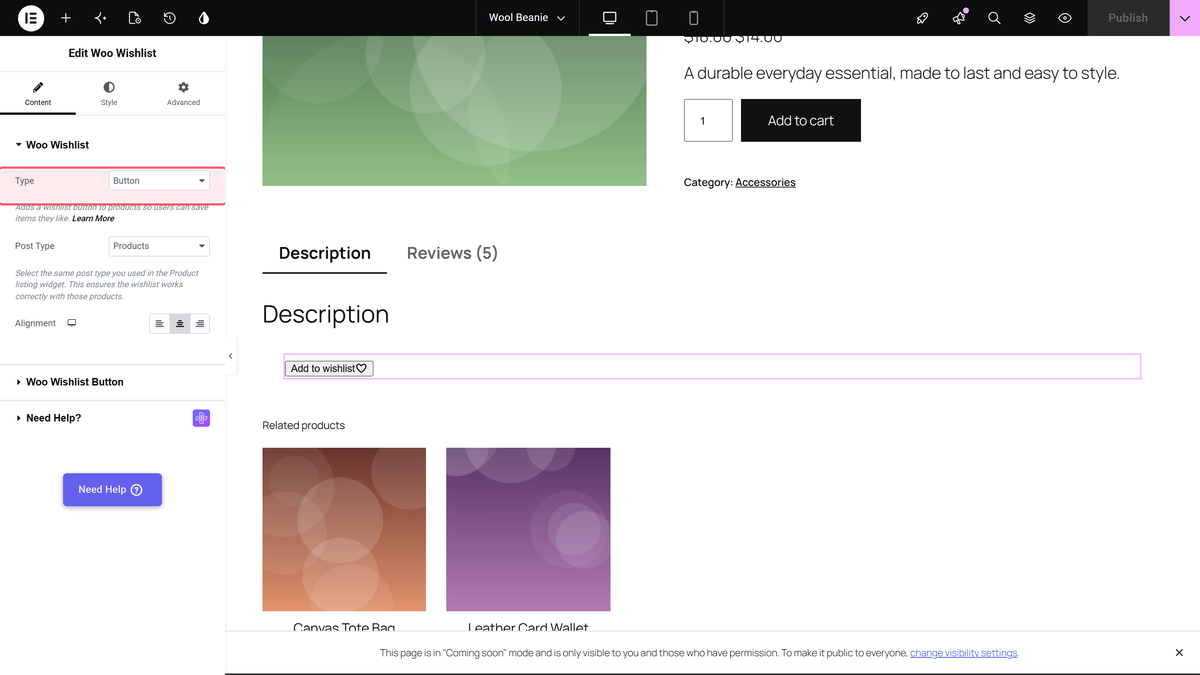
With Type set to Button, the Wish Type sub-control chooses whether the button shows an icon, text, or both – covered in detail in the linked custom-skin doc below.

Settings Overview
| Setting | What it does | Default |
|---|---|---|
| Type | Button or Count presentation. | Button |
