



























How to Add Elementor Menu Toggle Button in Header?

Key Takeaways

  • Header Meta Content widget from The Plus Addons for Elementor allows users to add a menu toggle button for an off-canvas menu.
  • Users can create a header template named Toggle Menu using Elementor and the Header Meta Content widget.
  • The Extra Toggle Bar tab in the Header Meta Content widget enables customization of the toggle bar's display and style options.
Table Of Content

Do you want to add an Elementor menu toggle button in the header? Adding a menu toggle button will create a more compact and organized menu making it easier for visitors to navigate the site.

With the Header Meta Content widget from The Plus Addons for Elementor, you can easily add a menu toggle button to create an off-canvas menu.

To check the complete feature overview documentation of The Plus Addons for Elementor Header Meta Content widget, click here.

Requirement  – This widget is a part of The Plus Addons for Elementor, make sure its installed & activated to enjoy all its powers.

To do this, first you have to create an Elementor template with the content.

Let’s say we named the template Toggle Menu.

Then, add the Header Meta Content widget to the header template and follow the steps –

Note: To create the header template, you can use the free Nexter Builder or you can use Elementor Pro if you are already using it. 

1. In the Meta Content tab, you’ll find an item click to open it, then select Extra Toggle Bar from the Select Options dropdown.
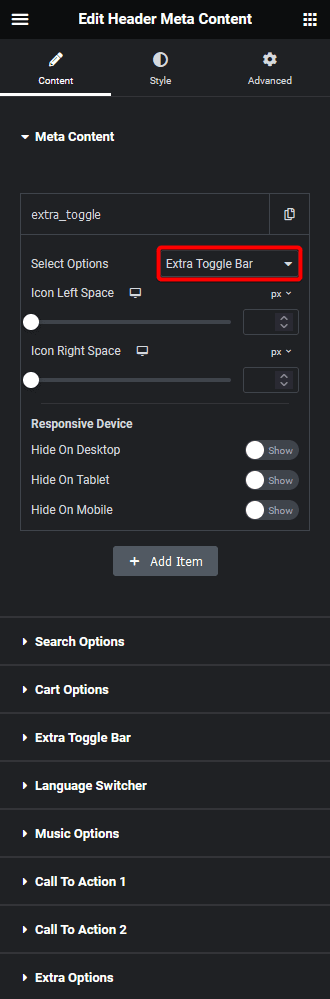
Header meta content extra toggle bar

Then, do the necessary icon spacing adjustments from the Icon Left Space and Icon Right Space sections.

From the Responsive Device section, you can manage the visibility of the item for different devices if needed.

2. Then go to the Extra Toggle Bar tab and enable the Display Toggle Bar toggle.

From the Toggle Style dropdown, you can select different styles or can add a custom image as well.

3. You have to select your Elementor template from the Elementor Templates dropdown.

From the Open Content Direction dropdown, you can choose the direction.

Then, from the Content Width dropdown, you can set the width of the slider container or make it full width.

Now you’ll see a toggle menu icon which will open an off-canvas popup.

About the Author

Photo of Aditya Sharma CMO of The Plus Addons for Elementor
CMO · The Plus Addons for Elementor · 10 years experience

He has spent years in the WordPress ecosystem building, breaking, and optimizing sites until they actually perform. He works at the intersection of speed, growth, and usability, helping creators ship websites that load fast and convert. An active WordPress community contributor sharing through tools, tutorials, and direct collaboration. Tested practice, not theory.

WordPressElementorn8nAIClaudeAutomationServer
Get Instant Answers to all your questions about The Plus Addons for Elementor, trained on 1000+ Docs and Videos

Related Frequently Asked Questions

What should I do if the Elementor menu toggle button isn't displaying?

If the Elementor menu toggle button isn't showing, ensure that the Header Meta Content widget from The Plus Addons for Elementor is installed and activated. This widget is essential for adding the toggle button. Additionally, check that you've enabled the Display Toggle Bar option in the Extra Toggle Bar tab, as this is necessary for it to appear.

What are the best practices for styling the Elementor menu toggle button?

When styling the Elementor menu toggle button, consider using the Toggle Style dropdown to select different styles or adding a custom image. Adjust icon spacing using the Icon Left Space and Icon Right Space settings for better alignment. These adjustments ensure that the toggle button fits well within your overall header design and enhances the user experience.

How do I create an Elementor template for the toggle menu?

To create an Elementor template for the toggle menu, first, create a new template and name it, for example, 'Toggle Menu.' This template will house the content that the toggle button will display. Once created, you can select this template from the Elementor Templates dropdown in the Header Meta Content widget settings.

Last reviewed: April 10, 2026
