






WP RSS Feed is the one Social Feed source that needs no account, no app and no access token. Give it a feed address and it renders the posts.
Use it for your own blog, another site’s feed, a podcast, a partner’s news page — anything that publishes RSS.
Requirement – This widget is a part of The Plus Addons for Elementor Pro, make sure it’s installed & activated to enjoy all its powers.
Before You Start
- Edition: Pro — Social Feed ships only in The Plus Addons for Elementor Pro. With Pro deactivated the widget does not render at all, and there is no free version of it.
- Prerequisite: Elementor (free) installed and active.
- Widget to enable: go to The Plus Addons > Widgets, search for Social Feed and turn its toggle on.
- Prerequisite: your server must be able to make outbound HTTPS requests. The feed is fetched server-side while the page renders, not by the visitor’s browser.
- No account needed: WP RSS Feed is the one source that needs no token, key or login. All it needs is a feed URL.
Show an RSS feed
- Edit the page with Elementor and drag the Social Feed widget onto it.
- In Content > Content Feed, pick a Layout (Grid, Masonry or Carousel) and a Style.
- Open the item under Social Feeds and set Source to WP RSS Feed.
- Put the feed address into RSS Feed URL. Any valid feed will do — a WordPress site’s is usually its address with /feed/ on the end.
- Set Maximum Posts to how many items you want. The default is 8.
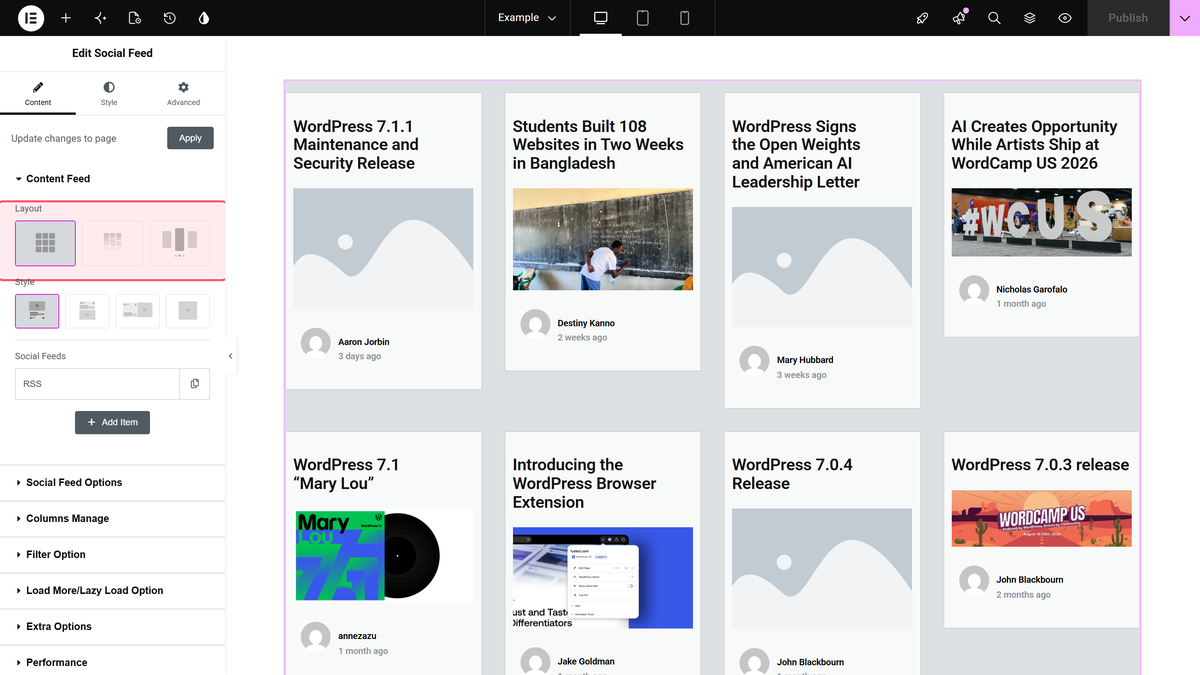
That is the whole setup. Everything below is optional shaping of the card.
What goes on the card
| Setting | What it does | Default |
|---|---|---|
| Maximum Posts | How many items to show. 1 to 500. | 8 |
| Offset Post | Skip this many items from the top of the feed. | 0 |
| Show Image | Show a picture on the card. | On |
| Image From | Content takes the first image out of the item body; Enclosure uses the feed’s enclosure tag. | Content |
| Fallback Image | Used when the item has no image. | none |
| Show Title | Show the item title. | On |
| Add Post URL to Title | Make the title a link to the original post. | Off |
| Title Tag | The heading level the title is rendered as. | h3 |
| Fallback Title | Used when an item has no title. | empty |
| Show Description | Show the item’s text. | Off |
| Show Author Name | Show who wrote it. | On |
| Show Author Image | Show an avatar beside the name. | On |
| Show Timestemps | Show when it was published, as a relative time. The spelling is the plugin’s. | On |
| Show RSS Icon | Put an RSS mark on each card. | Off |
Longer cards and a Load More button
- Turn Show Description on and the card gains the item’s text, trimmed by Text Limit in Extra Options (100 characters by default) with a Show More link after it.
- In Load More/Lazy Load Option, set More Post Loading Options to Load More. Maximum Posts Display decides how many cards appear first and More Posts On Click/Scroll how many arrive per click.
- Columns Manage sets how many cards fit a row. The defaults are Column 4 on desktop, Column 3 on tablet and Column 2 on mobile.
How It Behaves
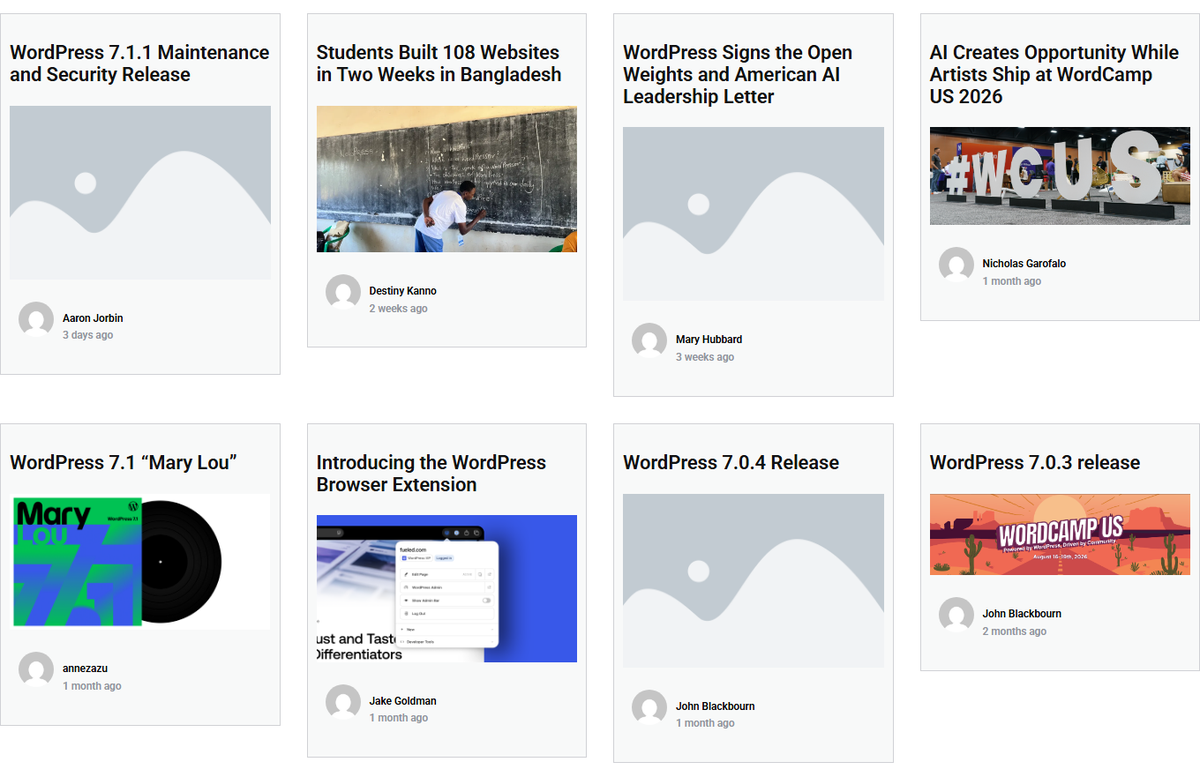
- A feed URL and nothing else is enough. With just Source and RSS Feed URL filled in, eight posts rendered four to a row, each with its title, its author’s name and a relative timestamp such as 3 days ago.
- Show Description adds the excerpt and a Show More link, not the whole article.
- Load More adds exactly what you configured. Four cards on load, one click, eight cards.
- Items with no picture fall back to a grey placeholder rather than collapsing the card.
- The feed is read by your server when the page renders, so the posts are already in the HTML.
Limitations
- Category Wise Filter does not work with WP RSS Feed. The panel says so itself, in a note under Filter Option. Category (For Filter) is also hidden inside an RSS feed item.
- The Maximum Posts and Offset Post fields inside a feed item only affect WP RSS Feed. They are shown whatever Source you pick, but the widget reads them only on the RSS path. For every other source the count control is Max Results (default 6), further down the same item.
- Offset Post ships at 0 but its own minimum is 1. 0 means no offset; once you change the field it will not accept anything below 1.
- Items with no image in the feed show a grey placeholder. Many feeds put no picture in the item body at all. Set a Fallback Image if you would rather show something of your own, or switch Image From to Enclosure if the feed uses enclosure tags.
- The toggle really is spelled "Show Timestemps". That is the plugin’s spelling, not a typo on this page — search for it as written.
- The feed is fetched on your server, and cached. Nothing is requested from the visitor’s browser, so a feed that works on one host can fail on another that blocks outbound requests. Refresh Time (default 1 day) decides how often the request is repeated.
- Image From has two usable options. Content and Enclosure. If the feed puts its picture somewhere else, neither will find it — use Fallback Image.
Not verified
So you know exactly what has and has not been checked:
- Image From = Enclosure. Only Content was exercised; the test feed carries its images in the item body.
- Fallback Image and Fallback Title. Neither was set during testing, so their behaviour comes from the control’s own wording.
- What the button says once everything is loaded. After the last click it still read Loading… rather than the configured All Posts Loaded Text. That was one observation on one feed, so treat it as unconfirmed.
- Lazy Load. Only Load More was exercised; the Lazy Load branch of More Post Loading Options was not.
- Performance, Save Data, Delete and Refresh Time. The cached-feed path was never exercised — what is written here about it comes from the panel’s own notes and defaults.
- On Post Click, FancyBox, the two scrolling bars and Text Limit. Labels and defaults only; no click-through was measured.
- Styles 2, 3 and 4, and the Style tab as a whole. Only Style 1 and Style 2 were rendered, and no styling control other than Unique Carousel ID was exercised.
- Responsive behaviour. Only one 390px load of the grid was checked; the tablet and mobile column and gap settings were not exercised one by one.
Troubleshooting
Nothing renders at all
Open the RSS Feed URL in a browser tab first. If it does not return XML, the widget has nothing to read. If it does, your server is probably not allowed to make outbound requests — ask your host.
The cards have no pictures
Most feeds do not put an image in the item body. Try Image From = Enclosure, and set a Fallback Image for the rest.
The titles are not clickable
Turn Add Post URL to Title on. It is off by default.
There is no Category (For Filter) field, and the filter does not work
Both are expected for this source. Category Wise Filter is not compatible with the RSS feed, and the panel says so under Filter Option.
The feed is showing yesterday’s posts
The response is cached on the schedule in Refresh Time (default 1 day). Shorten it, or clear the stored copy with Performance > Delete.
