






Your site’s database already holds posts, products, bookings and plugin data. Showing some of it on a page should not mean copying it by hand.
The SQL Query source of the Table widget from The Plus Addons for Elementor runs a SELECT query and shows the result as a table.
To check the complete feature overview documentation of The Plus Addons for Elementor Table widget, click here.
Requirement – This widget is a part of The Plus Addons for Elementor, make sure it’s installed & activated to enjoy all its powers.
Before You Start
- Edition: Pro — The SQL Query source needs The Plus Addons for Elementor Pro. The Table widget itself is free.
- Widget to enable: Table, switched on under The Plus Addons > Widgets.
- An administrator account. The SQL Query option is only listed for administrators.
- Basic knowledge of SQL and of the table you want to read.
How to Show Database Entries
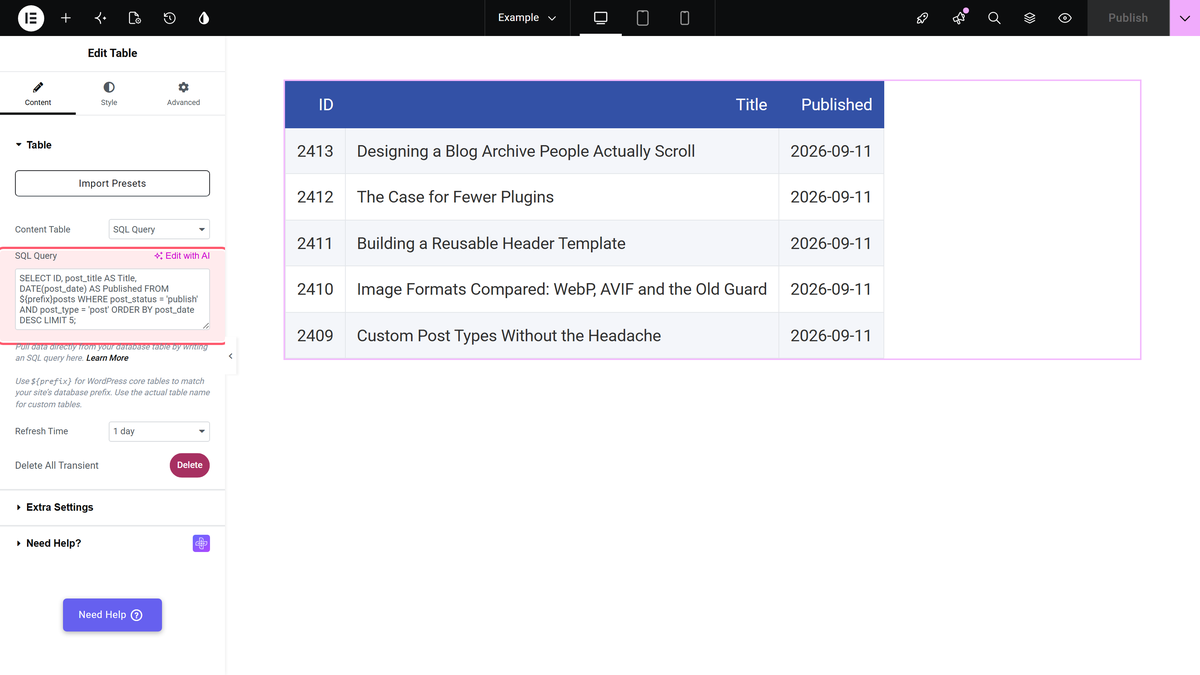
- Add the Table widget. In Content > Table, set Content Table to SQL Query.
- Type your query in the SQL Query field. Write
${prefix}in front of WordPress core table names so the query uses your site’s table prefix. - Choose how long the result is stored in Refresh Time.
- Publish the page.
Example: the five latest published posts, with readable column names:
SELECT ID, post_title AS Title, DATE(post_date) AS Published FROM ${prefix}posts WHERE post_status = 'publish' AND post_type = 'post' ORDER BY post_date DESC LIMIT 5;
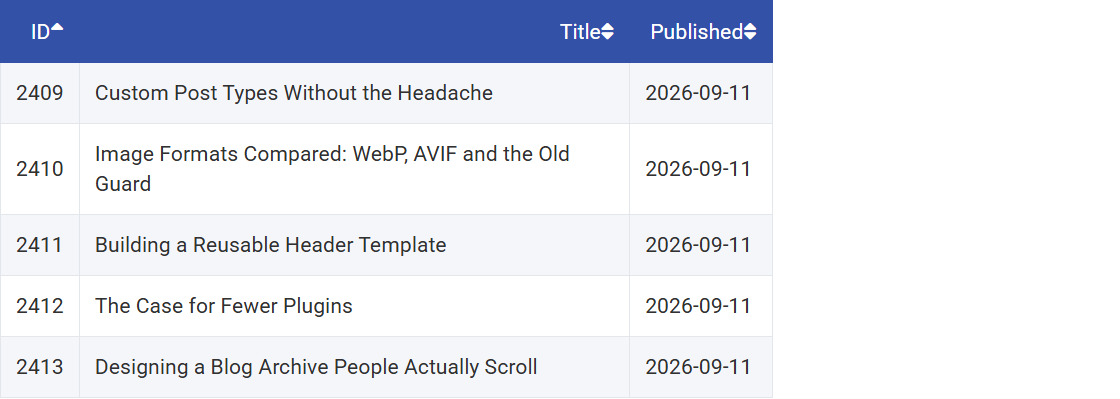
The result on the page:
How It Behaves
- The column names of the result become the table headers. Use
ASto give them readable names. - The rows keep the order of your
ORDER BY, unless Table Sortable is on: then they are sorted by the first column when the page loads. - A trailing semicolon is fine. For custom tables, write the real table name.
- The result is stored for the Refresh Time (1 hour to 1 Week, default 1 day). In our test a post published after the first page view did not appear when the page was reloaded.
- Visitors see the table; only the editor option is limited to administrators.
Refresh the Data Now
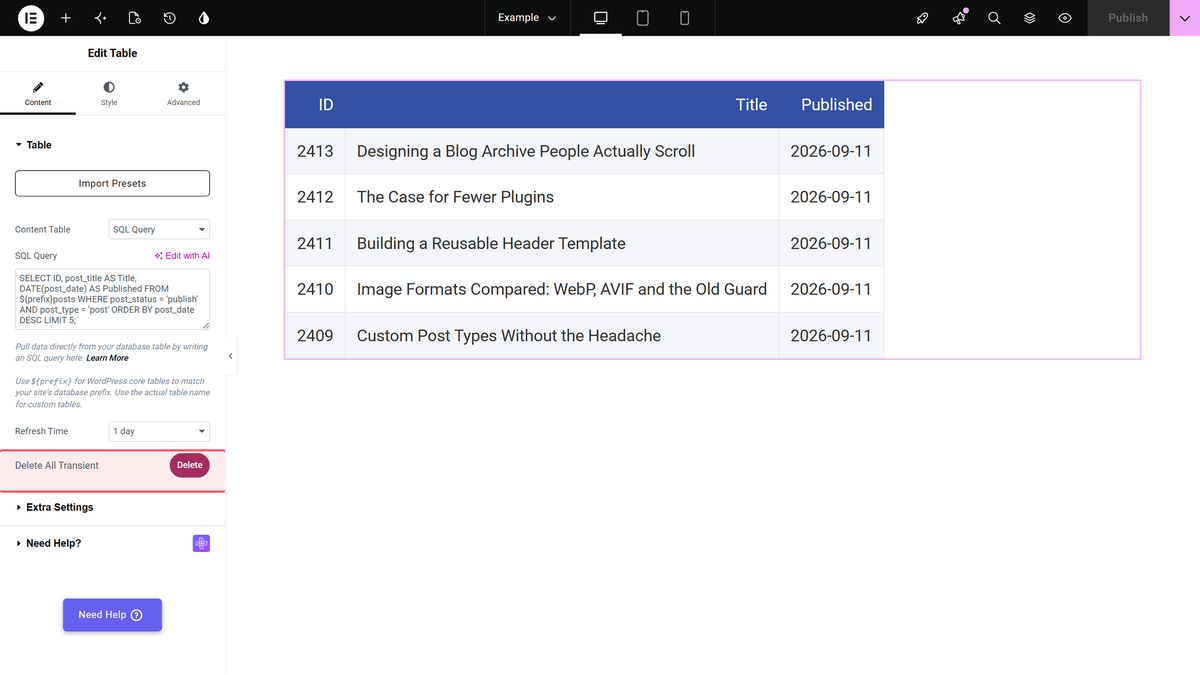
Click Delete next to Delete All Transient to clear the stored results of the Table widgets on your site. In our test, a post published after the table was cached appeared on the next page view after Delete. The button then shows a countdown of about five minutes. Only administrators can use it.
Messages You May See
| Message on the page | Why |
|---|---|
| Please write a valid SQL query. | The SQL Query field is empty |
| Only SELECT queries are allowed. | The query does not start with SELECT, for example UPDATE or DELETE |
| This SQL query is not allowed. | The query contains a blocked part, such as --, /*, a second ; or information_schema |
| Access to this table is restricted. | The query reads the users, usermeta, options or sitemeta table |
| No data found for the custom query. | The query ran but returned no rows |
Limitations
- Anything the query returns is public. Everyone who opens the page sees the result. Do not select personal data or anything private.
- The users, user meta, options and site meta tables cannot be read, whatever the prefix.
- With One by One Responsive, stacked rows on phones do not show the column names.
- Per-cell icons, images, buttons and tooltips are not available for this source.
- Editors and other non-administrator roles do not see SQL Query in Content Table.
Troubleshooting
SQL Query is not in Content Table
Log in as an administrator, and check that The Plus Addons for Elementor Pro is active and the SQL Query option of the Table widget is on in The Plus Addons > Widgets.
New rows do not appear
The result is still stored. Wait for the Refresh Time, or click Delete next to Delete All Transient.
