






A cascade that assembles itself as the visitor arrives reads as intent rather than decoration — the photos slide in, fade up and settle into place.
The Image Cascading widget from The Plus Addons for Elementor has a GSAP-powered Image Animation section that does this to the layer images, with no custom code.
To check the complete feature overview documentation of The Plus Addons for Elementor Image Cascading widget, click here.
Requirement – This widget is a part of The Plus Addons for Elementor Pro, make sure it’s installed & activated to enjoy all its powers.
Before You Start
- Edition: Pro — Image Cascading ships only in the Pro version of The Plus Addons for Elementor. The widget file is not in the free plugin at all, so it does not appear in the widget list without Pro.
- Widget to enable: Image Cascading, under The Plus Addons > Widgets. Search for it and turn the toggle on, then reload the Elementor editor.
- Where the settings are: drop the Image Cascading widget on the page. The Content tab holds three sections — Image Cascading (the layers), Image Animation and Styling.
- How it is built: each item in the Add Multiple Cascading Sections repeater is one layer. Layers are absolutely positioned inside the widget, so they can overlap.
- Build the cascade first. The animation runs on the images already in Add Multiple Cascading Sections.
Turn On the Animation
- Open the Image Animation section on the Content tab and switch on Enable Animation.
- Choose Basic in the Animation dropdown to set the movement here in the widget, or Global to reuse an animation you have defined once in the site settings.
- Pick a Trigger Type: On Load, On Scroll or On Hover.
- Open Transform Effects and set the starting offset, skew, scale, rotation, opacity and transform origin — these are the values the image animates from.
- Open Animation Controls for the duration and delay, and pick an easing curve in Animation Effects.
- Use the Preview Animation button on the Play Animation row to replay it in the editor, then update the page and check it on the front end.
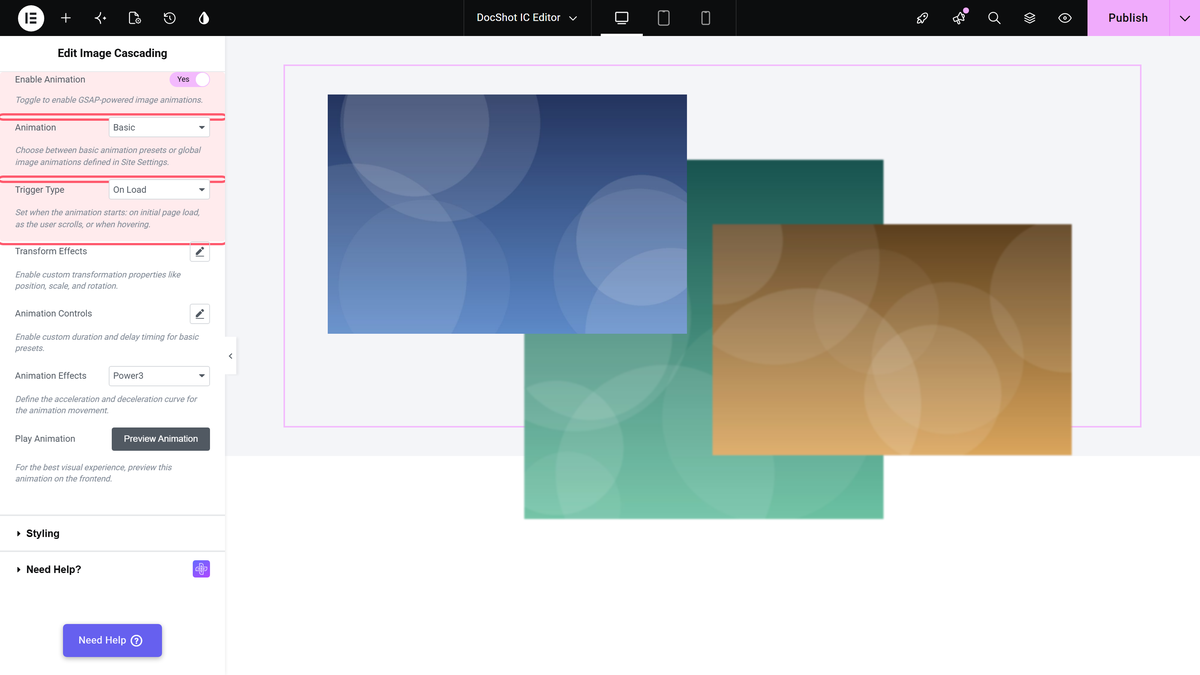
The Settings
| Setting | What it does | Default |
|---|---|---|
| Enable Animation | Turns the whole section on. | Off |
| Animation | Basic or Global. | Basic |
| Trigger Type | On Load runs it once when the page opens, On Scroll when the widget comes into view, On Hover when the pointer is over it. | On Load |
| Transform Effects | The start state: X and Y offset, skew, scale, rotation, opacity, transform origin, and an optional clip-path reveal. | No offset, scale 1, opacity 1 |
| Animation Controls | Duration and delay, in seconds. | 1.2 s, delay 0.3 s |
| Animation Effects | The easing curve: Power1, Power2, Power3, Elastic, Back, Bounce or none. | Power3 |
Use a Global Animation
Global reuses an animation you defined once, so a whole site can share one entrance. Create it first, then pick it from the Global Animation dropdown that replaces the transform settings. How to create a global image animation.
How It Behaves
- The animation moves the images inside the layers. In our test the layer image started 160 px to the left and fully transparent and settled into place over about 1.4 seconds, easing out.
- One set of settings covers every layer in the widget; there is no per-layer animation.
- It runs on the published page. The Preview Animation button exists because the editor canvas is not where you judge it.
Limitations
- The settings are per widget, not per layer, so the layers cannot be staggered or given different movements from this section.
- Because it animates the layer images, a Text Content layer has nothing for it to move.
- On Load plays once per page load. There is no repeat or reverse option.
- Global needs the animation to exist in the site settings first; the dropdown is empty until then.
Troubleshooting
Nothing animates
Check Enable Animation is on, and that Transform Effects actually changes something — with no offset, scale 1 and opacity 1 the image animates from where it already is, so there is nothing to see.
The animation is over before I look at it
Switch Trigger Type to On Scroll so it starts when the widget comes into view, or raise the delay in Animation Controls.
The Global Animation dropdown is empty
No global image animation has been created yet. Add one in the site settings first.
