---
title: "How to Create an Elementor Chart by Importing Data From Google Sheets?"
url: https://theplusaddons.com/docs/create-an-elementor-chart-by-importing-data-from-google-sheets/
date: 2025-06-20
modified: 2026-09-27
lang: en
author: "Aditya Sharma"
description: "If your data already lives in a Google Sheet, you don't have to retype it - the Chart widget can read it directly. This doc covers the Google Sheet data..."
word_count: 297
---

# How to Create an Elementor Chart by Importing Data From Google Sheets?

## 

- The Chart widget reads data directly from a Google Sheet, so the user does not retype sheet data into Elementor.
- The Plus Addons for Elementor Pro requires Elementor free installed and active, and the Chart widget is a Pro widget that does not exist in the free plugin.
- Google Sheets data source setup uses a published sheet, a Sheet ID from the URL between /d/ and /edit, and a Table Range such as A1:B10; private, share-link-only sheets do not load.

If your data already lives in a Google Sheet, you don't have to retype it - the Chart widget can read it directly.

This doc covers the Google Sheet data source specifically - see the Settings Overview for every other option.

For the full settings tour of the **Chart** widget, see [Chart Widget: Settings Overview](https://theplusaddons.com/docs/chart-widget-settings-overview/).

***Requirement - This widget is a part of The Plus Addons for Elementor Pro, make sure it's installed & activated to enjoy all its powers.***

[LIVE WIDGET LINK](https://theplusaddons.com/elementor-widget/advanced-charts/?utm_source=tpae&utm_medium=docs&utm_campaign=text)

## Before You Start

- **Prerequisite:** [Elementor](https://wordpress.org/plugins/elementor/) (free) installed and active.- **Edition:** Chart is a **Pro** widget - it requires the paid version of The Plus Addons for Elementor. It does not exist in the free plugin.- **Widget to enable:** go to **The Plus Addons > Widgets**, search for **Chart** and turn its toggle on.

## Steps

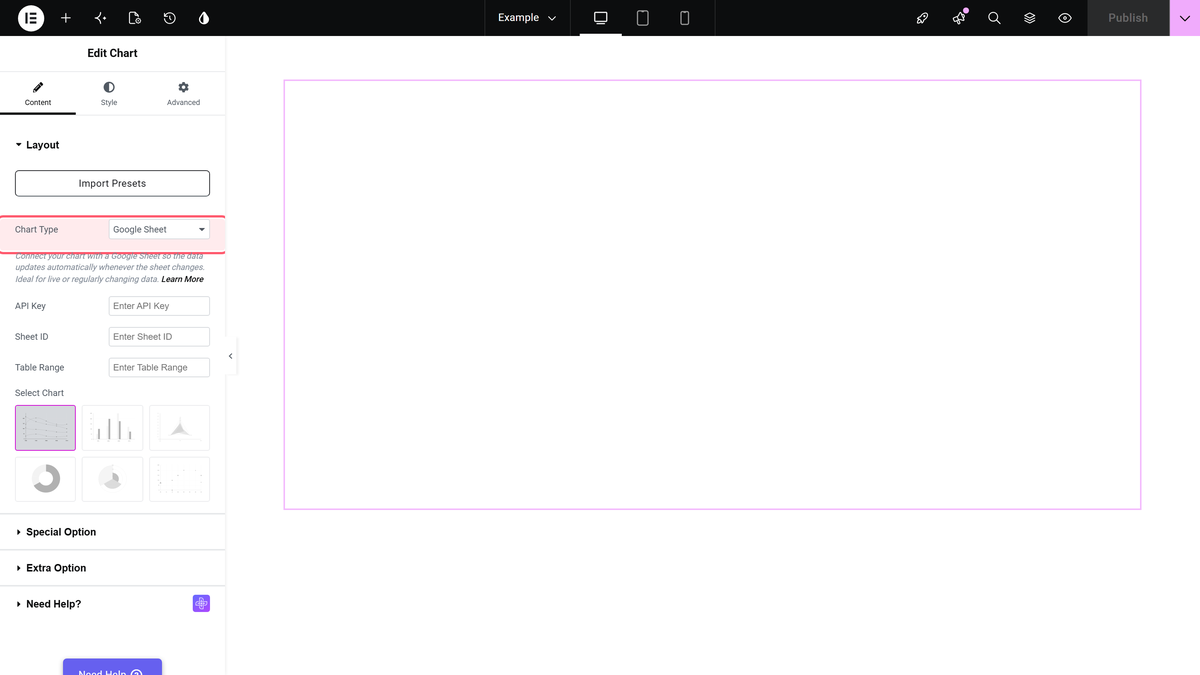
- Publish your Google Sheet to the web (**File > Share > Publish to web** in Google Sheets), so it is reachable without a login.- Add the **Chart** widget to the page.- From **Chart Type**, select **Google Sheet**.

![Chart Type control set to Google Sheet](https://theplusaddons.com/wp-content/uploads/2026/09/chart-gsheet-type.webp)

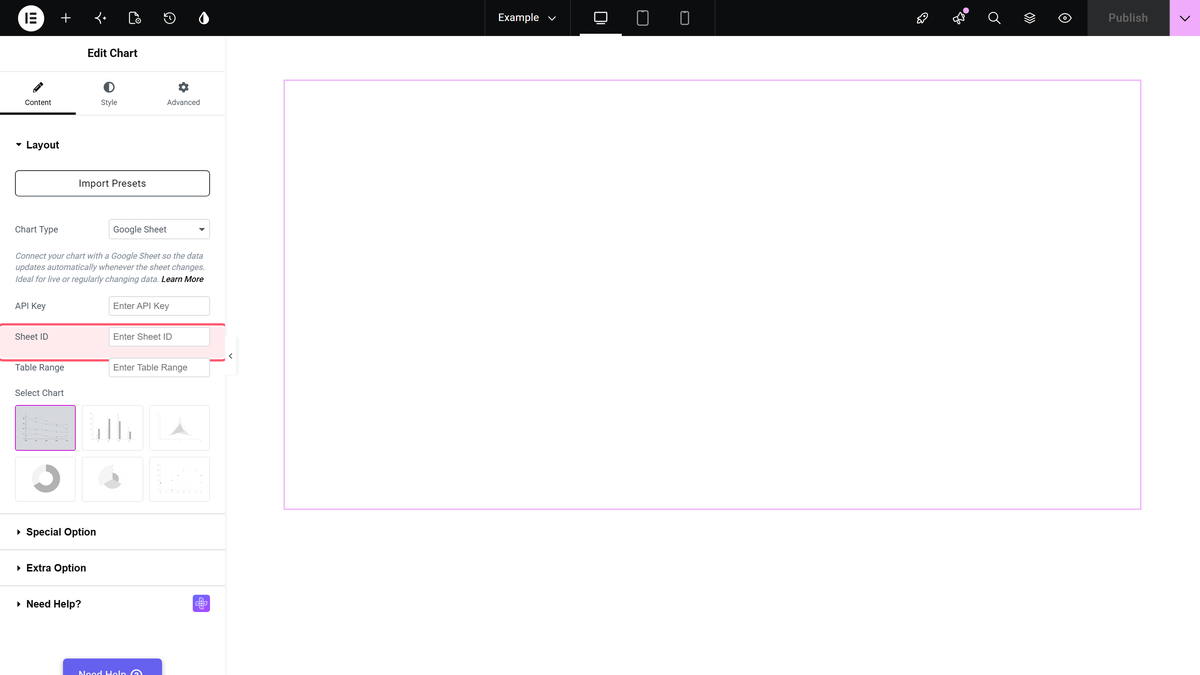
- In the **Sheet ID** field, paste the ID from your sheet's URL (the long string between `/d/` and `/edit`).- Set the **Table Range** to the cell range you want to chart, for example `A1:B10`.- Choose your chart type from **Select Chart** as usual.

![Sheet ID field](https://theplusaddons.com/wp-content/uploads/2026/09/chart-gsheet-id.webp)

## Limitations

- The sheet must be published to the web - a private, share-link-only sheet will not load.

## Not verified

So you know exactly what has and has not been checked:

- The full fetch-and-render round trip with a real published Google Sheet was not re-run live in this pass - the Sheet ID and Table Range fields were confirmed present and correctly labelled in the control model, matching the existing doc's own steps.

## Related Docs

- [Chart Widget: Settings Overview](https://theplusaddons.com/docs/chart-widget-settings-overview/)- [How to Create an Elementor Chart using CSV Data?](https://theplusaddons.com/docs/create-an-elementor-chart-using-csv-data/)

## Frequently Asked Questions

**Q: What do I need before importing Google Sheets data into an Elementor chart?**
A: Elementor free has to be installed and active, and the Chart widget is a Pro widget in The Plus Addons for Elementor, so the paid version needs to be installed and activated too. The sheet also has to be published to the web, because a private or share-link-only sheet will not load. That setup matters because the widget reads the sheet directly instead of retyping data.

**Q: Why isn’t my Google Sheet loading in the chart widget?**
A: The most common blocker is access. The sheet must be published to the web through Google Sheets, otherwise the Chart widget cannot fetch it. A private sheet or one that only works through a share link will not load. In practice, this means the data source has to be publicly reachable without a login before the chart can render.

**Q: How do I find the Sheet ID for an Elementor chart?**
A: The Sheet ID is the long string in the Google Sheets URL between /d/ and /edit. That value goes into the Sheet ID field in the Chart widget. This matters because the widget uses that ID to point at the exact spreadsheet, so copying anything else from the URL can break the connection.

**Q: What cell range should I use for a Google Sheets chart in Elementor?**
A: Use the Table Range field to point at only the cells you want charted, such as A1:B10. Narrowing the range keeps the chart focused on the data you actually want displayed instead of pulling in extra rows or columns. That also makes it easier to control what appears when your sheet contains more than one table or section.

**Q: Can I use a private Google Sheet with this chart widget?**
A: A private Google Sheet will not work here. The page says the sheet must be published to the web, and a private or share-link-only sheet will not load. That requirement is what makes direct fetching possible inside The Plus Addons for Elementor, The Plus Addons, Plus Addons for Elementor, POSIMYTH without manual re-entry.

**Q: Is there another way to build an Elementor chart if I don’t want Google Sheets?**
A: The related docs point to [Chart Widget: Settings Overview](https://theplusaddons.com/docs/chart-widget-settings-overview/) for other options, and there is also [How to Create an Elementor Chart using CSV Data?](https://theplusaddons.com/docs/create-an-elementor-chart-using-csv-data/). That gives you two clear paths: Google Sheets when your data already lives there, or CSV when your data is stored as a file instead of a live spreadsheet.