






Text animation gives a heading a moment of movement as the page arrives — characters slide in, scatter back into place, scramble or type themselves out.
The Heading Title widget has its own GSAP text animation, separate from Elementor’s entrance animations, with one section for the main title and an identical one for the sub title.
To check the complete feature overview documentation of The Plus Addons for Elementor Heading Title widget, click here.
Requirement – This widget is a part of The Plus Addons for Elementor, make sure it’s installed & activated to enjoy all its powers.
Before You Start
- Edition: Free — the Heading Title widget is part of the free The Plus Addons for Elementor plugin.
- Widget to enable: Heading Title, under The Plus Addons > Widgets. Search for it and turn the toggle on.
- Prerequisite: a Style other than Animated Split. Animated Split has its own animation and ignores this section.
Steps
- Add the Heading Title widget, pick any Style except Animated Split, and type your heading.
- Open the Title Text Animation section and turn Enable Animation on.
- Leave Animation on Basic to use the built-in presets. Global reuses an animation you saved once in Site Settings.
- Choose an Animation Type. The settings below it change with your choice.
- Preview the real page — the animation runs on load, so reload to watch it again.
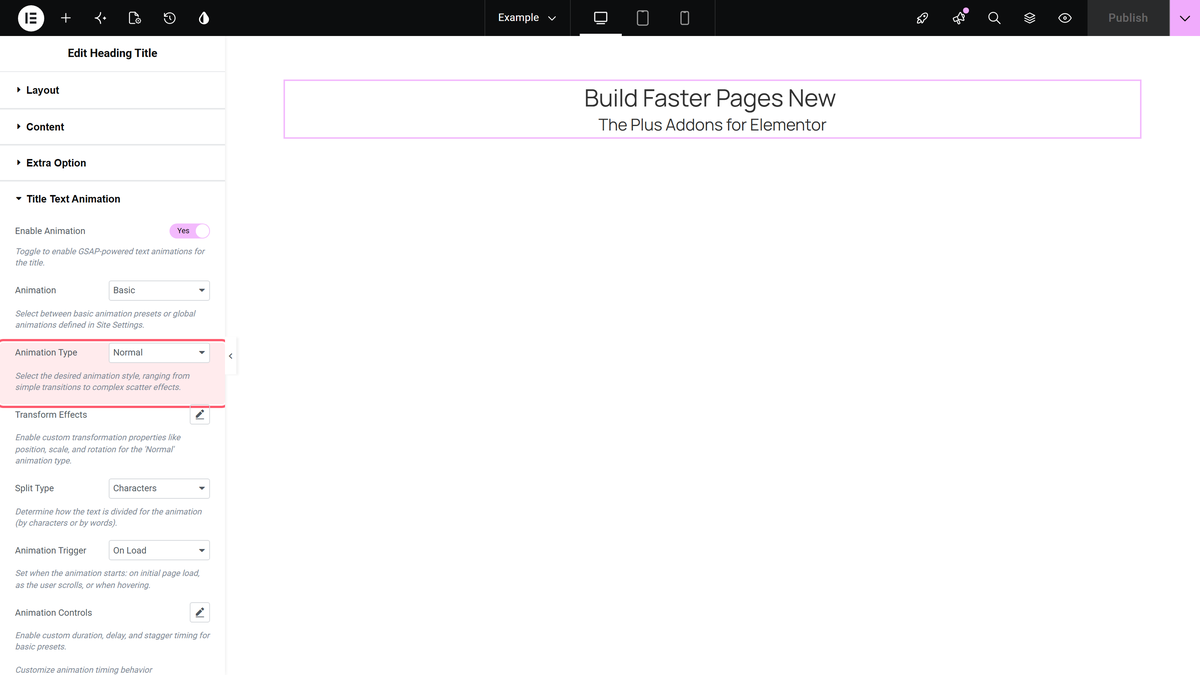
The Four Animation Types
| Animation Type | What you see on the page |
|---|---|
| Normal (default) | Each piece of text starts offset and invisible, then moves and fades into position in sequence. You set the starting offset yourself under Transform Effects. |
| Explode / Scatter | The pieces start scattered around the heading at random positions and rotations, then spin and scale back into place. |
| Scramble Text | The heading first appears as random glyphs and resolves character by character into the real text. |
| Typing Effect | The heading starts empty and types itself out one character at a time. |
Settings for Basic Animation
| Setting | What it does | Default |
|---|---|---|
| Transform Effects | A popover holding X Position, Y Position, Skew X, Skew Y, Scale, Rotation and Transform Origin — the state each piece animates from. | Off |
| Split Type | Animate by Characters or by Words. Hidden for Scramble Text and Typing Effect, which are always per character. | Characters |
| Animation Trigger | On Load, On Scroll or On Hover. | On Load |
| Enable Scroll Scrub | Ties the animation’s progress to the scroll position instead of playing it straight through. | Off |
| Animation Controls | A popover with Duration, Delay and Stagger (the gap between one piece and the next), all in seconds. | 1.2 / 0.3 / 0.04 |
| Animation Effects | The easing curve: power1.out through power4.out, plus sine, expo, circ, back, elastic and bounce. | power1.out |
| Repeat | Plays the animation on a loop instead of once. | Off |
Normal
Set a starting offset in Transform Effects — a Y Position of 80 makes the characters rise 80px into place — then adjust Duration and Stagger to taste.
Explode / Scatter
Scramble Text
Typing Effect
Using a Global Animation
Global lets you define one text animation and reuse it on every heading, so changing it in one place updates them all.
- Turn the Text Global Animation extension on under The Plus Addons > Extensions. Until you do, this section shows the notice “Text Global Animation is disabled” and no dropdown.
- Create a text animation in the Global Scroll Interactions area of Elementor’s Site Settings.
- Back in the widget, set Animation to Global and pick your animation from the Global Animation dropdown.
The Global Animation dropdown lists only animations you have already saved. On a fresh site it shows Select Animation and nothing else.
Animating the Sub Title
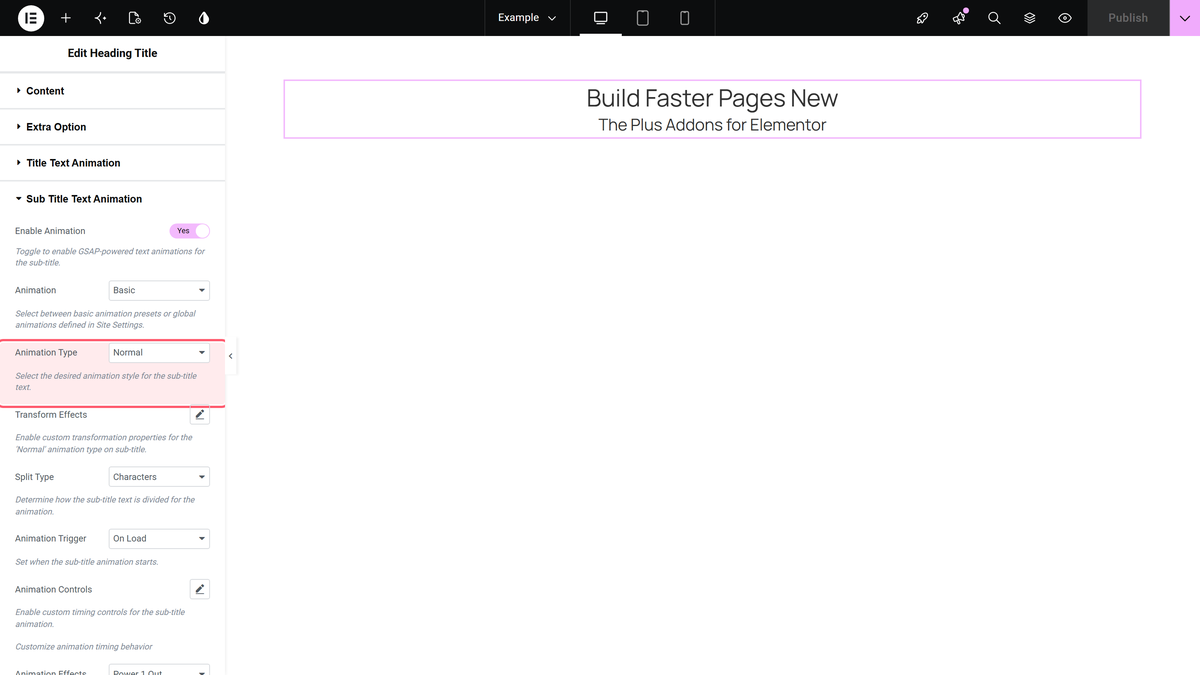
The Sub Title Text Animation section carries exactly the same controls and works independently, so the title and sub title can use different effects or different delays.
How It Behaves
- The widget rewrites the heading into one span per character or per word, and animates those spans. Anything you style on the heading still applies.
- With Repeat off the animation plays once and stops at the final state; a reload plays it again.
- Stagger is the gap between consecutive pieces, so a long heading takes longer than Duration alone suggests.
- Title and sub title animations are independent — turning one on does nothing to the other.
Limitations
- This section is ignored by the Animated Split style, which has its own animation options.
- Split Type does not apply to Scramble Text or Typing Effect; both always work character by character, and the control is hidden for them.
- Global is unusable until the Text Global Animation extension is enabled and at least one global animation exists.
Troubleshooting
Nothing animates on the live page
Check Enable Animation is on, and open the page itself rather than the editor preview. If a caching plugin is serving an old copy of the page, clear it.
The Global Animation dropdown is missing
The Text Global Animation extension is off. Turn it on under The Plus Addons > Extensions, then reload the editor.
The Split Type control disappeared
You picked Scramble Text or Typing Effect. Both are always per character, so the control is hidden on purpose.
The animation finishes before the heading scrolls into view
Change Animation Trigger from On Load to On Scroll.
