






An image that slides, scales or wipes into place draws the eye far better than one that is simply there when the page loads.
The Creative Image widget has a GSAP-powered Image Animation section for exactly that. You can build the movement on the widget itself, or reuse an animation you saved once and applied everywhere.
To check the complete feature overview documentation of The Plus Addons for Elementor Creative Image widget, click here.
Requirement – This widget is a part of The Plus Addons for Elementor Pro, make sure it’s installed & activated to enjoy all its powers.
Before You Start
- Edition: Pro — Creative Image is only in The Plus Addons for Elementor Pro. With the Pro plugin switched off the widget is not in the editor at all, and a page that already uses it shows nothing where the widget was.
- Widget to enable: Creative Image, switched on under The Plus Addons > Widgets (in the Advanced group there). In the Elementor panel it appears under Plus Advanced.
- You need an image: pick one in Choose Image first. With nothing chosen the widget renders the plugin’s own grey placeholder, so none of the effects below will look like anything.
- Don’t use it with Scroll Image: that effect replaces the picture with a background element, and this animation has nothing left to animate.
Switch Animation On
- Add the Creative Image widget and choose your picture in the Content section.
- Still on the Content tab, open the Image Animation section.
- Switch Enable Animation to Yes.
- Choose Basic to build the movement here, or Global to pick one you saved in Site Settings.
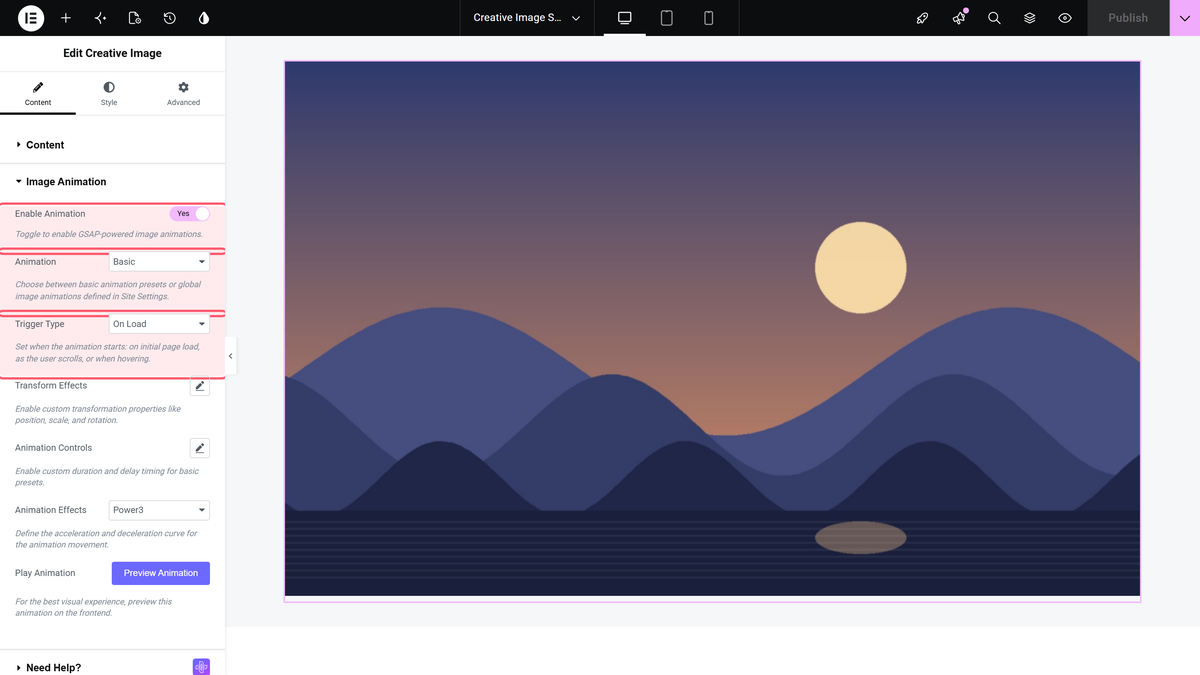
Basic: Choose When It Runs
Trigger Type decides what starts the animation, and it changes what the numbers underneath mean.
| Trigger Type | When it runs | What the Transform Effects values mean |
|---|---|---|
| On Load (default) | Shortly after the page loads, wherever the image is. | Where the image starts, before it settles into place. |
| On Scroll | Once, when the widget reaches roughly 80% down the viewport. It does not replay when you scroll back up. | Where the image starts, before it settles into place. |
| On Hover | Every time the pointer enters the widget, reversing when it leaves. | Where the image moves to while hovered. |
That last row catches people out. With On Load and Scale 1.25 the image shrinks from 1.25 down to normal. With On Hover and the same 1.25 it grows from normal up to 1.25 and back again.
Basic: Shape the Movement
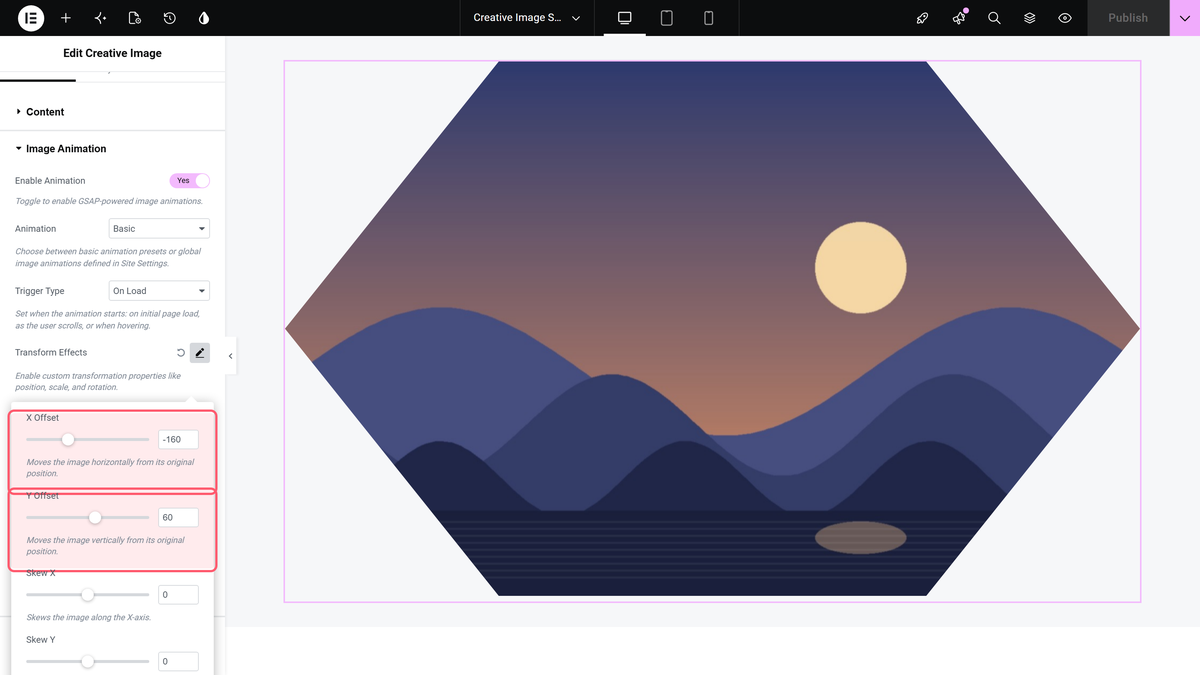
Transform Effects is a popover switched from Default to Custom. Inside it you get X Offset, Y Offset, Skew X, Skew Y, Scale, Rotation, Opacity, Transform Origin and Clip Path.
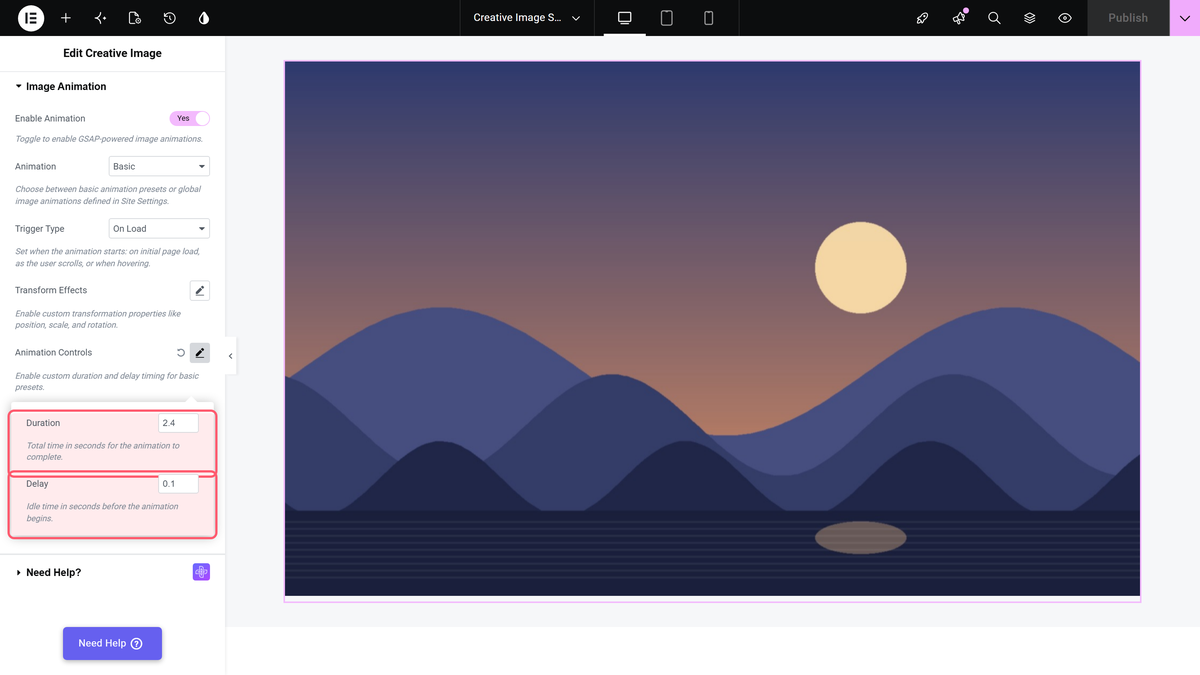
Animation Controls is a second popover, also Default or Custom, holding Duration (default 1.2 seconds) and Delay (default 0.3).
Animation Effects sets the easing curve — Power1, Power2, Power3 (default), Elastic, Back, Bounce or Linear. Back and Elastic overshoot the final position before settling, which is what gives them their bounce.
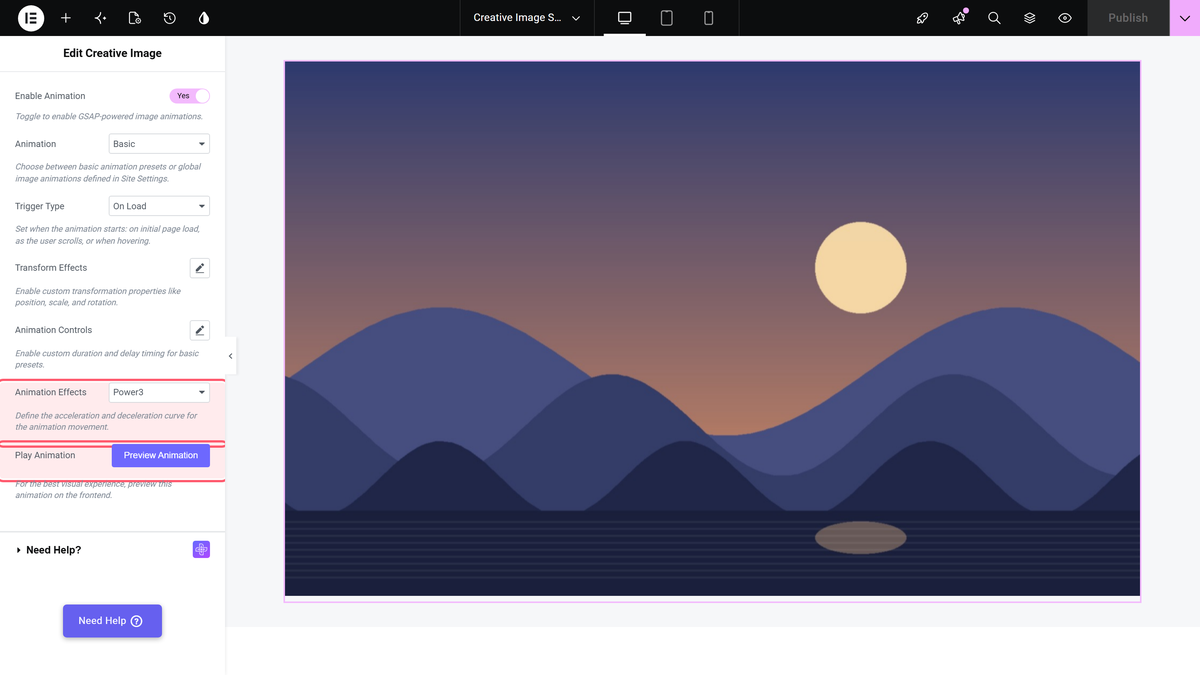
Play Animation has a Preview Animation button that replays the movement inside the editor.
Basic: Tie It to the Scrollbar
With Trigger Type set to On Scroll you also get Enable Scroll Scrub. Switch it on and the animation stops being a one-shot: its progress follows the scrollbar, so the image is part-way through the movement while the visitor is part-way down, and it runs backwards when they scroll up.
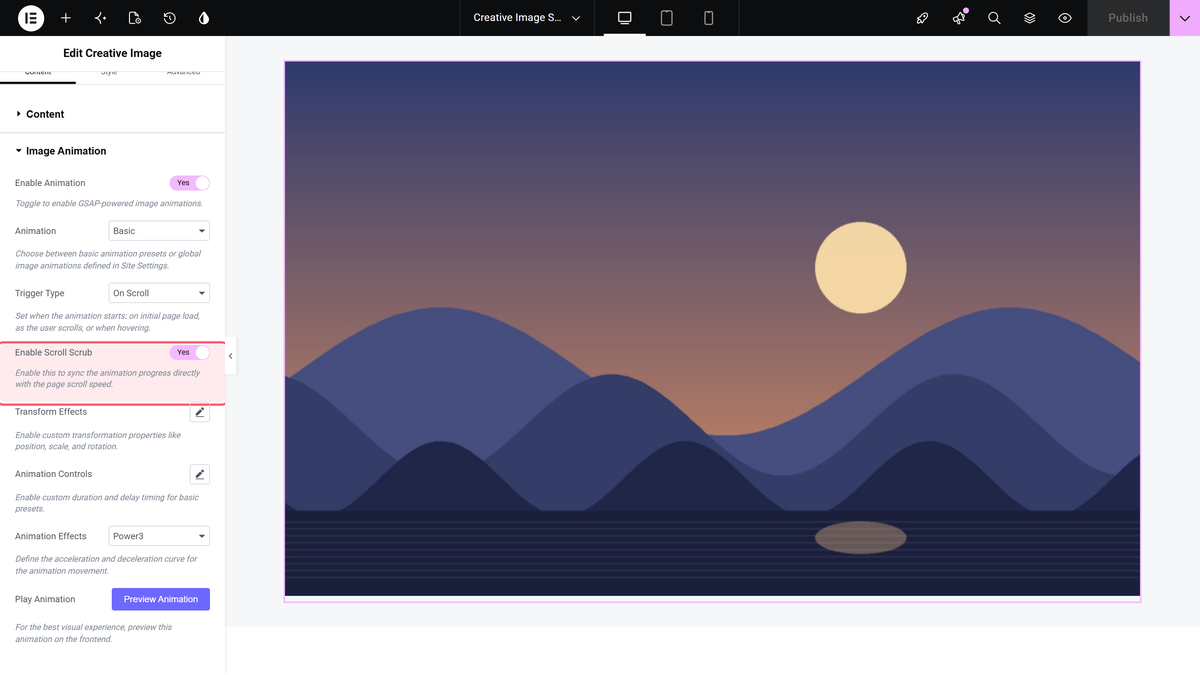
Duration and Delay stop having an effect in this mode — the scroll sets the pace.
Clip Path Shapes
Clip Path inside Transform Effects animates the image into a shape: circles, ellipses, a triangle, diamond, hexagon, star, waves, diagonals, blobs, rounded corners, or Custom Clip Path where you paste your own CSS clip-path value.
The shape is where the animation ends, and the image stays in it. Pick Hexagon and the image finishes as a hexagon and remains one.
Global: Reuse One Animation Everywhere
- Switch the Global Image Animations extension on under The Plus Addons > Extensions.
- In Elementor, open Site Settings and choose Global Image Animations.
- Add a row, give it an Animation Name, and set its trigger, timing and transforms. Save.
- Back on the widget, set Animation to Global and pick your saved animation in Global Animation.
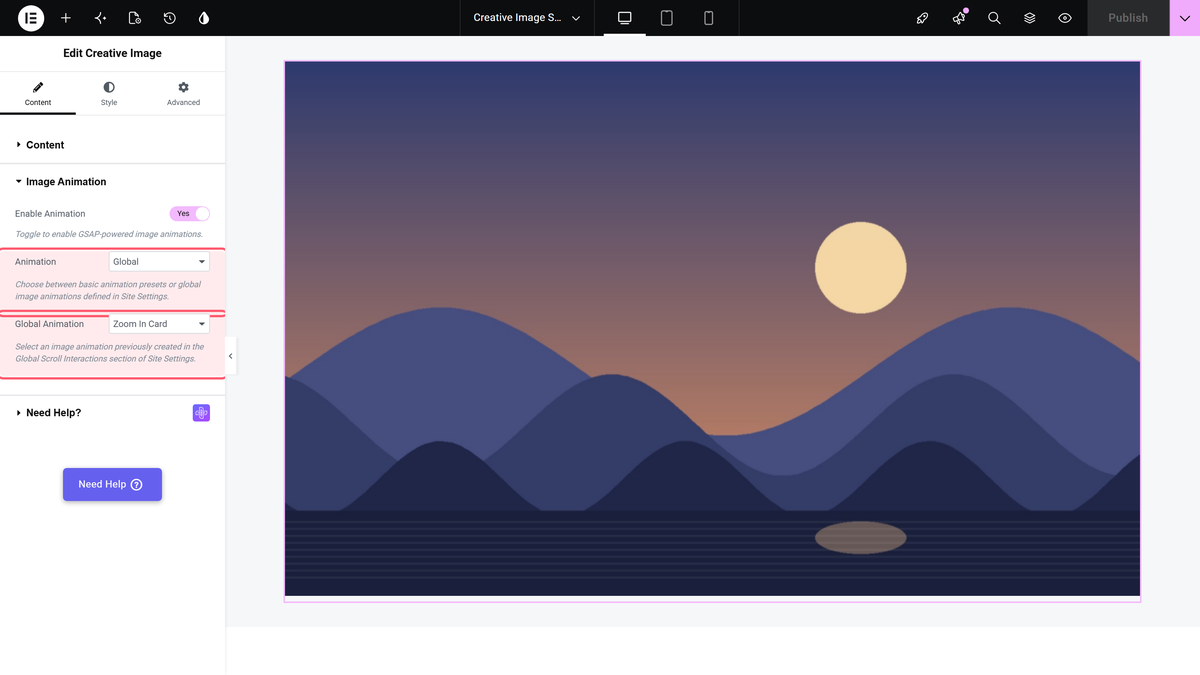
Every widget pointing at that row picks up your edits, so you can restyle a whole site’s image animations in one place.
How It Behaves
- The animation runs on the published page. In the editor, use Preview Animation to see it.
- With On Load and On Scroll the image begins fully transparent and fades in as it moves, whatever else you set.
- On Scroll without scrub runs once. Scrolling back up and down again does not replay it.
- Choosing Global but leaving Global Animation empty is harmless — nothing animates.
Limitations
- The four Inset clip paths hide the image. Despite the name, Inset — Top Reveal and its Bottom, Left and Right siblings end on a fully closed shape, so the image animates itself out of sight and stays gone. Use the circle, polygon or blob shapes instead.
- Preview Animation ignores custom Duration and Delay. The editor preview always plays at the 1.2 second / 0.3 second defaults. The published page uses your real values, so check timing there.
- Nothing animates when Scroll Image is on. The animation needs an image tag and Scroll Image removes it. There is no warning in the editor.
- Global without the extension silently falls back to Basic. If Global Image Animations is switched off under Extensions, choosing Global plays a default basic animation rather than doing nothing.
- The Global Animation field’s own hint points at a “Global Scroll Interactions” section. The tab you want is called Global Image Animations.
Troubleshooting
My image disappeared after I set a Clip Path
You have picked one of the Inset options. Set Clip Path back to None, or choose a shape such as Circle or Hexagon.
The Global Animation dropdown is empty
Either the Global Image Animations extension is off, or you have not added a row yet in Site Settings > Global Image Animations.
The preview looks faster than the real page
That is expected: Preview Animation always plays at the default timing. Judge Duration and Delay on the published page.
Nothing happens at all
Check Scroll Image is off in the Style tab, and that you are looking at the published page rather than the editor canvas.
