






Event sign-ups, volunteer lists or survey answers often need to be shown on a page as well as stored.
When the Form widget from The Plus Addons for Elementor saves its submissions, the Plus Form source of the Table widget lists them in a table.
To check the complete feature overview documentation of The Plus Addons for Elementor Table widget, click here.
Requirement – This widget is a part of The Plus Addons for Elementor, make sure it’s installed & activated to enjoy all its powers.
Before You Start
- Edition: Pro — Showing form entries (the Plus Form source, and the Form widget’s Database Entry action) needs The Plus Addons for Elementor Pro. The Table widget itself is free.
- Widget to enable: Table, switched on under The Plus Addons > Widgets.
- A Form widget from The Plus Addons for Elementor that saves submissions with Database Entry (see Save form submissions in Elementor).
- At least one submission, so the form appears in the table’s list.
Step 1: Save the Form Submissions
- Edit the page with your Form widget. In Submit Actions, add Database Entry to Add Action.
- In Extra Options, give the form a Form ID, for example
event_signup. The table finds the form by this ID. - Publish the page and send a test submission.
Step 2: Show the Entries in a Table
- Add the Table widget to the page where the list should appear.
- In Content > Table, set Content Table to Plus Form.
- Open Form Settings and choose your form in Select Form. Forms are listed by their Form Name with the Form ID in brackets.
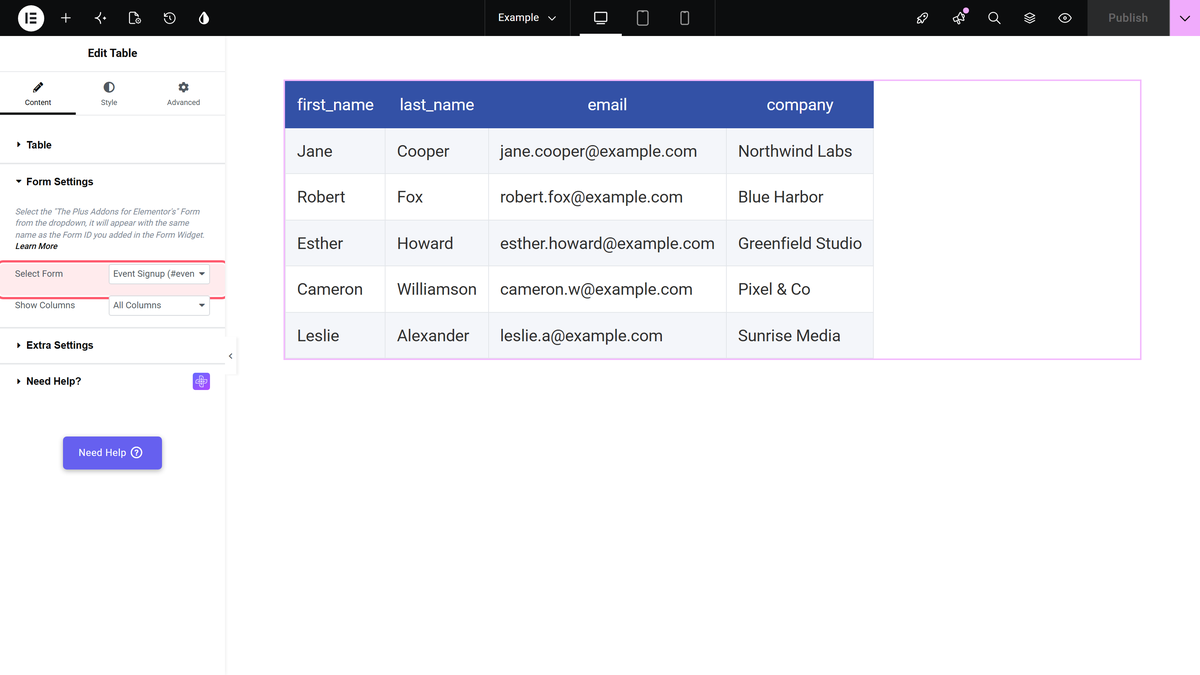
- Leave Show Columns on All Columns, or choose Selected Columns and pick the fields in Select Columns. Pick Index to add a numbered column.
- Publish the page.
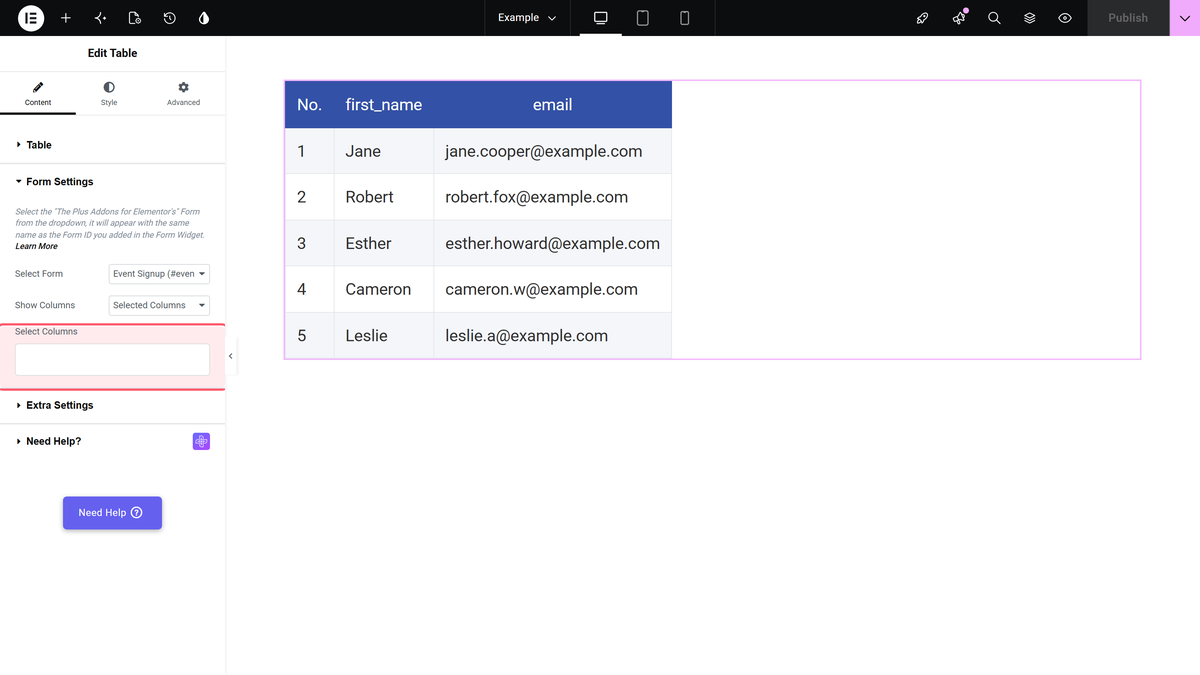
This is how the submissions look on the page with all columns:

How It Behaves
- The column headers are the fields’ Unique IDs from the Form widget (for example
first_name), not their labels. Choose readable IDs when you build the form. - Rows are listed in the order the submissions arrived, oldest first. Index numbers them from 1 in a No. column.
- A new submission appears at the end of the table the next time the page is loaded; no cache or refresh setting is involved.
- Entry Filter Dropdown and Table Sortable work with this source.
- With Table Sortable on, the rows are sorted A to Z by the first column when the page loads.
- With no form chosen the widget shows “Please Select Form”; a form without entries shows “No Data Found”.
Limitations
- Submissions are public on this page. Everyone who can open the page sees every entry, including email addresses. Use Selected Columns to leave out personal data, and mention it in your privacy policy.
- Table Searchable is not available for the Plus Form source.
- Header texts cannot be renamed from the Table widget; they come from the field IDs.
- With One by One Responsive, the stacked rows on phones do not show the column names.
Troubleshooting
My form is not in Select Form
Check that the form uses Database Entry and has received at least one submission, then reload the editor.
Plus Form is missing from Content Table
It needs The Plus Addons for Elementor Pro, and the Form Compatibility option of the Table widget must be on in The Plus Addons > Widgets. It is on unless someone turned it off.
