
























Are you looking to add an Elementor language switcher in the header? With the Header Meta Content widget from The Plus Addons for Elementor and the TranslatePress plugin, you can display a language switcher in your Elementor header without writing any code.
To check the complete feature overview documentation of The Plus Addons for Elementor Header Meta Content widget, click here.
Best Used For:
- Multilingual websites that need a visible language switcher in the site header
- Agency and portfolio sites serving audiences across multiple countries
- WooCommerce stores with international customers who need to switch languages while browsing products
Requirement – This widget is a part of The Plus Addons for Elementor. Make sure it is installed and activated.
To do this, install and activate the TranslatePress plugin.
Then configure the site languages and other relevant settings in the TranslatePress plugin.
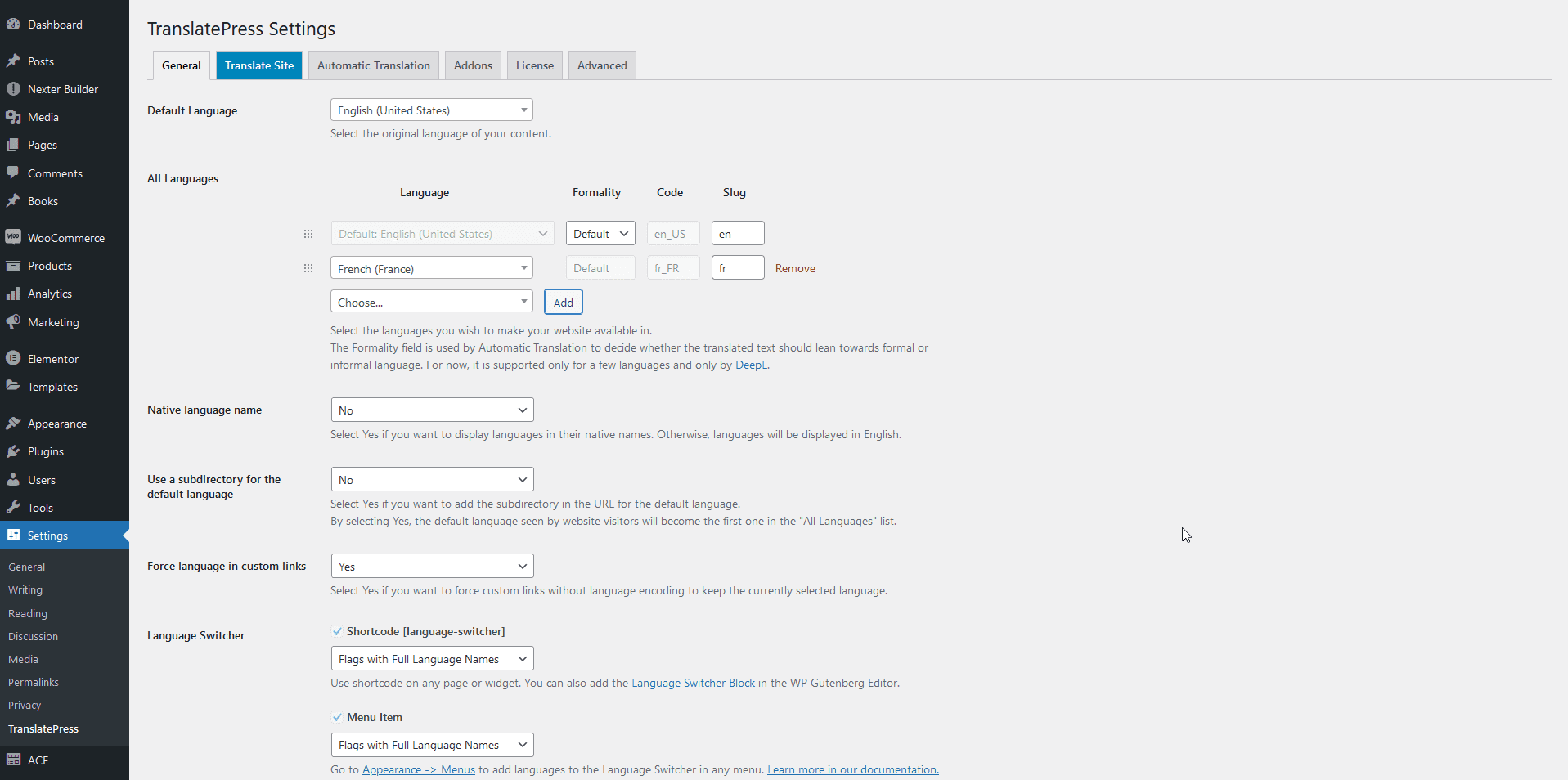
Once done, add the Header Meta Content widget to the header template and follow the steps.
Note: To create the header template, you can use the free Nexter Builder or you can use Elementor Pro if you are already using it.
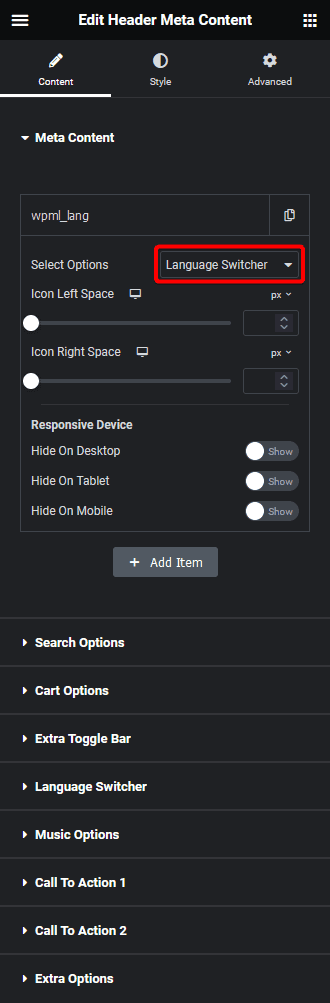
1. In the Meta Content tab, open an item and select Language Switcher from the Select Options dropdown. This tells the widget item to render the language switcher provided by your TranslatePress plugin.
Suggested reading, best 4 Elementor translation plugins for multilingual websites.
From the Icon Left Space and Icon Right Space sections, adjust the spacing around the language switcher icon. Use this when the switcher icon overlaps other header elements so you can maintain clean visual separation in your Elementor header.
From the Responsive Device section, manage the visibility of the item for different devices. This is useful when you want the language switcher visible on desktop but hidden on mobile to keep your mobile header uncluttered.
2. Go to the Language Switcher tab and enable the Display Language Switcher toggle. Then choose TranslatePress from the Select dropdown.
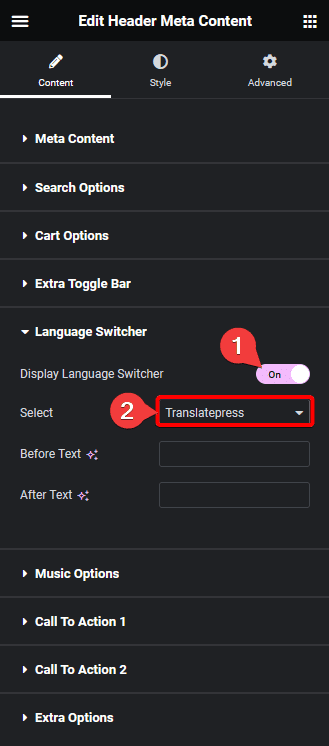
From the Before Text and After Text fields, add text to display before and after the dropdown. Use this when you want to label the switcher with a prefix such as “Language:” so visitors understand what the dropdown controls at a glance.
If you use WPML for your multilingual website instead of TranslatePress, follow How to Add Elementor Language Switcher with WPML in Header for the equivalent steps.
Now you will be able to see a language switcher in the Elementor header. To add a WooCommerce mini cart or other functional elements alongside the language switcher, see How to Add WooCommerce Mini Cart in Elementor Navigation Header Menu.

Also, read how to add search icon to Elementor navigation header menu.
