


































Are your Elementor Form email confirmations going to spam or not being delivered at all? By default, WordPress uses the PHP mail function to send emails. However, many hosting providers don’t fully support or properly configure it.
As a result, important emails like form confirmations may land in spam folders — or fail to send completely.
If you’re using Elementor forms on your business or eCommerce website, this can lead to missed leads, lost customers, and a poor user experience. Setting up SMTP ensures your email confirmations are sent securely, authenticated properly, and delivered reliably to your users’ inboxes.
Using Gmail SMTP (Simple Mail Transfer Protocol) is a reliable way to ensure your Elementor Form emails are delivered successfully. With the Nexter Extension (Free) plugin, you can easily set up SMTP using Gmail SMTP and send authenticated, secure email confirmations directly to your users’ inboxes.
To check the complete feature overview documentation of The Plus Addons for Elementor Form widget, click here.
Requirement – This widget is a part of The Plus Addons for Elementor, make sure its installed & activated to enjoy all its powers.
Set Up Gmail SMTP with the Nexter Extension
To set up Gmail SMTP with Nexter Extension, from the WordPress Dashboard, go to Nexter Extension > Utilities.
Then go to the SMTP Email section, enable the toggle and click on the gear icon (⚙).
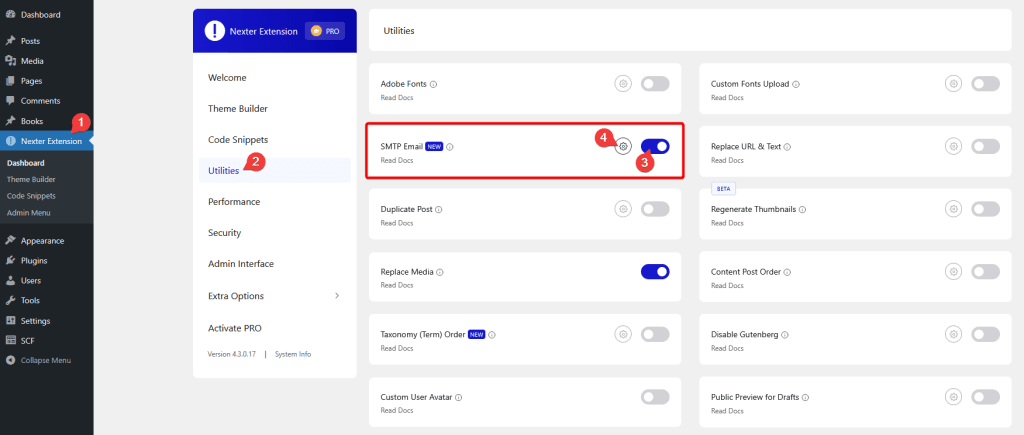
It will open the SMTP Email pop-up, then go to the Gmail SMTP tab.
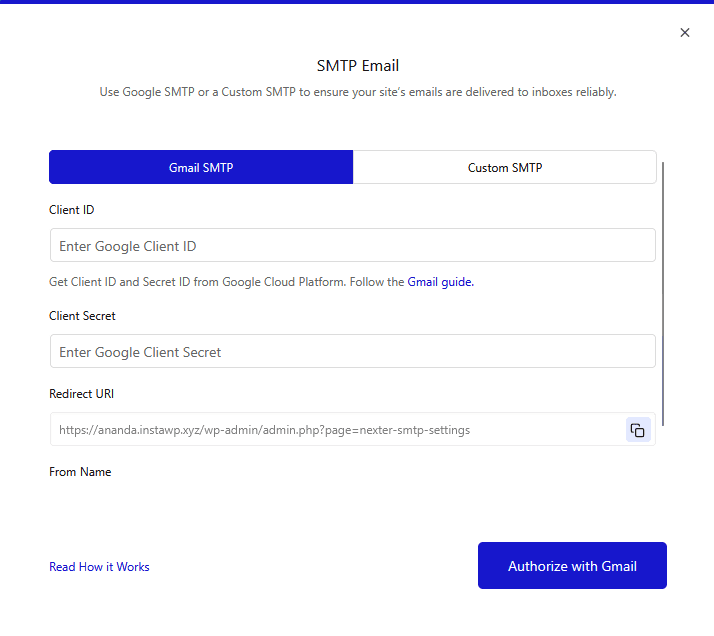
To use Gmail SMTP, you have to generate a client ID and a client secret.
Generate Google Client ID and Client Secret
1. For this, you have to log in to your Google account and go to the Google Developers Console.
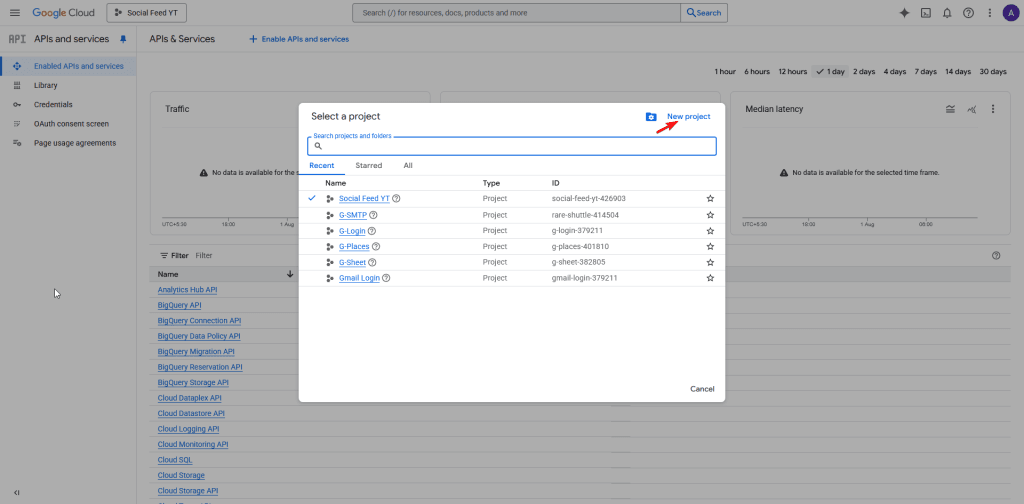
2. If you don’t have any projects created, then click on the CREATE PROJECT link, but if you already have a project, then click on the current project name. It will open a pop-up, then click on the New Project link there.
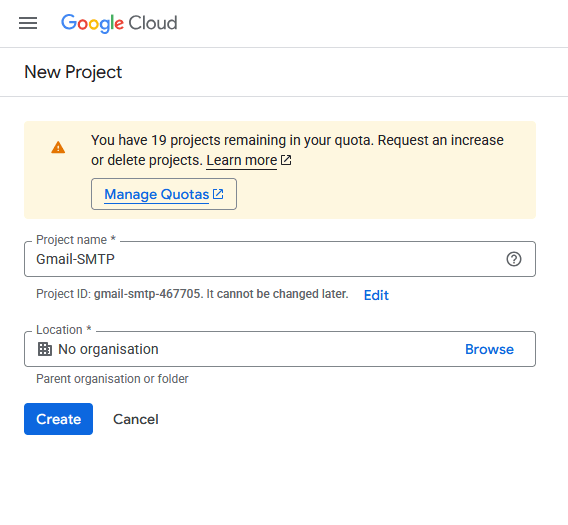
3. On the next screen, add your Project name and click the CREATE button.
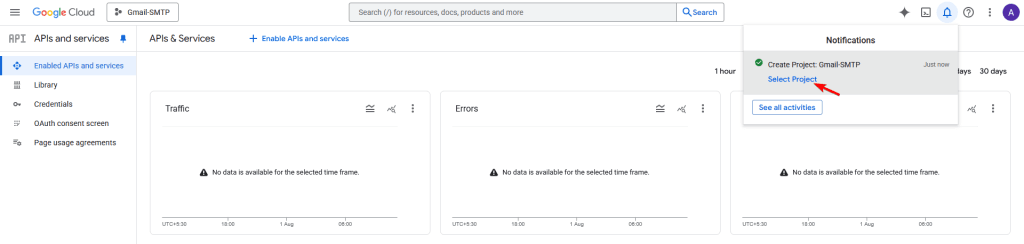
4. Once the project is created, a notification will show; click on the Select Project link there to switch to the new project.
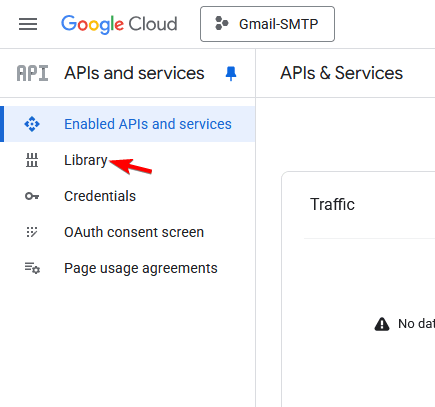
5. Then go to the Library from the left sidebar.
6. Then search for “Gmail API”.
7. From the search result, click on the Gmail API.
8. On the next page, click the Enable button.
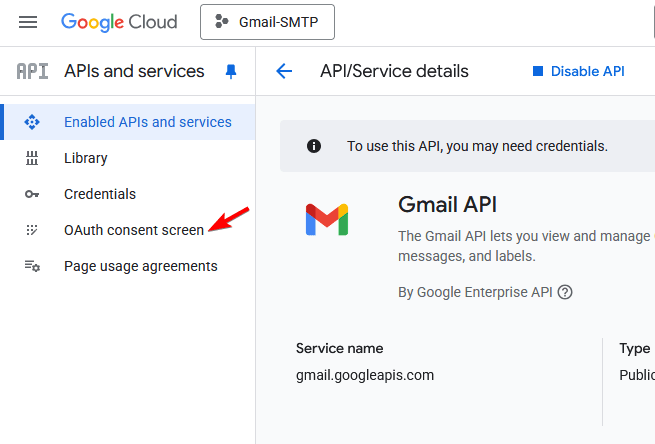
9. After that, click on the OAuth consent screen from the left sidebar.
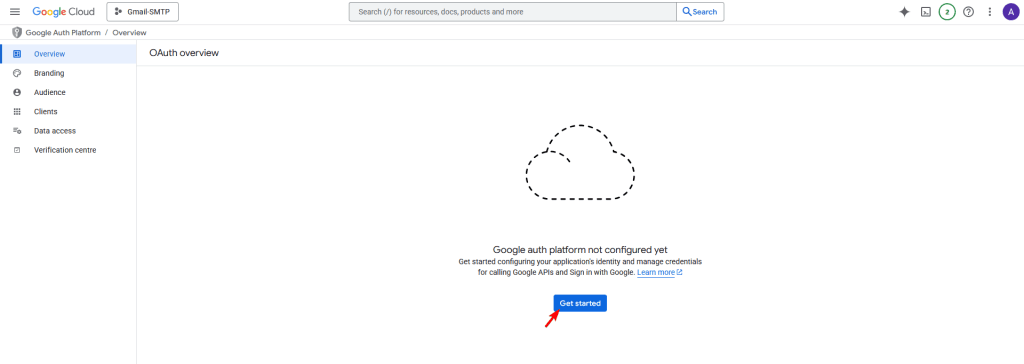
10 Then click on the Get Started button.
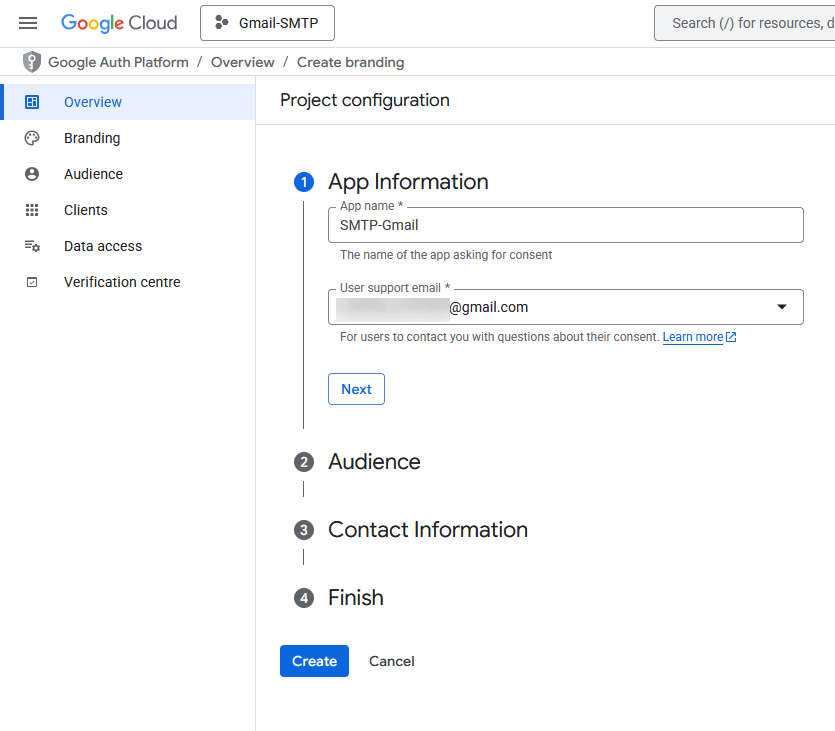
11. Then add your app information. Enter the app name and the user support email, then click on the Next button.
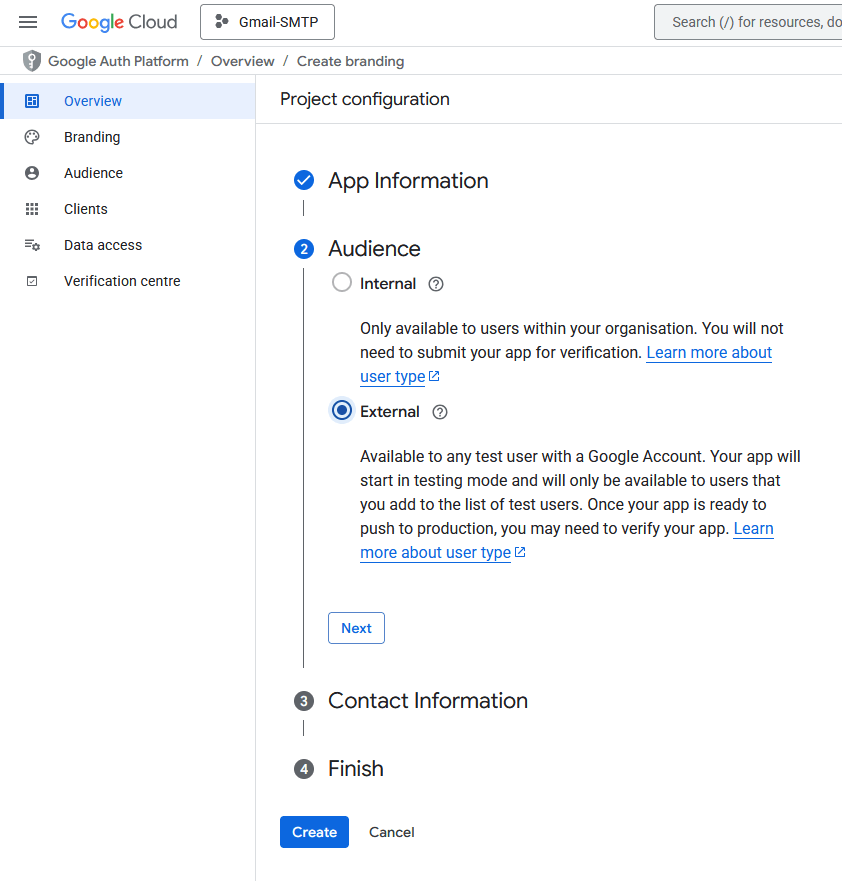
12. Then select the Audience as External and click on the Next button.
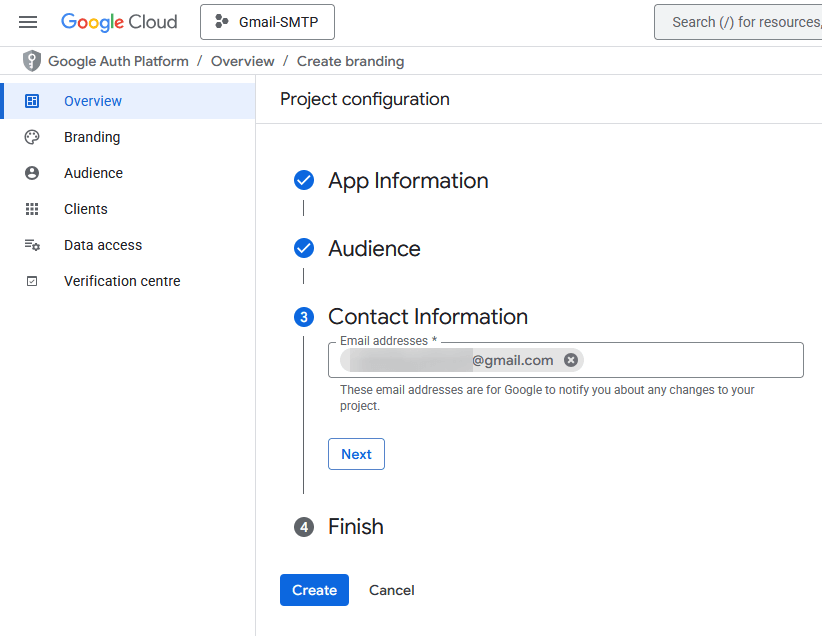
13. After that, add a contact email address and click on the Next button.
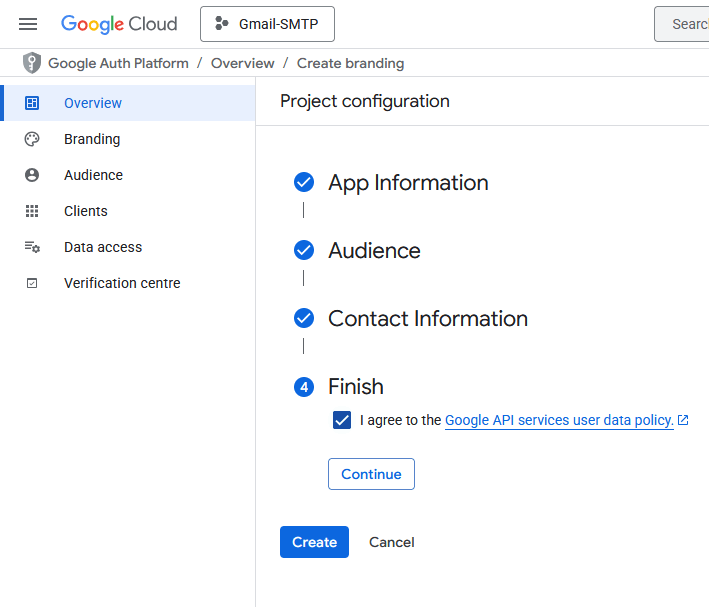
14. Then, check the Google API services user data policy and click on the Continue button.
Once done, click on the Create button.
15. On the next page, click on the Create OAuth client button.
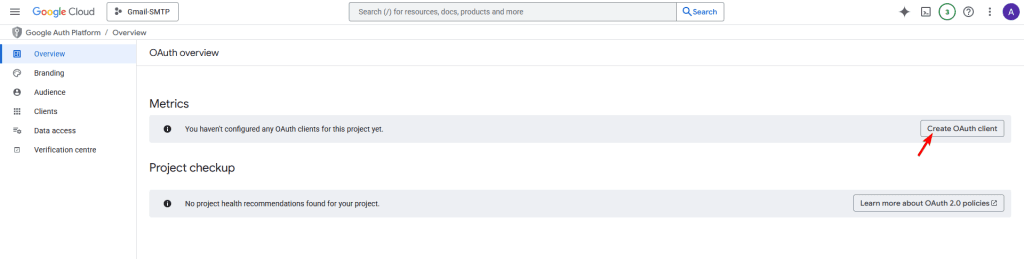
16. Then, from the Application type dropdown, select Web application.
You can keep the Name as it is.
17. After that, in the Authorised JavaScript origins section, click the ADD URI button and add your website URL – Example: http://www.yourwebsite.com.
18. Then, in the Authorised redirect URLs section, click on the ADD URI button, then go back to the Nexter Email SMTP popup and copy the Redirect URI and paste it here.
19. Once done, click on the Done button.
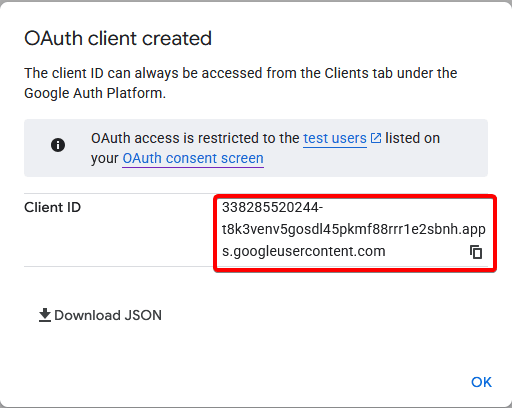
20. Now you’ll see the Client ID in a pop-up. You can copy it into a notepad and click on the OK button.
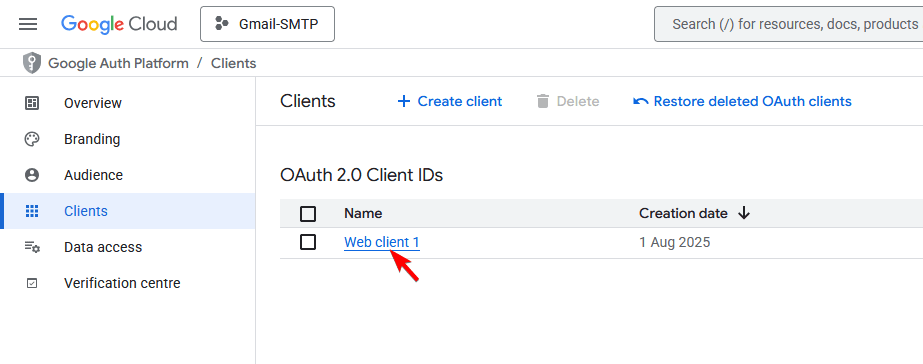
21. On the next screen, click on your client name.
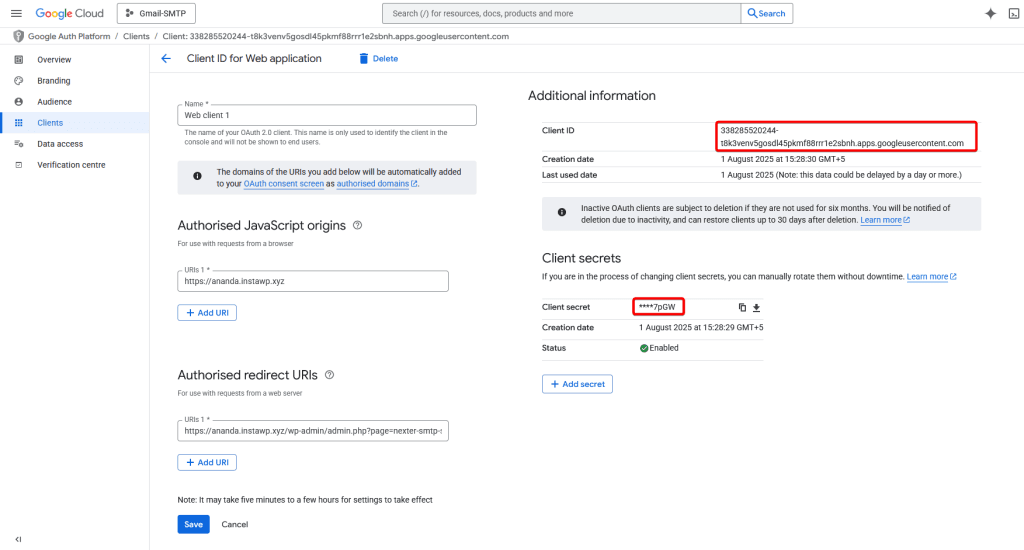
22. On the next screen, you’ll see both Client ID and Client Secret.
Copy both in a notepad.
Set up Gmail SMTP with the Nexter Extension
1. Now, in the Nexter SMTP pop-up, add the Client ID and Client Secret in the Client ID and Client Secret fields.
2. Then add a sender name in the From field.
3. After that, click on the Authorize with Gmail button.
add-client-id-client-secret.mp4
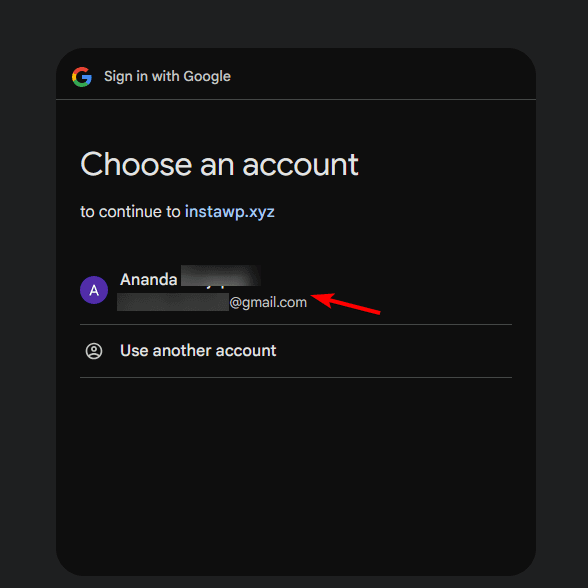
4. It will open a pop-up, select the same Gmail account that you’ve used to create the app.
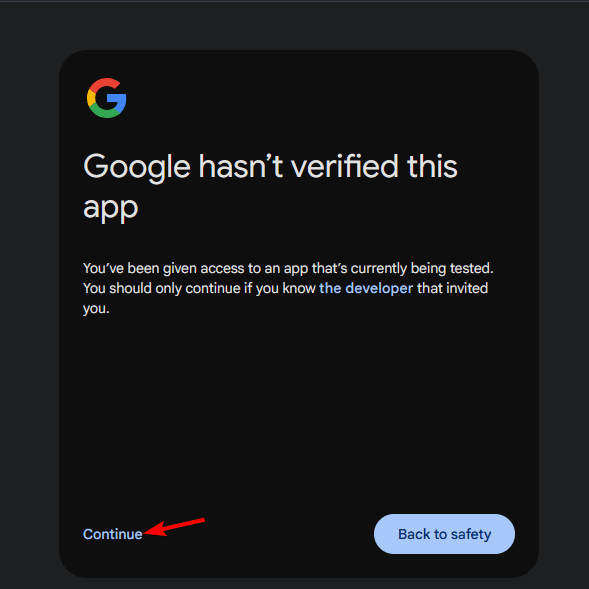
5. Then click on the Continue link to bypass the Google verification.
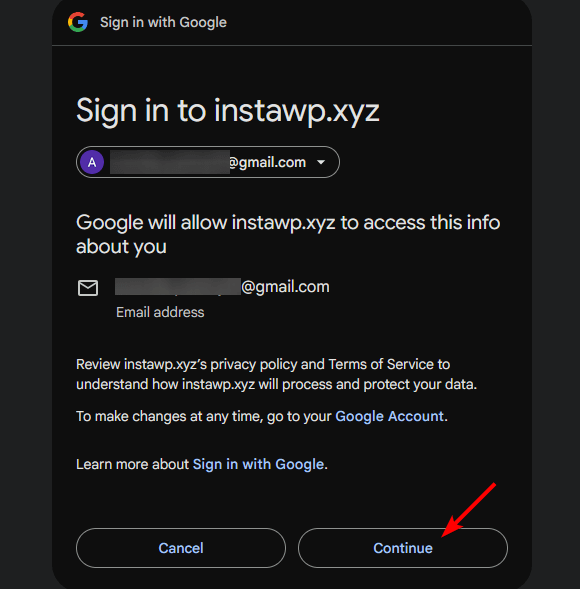
6. On the next screen, again click on the Continue button.
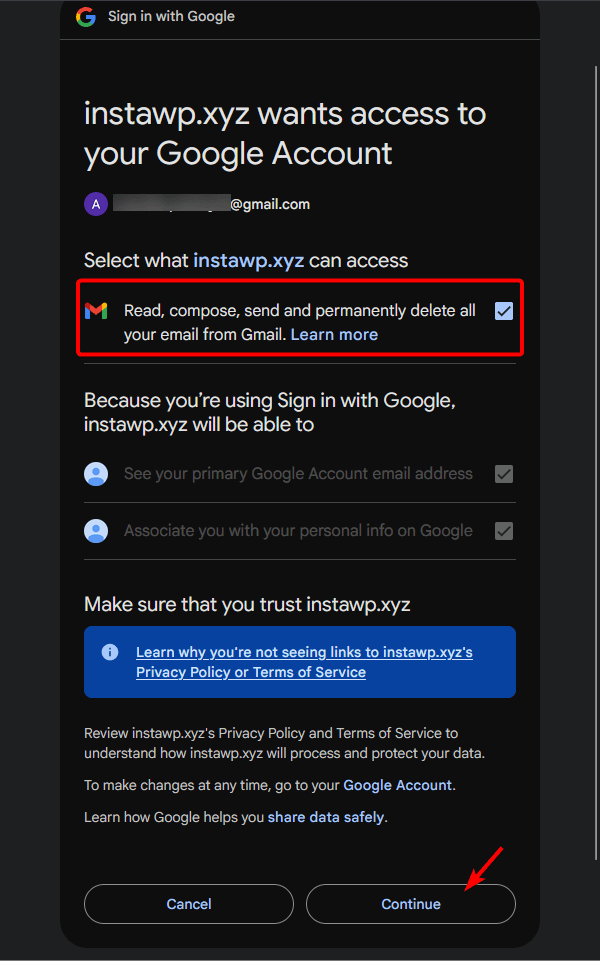
7. Then, in the next screen, allow all permissions and click on the Continue button.
8. Now you’ll see your app has been authorized.
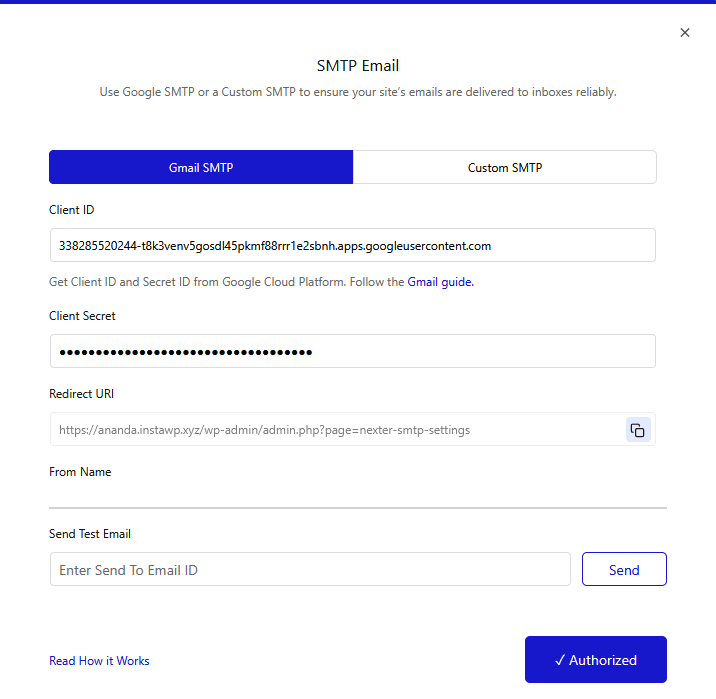
Send Test Email
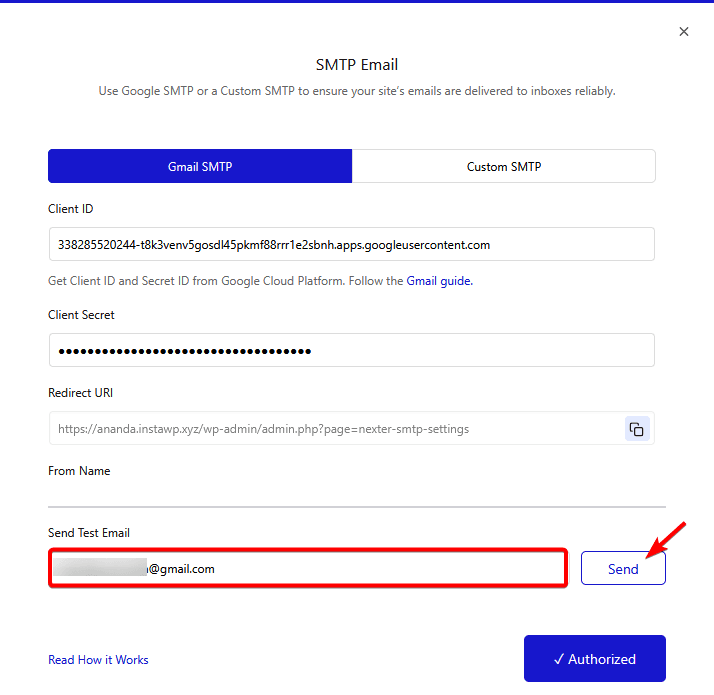
Once authorized, you’ll see a field to send a test email, add an email ID, and click on the Send button to verify the connection.
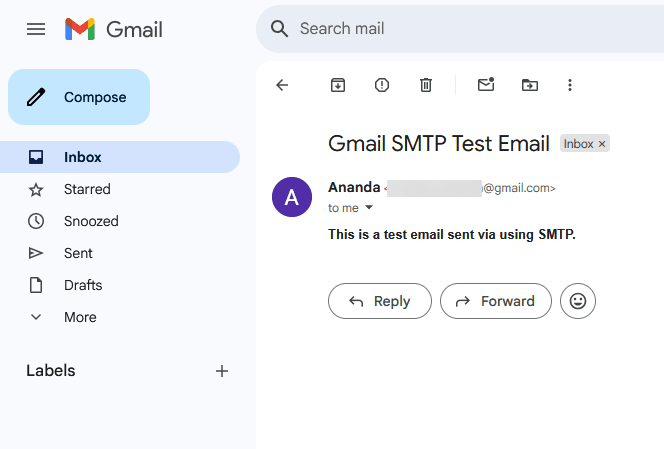
You should receive a test email at the email address.
Set Email Action in the Form Widget
Now you have to set the Email action in the Form widget from The Plus Addons for Elementor.
To do this, add the Form widget to the page and follow the steps –
1. After adding the form fields, go to the Submit Actions tab and select Email from the Add Action section.
2. Now you’ll see the Email Settings tab, open it.
3. In the To tab, add the email ID you want to receive the notification for the form submission in the Email Address field.
You can change the email subject from the Subject field.
From the Email Heading field, you can change the email heading.
After that, from the Message field, you can customize the email message. To receive all the values from all the fields, use the [all-values] shortcode.
You can also receive individual field values by using the shortcode of the Data Shortcode field from the Advance tab of that repeater item. You can customize the message by using custom text with the shortcodes.
Note: You can only use the shortcode value of the Data Shortcode field from the Advance tab for the email notification; you can’t use any other shortcode from any other plugin.
In the From Email field, you can add a custom email ID for the email sender.
Then, in the From Name field, you can add a custom sender name.
In the Reply-To field, you can add a custom email for the email reply receiver.
Similarly, you can send cc and bcc emails from the CC and BCC tabs.
Now, when the user submits the form, you’ll receive the email confirmation securely.
