






Sometimes the cursor should change over one element only — a single image, a video poster, one card — and nowhere else.
The Mouse Cursor widget can do that with the Widget option in Cursor Area.
To check the complete feature overview documentation of The Plus Addons for Elementor Mouse Cursor widget, click here.
Requirement – This widget is a part of The Plus Addons for Elementor Pro, make sure it’s installed & activated to enjoy all its powers.
Before You Start
- Edition: Pro — Mouse Cursor is only in The Plus Addons for Elementor Pro. With the Pro plugin switched off the widget is not in the editor at all, and a page that already uses it shows no cursor effect and no notice.
- Widget to enable: Mouse Cursor, switched on under The Plus Addons > Widgets.
- Check it on the published page: the widget draws nothing in the Elementor editor. The panel says so too: This widget works only at frontend.
- Desktop only: every cursor effect is switched off when the browser window is 991px wide or narrower, so nothing happens on phones and most tablets.
Change the Cursor for One Widget
- Drag the Mouse Cursor widget in immediately below the widget you want to affect, inside the same container. The order matters: it always targets the widget directly above it.
- In Content, set Cursor Area to Widget.
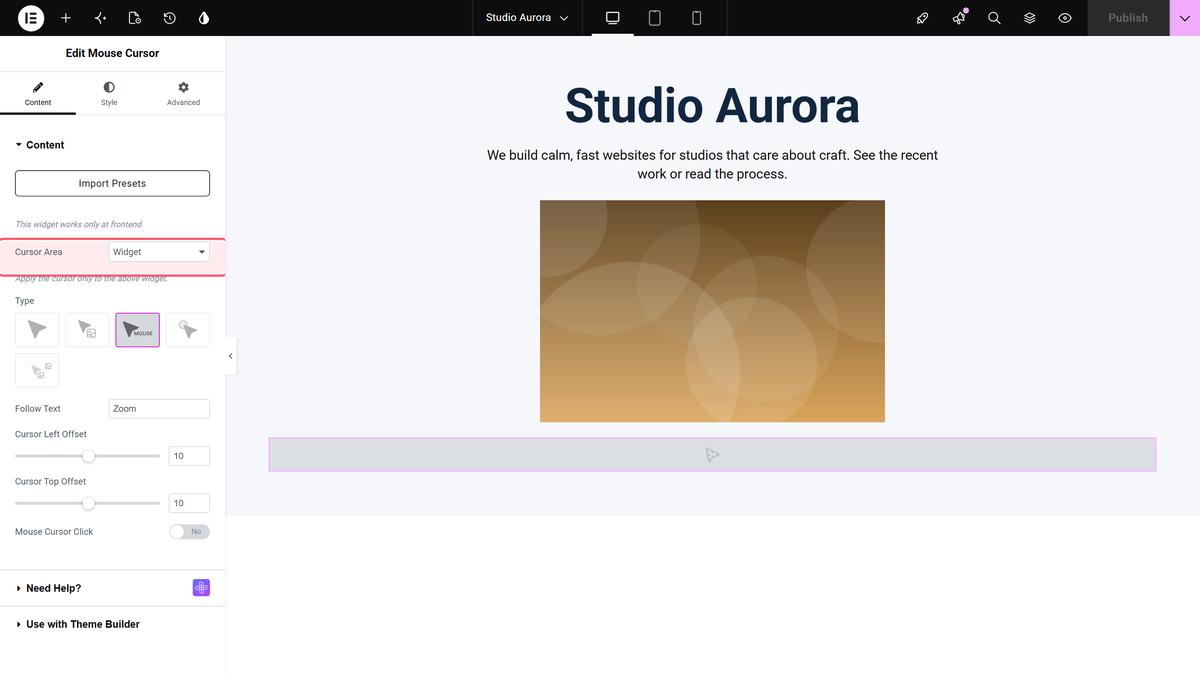
- Pick a Type and fill in its settings. Follow Text and Follow Image both work well here.
- Publish the page and move the pointer over the widget above.
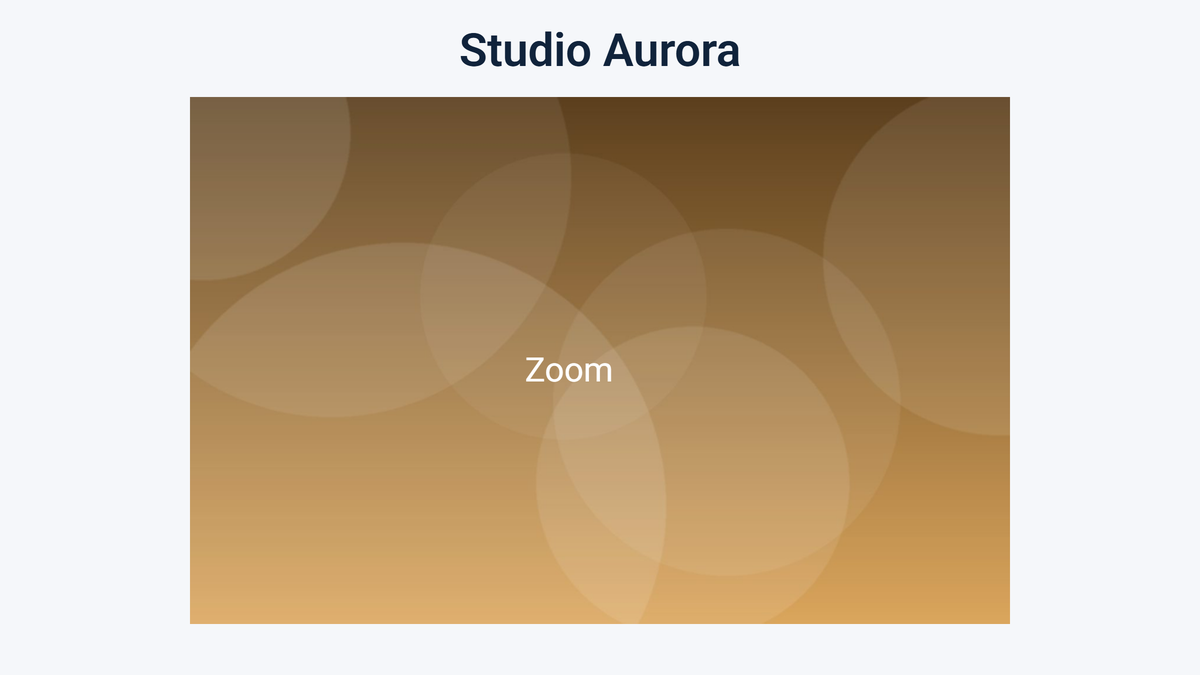
In testing, a Follow Text cursor reading Zoom showed while the pointer was over the image widget above it and was hidden over every other widget on the page:
Styling the Text for a Widget
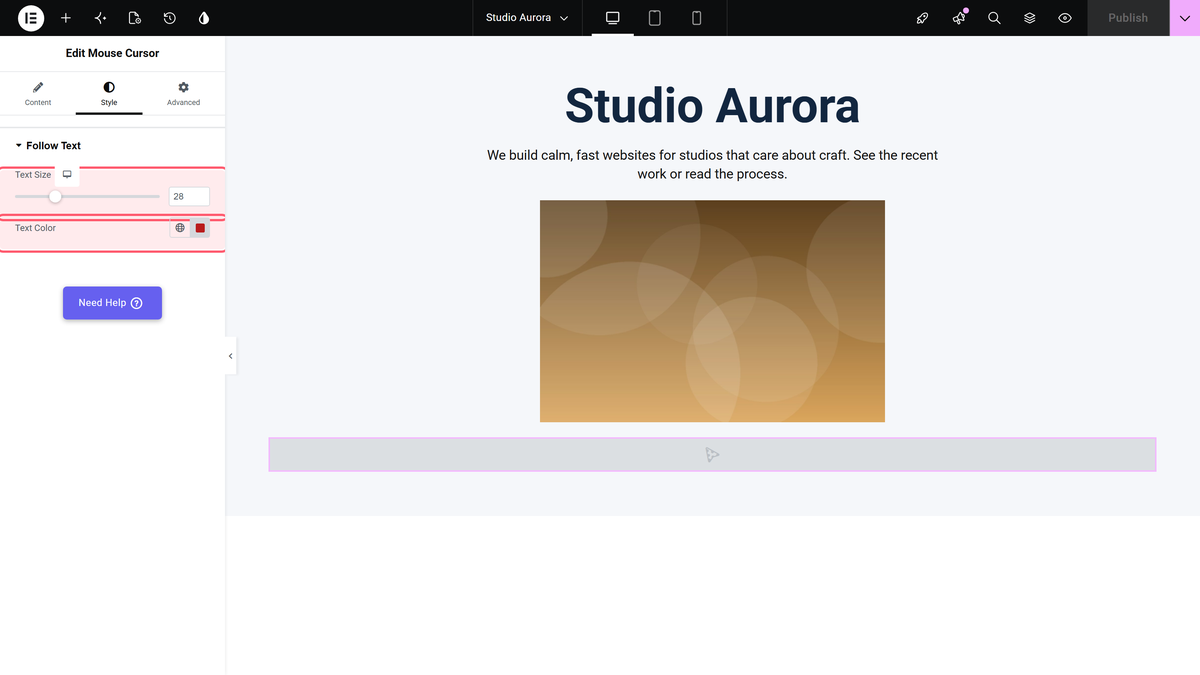
When Cursor Area is Widget, the Style tab shows a shorter Follow Text section than usual — just Text Size and Text Color. The typography, background, border and padding controls you get with the other cursor areas are not available here.
How It Behaves
- The target is always the widget immediately before the Mouse Cursor widget in the same parent.
- The follow element is added inside that widget, so it appears and disappears with the pointer crossing that widget’s box.
- Reordering the widgets changes the target. Drop a new widget between them and the cursor follows the new neighbour instead.
- To cover several widgets, put them in their own container and use Cursor Area > Container instead.
Limitations
- The widget is Pro only. With the Pro plugin switched off nothing happens and there is no notice.
- Nothing happens when the browser window is 991px or narrower.
- If the Mouse Cursor widget is the first element in its container there is no widget above it, and nothing is created at all — no cursor, no error, no message. This is the most common reason this setting appears to do nothing.
- There is no picker for the target widget, so the effect is only ever as stable as the widget order.
- The widget-area Follow Text style section has only size and colour. For a padded, coloured label use Container as the cursor area instead.
Troubleshooting
Nothing happens over my widget
Check that the Mouse Cursor widget sits directly below it, with nothing in between, and that both are in the same container. If the Mouse Cursor widget is first in the container, move it down.
The cursor shows over the wrong element
It is targeting whatever is immediately above it. Drag it so it comes straight after the element you mean.
I cannot find the padding and background settings
They are not in this mode. Switch Cursor Area to Container and put the widget in a container of its own if you need the full styling.
