






Sometimes a category exists for internal organization only – an “Uncategorized” catch-all, or a staging category – and you don’t want it showing up in a public listing.
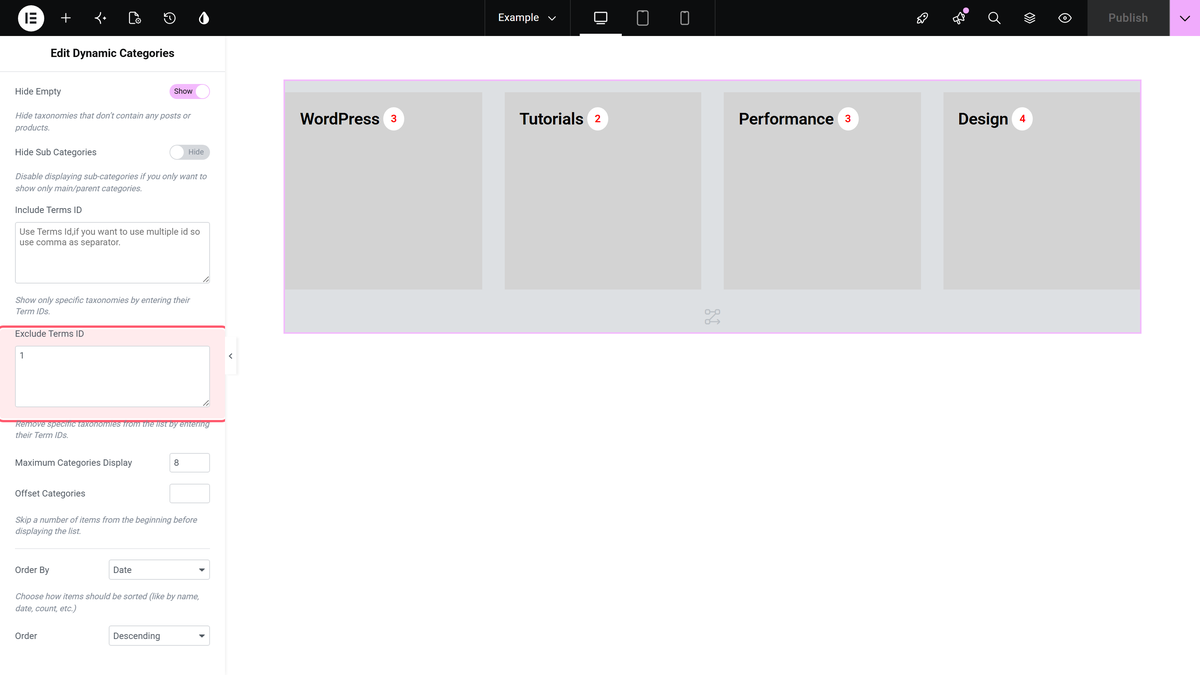
The Dynamic Categories widget’s Exclude Terms ID field hides specific terms by their numeric ID, and Include Terms ID does the opposite – showing only the IDs you list.
Requirement – This widget is a part of The Plus Addons for Elementor, make sure it’s installed & activated to enjoy all its powers.
Before You Start
- Prerequisite: Elementor (free) installed and active.
- Edition: Dynamic Categories is a free widget – it works with just The Plus Addons for Elementor installed, no Pro licence required.
- Widget to enable: go to The Plus Addons > Widgets, search for Dynamic Categories and turn its toggle on.
Finding a Term’s ID
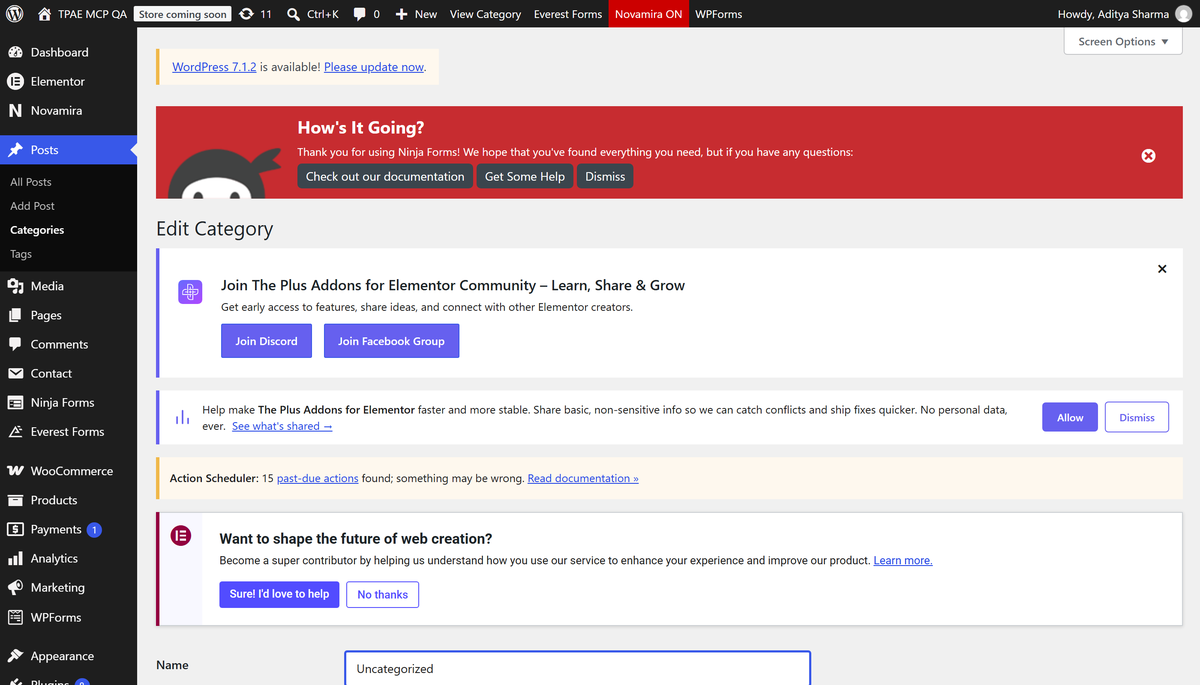
In WordPress admin > Posts > Categories (or the equivalent screen for your taxonomy), hover over a term and look at the tag_ID= value in the Edit link’s URL, or open the term for editing and read it from the browser’s address bar.
Steps
- Add the Dynamic Categories widget to the page (or select an existing one).
- Under the Content tab, enter one or more comma-separated IDs into Exclude Terms ID to hide just those terms from the listing.
- Alternatively, use Include Terms ID to show only the listed IDs and hide everything else – the two fields serve opposite purposes, so use whichever needs fewer IDs typed for your case.
Settings Overview
| Setting | What it does | Default |
|---|---|---|
| Include Terms ID | Shows only the listed term IDs. | Empty (no restriction) |
| Exclude Terms ID | Hides the listed term IDs. | Empty (no restriction) |
Not verified
So you know exactly what has and has not been checked:
- Behaviour when both Include Terms ID and Exclude Terms ID are filled at the same time (which one takes precedence) – not yet tested against a real fixture; flagged for Phase 3.
