






A video playing behind a section makes a page feel alive and can show a product or place in motion.
The Row Background widget from The Plus Addons for Elementor plays a self-hosted, YouTube or Vimeo video as the background of a container, muted and looping by default.
To check the complete feature overview documentation of The Plus Addons for Elementor Row Background widget, click here.
Requirement – This widget is a part of The Plus Addons for Elementor Pro, make sure it’s installed & activated to enjoy all its powers.
Before You Start
- Edition: Pro — the Row Background widget is only available in The Plus Addons for Elementor Pro.
- Widget to enable: Row Background, switched on under The Plus Addons > Widgets.
- Where to put it: drop the widget inside the container (or classic section) that should get the background. It draws nothing of its own; the background fills that container.
- A video: an MP4 file URL (for example from the Media Library), or a YouTube or Vimeo video ID.
Steps
- Add the Row Background widget to the container and open Content > Deep Layer.
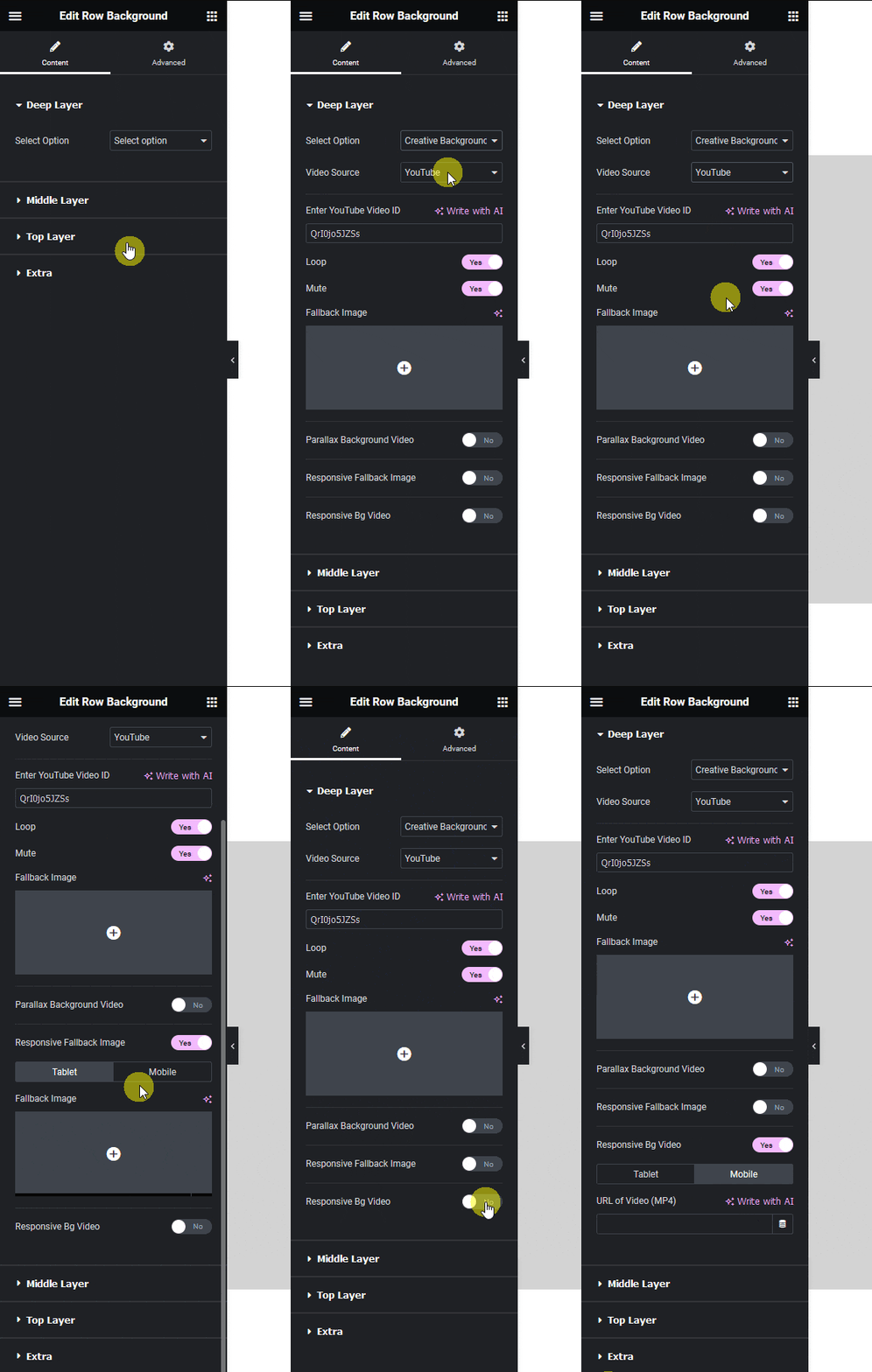
- Set Select Option to Creative Background Video.
- Choose Video Source: Self Hosted, YouTube or Vimeo.
- For Self Hosted, paste the file address into URL of Video (MP4) (and optionally URL of Video (WebM/Ogg)). For YouTube or Vimeo, enter the ID in Enter YouTube Video ID or Enter Vimeo Video ID.
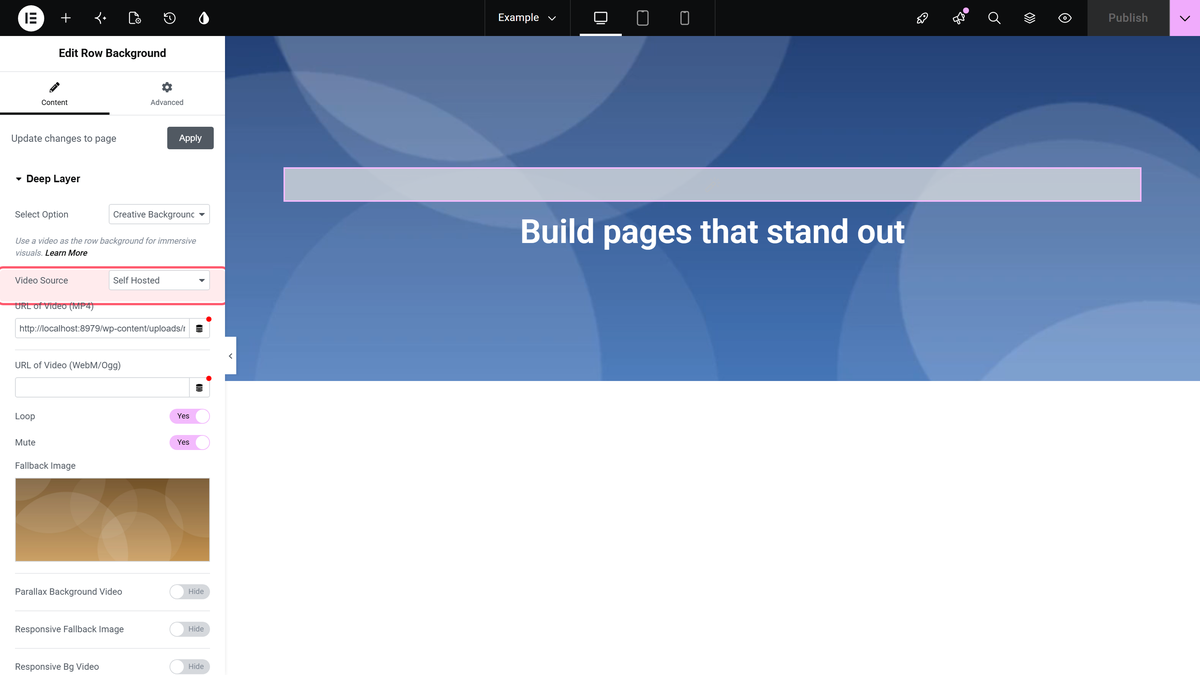
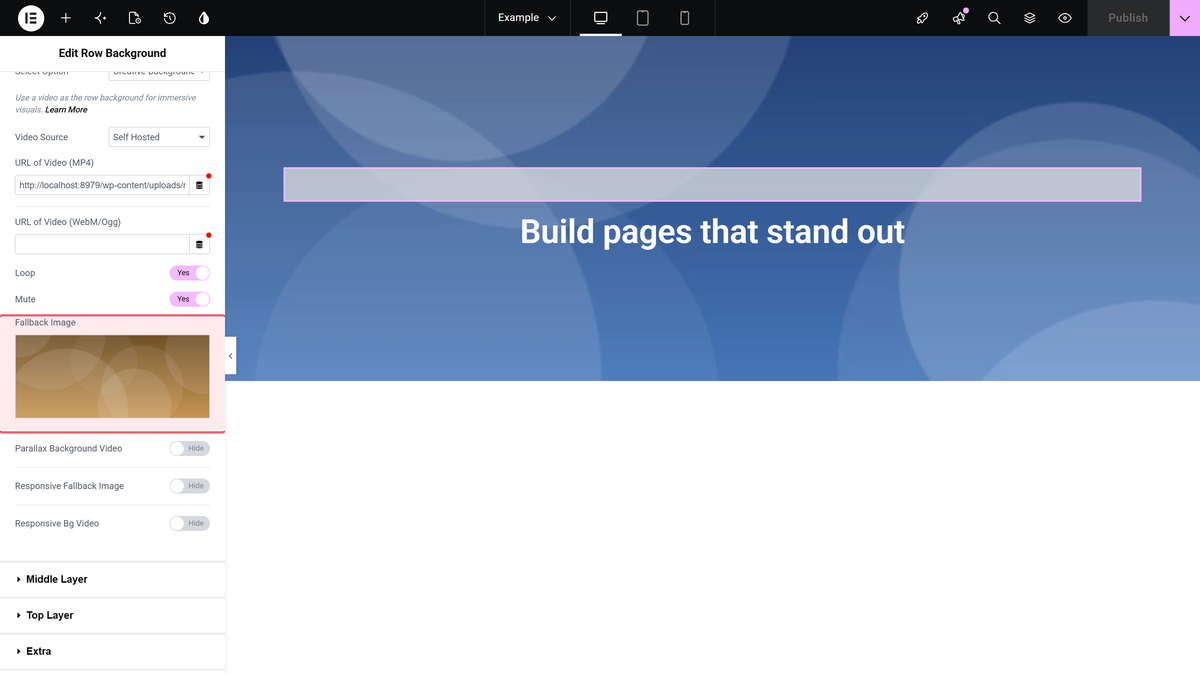
- Keep Loop and Mute on for a silent, repeating background, and add a Fallback Image.
- Optional: turn on Parallax Background Video to keep the video fixed while the page scrolls, Responsive Fallback Image to set tablet and mobile images, and Responsive Bg Video to use other MP4 files on tablets and phones.
The recording below shows these steps in the editor, followed by a short demo of the result.
Settings
| Setting | What it does | Default |
|---|---|---|
| Video Source | Self Hosted, YouTube or Vimeo. | YouTube |
| Loop | Repeats the video. | On |
| Mute | Plays the video without sound. | On |
| Fallback Image | Image shown behind the video and as the video poster. | – |
| Parallax Background Video | Fixes the video to the screen while the page scrolls. | Off |
| Responsive Fallback Image | Separate fallback images in the Tablet and Mobile tabs. | Off |
| Responsive Bg Video | Separate MP4 addresses in the Tablet and Mobile tabs (self-hosted files). | Off |
How It Behaves
- A self-hosted video started on its own, muted and looping, and was scaled to cover the whole container.
- Without a Fallback Image, a placeholder image from the plugin is shown behind the video.
- With Responsive Bg Video and Responsive Fallback Image on, a 1200 px screen got the desktop file, 800 px the tablet file and 390 px the mobile file, each with its own fallback image.
- A YouTube video played muted with Mute on, and with sound allowed when Mute was off.

Limitations
- On a phone-sized screen (390 px in our test) the YouTube video is hidden and only the Fallback Image shows. Add a Fallback Image, or use a self-hosted video for phones.
- Vimeo backgrounds log a JavaScript error in the browser console. The widget’s default Vimeo ID shows no video, and the background stays in its loading state until you enter your own Vimeo ID.
- Responsive Bg Video only takes MP4 addresses, not YouTube or Vimeo IDs.
Troubleshooting
The background shows a placeholder image instead of my video
The placeholder shows whenever no Fallback Image is set. Add a Fallback Image, and if the video itself does not play, check the MP4 URL or the video ID.
There is no video on phones
That is expected for YouTube on small screens. Set a Fallback Image, or turn on Responsive Bg Video with a mobile MP4.
