






An overlay tints or textures the background so text on top stays readable.
The Row Background widget from The Plus Addons for Elementor uses its Top Layer as an overlay above the Deep and Middle Layer backgrounds.
To check the complete feature overview documentation of The Plus Addons for Elementor Row Background widget, click here.
Requirement – This widget is a part of The Plus Addons for Elementor Pro, make sure it’s installed & activated to enjoy all its powers.
Before You Start
- Edition: Pro — the Row Background widget is only available in The Plus Addons for Elementor Pro.
- Widget to enable: Row Background, switched on under The Plus Addons > Widgets.
- Where to put it: drop the widget inside the container (or classic section) that should get the background. It draws nothing of its own; the background fills that container.
- A background below: set a Deep Layer or Middle Layer background in the same widget first.
Steps
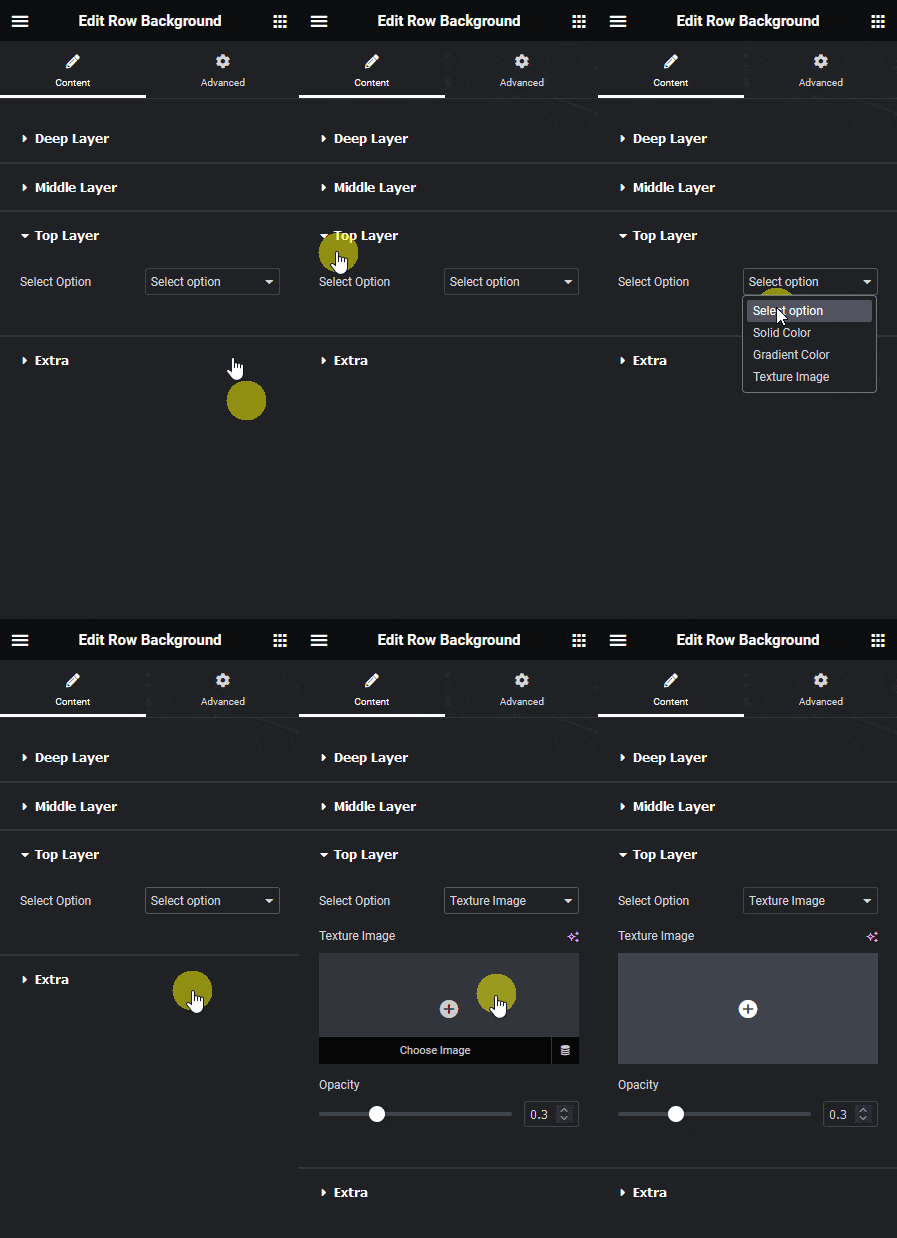
- Add the Row Background widget to the container and set a background in Content > Deep Layer or Middle Layer (or both).
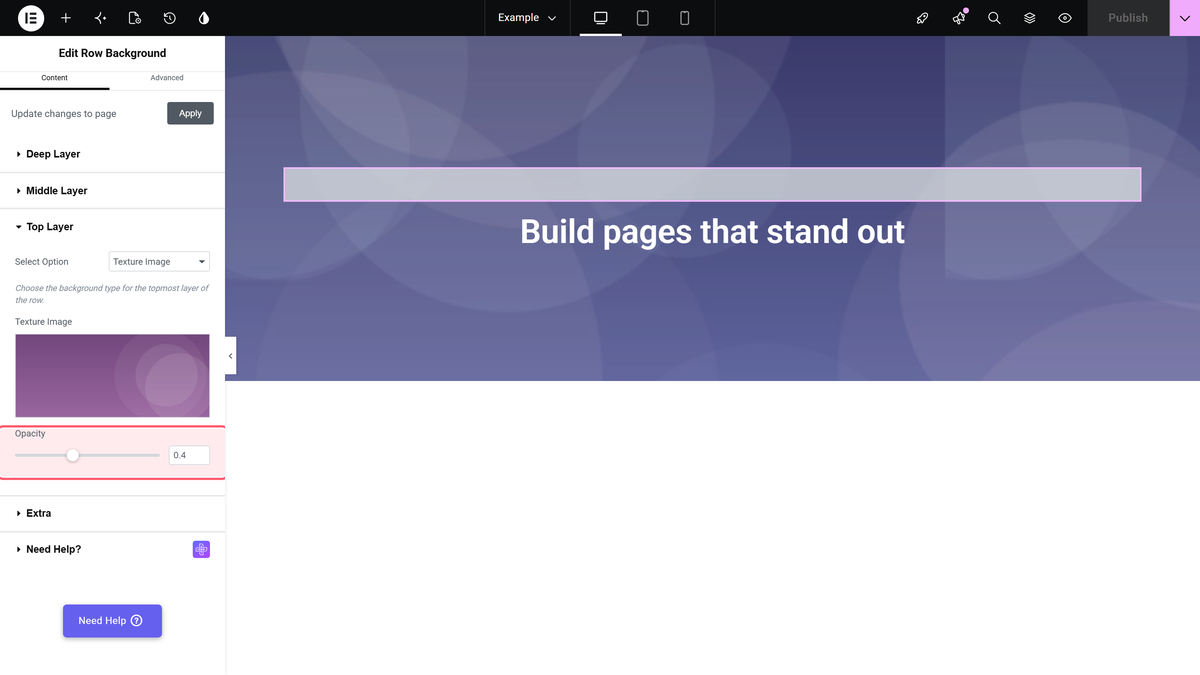
- Open Top Layer and set Select Option to Texture Image.
- Choose the Texture Image and lower Opacity until the background shows through.
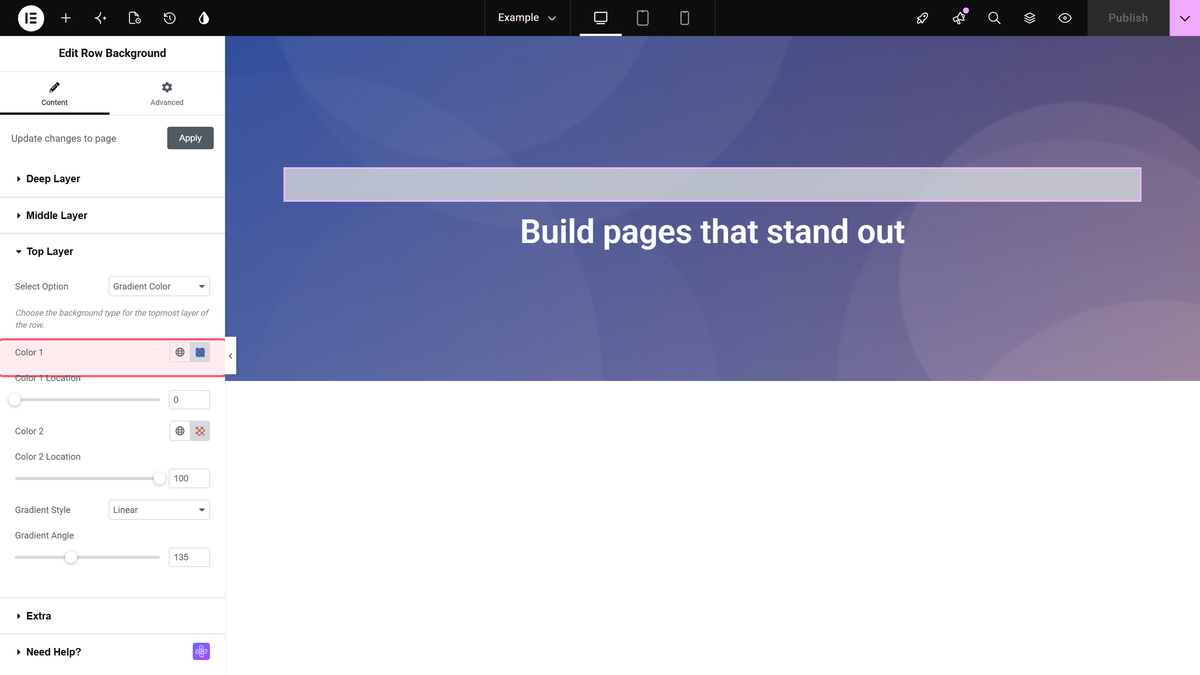
- For a colour overlay instead, choose Solid Color or Gradient Color and use colours with transparency.
The recording below shows these steps in the editor, followed by a short demo of the result.
Settings
| Option | Settings | Default |
|---|---|---|
| Solid Color | Overlay Color | – |
| Gradient Color | Color 1, Color 2, locations, Gradient Style, Gradient Angle, Position | orange / cyan, Linear |
| Texture Image | Texture Image, Opacity (0 to 1) | Opacity 0.8 |
How It Behaves
- The overlay covers the whole container and sits above the Deep and Middle Layers but below your widgets.
- A texture image is repeated to fill the container.
- Solid and gradient overlays have no opacity setting: the transparency comes from the colour you pick.

Limitations
- An overlay with a fully opaque colour hides everything below it.
Troubleshooting
The background disappeared after adding the overlay
Lower the texture Opacity, or pick a colour with transparency for Solid Color and Gradient Color.
