






Moving particles behind a section add motion without distracting from the text on top.
The Row Background widget from The Plus Addons for Elementor draws animated particles in its Middle Layer, with eight ready styles or your own particles.js settings.
To check the complete feature overview documentation of The Plus Addons for Elementor Row Background widget, click here.
Requirement – This widget is a part of The Plus Addons for Elementor Pro, make sure it’s installed & activated to enjoy all its powers.
Before You Start
- Edition: Pro — the Row Background widget is only available in The Plus Addons for Elementor Pro.
- Widget to enable: Row Background, switched on under The Plus Addons > Widgets.
- Where to put it: drop the widget inside the container (or classic section) that should get the background. It draws nothing of its own; the background fills that container.

Steps
- Add the Row Background widget to the container. In Content > Deep Layer, pick a background for the particles to sit on, for example a dark Solid Color.
- Open Middle Layer and set Select Option to Canvas Effect.
- Choose a Canvas Style.
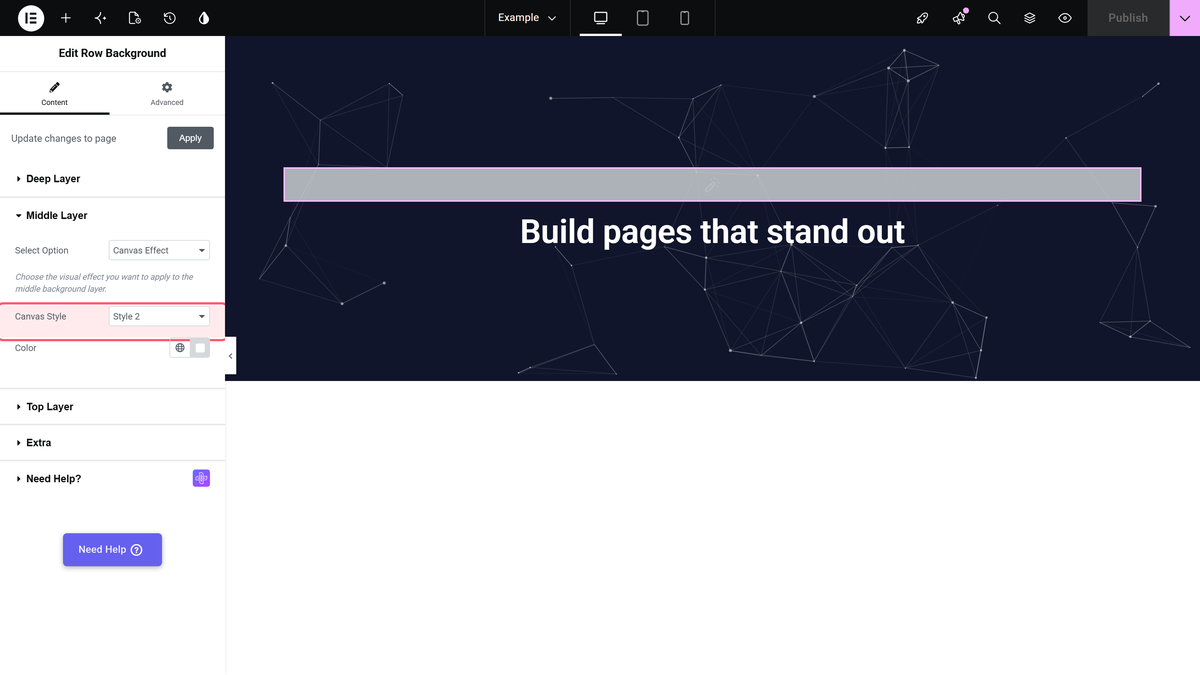
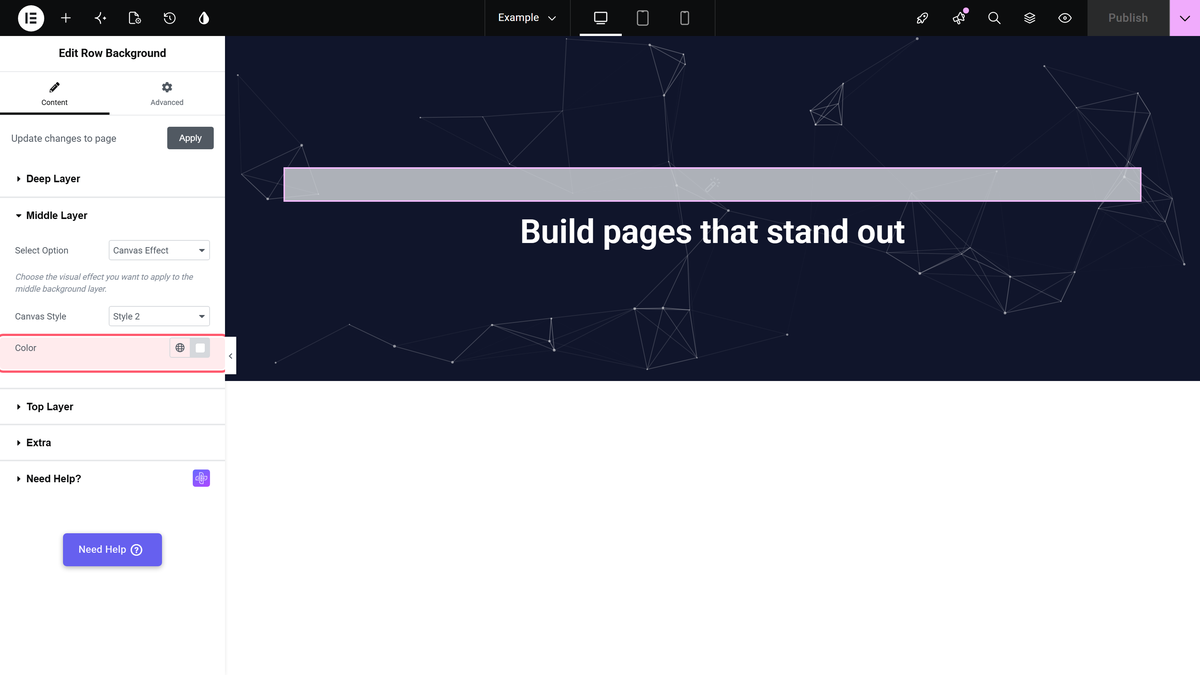
- Set the particle colour: Color for Style 2 to Style 7, or Select Multiple Colors for Style 1. Style 5, Style 6 and Style 7 also have Canvas Shape.
- For Custom, build your particles in the particles.js online editor and paste its JSON into Particles JSON.
The recording below shows these steps in the editor, followed by a short demo of the result.
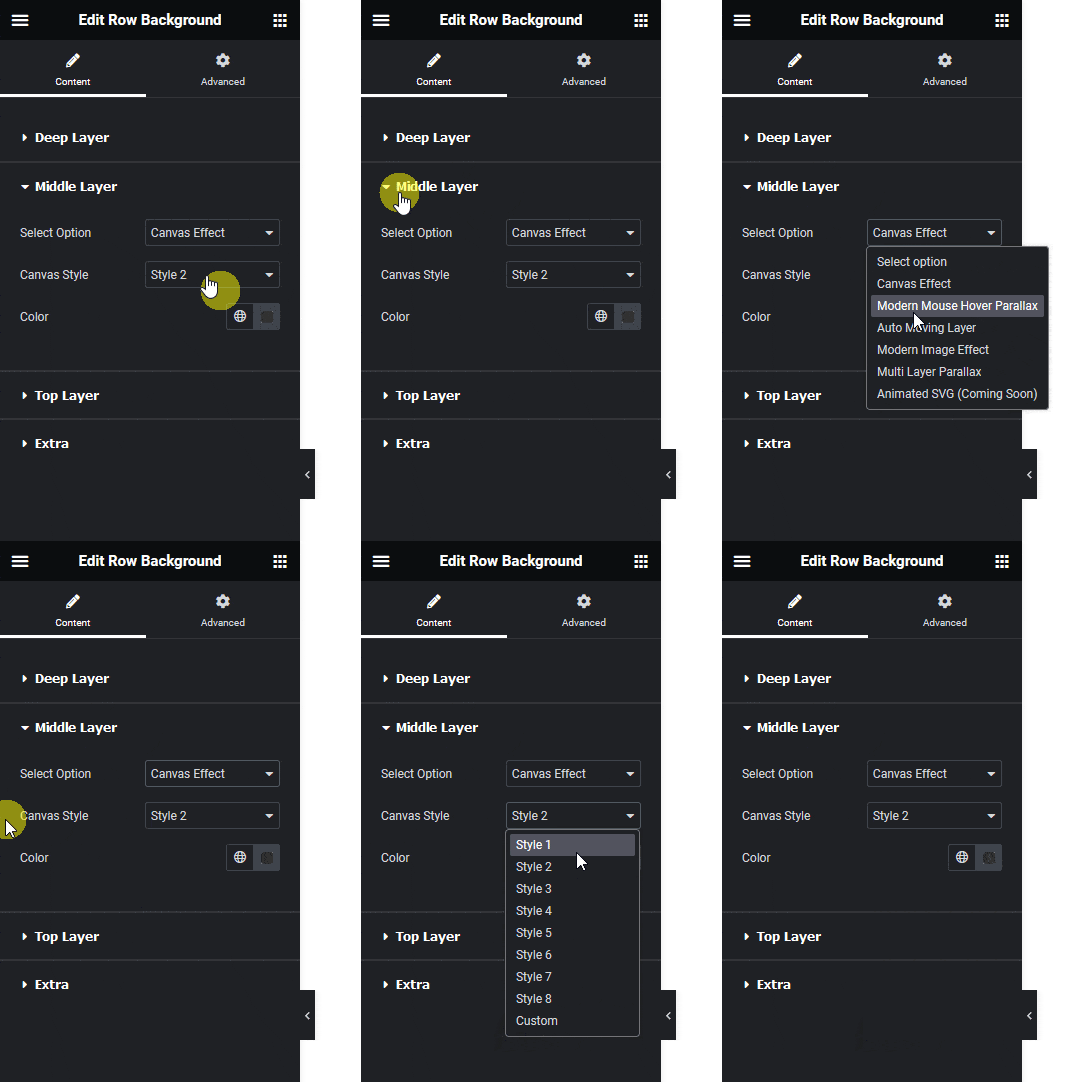
Canvas Styles
| Style | Extra settings |
|---|---|
| Style 1 | Floating bubbles; Select Multiple Colors |
| Style 2, Style 3, Style 4 | Color |
| Style 5, Style 6, Style 7 | Color and Canvas Shape (Circle, Edge, Triangle, Polygon, Star) |
| Style 8 | White rising bubbles; no colour setting |
| Custom | Particles JSON and Particles JSON Z-index |
How It Behaves
- All eight styles and a custom JSON animated on the published page in our test.
- The particles are drawn above the Deep Layer and below the Top Layer, so an overlay in the Top Layer also covers them.
- The panel notes that a Custom canvas does not show in the editor. Update the page and check it on the front end.

Limitations
- A Custom canvas cannot be previewed in the editor.
- Style 8 always uses white bubbles.
Troubleshooting
The particles are invisible
The particle colour may match the background. Pick a contrasting Color or a darker Deep Layer.
My custom particles do not appear
Check the page on the front end, not in the editor, and make sure the JSON was pasted in full.
