






A parallax background moves the image at a different pace from the content, which adds depth while visitors scroll.
The Row Background widget from The Plus Addons for Elementor turns a background image into a scroll parallax, a mouse-tilt image or a slow Ken-Burns zoom.
To check the complete feature overview documentation of The Plus Addons for Elementor Row Background widget, click here.
Requirement – This widget is a part of The Plus Addons for Elementor Pro, make sure it’s installed & activated to enjoy all its powers.
Before You Start
- Edition: Pro — the Row Background widget is only available in The Plus Addons for Elementor Pro.
- Widget to enable: Row Background, switched on under The Plus Addons > Widgets.
- Where to put it: drop the widget inside the container (or classic section) that should get the background. It draws nothing of its own; the background fills that container.
Steps
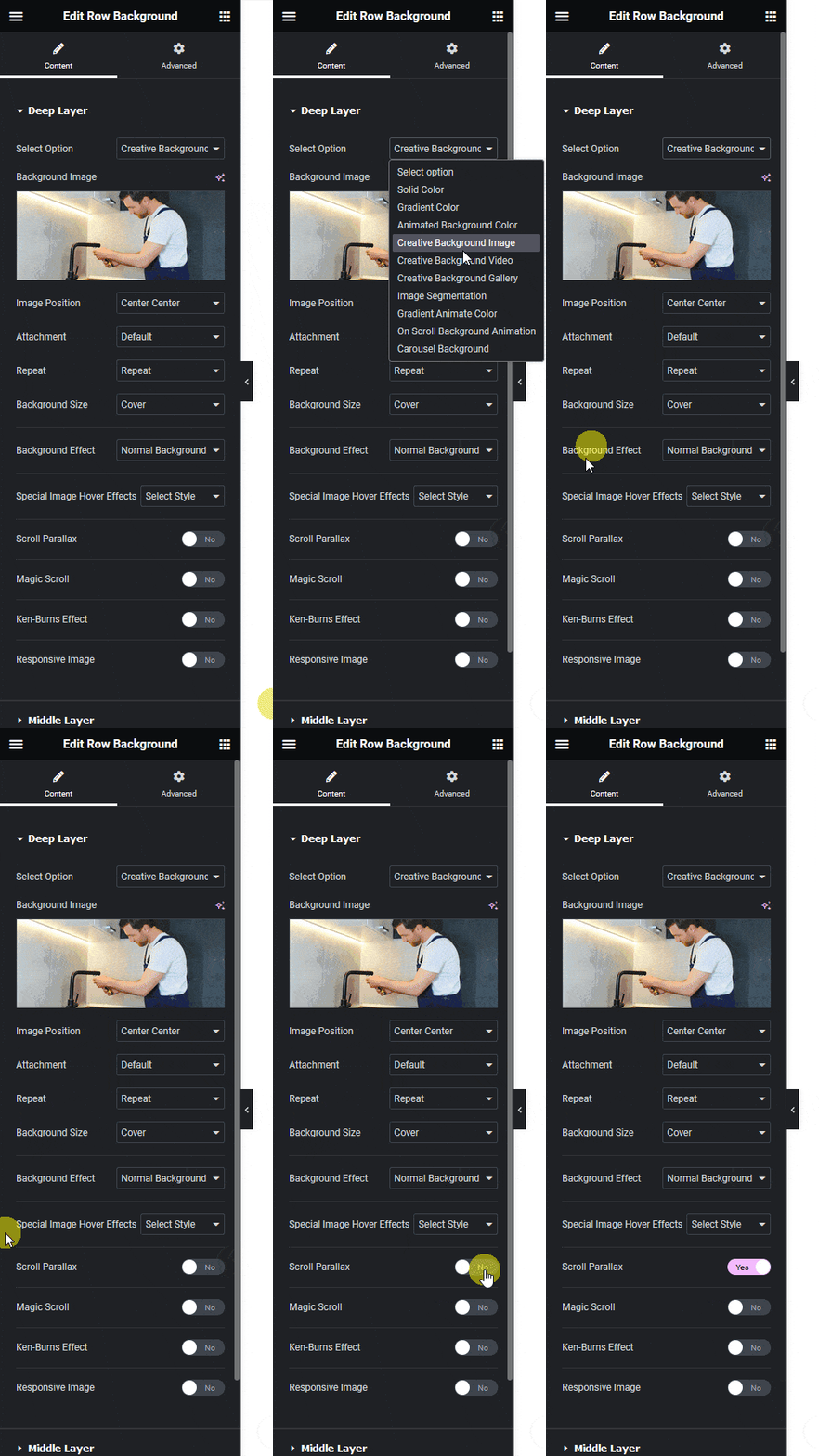
- Add the Row Background widget to the container and open Content > Deep Layer.
- Set Select Option to Creative Background Image and choose the picture in Background Image. Adjust Image Position, Attachment, Repeat and Background Size if needed.
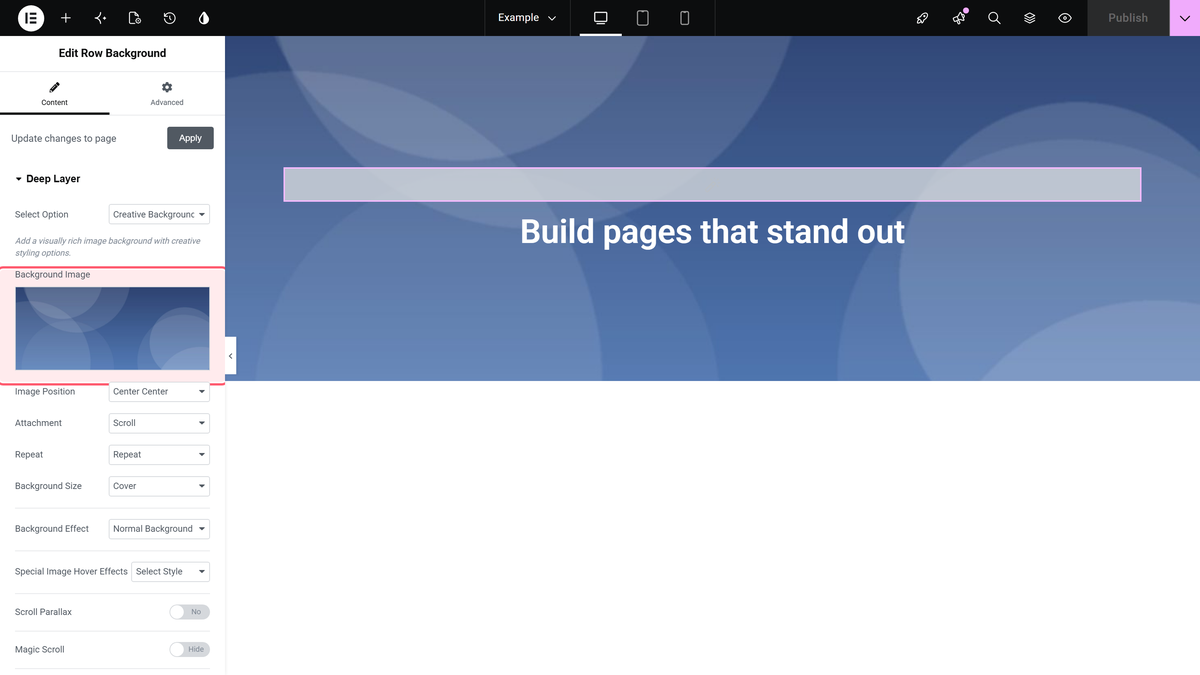
- Keep Background Effect on Normal Background Image. Optional: pick Parallax Tilt Effect or Parallax Move Effect in Special Image Hover Effects to move the image with the mouse.
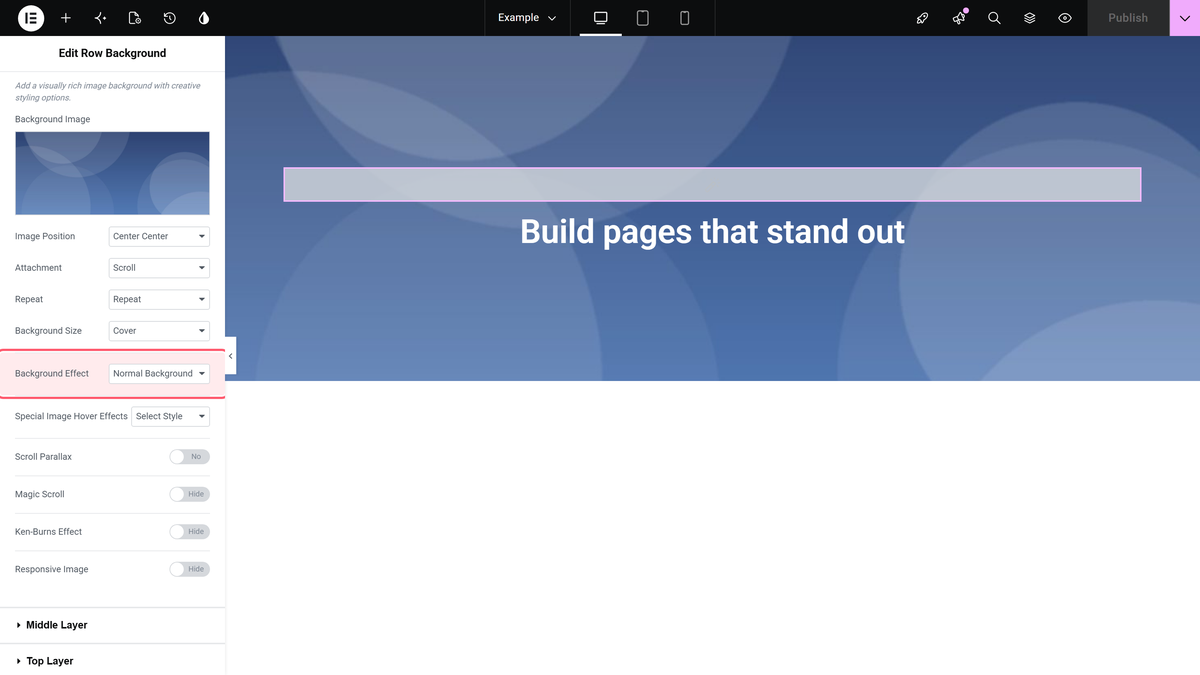
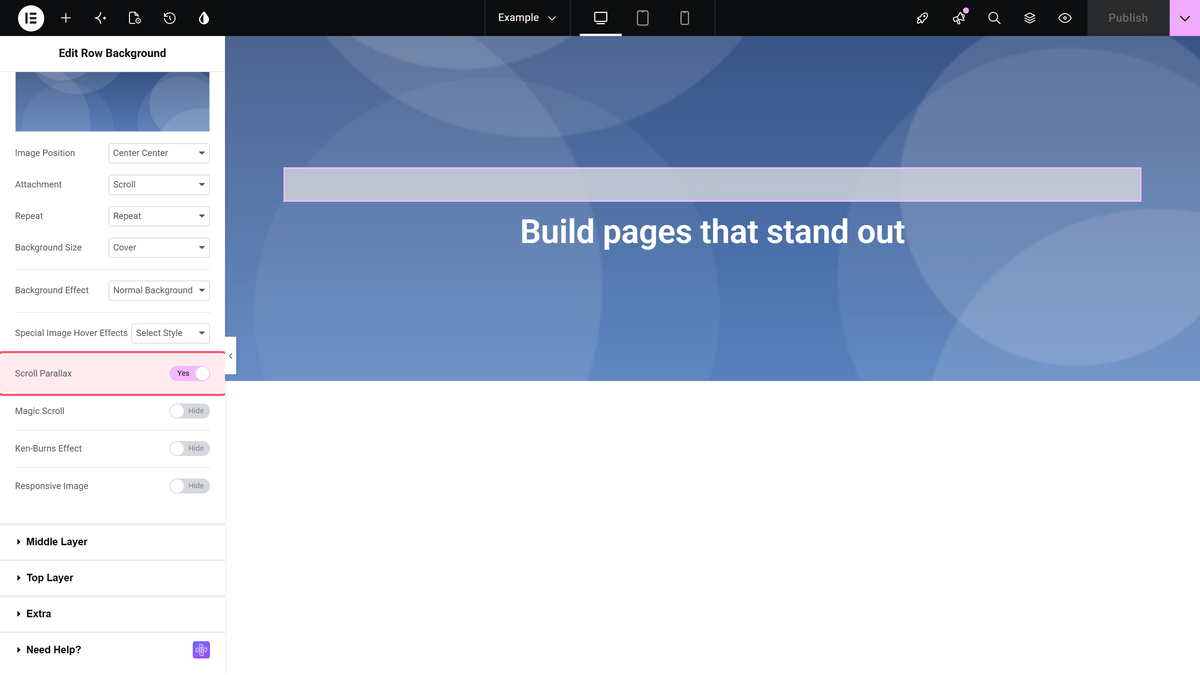
- Turn on Scroll Parallax for the scrolling effect.
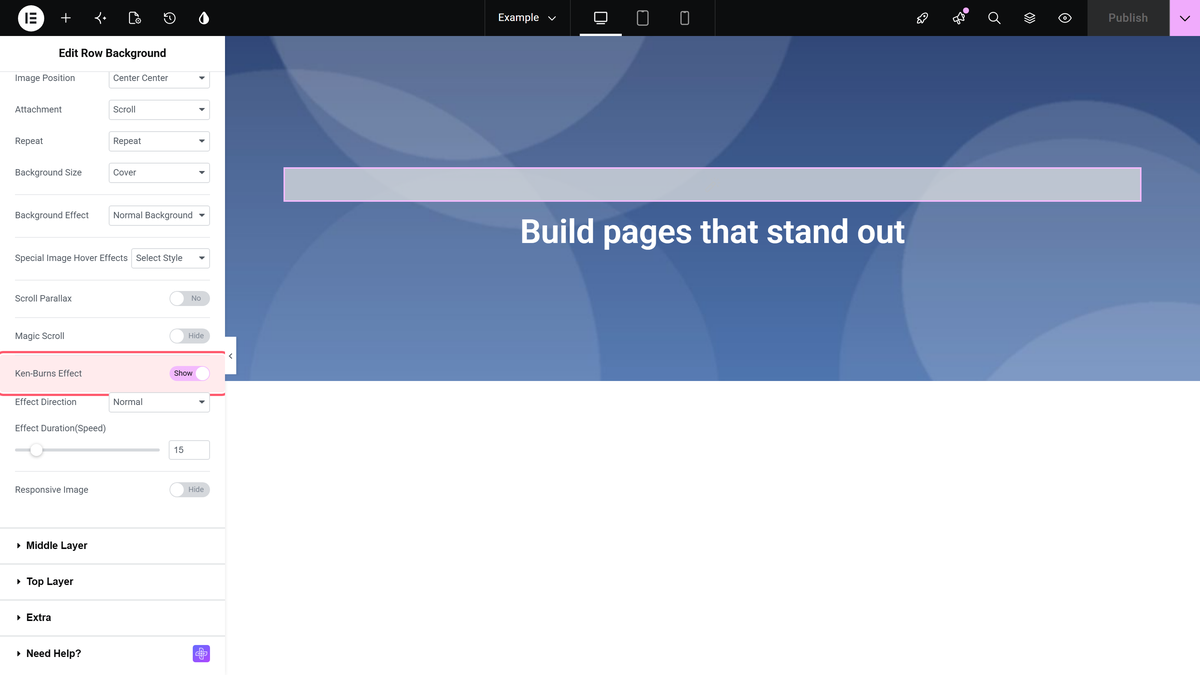
- Optional: turn on Ken-Burns Effect for a slow zoom, and Responsive Image to use other images on tablets and phones.
The recording below shows these steps in the editor, followed by a short demo of the result.
Settings
| Setting | What it does | Default |
|---|---|---|
| Attachment | Fixed keeps the image still while the page scrolls past it. | Scroll |
| Background Effect | Normal Background Image or Auto Moving Background Image. | Normal Background Image |
| Special Image Hover Effects | Parallax Tilt Effect or Parallax Move Effect, with Intensity Parallax (20 to 100). | Select Style (none) |
| Scroll Parallax | Moves the image vertically while the container scrolls through the screen. | Off |
| Magic Scroll | Moves the image between an Initial and a Final position while scrolling. | Off |
| Ken-Burns Effect | Slow zoom, Effect Direction Normal or Alternate, Effect Duration(Speed) in seconds. | Off, 15 |
| Responsive Image | Separate images in the Tablet and Mobile tabs. | Off |
How It Behaves
- Scroll Parallax: the image position moved from about 35% to 80% from top to bottom as the container scrolled up the screen.
- Attachment Fixed: the image stayed still and the container acted like a window onto it.
- Parallax Tilt Effect tilts and Parallax Move Effect shifts the image as the mouse moves; both ease back over three seconds when the mouse leaves.
- Ken-Burns Effect with a 6-second duration zoomed the image to about 127% and started again.
- Responsive Image: a 1024 px screen still showed the desktop image, 800 px and 767 px the tablet image, 390 px the mobile image.
- Magic Scroll only moves the image after the top of the container passes the middle of the screen; a container at the very top of the page is already past that point.

Limitations
- Magic Scroll moves the image half the distance you enter, in the opposite direction: a Final (Y) of -50 moved the image 25 px down in our test.
Troubleshooting
Magic Scroll does nothing
The container is probably at the top of the page. The movement runs while the container scrolls past the middle of the screen, so it shows best on sections further down.
