---
title: "How to Add a Pricing List in Elementor?"
url: https://theplusaddons.com/docs/add-a-pricing-list-in-elementor/
date: 2024-06-21
modified: 2026-09-27
lang: en
author: "Aditya Sharma"
description: "Whether you're selling something offline or online, a well-organized pricing list makes it easy for visitors to decide. With the Pricing List widget from The Plus Addons for Elementor, you..."
image: https://theplusaddons.com/wp-content/uploads/2024/06/How-to-Add-Animated-Headings-In-Elementor-4-1024x536.jpg
word_count: 324
---

# How to Add a Pricing List in Elementor?

## 

- The Plus Addons for Elementor Pricing List widget is Pro-only and requires Elementor (free) installed and active, plus The Plus Addons for Elementor Pro installed and activated.
- The Plus Addons for Elementor offers three Pricing List styles: Modern, Simple with flip-on-hover, and Classic.
- Pricing List supports Lottie files in the Classic style, where the Icon Type control under the Image tab lets the user choose an Image or a Lottie animation instead of a static image.

Whether you're selling something offline or online, a well-organized pricing list makes it easy for visitors to decide.

With the Pricing List widget from The Plus Addons for Elementor, you can add beautiful pricing lists to your Elementor website.

***Requirement - This widget is a part of The Plus Addons for Elementor Pro, make sure it's installed & activated to enjoy all its powers.***

[LIVE WIDGET LINK](https://theplusaddons.com/elementor-widget/price-list/?utm_source=tpae&utm_medium=docs&utm_campaign=text)

## Before You Start

- **Prerequisite:** [Elementor](https://wordpress.org/plugins/elementor/) (free) installed and active.- **Edition:** Pricing List is a **Pro** widget - it requires the paid version of The Plus Addons for Elementor. It does not exist in the free plugin.- **Widget to enable:** go to **The Plus Addons > Widgets**, search for **Pricing List** and turn its toggle on.

## How to Activate the Widget

Go to **The Plus Addons > Widgets**, search for **Pricing List** and turn on its toggle.

## Key Features

- **Three styles** - Modern, Simple (flip-on-hover) and Classic.- **Lottie support** - use an animated Lottie file instead of a static image.

## Steps

Add the Pricing List widget to the page.

### Style

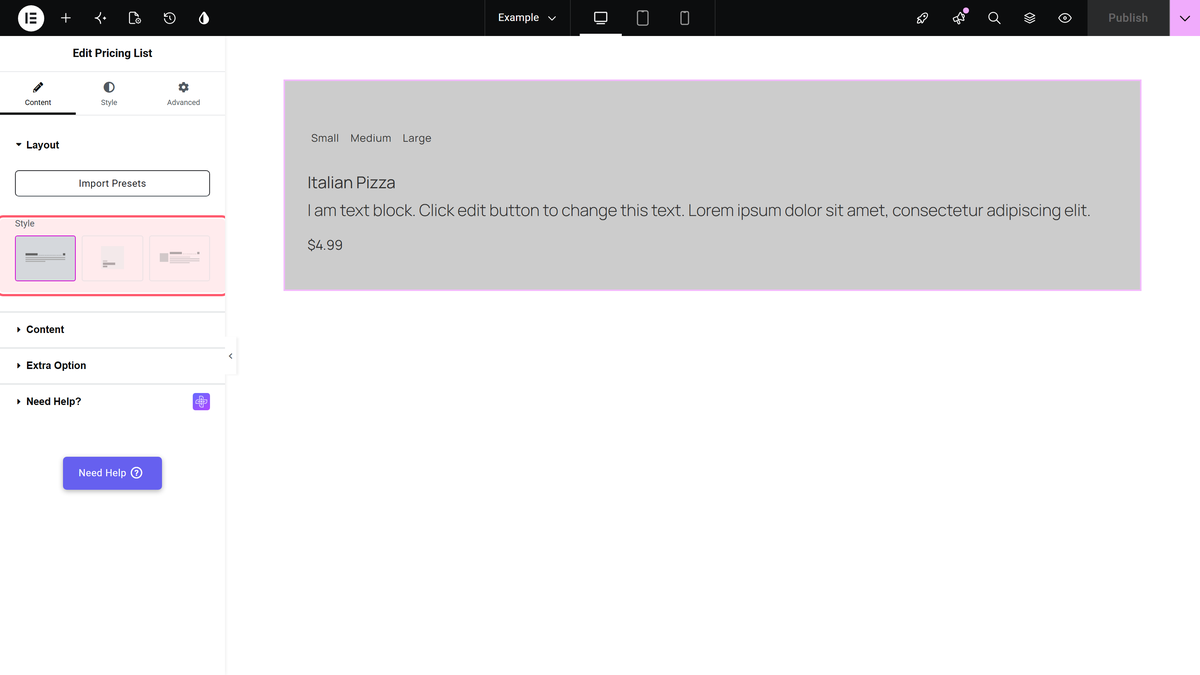
From the **Style** control, pick **Modern** (the default), **Simple** or **Classic**.

![Style control showing Modern, Simple and Classic options](https://theplusaddons.com/wp-content/uploads/2026/09/pricing-list-style.webp)

### Content

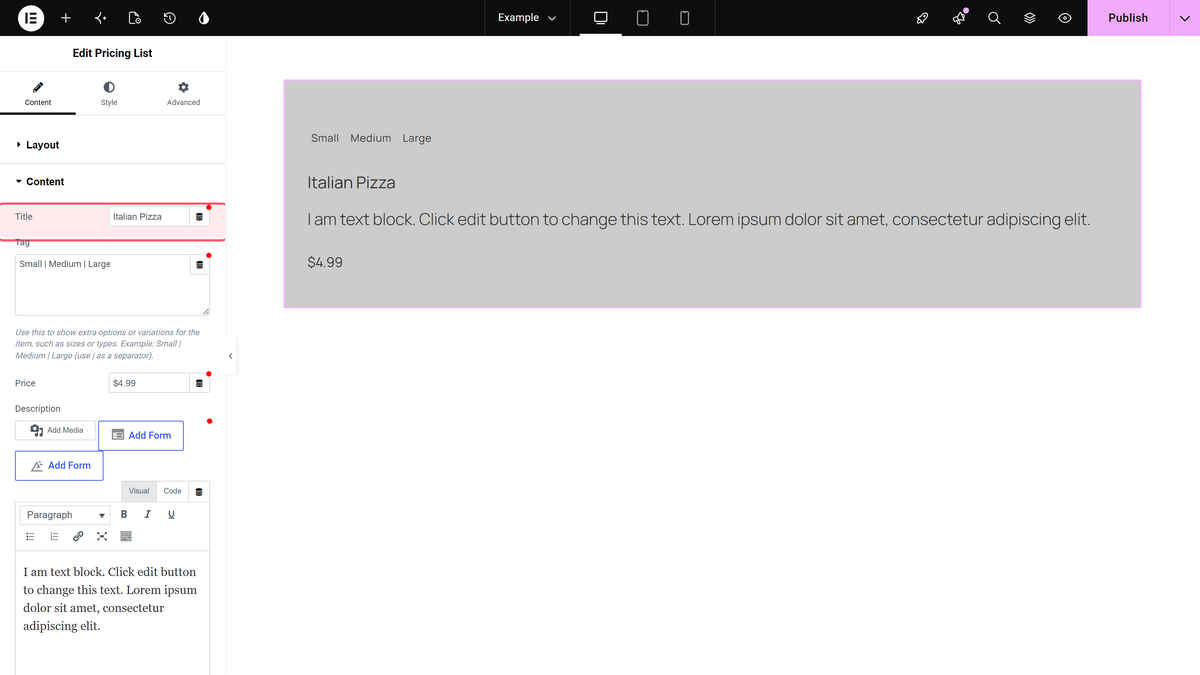
Add the **Title** for the list item.

![Title field, default value shown as Italian Pizza](https://theplusaddons.com/wp-content/uploads/2026/09/pricing-list-title.webp)

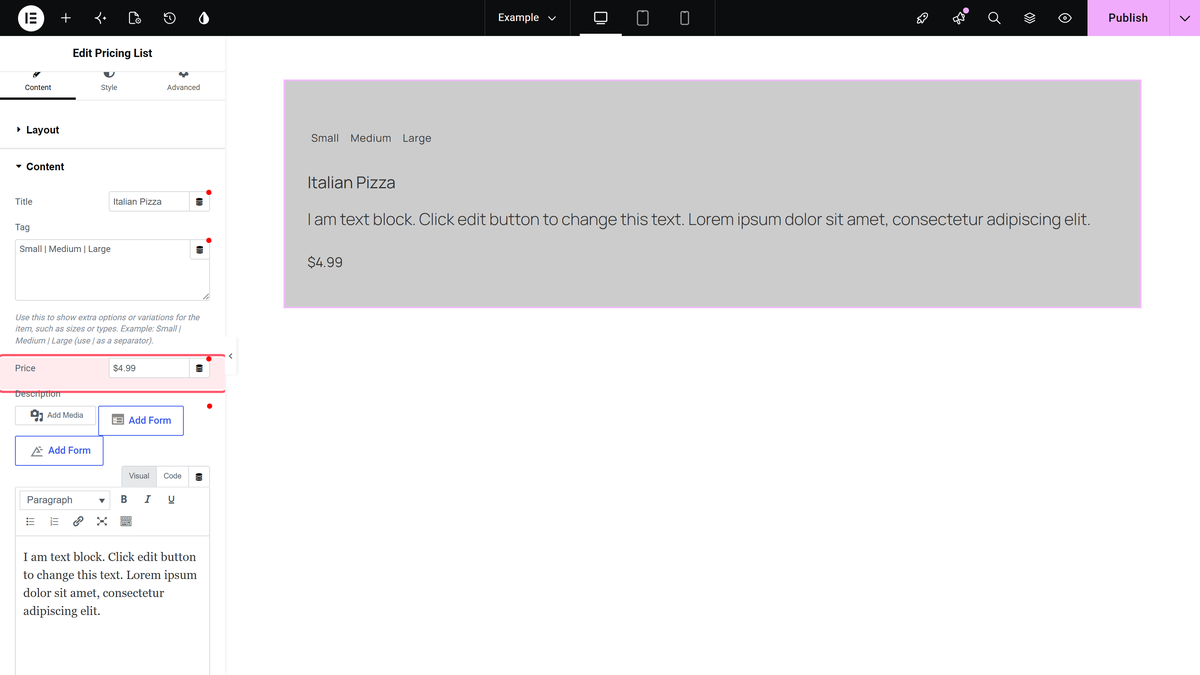
Add the **Price**, plus tag(s) and a **Description**. For Classic style, the **Icon Type** control under the Image tab lets you choose an **Image** or a **Lottie** animation instead.

![Price field, default value shown as $4.99](https://theplusaddons.com/wp-content/uploads/2026/09/pricing-list-price.webp)

## Settings Overview

| Setting | What it does | Default |
| ------- | ------------ | ------- |
| Style | Modern, Simple (flip) or Classic layout. | Modern |
| Icon Type | Image or Lottie animation (Classic style only). | Image |
| Box Align | Aligns the pricing box (options vary by style). | Left |

## How It Behaves

- Confirmed on the front end for the Simple style: hovering the box genuinely triggers a real CSS 3D flip - the front (tag/title/price) rotates away to reveal the back (description text). See the Flip Box Style doc for the dedicated walkthrough.

## Limitations

- Pricing List is Pro-only.

## Related Docs

- [How to Add a Flip Box Style Pricing List in Elementor?](https://theplusaddons.com/docs/add-a-flip-box-style-pricing-list-in-elementor/)- [How to Create a Food Menu in Elementor?](https://theplusaddons.com/docs/create-a-food-menu-in-elementor/)- [How to Add Lottiefiles to the Pricing List in Elementor?](https://theplusaddons.com/docs/add-lottiefiles-to-the-pricing-list-in-elementor/)

## Frequently Asked Questions

**Q: What do I need before adding a pricing list in Elementor?**
A: Elementor free has to be installed and active, and the Pricing List widget is part of The Plus Addons for Elementor Pro. That matters because this widget does not exist in the free plugin, so the setup only works once the paid version is installed and activated. The Plus Addons for Elementor, The Plus Addons, Plus Addons for Elementor, POSIMYTH provides this widget for building pricing lists inside the Elementor editor.

**Q: Why isn’t the Pricing List widget showing up in Elementor?**
A: The usual blocker is that the widget has not been enabled yet. In The Plus Addons &gt; Widgets, search for Pricing List and turn its toggle on. Since it is a Pro widget, it also depends on The Plus Addons for Elementor Pro being installed and activated. If either piece is missing, the widget will not be available in the editor.

**Q: Which pricing list style should I use: Modern, Simple, or Classic?**
A: Modern is the default layout, Simple is the flip-on-hover version, and Classic is the most flexible if you want an image or Lottie animation in the item. That makes the choice mostly about presentation: Modern for a clean standard list, Simple when you want motion on hover, and Classic when you need media support. The Plus Addons for Elementor offers all three styles in one widget.

**Q: Can I use a Lottie animation instead of an image in the pricing list?**
A: Lottie support is built into the Pricing List widget, but it applies to Classic style only. In that layout, the Icon Type control under the Image tab lets you choose either an Image or a Lottie animation. That makes Classic the right choice when a static image feels too flat and you want motion without changing widgets.

**Q: How does the Simple pricing list behave on hover?**
A: The Simple style uses a real CSS 3D flip on hover. The front side with the tag, title, and price rotates away so the back side reveals the description text. That behavior matters because it is not just a visual swap; it changes what content is visible at rest versus on hover.

**Q: What are some good related tutorials after building a pricing list?**
A: The most relevant follow-ups are [How to Add a Flip Box Style Pricing List in Elementor?](https://theplusaddons.com/docs/add-a-flip-box-style-pricing-list-in-elementor/), [How to Create a Food Menu in Elementor?](https://theplusaddons.com/docs/create-a-food-menu-in-elementor/), and [How to Add Lottiefiles to the Pricing List in Elementor?](https://theplusaddons.com/docs/add-lottiefiles-to-the-pricing-list-in-elementor/). Those guides line up with the three styles and media options already supported by this widget.