






Sticky social icons stay on screen while the reader scrolls, so the option to share is there at the end of a long article as well as at the top.
It takes two things: the Social Sharing widget in its Vertical layout, and Elementor’s own Position setting to pin it. For the rest of the widget, see the full Social Sharing settings overview.
Requirement – This widget is a part of The Plus Addons for Elementor Pro, make sure it’s installed & activated to enjoy all its powers.
Before You Start
- Edition: Pro. With Pro switched off the widget renders nothing at all.
- Prerequisite: Elementor (free) installed and active.
- Widget to enable: go to The Plus Addons > Widgets, search for Social Sharing and turn its toggle on.
- Where to put it: a single-post template if you want it on every article; otherwise the page itself.
Steps
- Add the Social Sharing widget to the page or template.
- In the Content tab, open Social Sharing and set Layout to Vertical. This stacks the buttons in a column, which is the shape a sticky column needs.
- Pick one of the three Style pictures for the Vertical layout.
- Set View Type to Icon. A pinned column has little room, and icons alone keep it narrow.
- Add your networks in the Social Sharing repeater.
- Go to the Advanced tab, open Layout and set Position to Fixed. Then use the horizontal and vertical offsets to place it where you want it on the screen.

What you get on the page
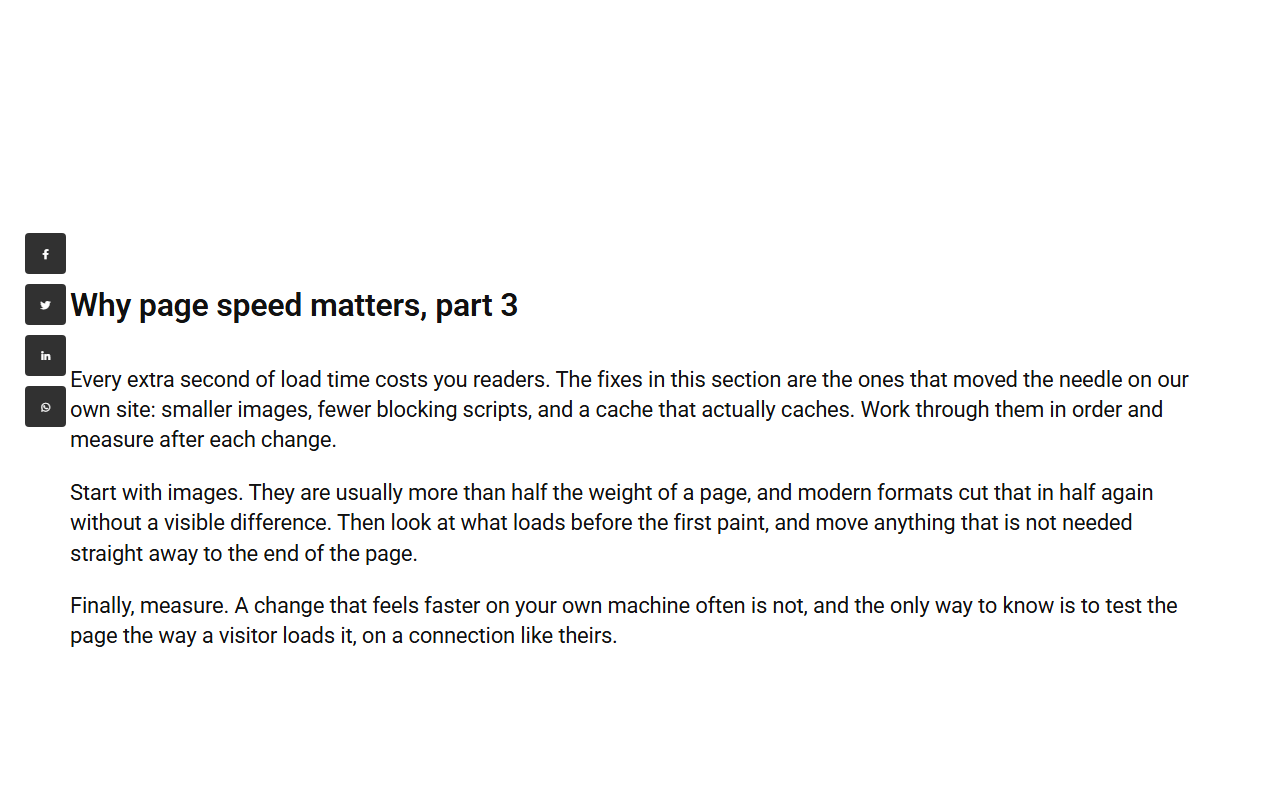
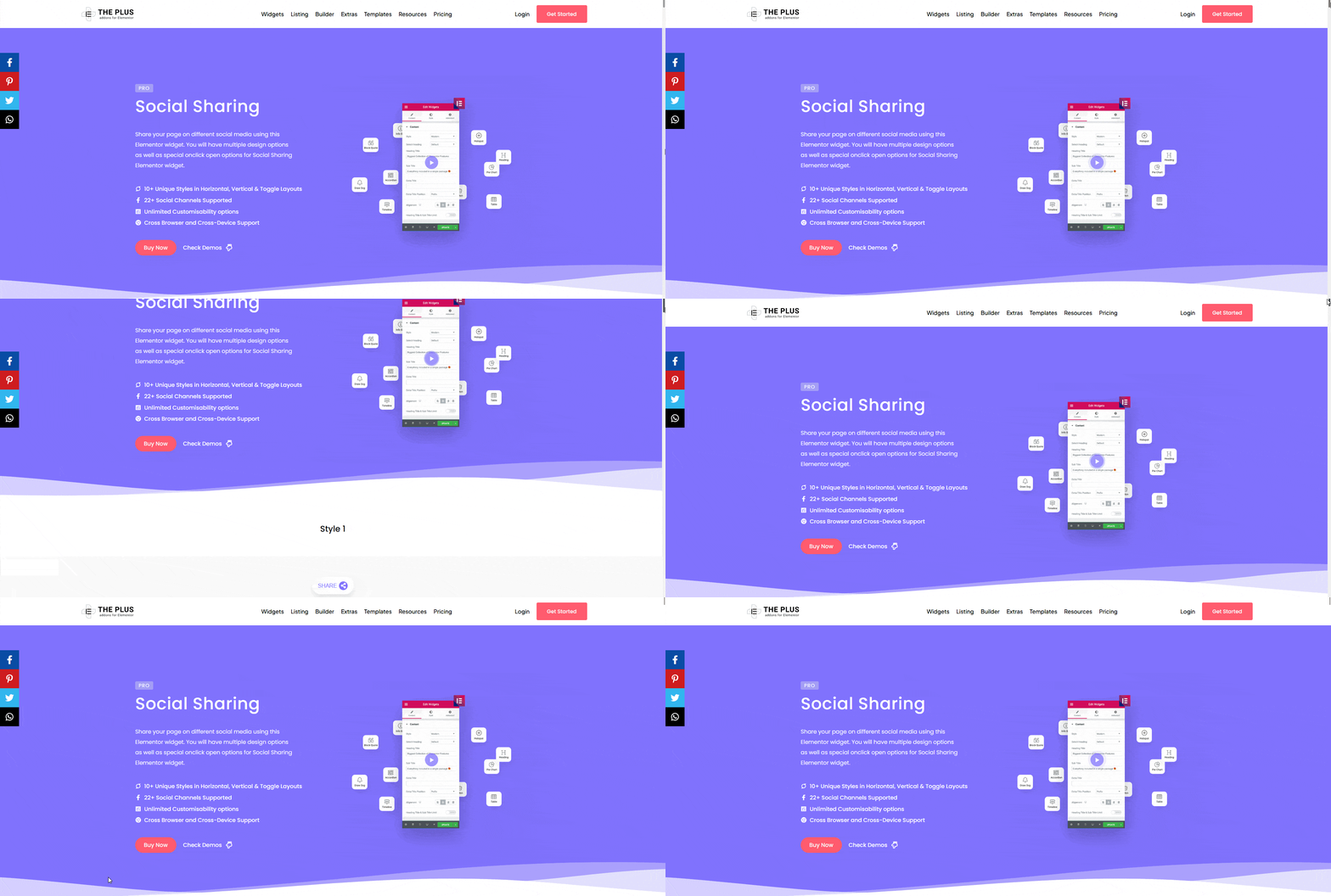
Without a position set, the widget is part of the page like anything else and scrolls away with it – we watched its top edge go from 40 pixels to -1,560 after scrolling. With Position set to Fixed and offsets of 20 and 180 pixels, the same widget stayed exactly where it was put through three screens of article: top 180, left 20, at the start of the page, after 1,600 pixels of scrolling and at the bottom.
Settings used here
| Setting | Where it is | What it does | Default |
|---|---|---|---|
| Layout | Content > Social Sharing | Set to Vertical for a column | Horizontal |
| Style | Content > Social Sharing | Three picture choices for the Vertical layout | Style 1 |
| View Type | Content > Social Sharing | Icon keeps the column narrow | Icon Text |
| Alignment | Content > Social Sharing | Left, centre or right, per device | Left |
| Position | Advanced > Layout | Elementor’s own setting; Fixed pins the widget to the viewport | none |
Position is one of Elementor’s own Advanced settings, not a Social Sharing one. It works the same way on any widget, and it is what makes the icons stick – the Vertical layout only gives them the right shape.
How It Behaves
- Fixed pins the widget to the screen, not to the article. It stays in place no matter how far the page scrolls, which is exactly what we measured.
- The offsets do the placing. Once Position is Fixed, the horizontal and vertical offsets are what move the column to the edge you want.
- Each button still shares the post it sits on, the same as in the other layouts.
Limitations
- A fixed column overlaps the content on narrow screens. Set the offsets per device, or hide the widget on mobile with Elementor’s responsive visibility settings.
- Icons can come out blank on a page that loads nothing else from Font Awesome – we saw dark squares in place of the logos until Font Awesome’s stylesheet was present.
- We tested Style 1 of the Vertical layout. Styles 2 and 3 were not rendered.
- We did not test this on a mobile viewport.
Troubleshooting
The icons still scroll away
Position is not set to Fixed. Without it the widget is positioned relative and moves with the page.
The column sits on top of my text
Adjust the horizontal offset, or give the content a matching margin. The widget is out of the page flow once it is fixed, so nothing makes room for it.
The icons are dark squares
Font Awesome is not loading on that page. Add an element that brings it in, or enqueue it in your theme.
Nothing renders at all
The Pro plugin is not active. Social Sharing is Pro-only.

