

































Are you looking to add a read more toggle button to text in Elementor? Showing a large block of text all at once can push other content out of view and overwhelm visitors. A read more toggle lets users expand the full text on demand, keeping the page layout compact while giving readers access to all the information.
The Unfold widget in The Plus Addons for Elementor lets you add a read more button to any text block in the Elementor editor. It controls how much text is visible initially and reveals the rest when visitors click the toggle.
To check the complete feature overview documentation of The Plus Addons for Elementor Unfold widget, click here.
Requirement – This widget is a part of The Plus Addons for Elementor. Make sure it is installed and activated.
Best Used For:
- Long product descriptions on WooCommerce pages where you want to show a preview without scroll fatigue
- Blog post archives and listing pages where each post has an expandable content preview
- Team or portfolio pages where each bio starts collapsed and expands on click
Add a Read More Button to Text
Note: This feature is available in The Plus Addons for Elementor Pro only.
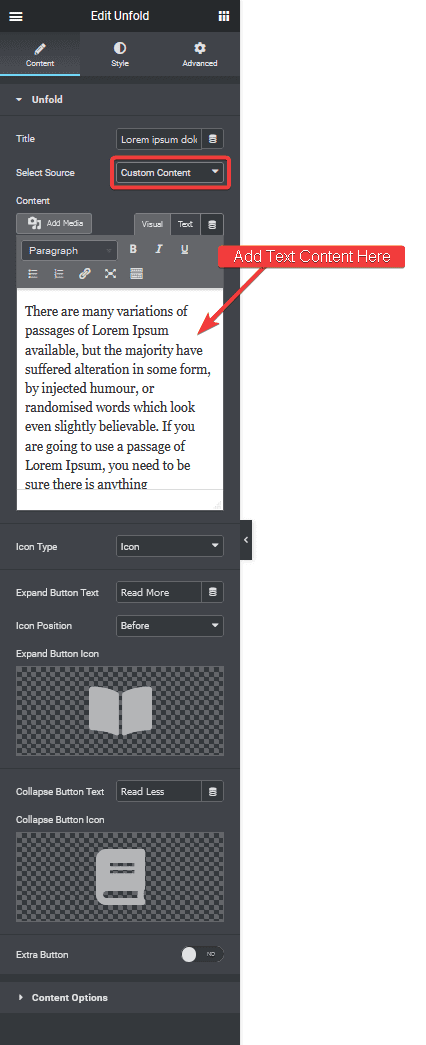
Add the Unfold widget to the page. In the Title field, enter a heading for the collapsed content section. Use this when you want to label what the reader is about to expand, such as “About the Author” or “Full Product Description”.
From the Select Source dropdown, choose Custom Content to add text directly in the widget editor.
In the Content section, enter the text you want to show when the visitor clicks the read more button. This is the expanded content that stays hidden until triggered.
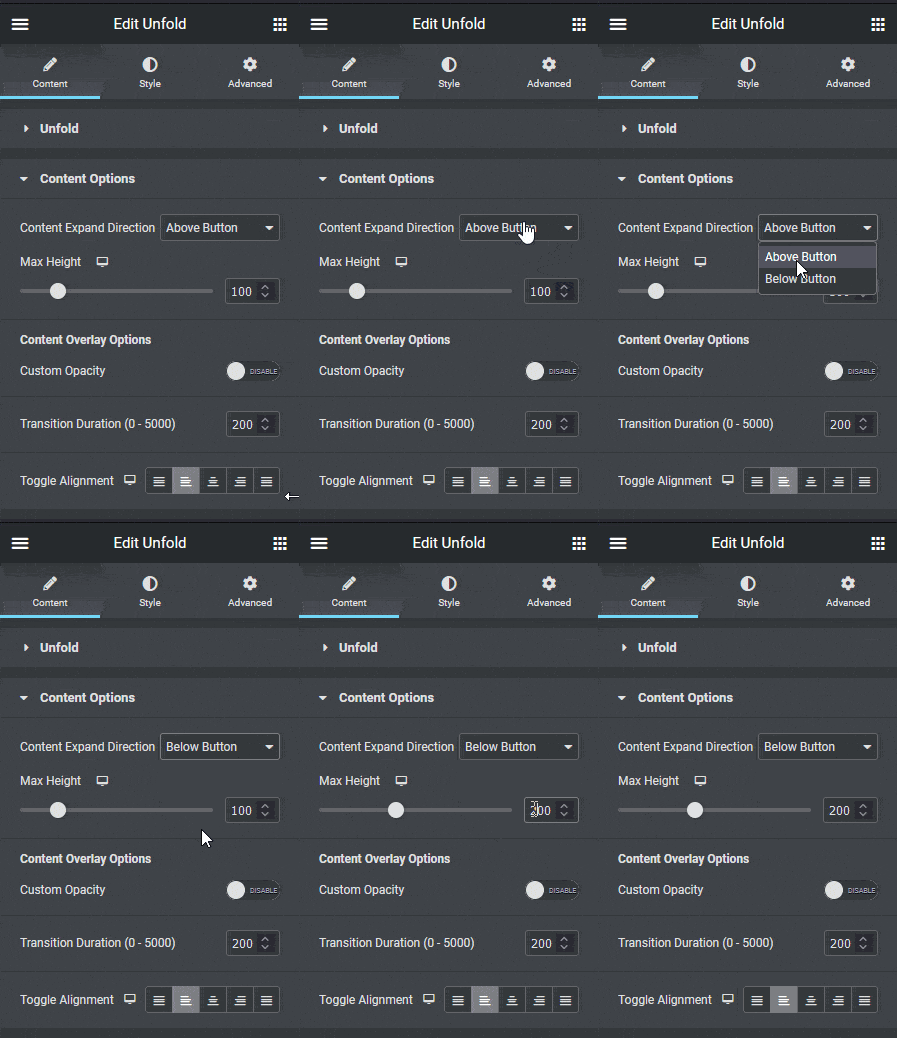
In the Content Options tab, configure the button placement and the initial container height.
Set the Button Placement to position the toggle button above or below the collapsed text.
Set the Container Height to control how much text shows before the read more button appears.
This is useful when you want to show the first few lines as a preview for longer text blocks. Adjust these values separately for desktop, tablet, and mobile.
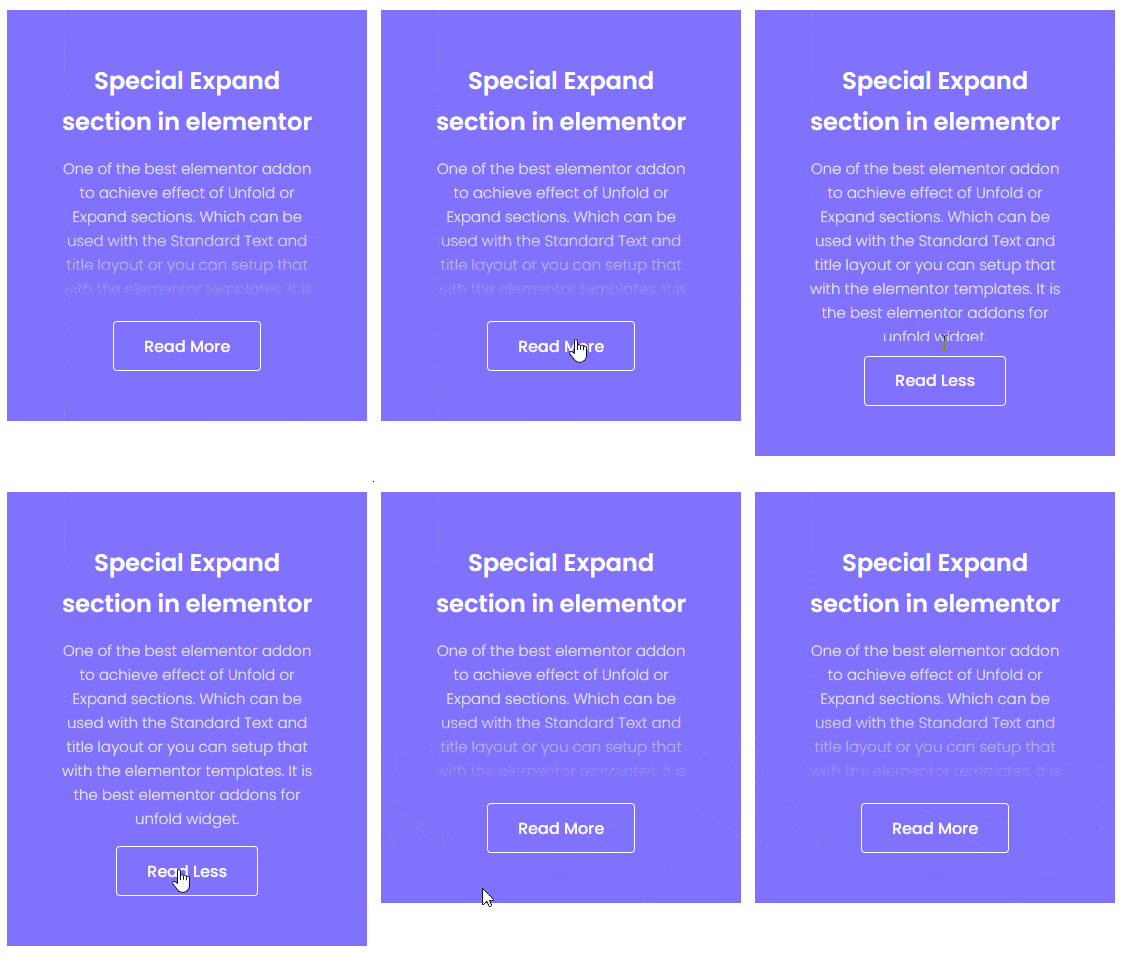
The toggle is now active on the page. Visitors see the initial text height you set, with the read more button below to expand the full content when needed.
You have now added a read more toggle button to text in the Elementor editor using the Unfold widget in The Plus Addons for Elementor.
For a structured expandable content layout with multiple sections, see Elementor Accordion Widget Settings Overview.
To add a read more button to Elementor blog post listings instead, see How to Add Read More Button in Blog Posts in Elementor.
Unlock These Pro Unfold Enhancements
The Plus Addons for Elementor Pro includes these additional Unfold controls:
Custom Toggle Position
Set the toggle button position to above, below, or inline with your content block. Use this when the default placement does not match your page layout.
Dynamic Labels & Icon Support
Enter custom text for the expand and collapse labels, such as “Read More” and “Read Less”. Add an icon or Lottie animation to the toggle button. Use this when you want the button to match your brand style instead of using default text.
Fade & Slide Animations
Set the animation type for the expand and collapse transition. Choose from fade, slide, or a combination of both, and adjust the animation duration to match your page speed.
Initial Height & Reveal Controls
Set the collapsed section height in pixels or as a percentage. When the visitor clicks the toggle, the widget reveals the remaining content. Use this when you need precise control over how much preview text shows before the read more button.
Flexible Content Sources
The Unfold widget supports four content sources. Add content directly in the built-in text editor. Select any saved Elementor template to use a prebuilt layout as the collapsible section. Use an inner section widget to build a custom layout inside the collapsible area. Turn an Elementor Flexbox container into a collapsible container.
Upgrade to The Plus Addons for Elementor Pro to access all the Unfold features described above, plus 120+ premium widgets and a 60-day money-back guarantee.
Also, read How to make a collapsible Elementor Flexbox container.
