




How to connect a Carousel Remote Sync (Dots & Arrows) with Elementor WooCommerce Product Carousel?

Key Takeaways

  • The Plus Addons for Elementor Woo Product Listing widget connects with WooCommerce to create dynamic product displays.
  • The Carousel Remote widget allows users to navigate the Woo Product Listing carousel using Next/Previous buttons or Dots.
  • Users must add a unique ID in both the Woo Product Listing and Carousel Remote widgets to enable synchronization.
Table Of Content

The Woo Product Listing widget from The Plus Addons for Elementor is an excellent tool for businesses that need to showcase and promote their products effectively. This widget easily connects with WooCommerce, allowing businesses to create visually stunning and dynamic layouts to display their products beautifully and conveniently. 

Among its many style offerings, one of them is the carousel, using that you can showcase your products in a beautiful carousel. By connecting this widget with the Carousel Remote widget, you can make this carousel more dynamic.

Here we’ll see how you can connect the Woo Product Listing widget with the Carousel Remote widget so that you can provide more convenient carousel navigation options to your users.

To check the complete feature overview documentation of The Plus Addons for Elementor Carousel Remote widget, click here.

Requirement  – This widget is a part of The Plus Addons for Elementor, make sure its installed & activated to enjoy all its powers.

For this process, first, drag and drop the Carousel Remote widget and the Woo Product Listing widget, and then follow the below steps:

Note: Make sure you have installed the Woocommerce plugin and have created some products.

1. Once you add the Woo Product Listing widget it should show your existing products, set the layout to Carousel from the Layout dropdown.
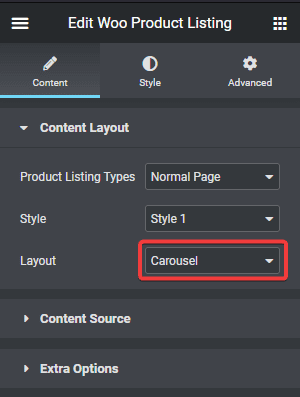
Woo product listing layout

2. Then go to the Style tab > Carousel Options and add a unique id in the Unique Carousel ID field, this can be any combination of letters and numbers.
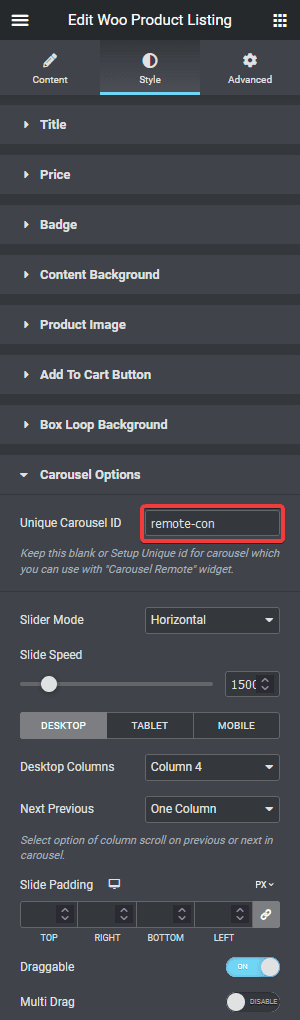
Woo product listing unique connection id

3. Now select the Carousel Remote widget, then go to the Content tab, add the same ID in the Unique Connection ID field and make sure Remote Type is selected as Carousel.
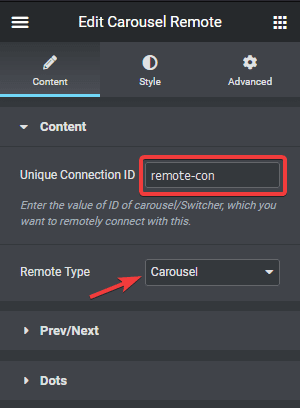
Carousel remote unique connection id remote

4. Now, you can have two different types of navigation, a Next and Previous button and Dots (image or icon). You can use either one or both.

a) To use the next previous button go to Prev/Next tab and turn on the Next/Prev Button toggle. You’ll find some customisation options as well.
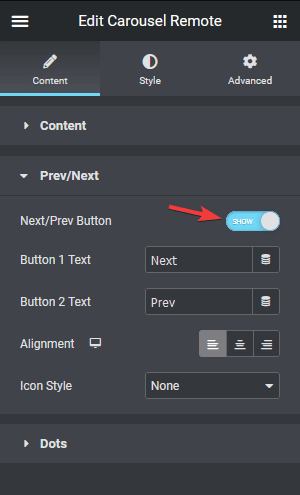
Carousel remote next prev

b) But if you want to use dot navigation, then go to the Dots tab and turn on the Dots toggle. Now make sure to have the same number of dot items as the number of slides in your Woo Product Listing carousel. You will get some customisation options for your dot navigation.
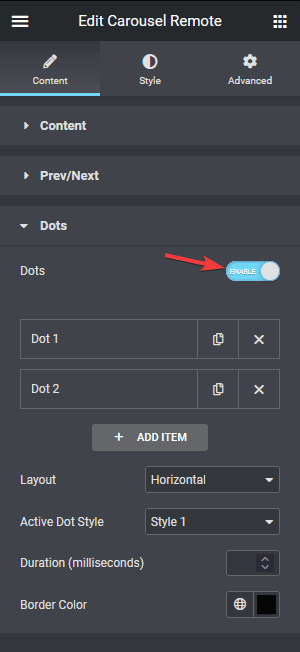
Carousel remote dots

If you plan to add products on a regular basis then you should use the Prev/Next navigation option for easy maintenance.

Note: You should disable all the navigation options for the Woo Product Listing widget for the best user experience.

Now you can put the Carousel Remote widget anywhere on the page and your users should be able to control the Woo Product Listing carousel navigation from there.
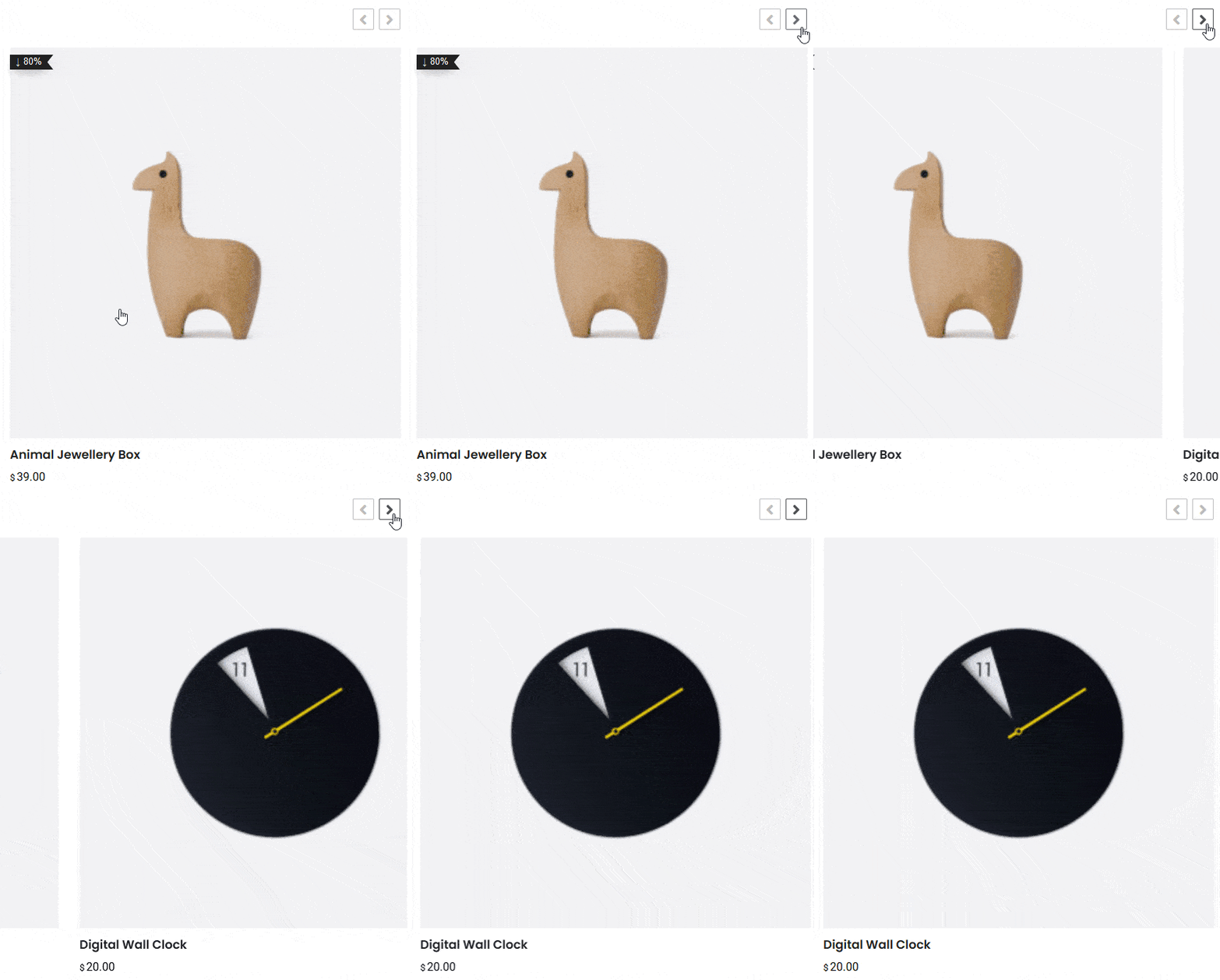
Carousel remote woo product listing demo

Learn how to connect the Carousel Remote widget with the Blog Post widget.

About the Author

Photo of Aditya Sharma CMO of The Plus Addons for Elementor
CMO · The Plus Addons for Elementor · 10 years experience

He has spent years in the WordPress ecosystem building, breaking, and optimizing sites until they actually perform. He works at the intersection of speed, growth, and usability, helping creators ship websites that load fast and convert. An active WordPress community contributor sharing through tools, tutorials, and direct collaboration. Tested practice, not theory.

WordPressElementorn8nAIClaudeAutomationServer
Get Instant Answers to all your questions about The Plus Addons for Elementor, trained on 1000+ Docs and Videos

Related Frequently Asked Questions

What should I do if the Carousel Remote widget isn't syncing with the Woo Product Listing widget?

If the Carousel Remote widget isn't syncing, check that you've entered the same Unique Carousel ID in both the Woo Product Listing widget and the Carousel Remote widget. This ID must match exactly for the sync to work. Additionally, ensure that the Remote Type is set to Carousel in the Carousel Remote widget settings.

Can I use the Carousel Remote widget for other Elementor widgets?

The Carousel Remote widget is specifically designed to work with the Woo Product Listing widget from The Plus Addons for Elementor. It allows for enhanced navigation options for carousels created with this specific widget, so it may not function correctly with other Elementor widgets.

What are the best navigation options for a Woo Product Listing carousel?

For a Woo Product Listing carousel, using both Prev/Next buttons and dot navigation can enhance user experience. However, if you regularly add products, the Prev/Next navigation is recommended for easier maintenance. Ensure that the number of dots matches the number of slides in your carousel for optimal functionality.

What do I need to do before setting up the Carousel Remote sync?

Before setting up the Carousel Remote sync, ensure that you have installed and activated the WooCommerce plugin and created some products. This is essential as the Woo Product Listing widget relies on WooCommerce to display products correctly.

Last reviewed: April 12, 2026