

















How to Toggle an Elementor inner section?

Key Takeaways

  • The Plus Addons for Elementor includes the Unfold widget, which allows users to create a collapsible toggle panel from an Elementor inner section.
  • Elementor Flexbox containers are recommended over the deprecated Elementor Section for layout creation.
  • Users must install and activate The Plus Addons for Elementor to access the Unfold widget's features.
Table Of Content

Do you want to toggle an Elementor inner section? Elementor is an incredibly powerful page builder for WordPress that allows users to create stunning and complex websites with ease. One of the reasons it is so popular is due to its versatile and easy-to-use features, such as the ability to use inner sections. Inner sections are a great way to create visually appealing and organised layouts.

You can turn your Elementor inner section into a beautiful toggle panel using the Unfold widget from The Plus Addons for Elementor.

Elementor Section is depreciated, we suggest using Elementor Flexbox containers, check here.

To check the complete feature overview documentation of The Plus Addons for Elementor Unfold widget, click here.

Requirement  – This widget is a part of The Plus Addons for Elementor, make sure it’s installed & activated to enjoy all its powers.

To turn an Elementor inner section into a collapsible toggle panel, you must create your layout using the Elementor Inner Section widget.

Once the layout is ready, add the Unfold widget inside the same Container containing your Inner section widget.

If you want, you can add a title in the Title field. After that, from the Select Source dropdown, choose Inner Section Based.
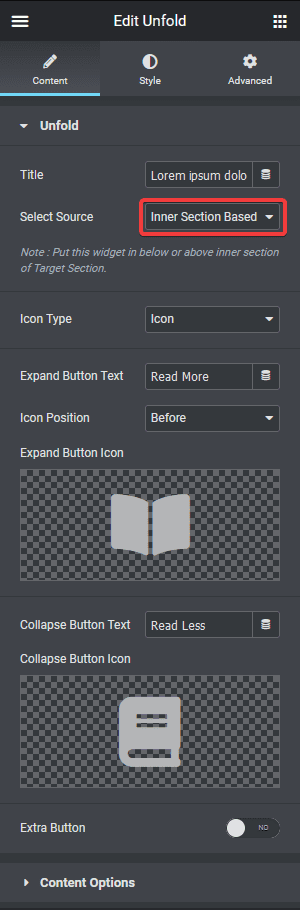
Unfold inner section

After adjusting the button settings, go to the Content Options tab.

Now depending on the Unfold widget’s placement in the container, you have to select the option from the Content Expand Direction dropdown.

If you have placed the Unfold widget above your Inner section widget in the Container, then you should choose Above Button and if placed below, then select the Below Button option. 
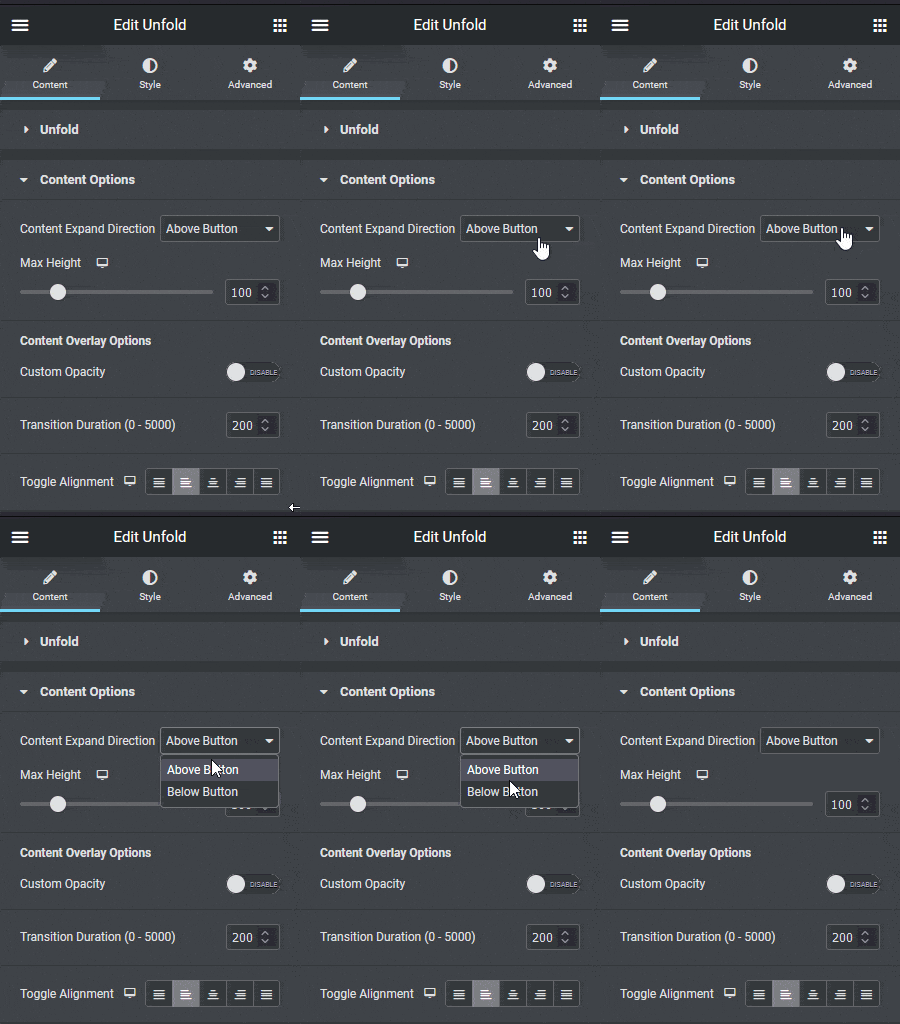
Unfold content options button placement

Now your inner section should work as a collapsible toggle panel. You can further customise the settings in the Content Options tab if you want.
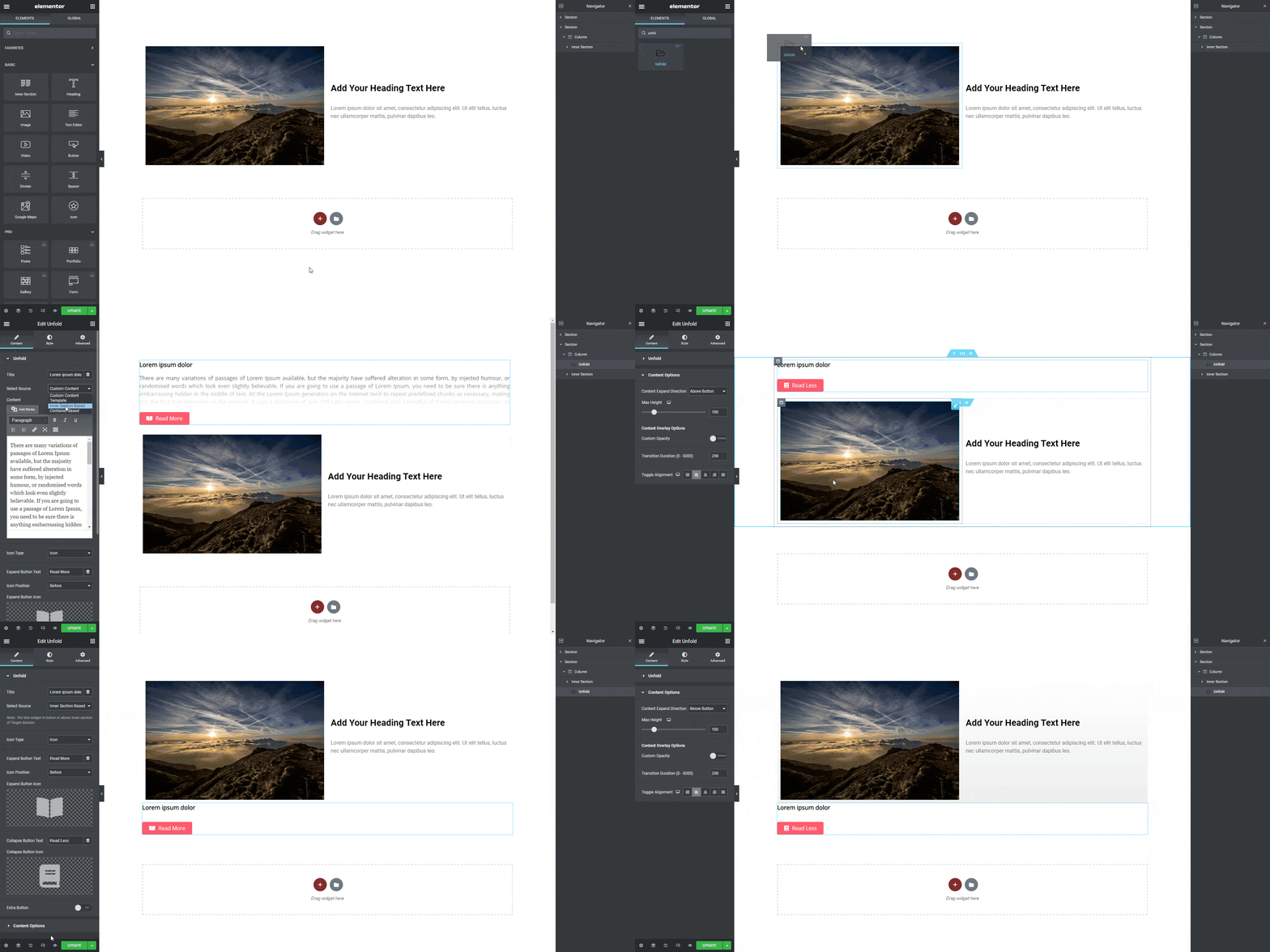
Unfold inner section placement demo

This is how simply you can toggle an Elementor inner section.

Also, check How to make a collapsible Elementor Flexbox container.

About the Author

Photo of Aditya Sharma CMO of The Plus Addons for Elementor
CMO · The Plus Addons for Elementor · 10 years experience

He has spent years in the WordPress ecosystem building, breaking, and optimizing sites until they actually perform. He works at the intersection of speed, growth, and usability, helping creators ship websites that load fast and convert. An active WordPress community contributor sharing through tools, tutorials, and direct collaboration. Tested practice, not theory.

WordPressElementorn8nAIClaudeAutomationServer
Get Instant Answers to all your questions about The Plus Addons for Elementor, trained on 1000+ Docs and Videos

Related Frequently Asked Questions

What should I do if the Unfold widget doesn't toggle the inner section?

If the Unfold widget isn't functioning as expected, check its placement within the container. The toggle behavior depends on whether the Unfold widget is positioned above or below the Inner Section widget. Ensure you select the correct option from the Content Expand Direction dropdown, either Above Button or Below Button, based on its placement.

Can I use the Unfold widget to create a toggle for other Elementor elements?

The Unfold widget is specifically designed to work with the Elementor Inner Section widget. If you want to create a toggle effect for other elements, you might need to explore different widgets or methods, as the Unfold widget's functionality is tailored for inner sections only.

What are the best practices for using the Unfold widget in Elementor?

When using the Unfold widget, ensure your layout is well-structured with the Inner Section widget first. It's also beneficial to customize the button settings and title to enhance user experience. Consider the Content Expand Direction setting carefully, as it affects how users interact with the toggle panel.

Why is it recommended to use Inner Sections for toggles in Elementor?

Using Inner Sections for toggles in Elementor allows for better organization and visual appeal in your layouts. Inner Sections enable you to create complex designs while maintaining a clean structure, which is essential for effective toggling with the Unfold widget from The Plus Addons for Elementor.

Last reviewed: April 12, 2026