












How to Add Heading Animation in Elementor?

Key Takeaways

  • The Plus Addons for Elementor includes a Heading Animation widget that offers 6 pre-defined animation styles.
  • Users can activate the Heading Animation widget by navigating to The Plus Addons u2192 Widgets and turning on the toggle.
  • The Heading Animation widget allows users to add multiple animated texts, each on a separate line.
Table Of Content

Adding an animated headline in Elementor can help you grab the visitor’s attention easily. Not only does it make your website more visually appealing, but it also adds an element of interactivity and engagement for your visitors. 

With the Heading Animation widget from The Plus Addons for Elementor, you can easily add different types of animation to text in Elementor.

Check the Live Widget Demo

Required Setup

Learn via Video Tutorial:

YouTube video

How to Activate the Heading Animation Widget?

Go to 

  • The Plus Addons Widgets 
  • Search the widget name and turn on the toggle.
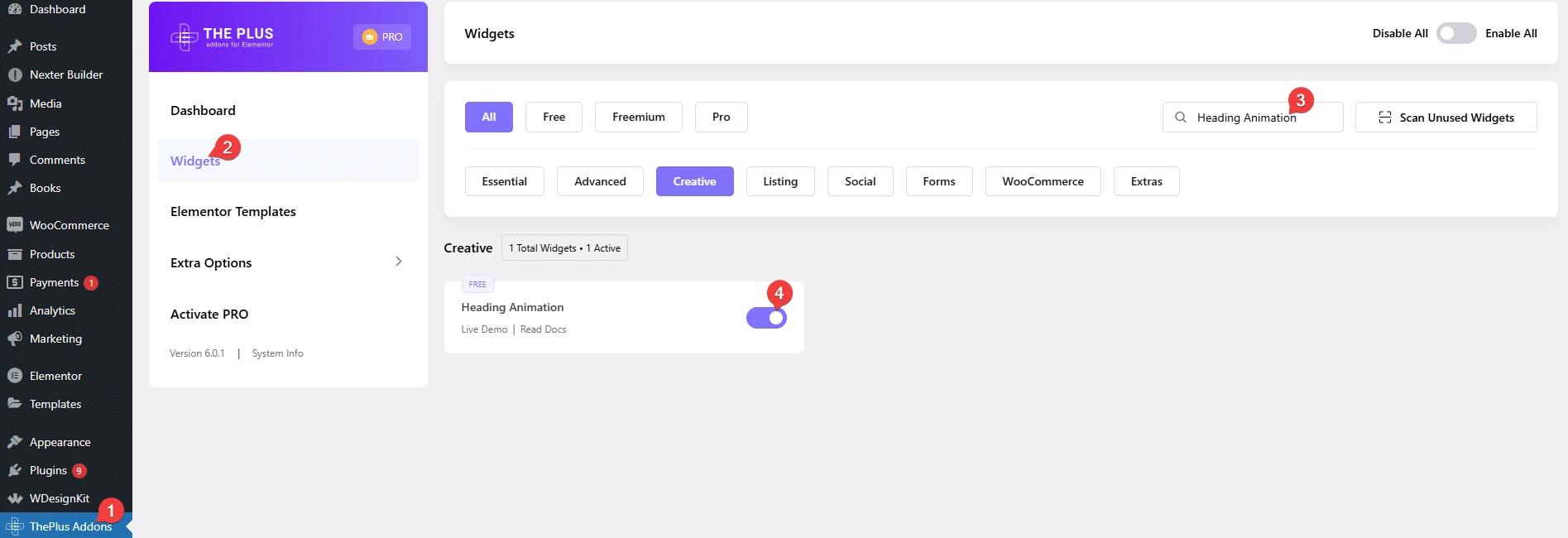
Heading animation how to add heading animation in elementor? From the plus addons for elementor

Key Features

  • Multiple Animation Styles – You can choose from multiple animation styles.

How to Add an Animated Headline in Elementor?

Add the Heading Animation widget from The Plus Addons for Elementor to the page.

Note: By clicking on the Import Presets button, you can import a ready-made design and customize it as per your requirements.

From the Animation Style section, you have to select an animation style. 

Here you’ll find 6 pre-defined animation styles. 

Style 1 

This will create a typing animation effect.
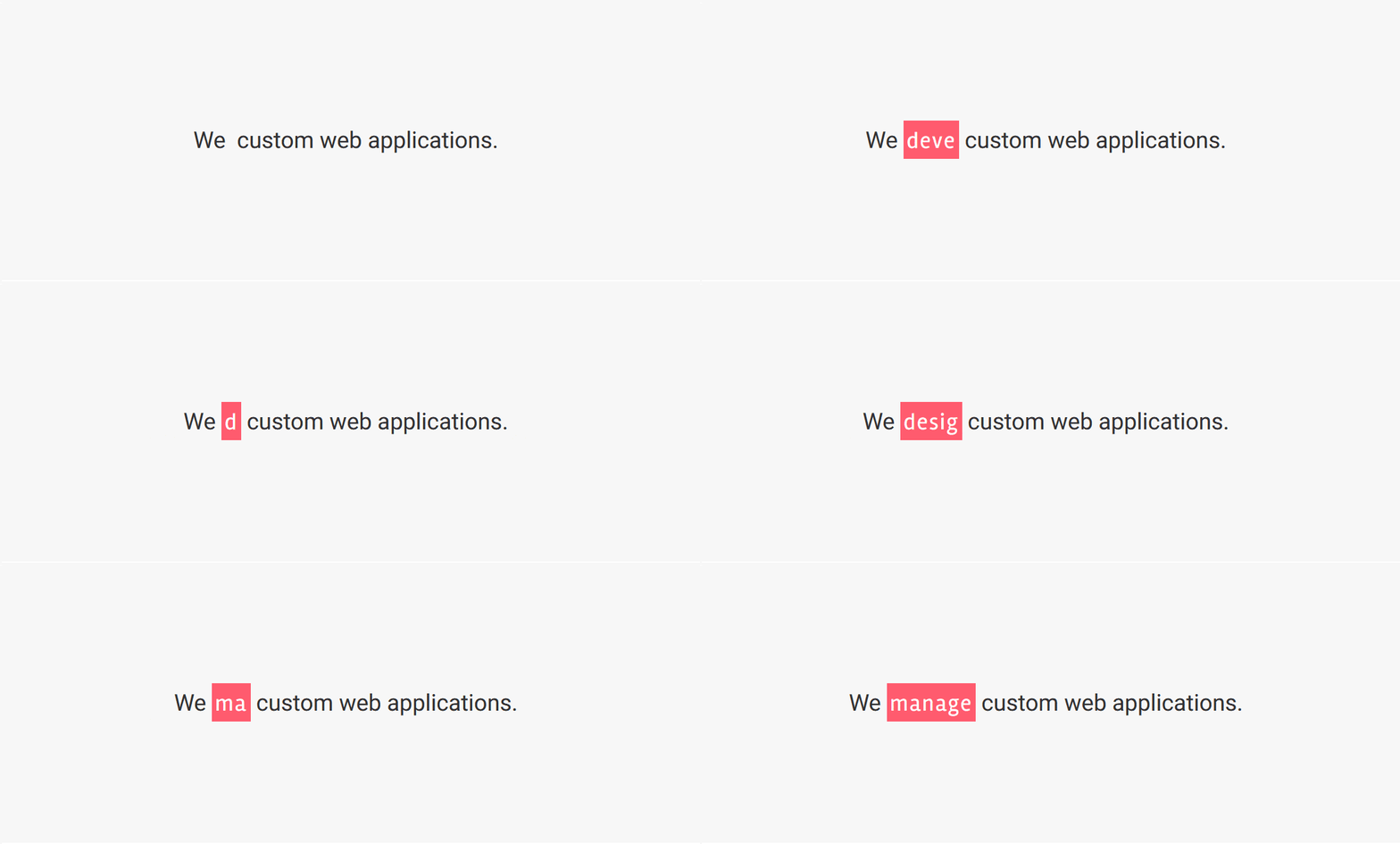
Heading animation typing effect demo how to add heading animation in elementor? From the plus addons for elementor

Style 2 

This will create a flipping text effect.
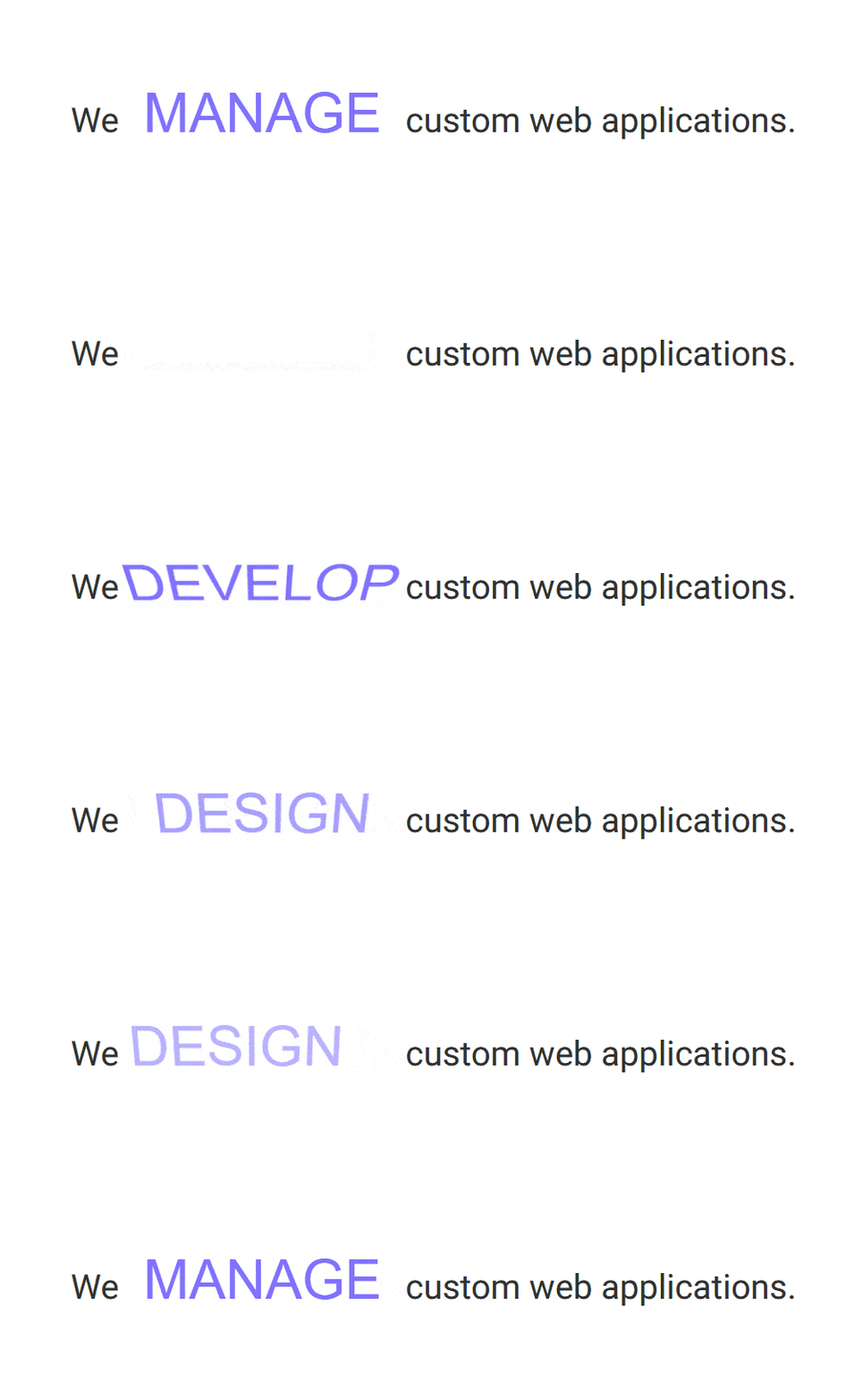
Heading animation flipping effect demo how to add heading animation in elementor? From the plus addons for elementor

Style 3 

This will create a zoom-in text effect.

Style 3 demo how to add heading animation in elementor? From the plus addons for elementor

Style 4 

This will create a text underline animation effect.

Style 4 demo how to add heading animation in elementor? From the plus addons for elementor

Style 5 

This will create a slide-in text animation effect.
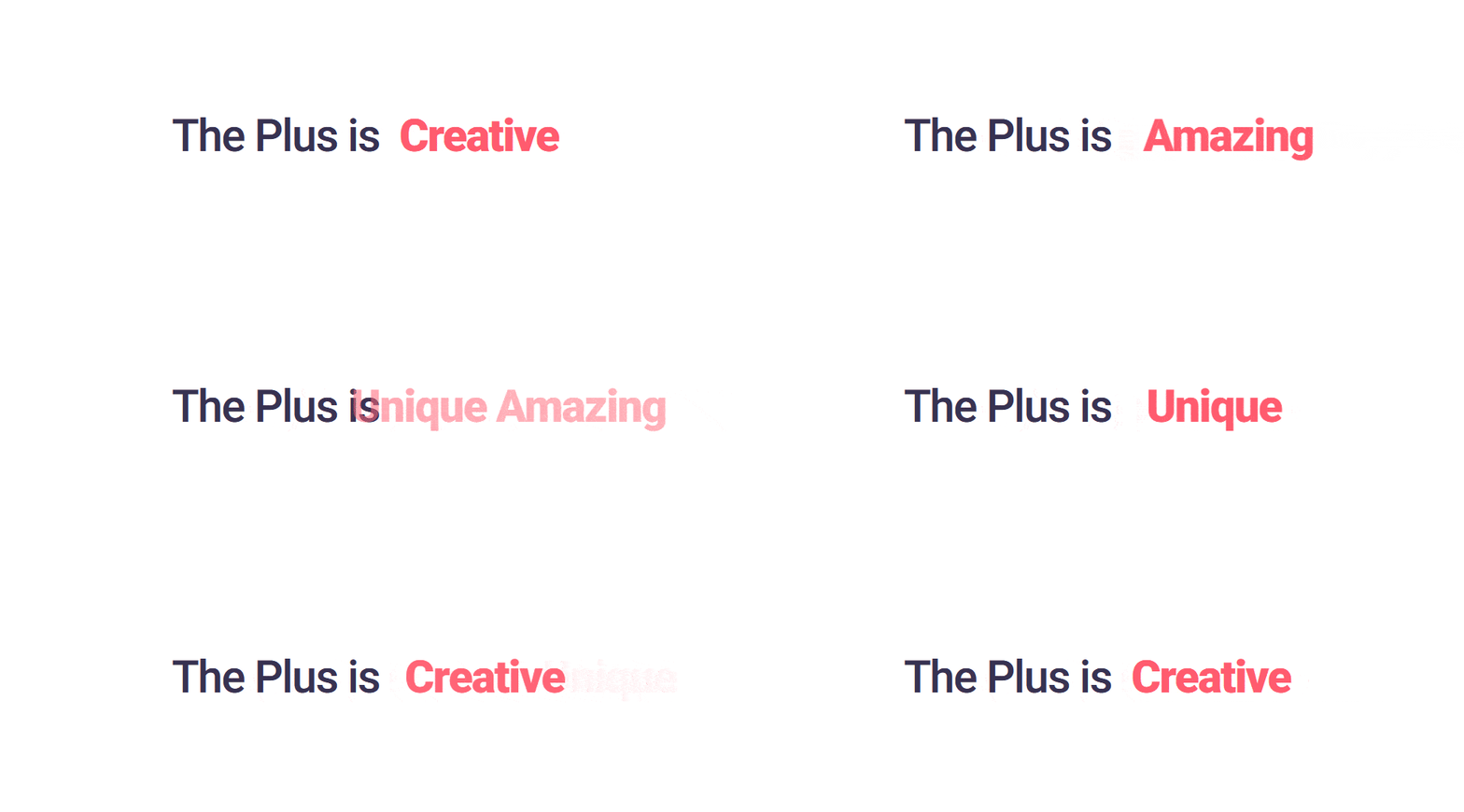
Style 5 demo how to add heading animation in elementor? From the plus addons for elementor

Style 6 

This will create a text scale-down and scale-up animation effect.

Style 6 demo how to add heading animation in elementor? From the plus addons for elementor

Select the style as per your requirements.
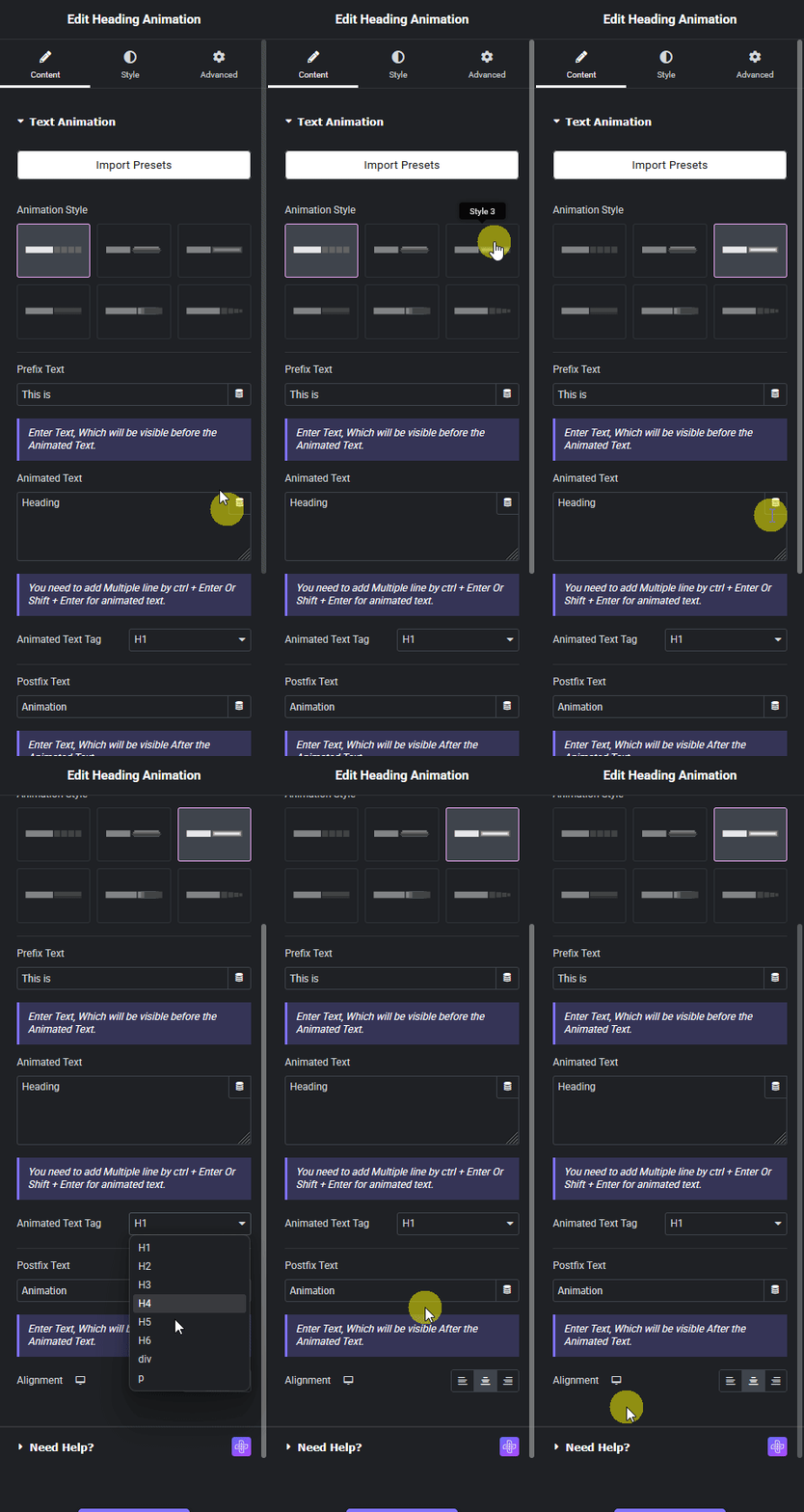
Heading animation content new how to add heading animation in elementor? From the plus addons for elementor

In the Prefix Text field, you can add a text before the animated text.

Then in the Animated Text section, you have to add the texts you want to animate. You can add multiple texts by adding one text in each line.

From the Animated Text Tag dropdown, you can set the HTML tag for the text.

In the Postfix Text field, you can add a text after the animated text.

From the Alignment section, you can align the text for different responsive devices.

How to Style the Heading Animation Widget?

To style the Heading Animation widget, you’ll find all the options under the Style tab.

Prefix and Postfix – From here, you can manage the typography and color of the prefix and postfix texts.
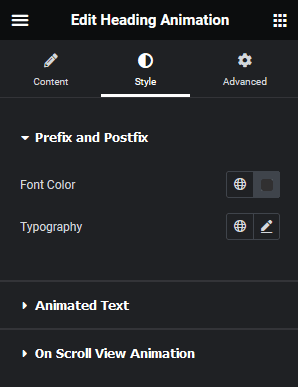
Heading animation style how to add heading animation in elementor? From the plus addons for elementor

Animated Text – From here, you can manage the typography, color and background color of the animated text.

On Scroll View Animation –  This is our global extension available for all our widgets, this adds scrolling animation as the widget comes in the viewport. You can learn more about this from here.

Learn more about On Scroll View Animation

Advanced options remain common for all our widget, you can explore all its options from here.

View Advanced Tab Tutorial

About the Author

Photo of Aditya Sharma CMO of The Plus Addons for Elementor
CMO · The Plus Addons for Elementor · 10 years experience

He has spent years in the WordPress ecosystem building, breaking, and optimizing sites until they actually perform. He works at the intersection of speed, growth, and usability, helping creators ship websites that load fast and convert. An active WordPress community contributor sharing through tools, tutorials, and direct collaboration. Tested practice, not theory.

WordPressElementorn8nAIClaudeAutomationServer
Get Instant Answers to all your questions about The Plus Addons for Elementor, trained on 1000+ Docs and Videos

Related Frequently Asked Questions

What if the Heading Animation widget is not showing up in Elementor?

If the Heading Animation widget is not appearing, ensure that you have The Plus Addons for Elementor plugin installed and activated. Additionally, verify that the widget is activated by navigating to The Plus Addons u2192 Widgets and searching for Heading Animation. If it's not toggled on, it won't be available for use.

Can I use the Heading Animation widget for a typing effect?

Yes, the Heading Animation widget from The Plus Addons for Elementor allows you to create a typing animation effect. This is one of the six pre-defined animation styles available. When you select Style 1, it will create a typing effect that can engage visitors and enhance the visual appeal of your website.

What is the best way to style the Heading Animation widget?

To effectively style the Heading Animation widget, use the options under the Style tab. You can manage typography and color for prefix, postfix, and animated text. This customization is crucial for maintaining brand consistency and ensuring that the animated text aligns with your overall website design.

Are there any limitations when using the Heading Animation widget?

While the Heading Animation widget offers multiple animation styles, it is essential to consider how these animations perform on different devices. Always check the alignment settings for responsive devices to ensure that the animations display correctly across various screen sizes.

How do I activate the Heading Animation widget in Elementor?

To activate the Heading Animation widget, go to The Plus Addons u2192 Widgets in your WordPress dashboard. Search for the widget name and toggle it on. This step is necessary to use the widget for adding animated headlines to your Elementor pages.

What happens if I don't select an animation style for the Heading Animation widget?

If you don't select an animation style for the Heading Animation widget, the animated text will not display any animation. Selecting one of the six pre-defined styles is crucial for achieving the desired interactive effect and enhancing user engagement on your website.

Last reviewed: April 9, 2026