




On Scroll View Animation: Settings Overview

Key Takeaways

  • On Scroll View Animation from The Plus Addons for Elementor adds entrance and exit animations to widgets in Elementor.
  • Entrance animation effects can be easily added to any object using The Plus Addons for Elementor.
  • Exit animation effects can also be easily added to any object with The Plus Addons for Elementor.
Table Of Content

Are you looking to add entrance and exit animation to your content in Elementor? These animations can enhance the user experience, add a touch of creativity to your website, and make your content stand out.

With the On Scroll View Animation extension from The Plus Addons for Elementor, you can easily add entrance and exit animation to its widgets in Elementor.

Required Setup

Learn via Video Tutorial:

YouTube video

How to Activate the On Scroll View Animation?

This feature is enabled by default on some of the selected widgets of The Plus Addons for Elementor. You don’t need to enable it separately.

Key Features

  • Entrance animation effects – You can easily add entrance animation to any object.
  • Exit animation effects – You can easily add exit animation to any object.

How to Use On Scroll View Animation?

Add one of the listed below widgets from The Plus Addons for Elementor and follow the steps –   

1. Go to Style > On Scroll View Animation.

2. From the In Animation Effect dropdown, you have to select the entrance animation. This will add animation as the content enters the viewing area.

Then from the Animation Delay field, you can add a delay.

By enabling the Animation Duration toggle you can set the animation duration.

3. If you want to add an out animation as well then from the Out Animation Effect dropdown, you can select an animation.

Then similar to the in animation you can add a delay and set the animation duration as well.
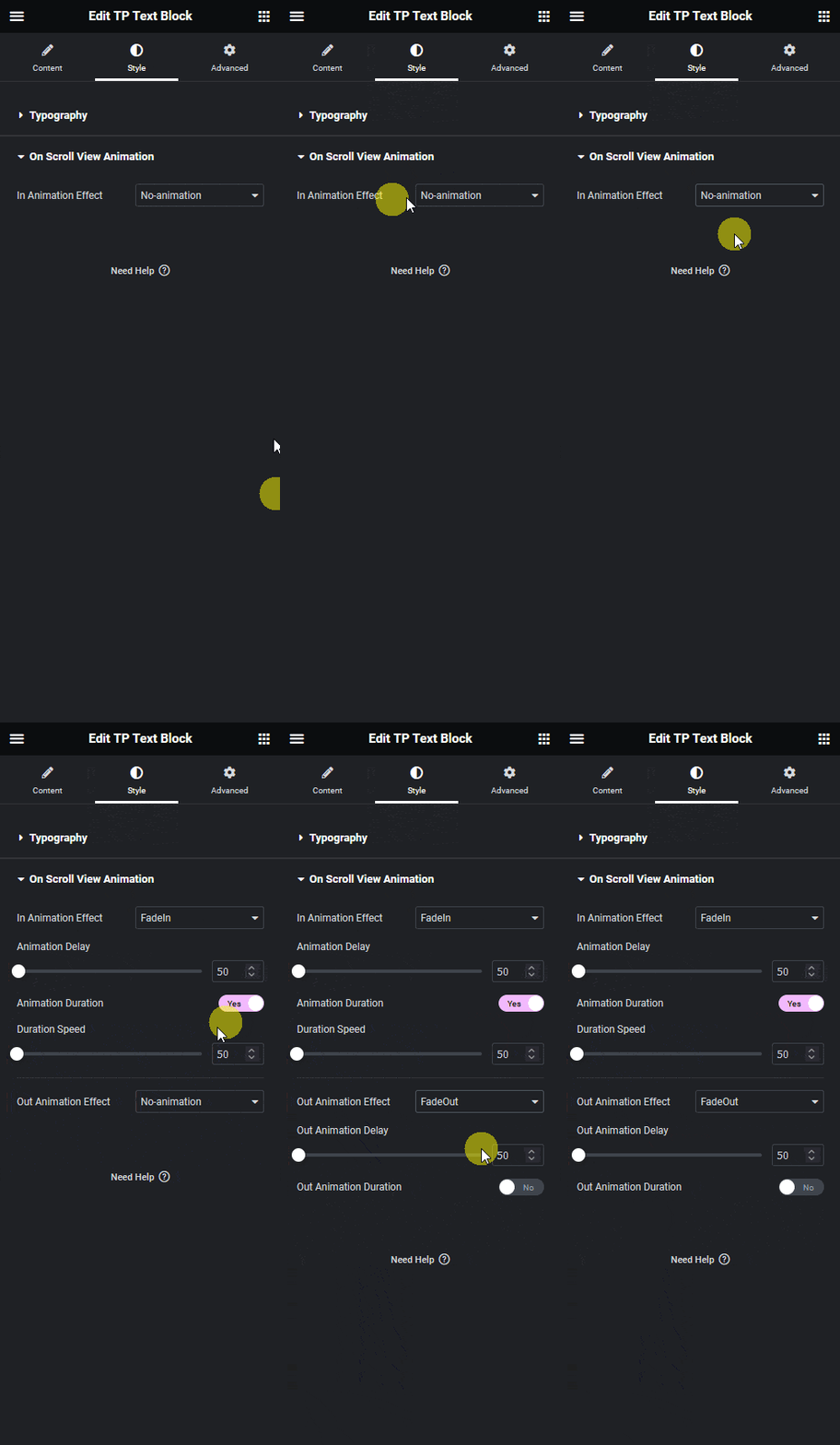
On scroll view animation settings

Now as per your settings, you’ll see the content enter and leave the viewing area with animation.
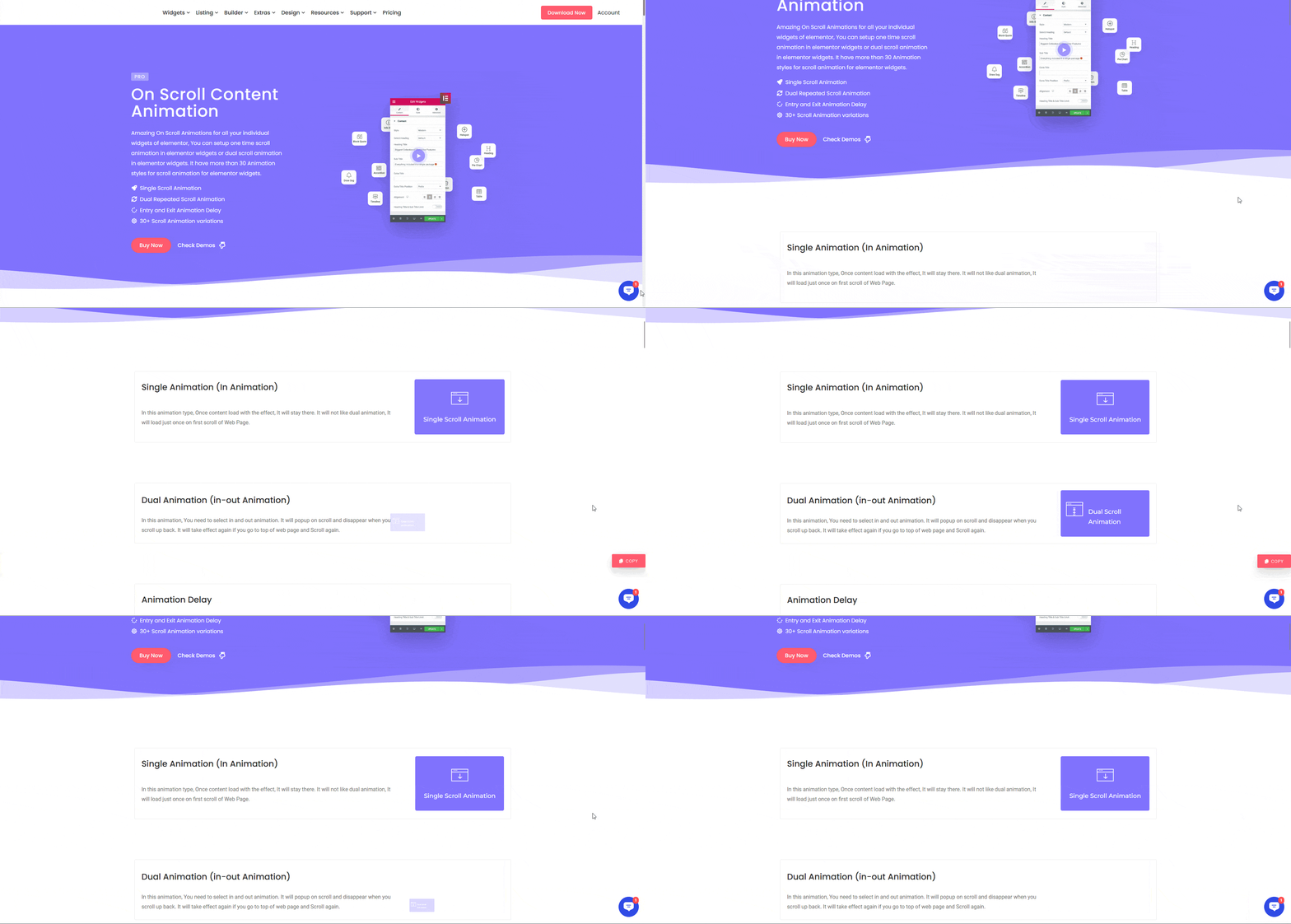
On scroll view animation demo

About the Author

Aditya Sharma
CMO · The Plus Addons for Elementor · 7 years experience

He has spent years in the WordPress ecosystem building, breaking, and optimizing sites until they actually perform. He works at the intersection of speed, growth, and usability, helping creators ship websites that load fast and convert. An active WordPress community contributor sharing through tools, tutorials, and direct collaboration. Tested practice, not theory.

WordPressElementorn8nAIClaudeAutomationServer
Get Instant Answers to all your questions about The Plus Addons for Elementor, trained on 1000+ Docs and Videos

Related Frequently Asked Questions

What should I do if the On Scroll View Animation isn't working?

If the On Scroll View Animation isn't functioning, ensure that both the Elementor FREE Plugin and The Plus Addons for Elementor are installed and activated. This extension is enabled by default on certain widgets, so check that you are using one of those widgets. If the animation still doesn't work, verify your settings in the Style tab.

What are the best practices for setting animation duration?

When setting the animation duration for On Scroll View Animation, consider the overall user experience. A duration between 300ms to 600ms is often ideal, as it provides a smooth transition without being too fast or too slow. Adjust the Animation Delay to create a staggered effect if you have multiple elements animating, which can add depth to your design.

Does On Scroll View Animation work with all Elementor widgets?

No, On Scroll View Animation is only enabled by default on selected widgets from The Plus Addons for Elementor. You need to check which widgets support this feature. If you're using a widget that doesn't support it, you won't see the animation options in the Style tab.

What common mistakes do users make when using On Scroll View Animation?

A common mistake is not adjusting the Animation Duration and Delay settings, which can lead to animations that feel abrupt or out of sync. Additionally, users often overlook the importance of testing animations across different devices to ensure they perform well on both desktop and mobile views. Always preview your animations to refine their timing and impact.

How can I add both entrance and exit animations to a widget?

To add both entrance and exit animations, select a widget from The Plus Addons for Elementor, go to the Style tab, and set the In Animation Effect for entrance. Then, select the Out Animation Effect for exit. Make sure to specify the Animation Duration and Delay for both effects to ensure a cohesive animation experience as the content enters and leaves the viewing area.

Last reviewed: April 10, 2026
