

































If you want to showcase your latest podcast episode or feature a music track for your visitors, having an audio player on your site can greatly enhance the overall user experience.
With the Audio Player widget from The Plus Addons for Elementor, you can add an audio player to your Elementor website.
Required Setup
- Elementor FREE Plugin installed & activated.
- You need to have The Plus Addons for Elementor plugin installed and activated.
- This is a Premium widget, and you need the PRO version of The Plus Addons for Elementor.
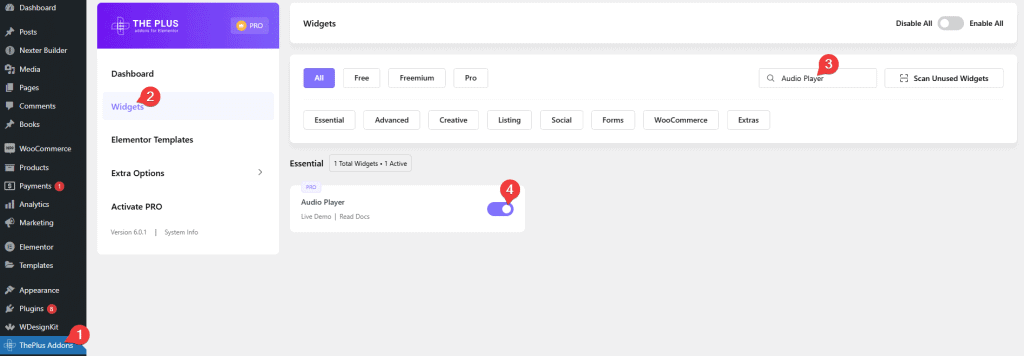
- Make sure the Audio Player widget is activated, to verify this visit The Plus Addons → Widgets → and Search for Audio Player and activate.
Learn via Video Tutorial:

How to Activate the Audio Player Widget?
Go to
- The Plus Addons → Widgets
- Search the widget name and turn on the toggle.
Key Features
- Multiple styles – Choose from multiple pre-built audio player styles. Use this when you want a consistent look that matches your site design without custom CSS.
- Add playlist – Add a playlist with multiple audio tracks. Use this when you want visitors to browse and play a series of songs or podcast episodes.
- Multiple sources – Add audio from your WordPress media library (Self Hosted) or from an external URL. This is useful when your audio files are hosted on a CDN or a third-party platform.
How to Add an Audio Player in Elementor?
To add an audio player in Elementor, add the Audio Player widget to the page.
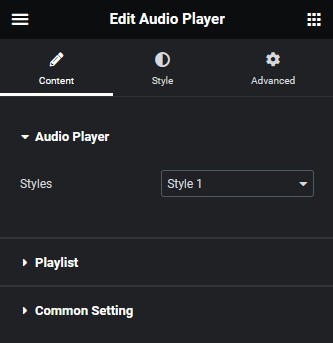
Audio Player
From the Styles dropdown, select a pre-defined player style.
Playlist
Here you can add the playlist items. By default, you will find one item. Open it to configure the track.
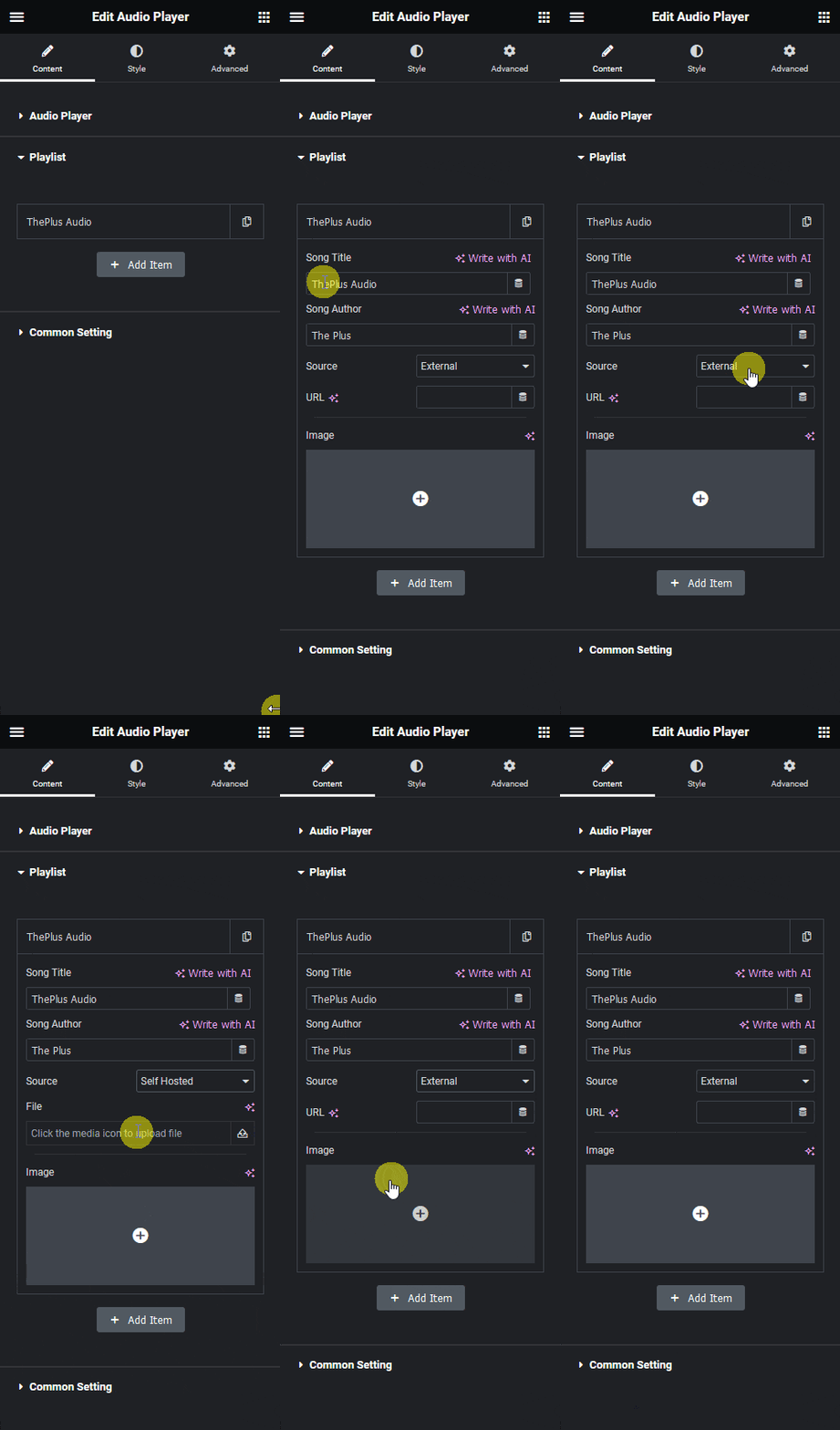
In the Song Title field, you can add the audio title.
Then in the Song Author field, you can add the author name for the audio.
From the Source dropdown, select the audio source. Here you will find two options.
- Self Hosted – With this option you can use audio from your WordPress media library.
- External – With this option you can use audio from external sources. This option is useful when your audio files are hosted somewhere else.
Note: Supported audio file types .mp3, .wav, .ogg, .flac, .m4a.
Select External here.
Then in the URL field, add the audio file URL.
Note: When the Self Hosted option is selected, select the audio file from the File field instead.
After that from the Image section, you can add an image for the audio.
Click the + Add Item button to add more audio tracks. This lets you build a full audio playlist directly in the widget.
Common Setting
From the Image Resolution dropdown, you can change the image size.
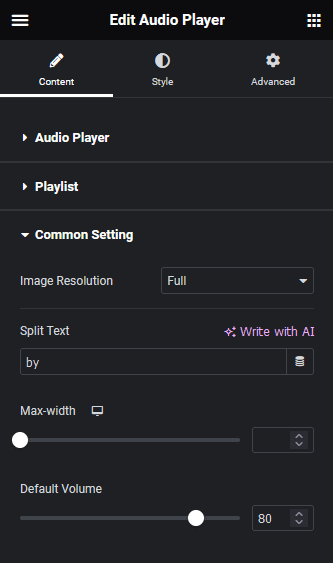
In the Split Text field, you can add a text separator that appears between the audio title and author name.
From the Max-width section, you can set the audio player max width for different devices.
From the Default Volume section, you can set the audio player default sound level.
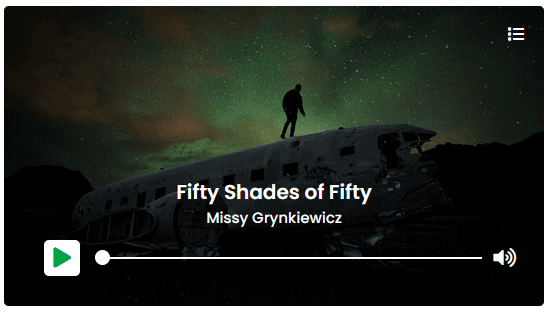
How to Style the Audio Player Widget in Elementor?
You can style the Audio Player from the Style tab.
Song Title – From here, you can manage the audio title typography and color.
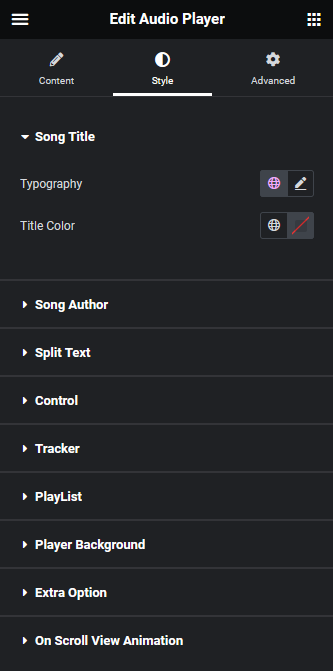
Song Author – From here, you can manage the audio author name typography and color.
Split Text – From here you can manage the Split Text style.
Control – From here, you can style the audio player controls.
Tracker – From here, you can style the audio player tracker.
PlayList – From here, you can style the audio player playlist.
Player Background – From here, you can manage the audio player background style.
Extra Option – From here, you can autoplay the audio in a loop by enabling the Autoplay Loop toggle.
On Scroll View Animation – This is a global extension available for all widgets in The Plus Addons for Elementor. It adds a scroll-triggered animation as the widget enters the viewport. Advanced tab options are shared across all widgets. View Advanced Tab documentation.
Suggested Read: How to Add a Music Player Bar in Elementor Navigation Header Menu.
