






The standard WordPress email for new accounts is short and plain. A custom welcome email lets you use your own words, your brand and links to your next steps.
The Custom Email option of the WP Login & Register widget from The Plus Addons for Elementor sends that email when someone registers through the form.
To check the complete feature overview documentation of The Plus Addons for Elementor WP Login & Register widget, click here.
Requirement – This widget is a part of The Plus Addons for Elementor, make sure it’s installed & activated to enjoy all its powers.
Before You Start
- Edition: Pro — the WP Login & Register widget is only part of The Plus Addons for Elementor Pro. The free plugin lists it as a locked Pro widget and does not add it to Elementor.
- Widget to enable: WP Login & Register, switched on under The Plus Addons > Widgets.
- WordPress setting: Settings > General > Membership: Anyone can register must be ticked, or the register form shows a notice instead of its fields.
- Working email on your site, for example through an SMTP plugin.
How to Send a Custom Registration Email
- Add the WP Login & Register widget and set Type to Register or Login and Register.
- Open Register Extra Options and turn on Password Field, so members choose their own password (see Limitations).
- Turn on Custom Email in the same section.
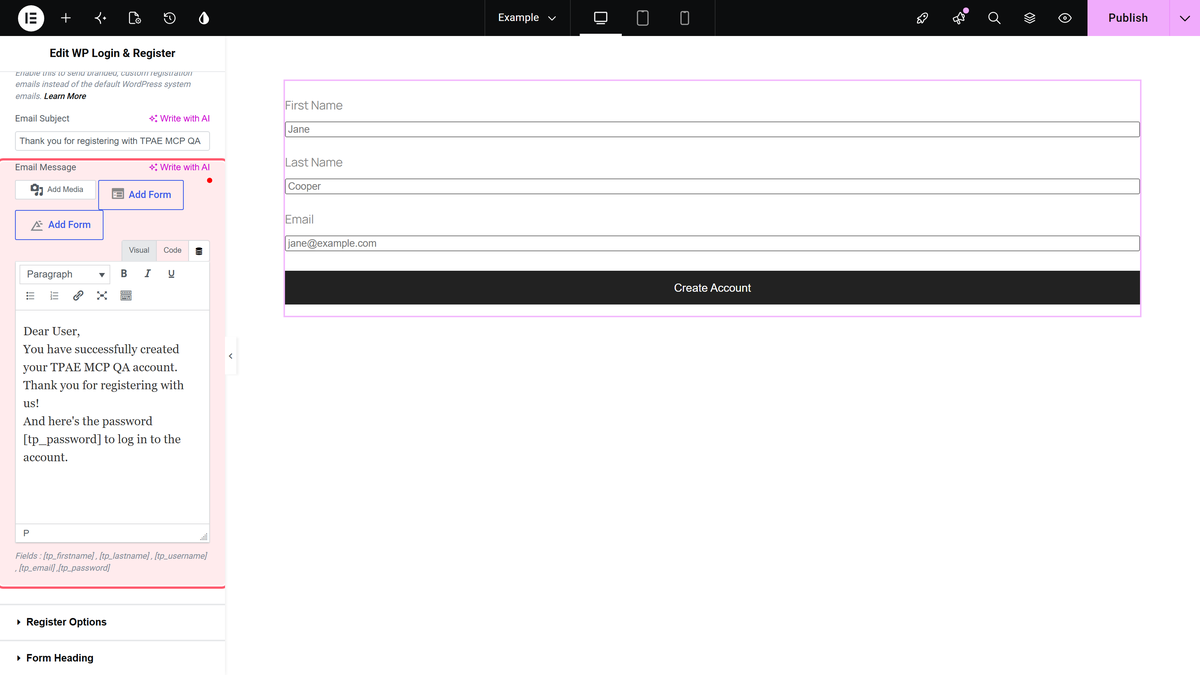
- Write the Email Subject.
- Write the Email Message. Use the placeholders from the table below, and delete [tp_password] from the default text.
- Publish the page and register a test account to check the email.
Placeholders
| Placeholder | Replaced with | Tested result |
|---|---|---|
| [tp_firstname] | The first name entered in the form | Works |
| [tp_lastname] | The last name entered in the form | Works |
| [tp_email] | The email address entered in the form | Works |
| [tp_username] | The username entered in the form | Empty unless User Name Field is shown |
| [tp_password] | Listed in the panel as the password | Always empty |
Placeholders are replaced in the Email Message only. In the Email Subject they are sent as plain text.
How It Behaves
- The email goes to the address the member entered, as soon as the account is created.
- The message is sent as HTML, so formatting from the editor is kept.
- While Custom Email is on, WordPress’s own new-account emails are not sent: the member gets no set-password link and the site admin gets no new-user notice.
Limitations
- [tp_password] never contains the password. The default message ends with “here’s the password to log in” followed by nothing. Remove that sentence.
- Without Password Field, members get no way to log in. The custom email replaces the WordPress email that carries the set-password link, so they would have to use the lost password link first. Keep Password Field on while Custom Email is on.
- The site admin is not notified of new registrations while Custom Email is on.
- Placeholders do not work in the subject.
- The widget is part of The Plus Addons for Elementor Pro only.
Troubleshooting
No email arrives
The widget hands the email to WordPress. Check your site’s mail delivery with an SMTP plugin and look in the spam folder.
The email shows an empty password or username
Remove [tp_password]. For [tp_username], turn on User Name Field or use [tp_email] instead.
