






A Facebook login lets visitors sign in with an account they already have, instead of creating another password.
The Facebook option of the WP Login & Register widget from The Plus Addons for Elementor adds the button once you connect a Facebook app.
To check the complete feature overview documentation of The Plus Addons for Elementor WP Login & Register widget, click here.
Requirement – This widget is a part of The Plus Addons for Elementor, make sure it’s installed & activated to enjoy all its powers.
Before You Start
- Edition: Pro — the WP Login & Register widget is only part of The Plus Addons for Elementor Pro. The free plugin lists it as a locked Pro widget and does not add it to Elementor.
- Widget to enable: WP Login & Register, switched on under The Plus Addons > Widgets.
- Anyone can register ticked in Settings > General. The Facebook login is refused while it is off, even for existing members.
- A Facebook developer account and an app with the Facebook Login product.
Step 1: Create a Facebook App
These screens belong to Meta for Developers and change often, so the labels you see may differ.
- Log in to Facebook for Developers. If you have no developer account yet, click Get Started.

- Complete the developer account registration.
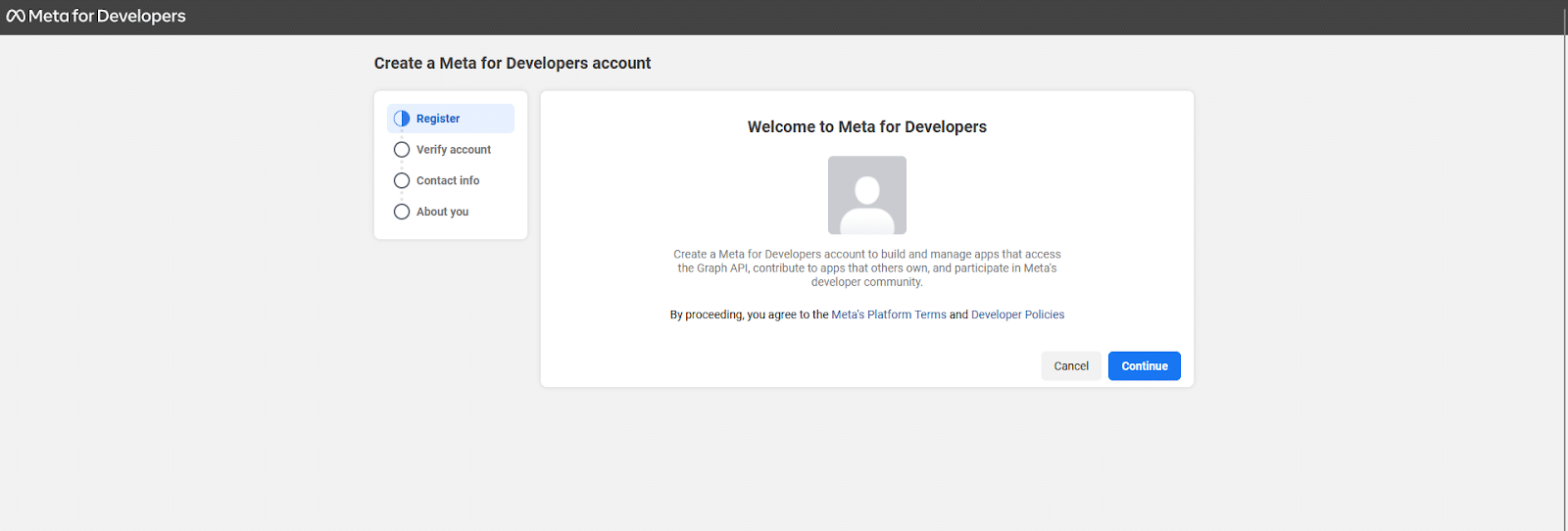
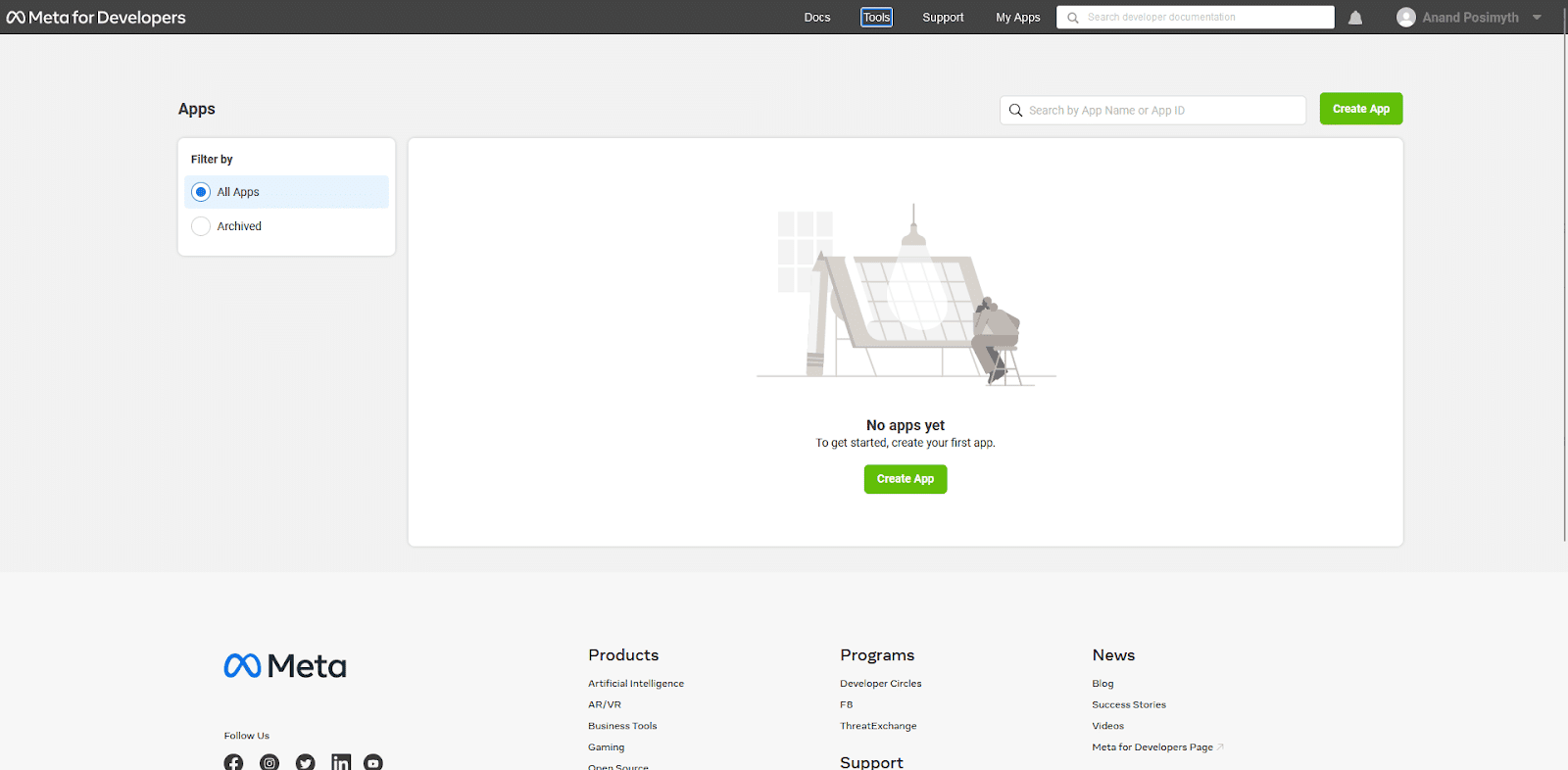
- On the Apps page, click Create App.
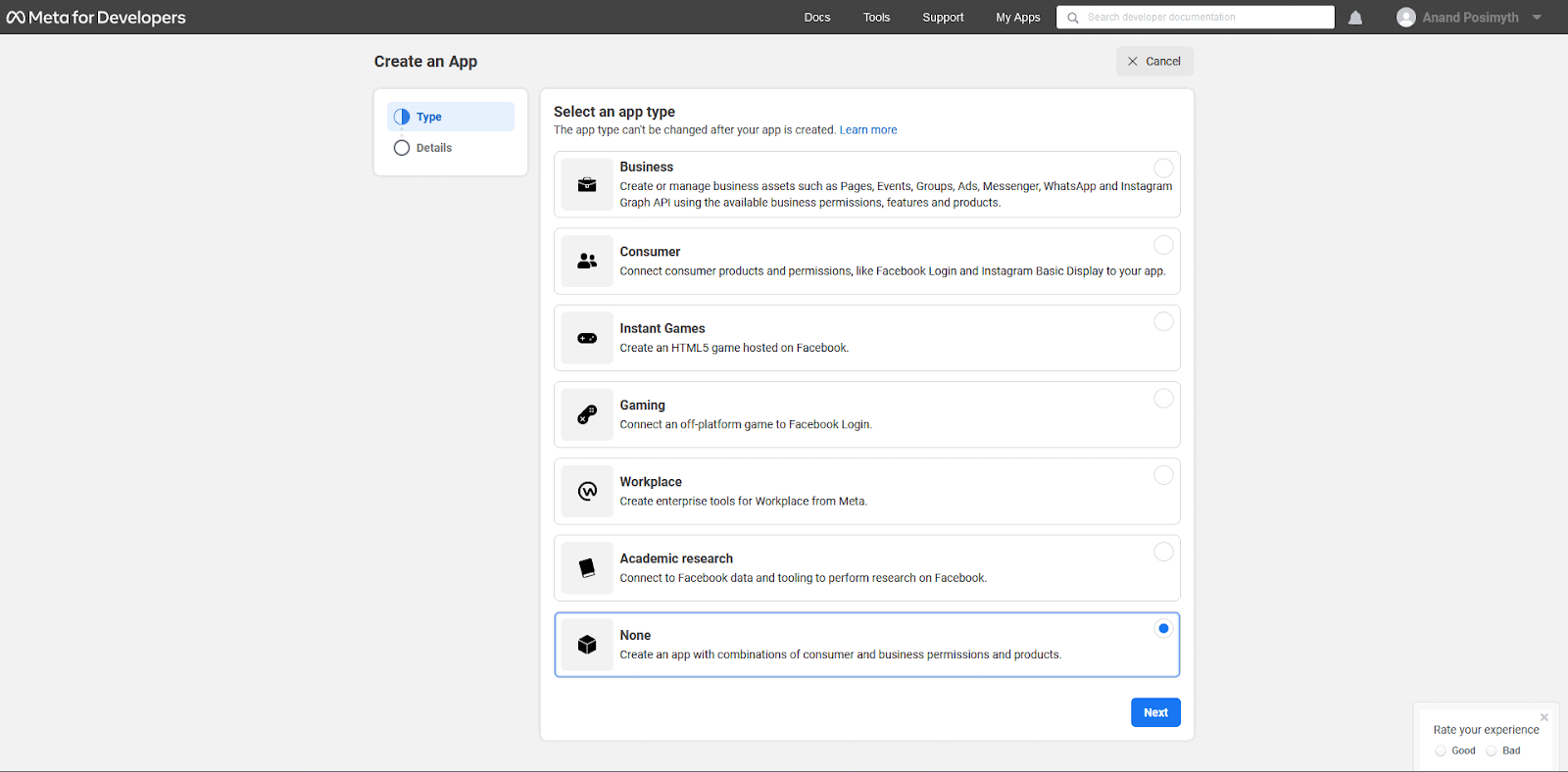
- Choose the app type and continue.
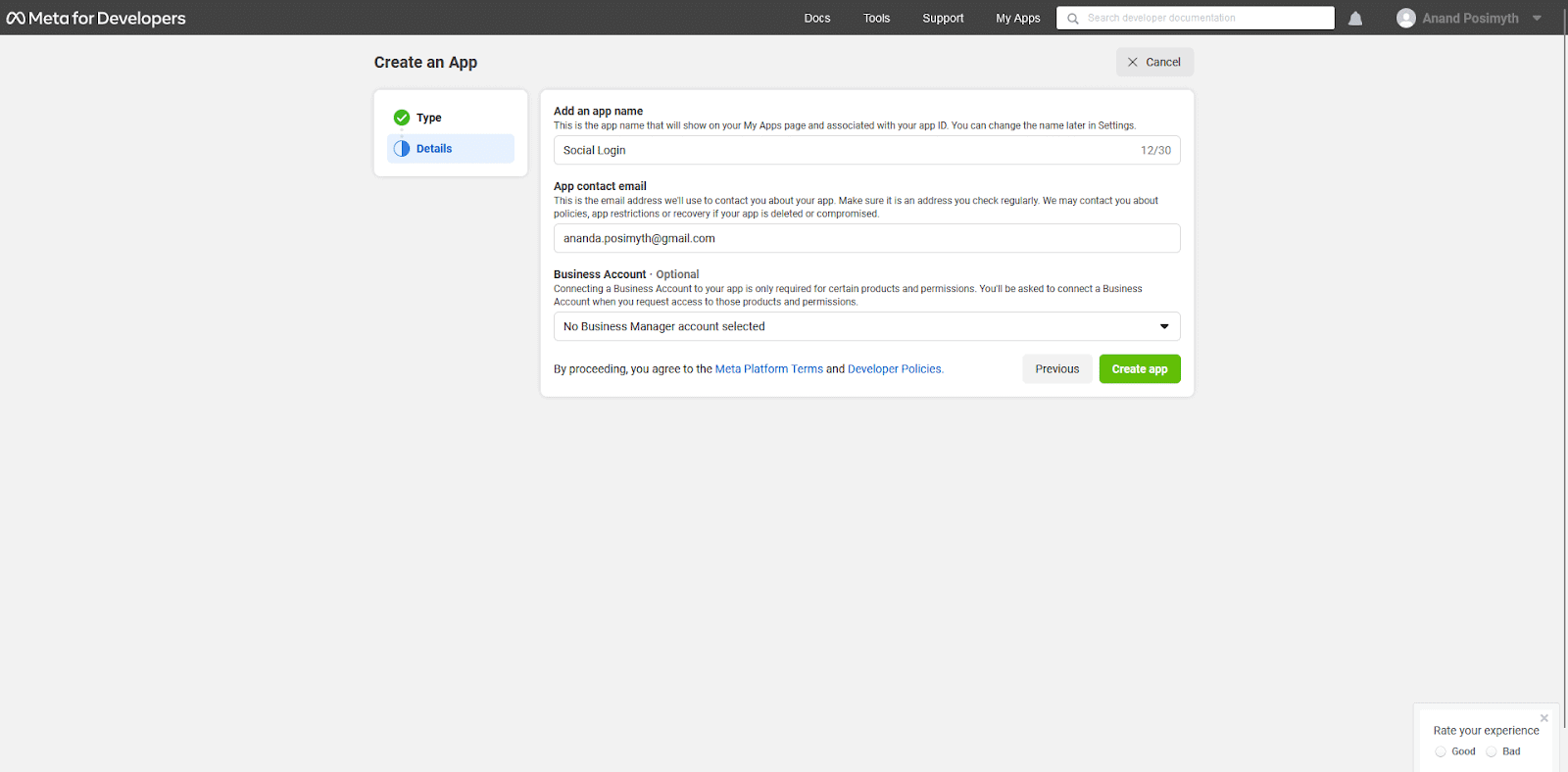
- Enter the app name and contact email, then create the app.
- Open Settings > Basic in the app’s sidebar.
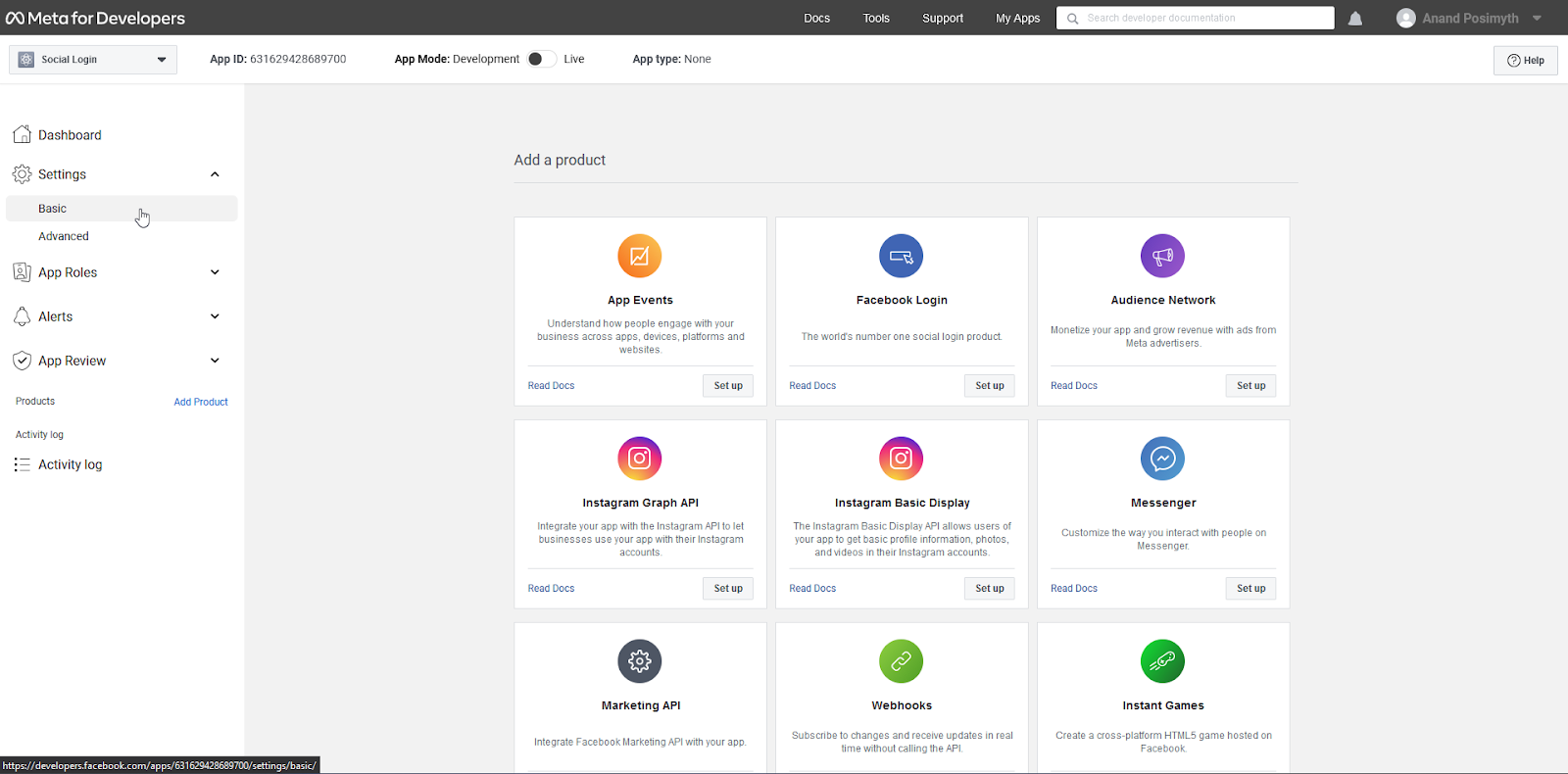
- Copy the App ID and, after clicking Show, the App Secret.
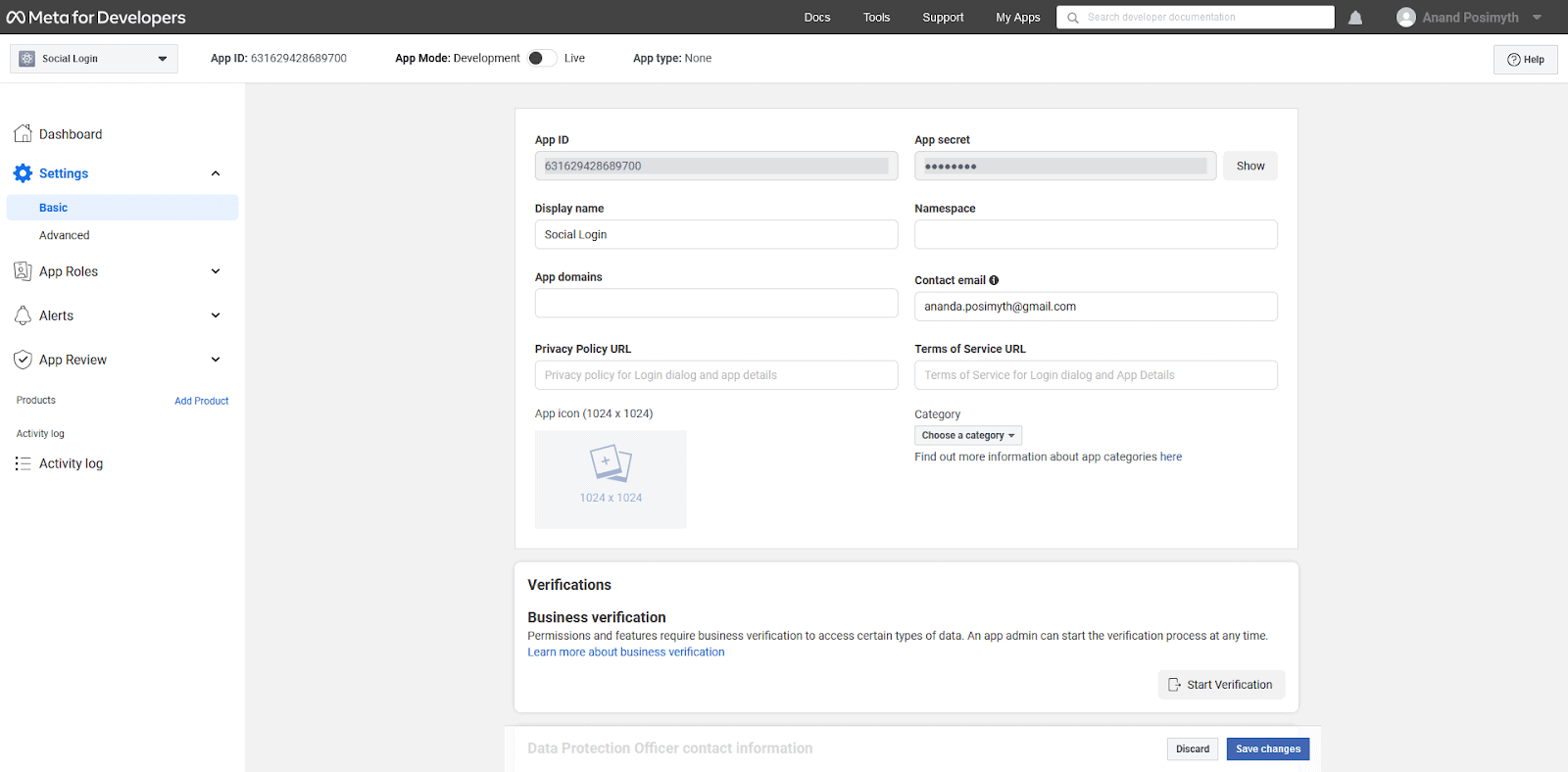
- Add a Privacy Policy URL, choose a category and save the changes.
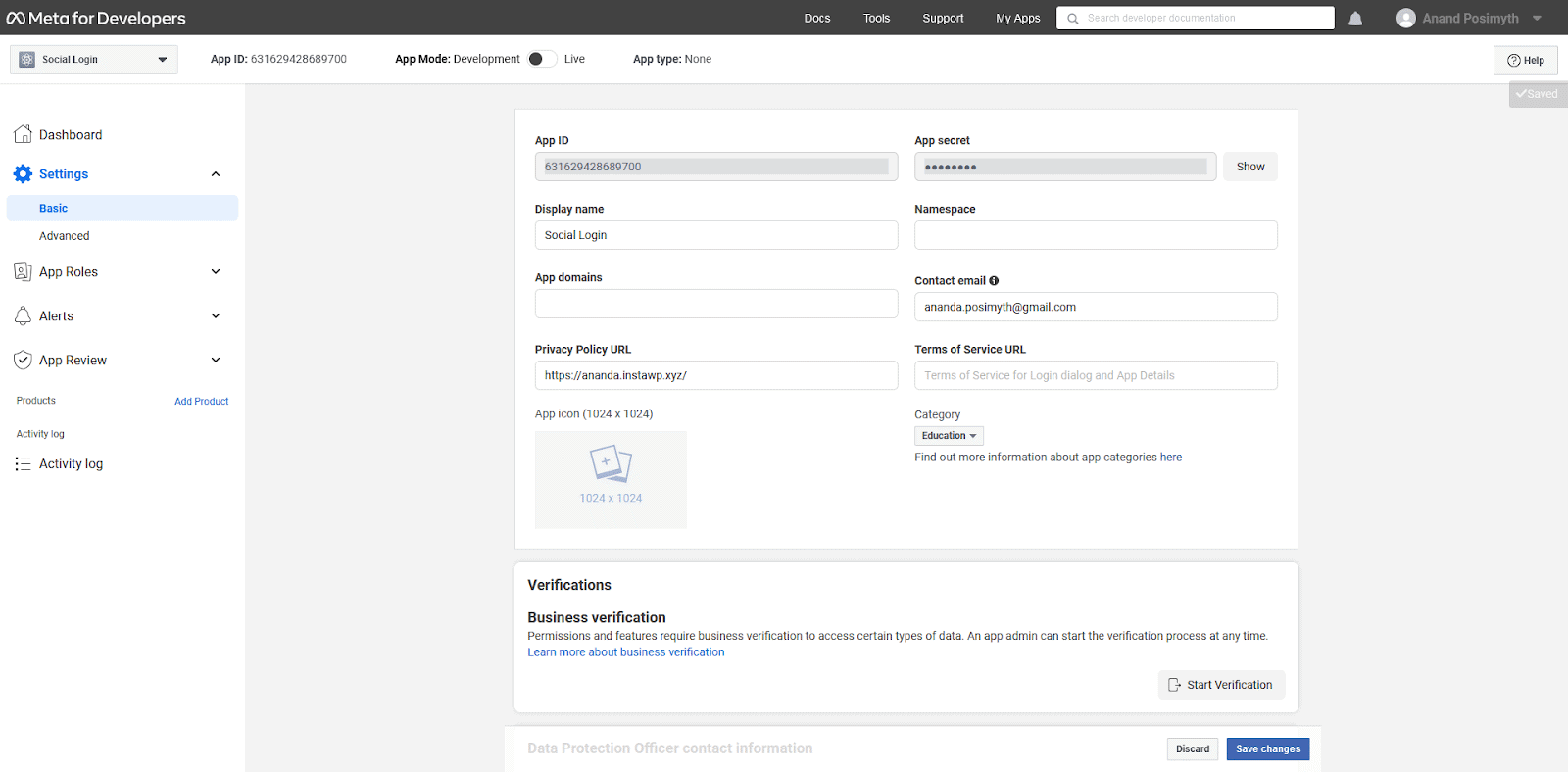
- Switch the app to Live mode.
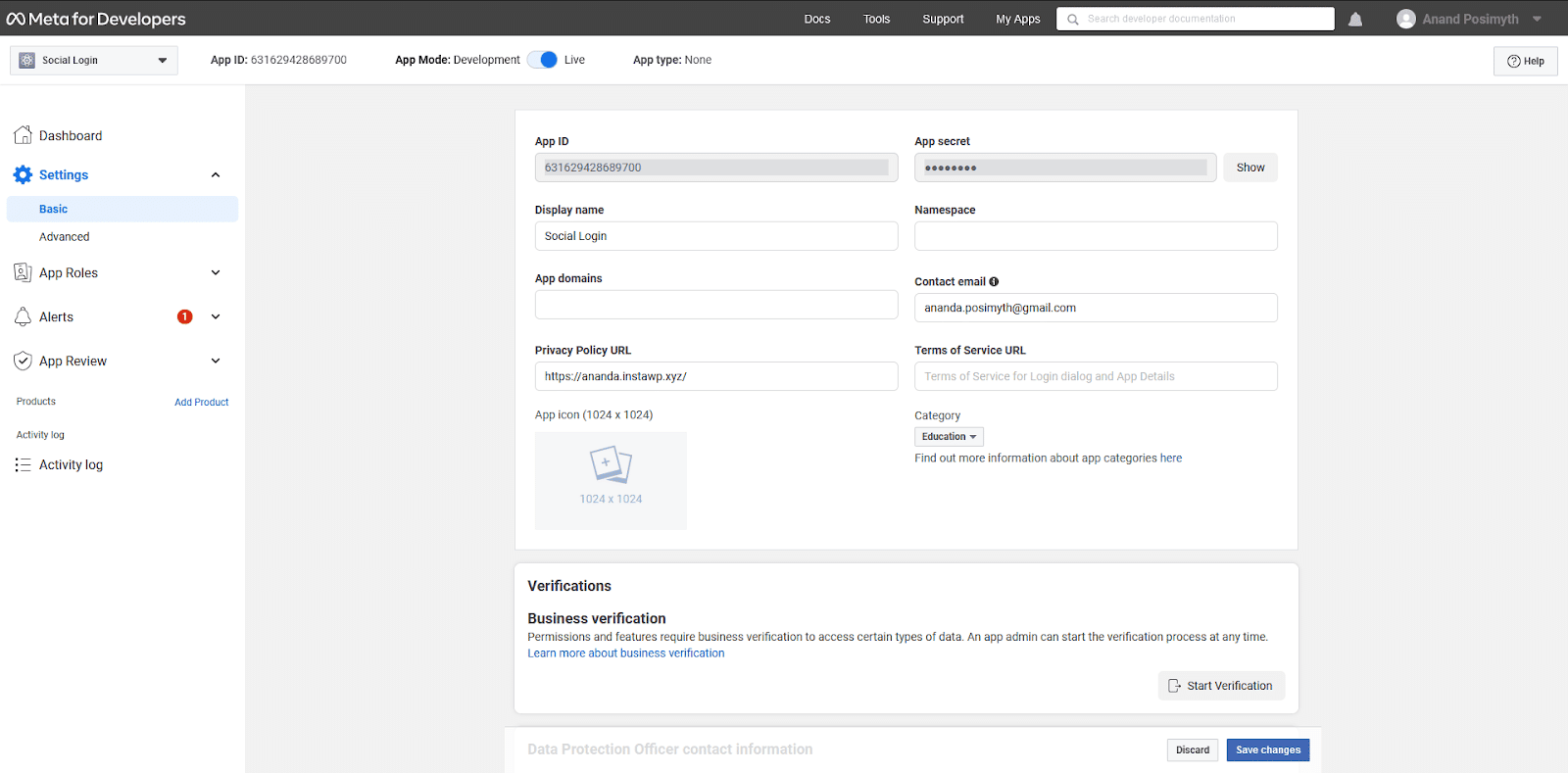
- Add the Facebook Login product to the app.
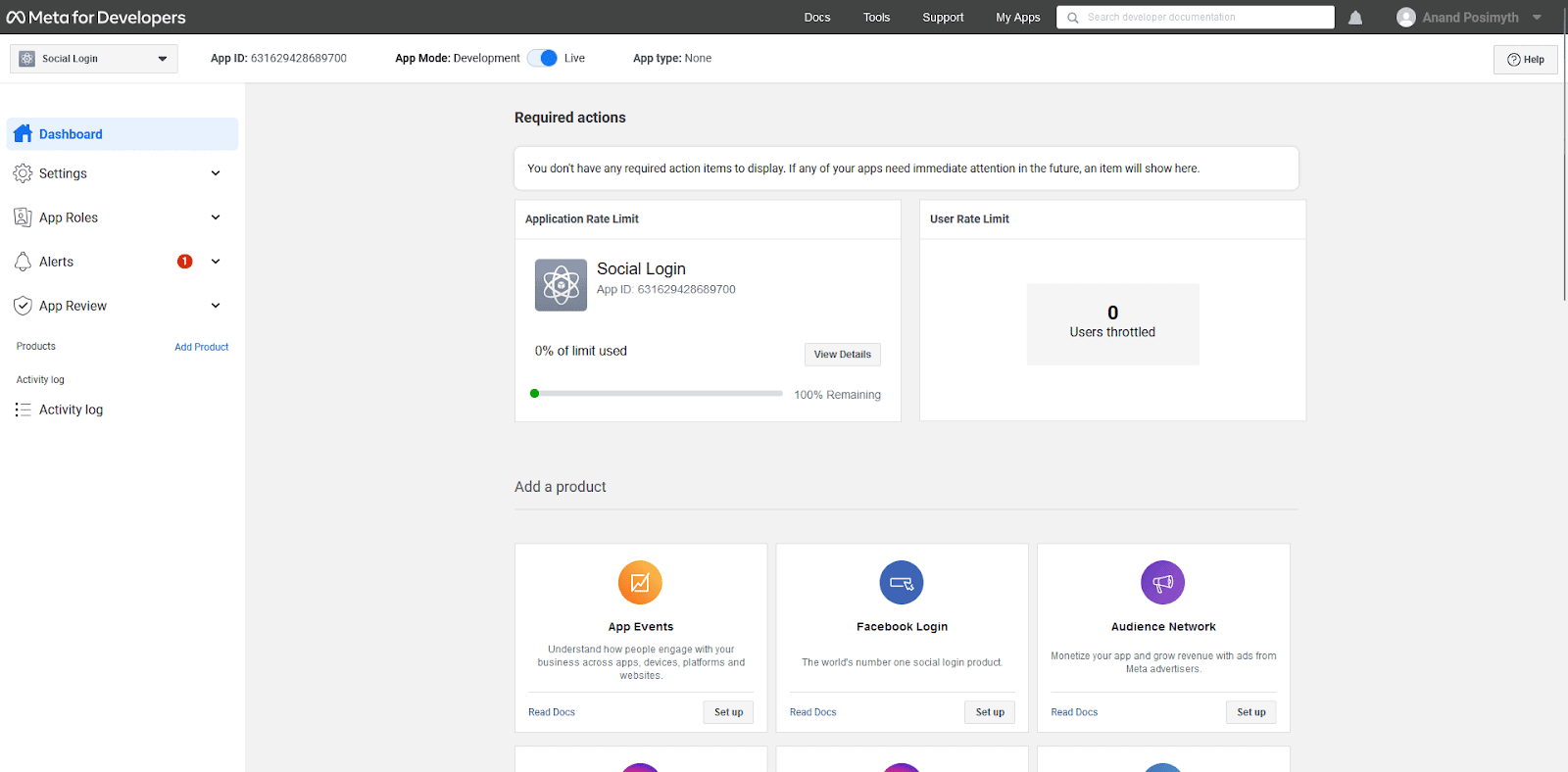
- In Facebook Login > Settings, add the address of the page with your login form.
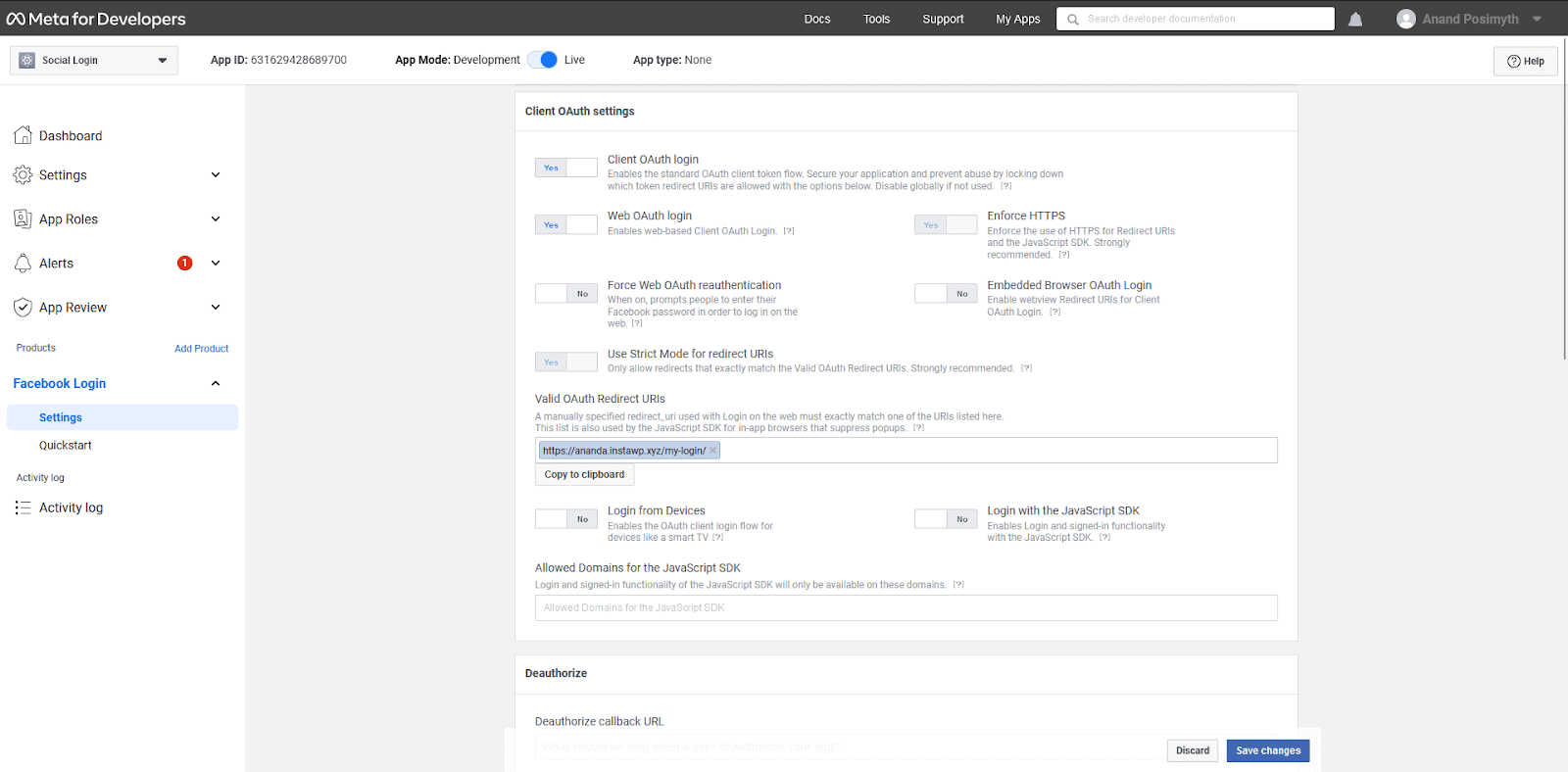
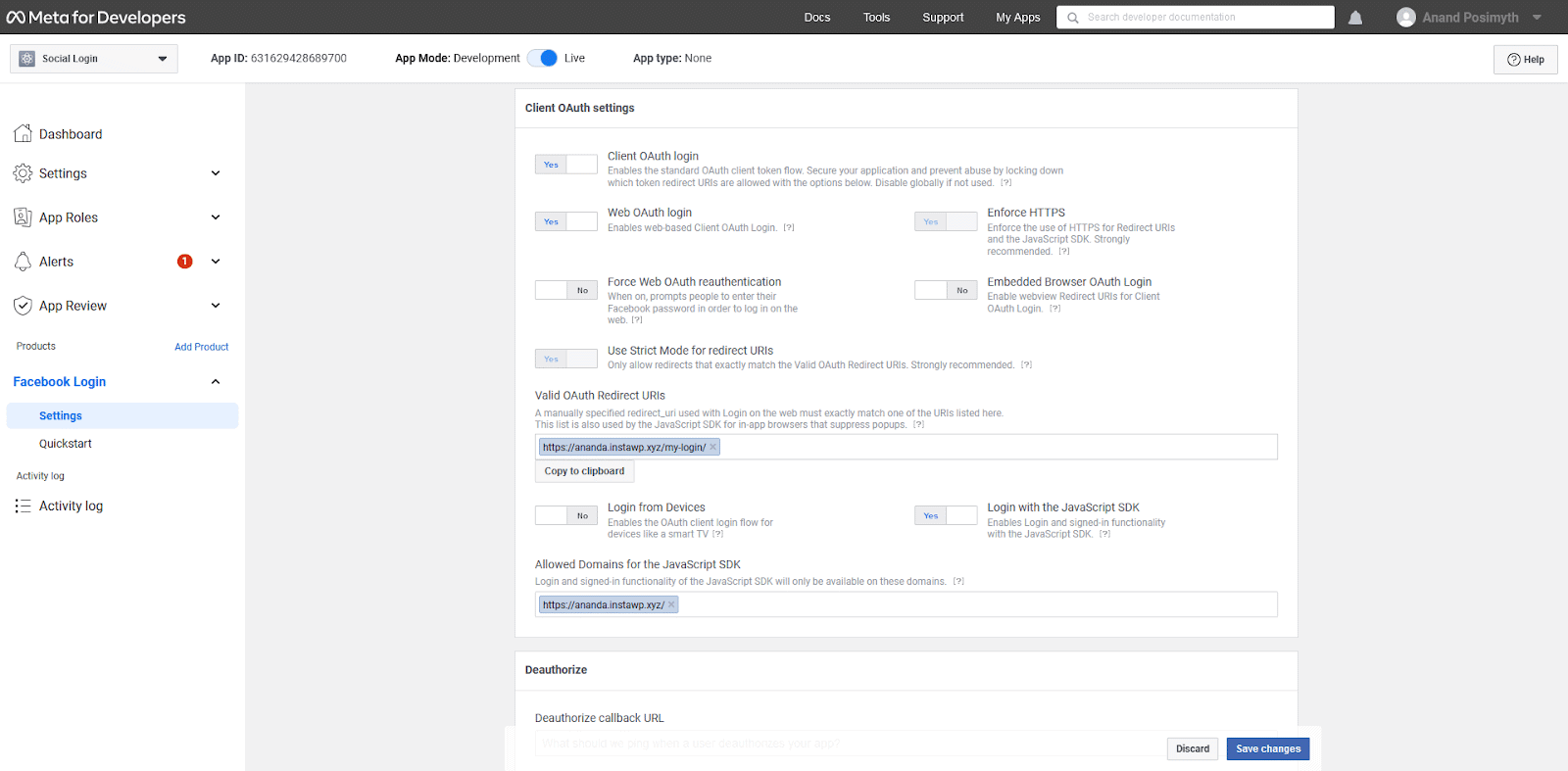
- Turn on Login with JavaScript SDK, add your domain to the allowed domains and save.
Step 2: Save the App Keys in The Plus Addons
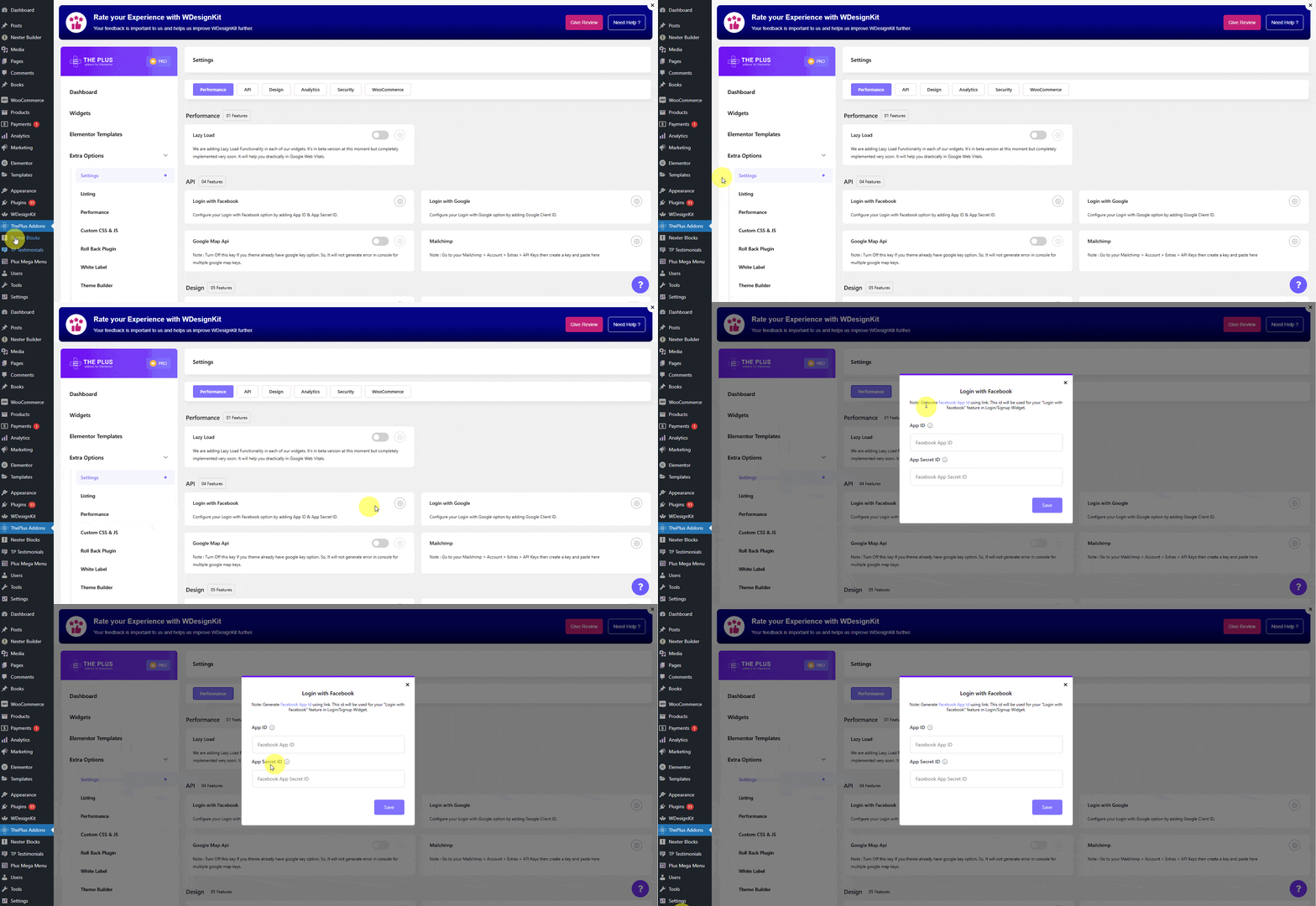
- Go to The Plus Addons > Settings and find Login with Facebook in the API group.
- Click its settings icon, paste the App ID and the App Secret ID, and click Save.
Step 3: Show the Button in the Widget
- Add the WP Login & Register widget with any Type except Forgot Password.
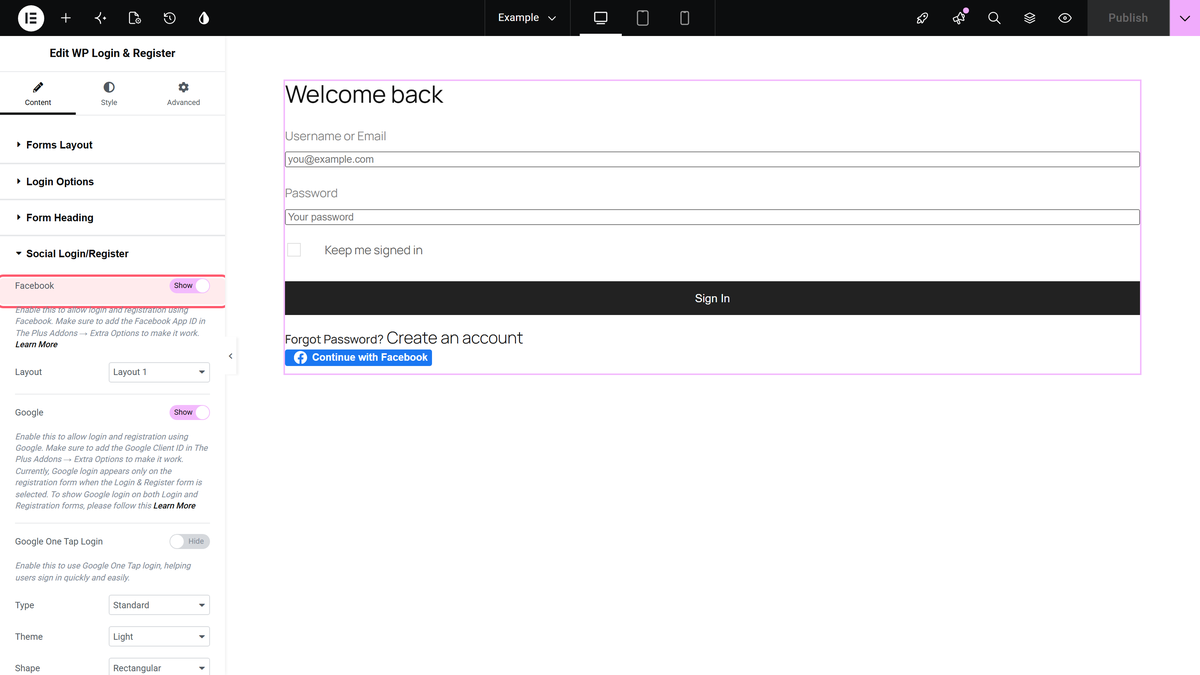
- Open Social Login/Register and turn on Facebook.
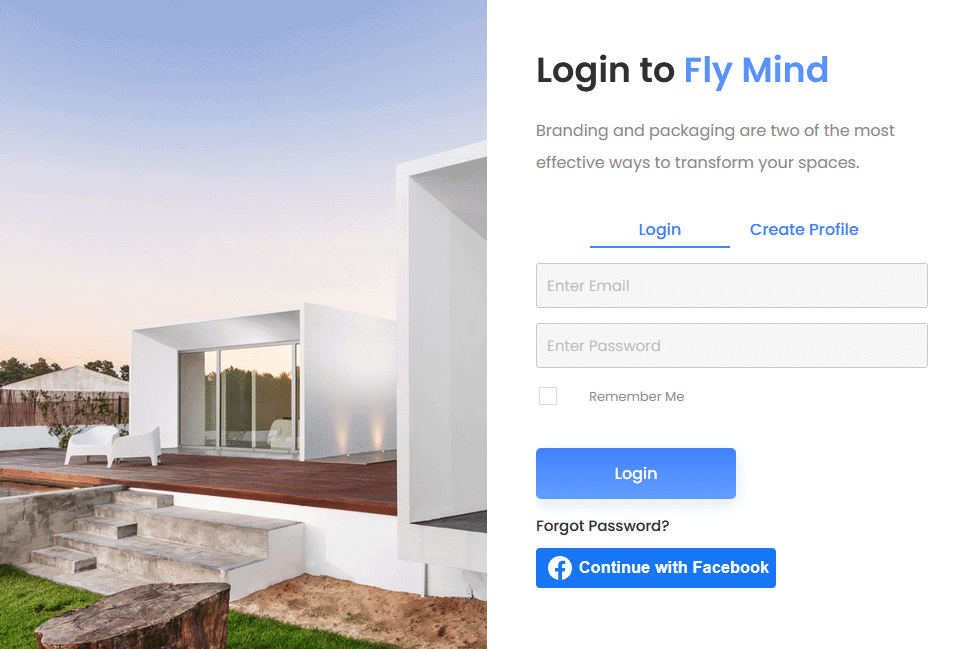
- Pick a Layout (Layout 1 or Layout 2), set the Alignment, and optionally a Redirect URL for after the login. Then publish.
How It Behaves
- According to the plugin code, the button uses Facebook’s JavaScript SDK and asks for the visitor’s email.
- The site checks the login with your App ID and App Secret, then logs in the member with the same email, or creates a new account.
- Hide Form (for the Login or Register type with the Standard Form layout) leaves only the social buttons.
Limitations
- We could not test a Facebook login end to end on our test site, so check the flow on your live site with a test account before relying on it.
- While Anyone can register is off, the plugin refuses every Facebook login, including members who already have an account.
- According to the plugin code, the login is only sent to your site when Facebook shares the visitor’s email address; without it, clicking the button does nothing.
- The widget is part of The Plus Addons for Elementor Pro only.
Troubleshooting
The button does not appear
Check that the App ID is saved in Login with Facebook, that the app is Live, and that your domain is allowed for the JavaScript SDK.
Login fails with a registration message
Tick Anyone can register in Settings > General.
