






A login button in the header gives members a way into their account from every page, without a separate login page in the menu.
The WP Login & Register widget from The Plus Addons for Elementor turns the login form into a compact header button.
To check the complete feature overview documentation of The Plus Addons for Elementor WP Login & Register widget, click here.
Requirement – This widget is a part of The Plus Addons for Elementor, make sure it’s installed & activated to enjoy all its powers.

Before You Start
- Edition: Pro — the WP Login & Register widget is only part of The Plus Addons for Elementor Pro. The free plugin lists it as a locked Pro widget and does not add it to Elementor.
- Widget to enable: WP Login & Register, switched on under The Plus Addons > Widgets.
- A header template built with a theme builder that uses Elementor templates.
How to Add a Login Button to the Header
- Open your header template and add the WP Login & Register widget next to your menu.
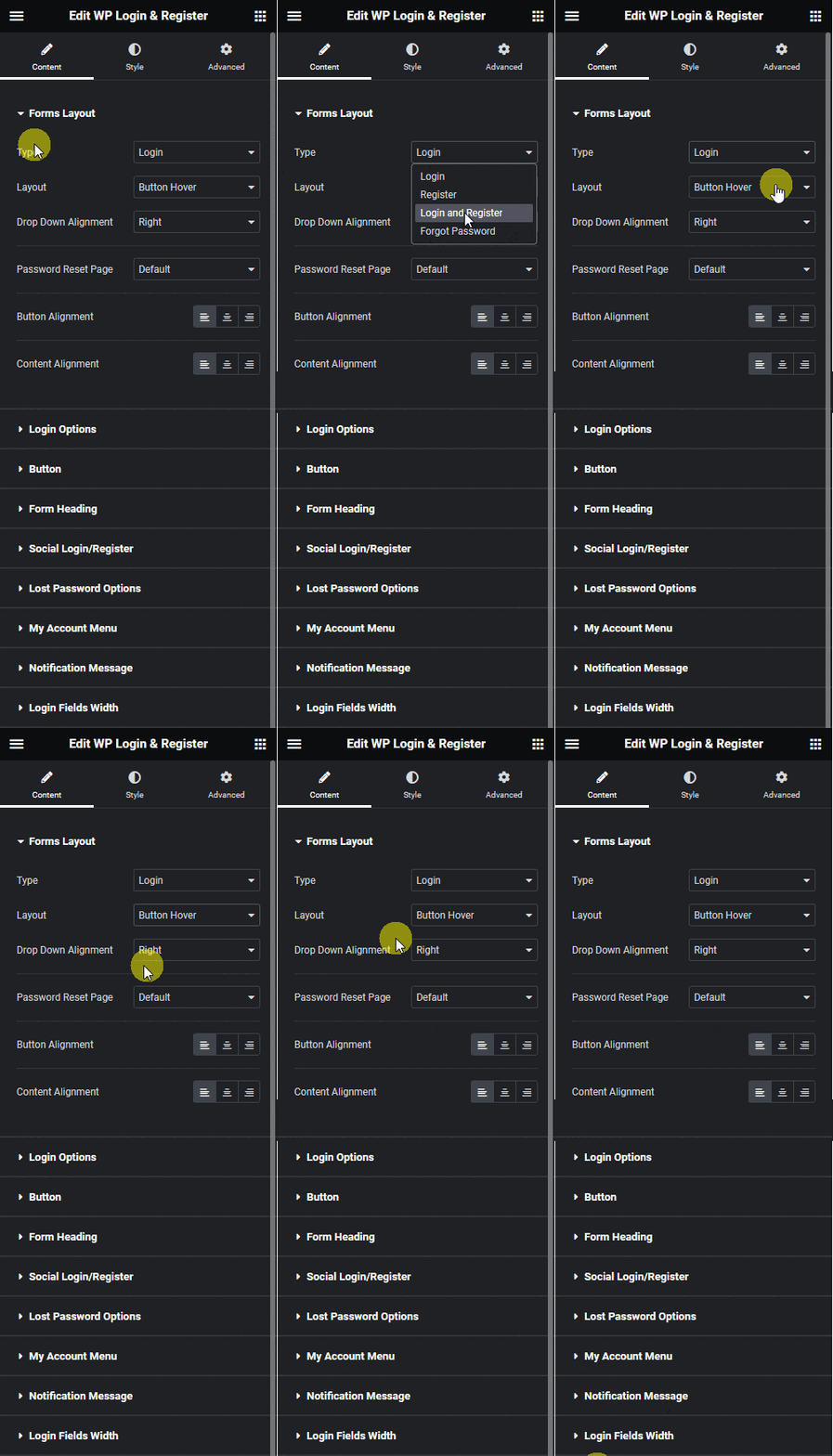
- In Forms Layout, set Type to Login, or Login and Register to offer sign-up too.
- Set Layout to Button Hover, Button Click or Button Popup.
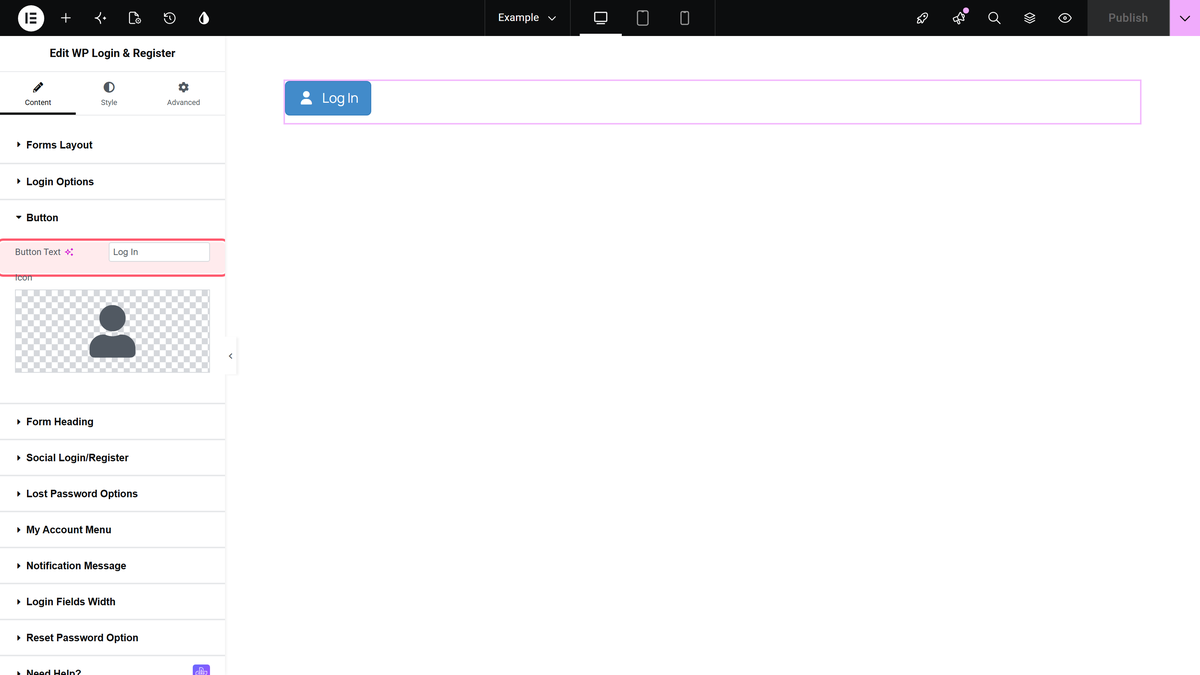
- In the Button section, set the Button Text and the Icon.
- Use Button Alignment to place the button, and for Button Hover or Button Click set Drop Down Alignment to Left, Right or Center.
- Publish the template and check it in a private browser window.

Which Layout to Choose
| Layout | Behaviour |
|---|---|
| Button Hover | The form drops down while the mouse is over the button. |
| Button Click | The form drops down on click and hides on the next click. |
| Button Popup | The form opens in a popup over the page. |
How It Behaves
- Only logged-out visitors see the button.
- Logged-in members see the My Account Menu in the same place, with Logout.
- Style the button itself in Style > Hover/Click/Popup Button.
Limitations
- We tested the three layouts with a mouse on desktop. Check the header on your phone before you choose Button Hover.
- The widget is part of The Plus Addons for Elementor Pro only.
Troubleshooting
The button does not show on the live site
You are probably logged in. Logged-in members see the account menu instead; check in a private window.
