




















Want clients to book a meeting directly from your website? Embedding a Calendly scheduling calendar on your page lets visitors pick an available time slot and confirm a booking without back-and-forth emails.
The Meeting Scheduler widget in The Plus Addons for Elementor lets you add a Calendly calendar to any Elementor page. No separate Calendly plugin for WordPress is needed.
To check the complete feature overview documentation of The Plus Addons for Elementor Meeting Scheduler widget, click here.
Best Used For:
- Consultants, coaches, and agencies that want clients to book calls directly from a service page
- SaaS and B2B product pages where a “Book a Demo” scheduler replaces a manual contact form
- Freelancers and solo operators who want to display one event type or all available meeting types on a contact page
Requirement – This widget is a part of The Plus Addons for Elementor, make sure it is installed and activated to enjoy all its powers.
To do this, add the Meeting Scheduler widget to the page. In the Content tab, go to Meeting Scheduler → Select and choose Calendly from the dropdown.
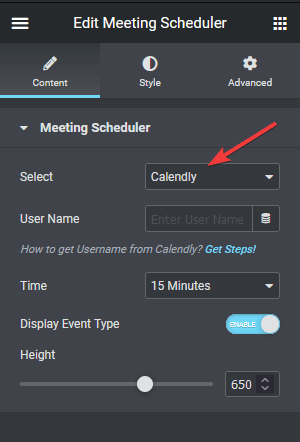
Now add your Calendly account username in the User Name field.
Make sure you have at least one event created in your Calendly account. The widget requires an active event to load the scheduler. If no events exist, the embed will not display.
To find your Calendly username, go to Calendly.com and log in to your account. Click Account → Account Settings → My Link. Your username appears on that page.
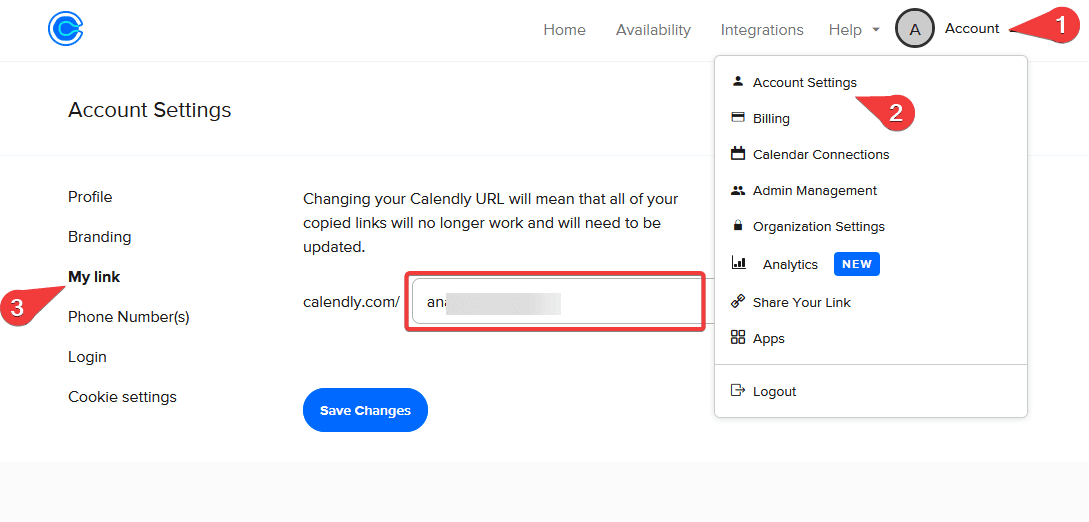
Copy the username and paste it into the User Name field in the Meeting Scheduler widget.
From the Time dropdown, choose the duration that matches your Calendly event. If your event is set to 30 minutes, select 30 Minutes from the dropdown. The duration in the widget must match the event duration set in your Calendly account. A mismatch causes the wrong event to appear or nothing to load at all. Use this when you want to display one specific event type for a focused booking flow, such as an introductory call on a pricing page.
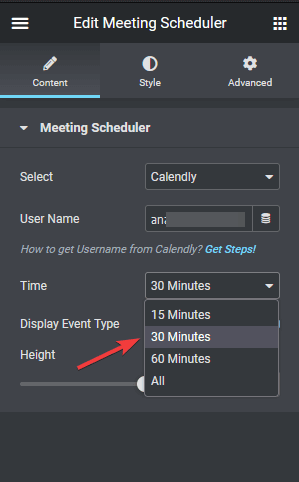
To display all your Calendly events on the same page, select All from the Time dropdown. This is useful when your Calendly account has multiple event types, for example a 15-minute intro call and a 60-minute strategy session, and you want visitors to choose the format that suits them.
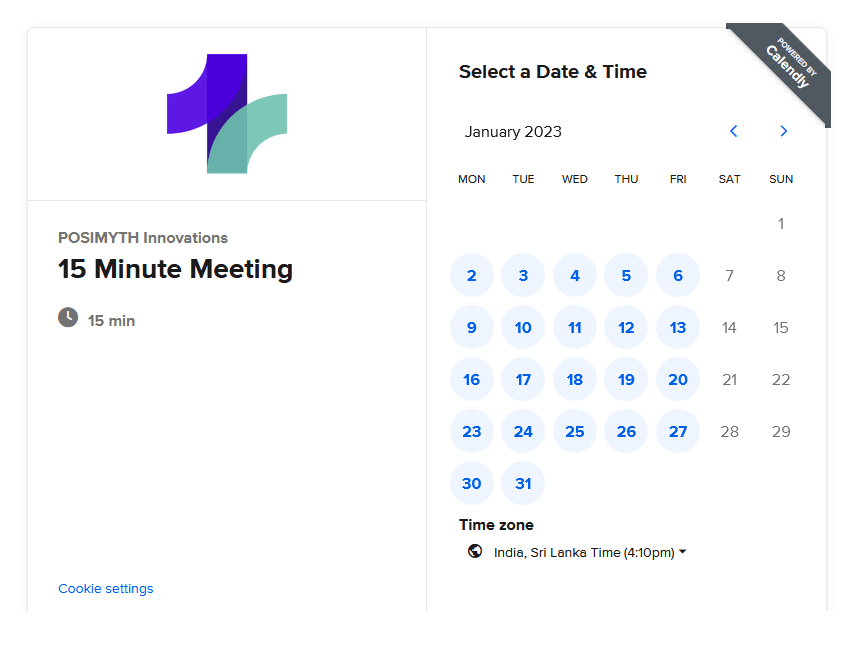
The Calendly scheduler now appears on the page.
Use the Display Event Type toggle to control whether the event title appears above the scheduler. Toggle it off when you are embedding a single event type and the label adds no useful context for the visitor.
In the Height field, set the height of the scheduler in pixels. Use a taller value (800px or more) when you select All from the Time dropdown, so that all event types are visible without scrolling inside the embed.
To style the scheduler, go to the Style tab. From there, you can change the text color, link color, and background color of the Calendly embed. Use the background color option when your page has a dark or colored background and the default white Calendly background creates an unwanted contrast with the surrounding layout.
If you want visitors to open the Calendly scheduler in a popup when they click a button, rather than embedding it directly on the page, set this up using the Popup Builder in The Plus Addons for Elementor. This works well on service or landing pages where you want a visible “Book a Call” button without dedicating a full section of the page to the embed.
The Meeting Scheduler widget also supports FreeBusy and Vyte as scheduling providers. To embed a FreeBusy scheduler, see How to embed FreeBusy Meeting in Elementor.
If you also want a contact form alongside the Calendly scheduler for visitors who prefer to send a message instead of booking a call, The Plus Addons for Elementor lets you style any form plugin directly in the Elementor editor. See How to Customize Contact Form 7 in Elementor without CSS to set it up.
