






The flip box carousel allows you to showcase multiple flip boxes in a limited section. By connecting the Flip Box widget from The Plus Addons for Elementor with the Carousel Remote widget, you can create unique carousel navigation options.
To check the complete feature overview documentation of The Plus Addons for Elementor Flip Box widget, click here.
Requirement – This widget is a part of The Plus Addons for Elementor, make sure it’s installed & activated to enjoy all its powers.
To do this, add the Flip Box widget and the Carousel Remote widget on the page and follow the steps –
1. In the Flip Box widget, select Carousel from the Select Layout section.
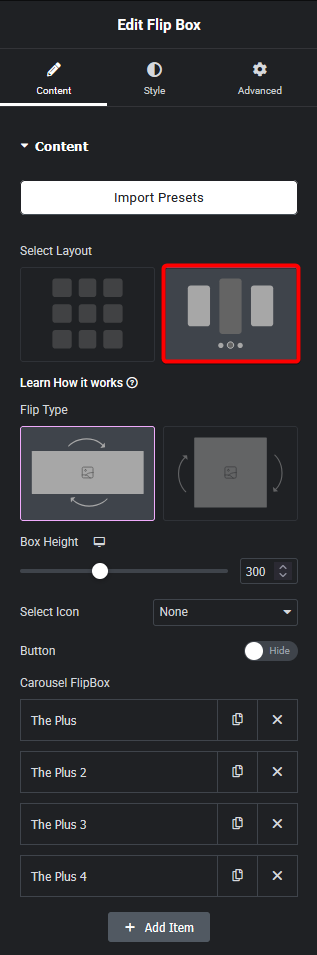
2. After selecting the appropriate flip type, add the content to the flip boxes.
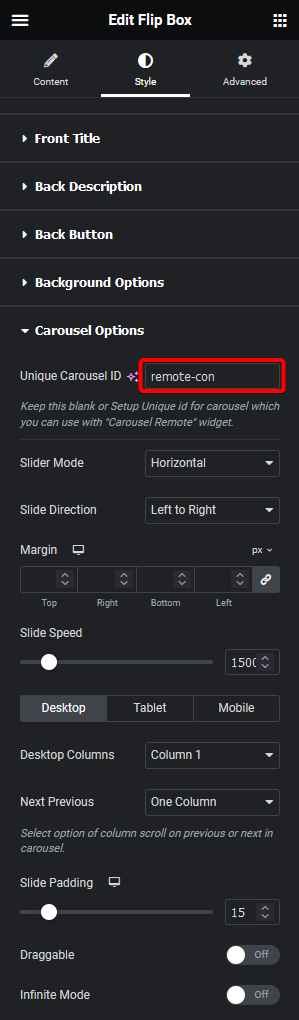
3. After that, go to the Style > Carousel tab and add a unique ID in the Unique Carousel ID field.
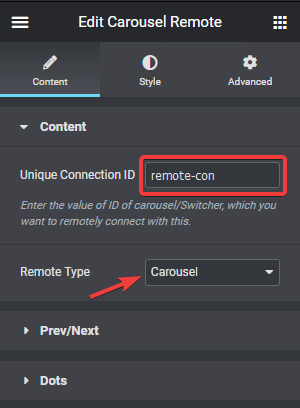
4. Now select the Carousel Remote widget, go to the Content tab, add the same ID in the Unique Connection ID field, and make sure Remote Type is selected as Carousel.
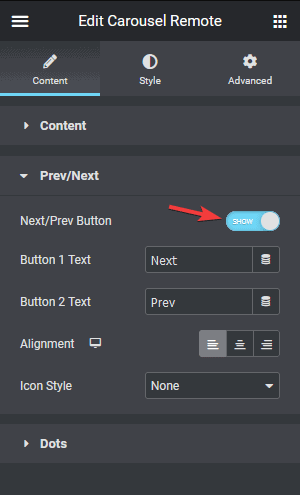
5. Now, you can have two different types of navigation, a Next and Previous button, and Dots (image or icon). You can use either one or both.
a) To use the next previous button, go to the Prev/Next tab and turn on the Next/Prev Button toggle; you’ll find some customization options as well.
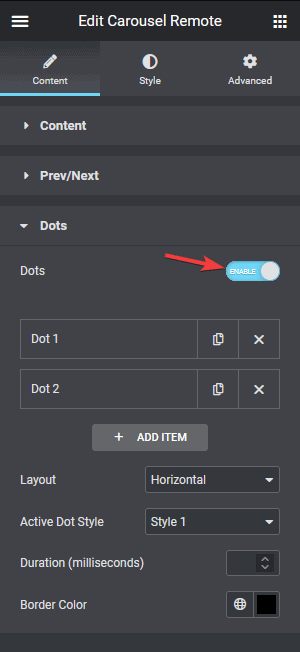
b) But if you want to use dot navigation, then go to the Dots tab and turn on the Dots toggle. Now, make sure to have the same number of dot items as the number of items in your Social Review widget. You will get some customization options for your dot navigation.
Note: You should disable all the carousel navigation options for the Flip Box widget for the best user experience.
Now you can control the flip box carousel navigation from any part of the page.
Read Further: How to Create an Elementor Flip Box Carousel
