


































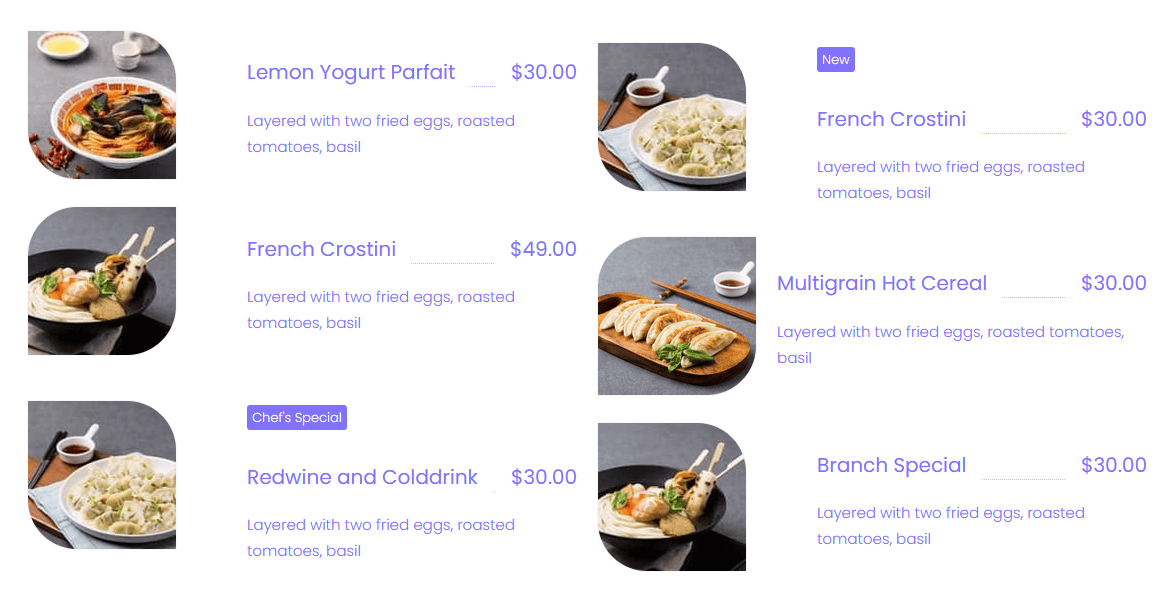
Are you looking to create a food menu in Elementor? With the Pricing List widget from The Plus Addons for Elementor, you can add an image to the pricing list that can be used to create a beautiful food menu.
To check the complete feature overview documentation of The Plus Addons for Elementor Pricing List widget, click here.
Requirement – This widget is a part of The Plus Addons for Elementor, make sure it’s installed & activated to enjoy all its powers.
To do this, add the Pricing List widget to the page and follow the steps –
1. Select Classic from the Style section under the Layout tab.
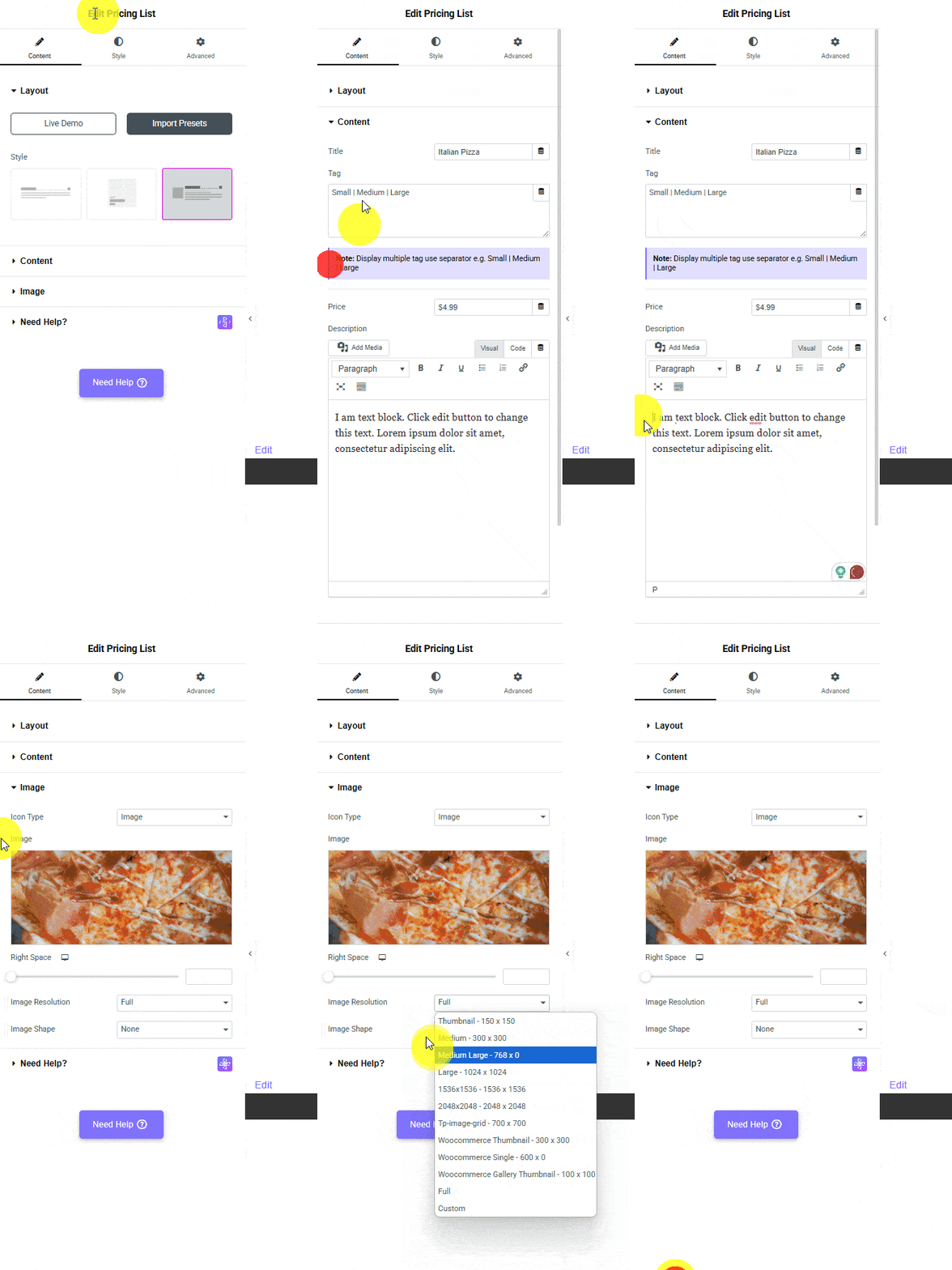
2. Then add the content as per your requirements from the Content tab. You’ll find the same content options as available in Modern style.
3. After that, select Image from the Icon Type dropdown under the Image tab.
4. Add your image in the Image section.
From the Right Space section, you can manage the image and content spacing.
You can change the image size from the Image Resolution dropdown.
From the Image Shape dropdown, you can change the image shape.
You have to add the Pricing List widget multiple times to create more pricing list items.
You can adjust the style further from the style tab to make a unique-looking food menu with prices.
Suggested Reading: How to Add a Flip Box Style Pricing List in Elementor?

