



























How to Add a Coupon Code with Redirection in Elementor? (New Tab or Same Tab)

Key Takeaways

  • The Plus Addons for Elementor Coupon Code widget allows redirection to a URL in a new tab or the same tab.
  • Users can add a coupon code in the Code field and specify a redirect link in the Redirect Link field.
  • Selecting 'Popup' from the Select Action dropdown enables users to show a discount popup while redirecting.
Table Of Content

Do you want to redirect users to a URL after clicking on the coupon code in Elementor? Redirecting users on clicking the coupon code can be a great way to send users directly to an affiliate website with your affiliate link to increase your affiliate commissions.

With the Coupon Code widget from The Plus Addons for Elementor, you can easily redirect users to a URL in a new tab or the same tab.

To check the complete feature overview documentation of The Plus Addons for Elementor Coupon Code widget, click here.

Requirement  – This widget is a part of The Plus Addons for Elementor, make sure it’s installed & activated to enjoy all its powers.

Open the Link in a New Tab

To do this, add the Coupon Code widget to the page and follow the steps – 

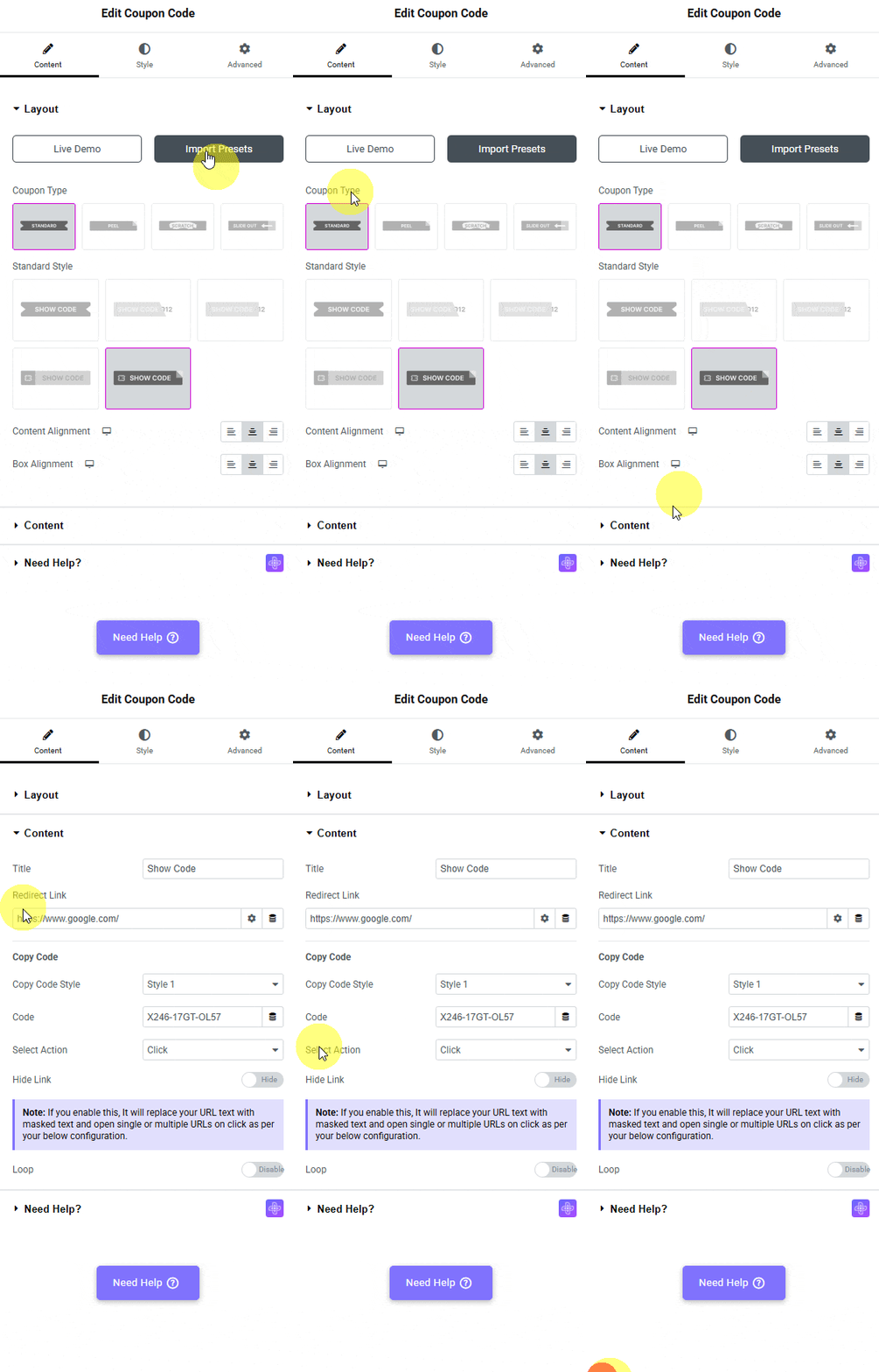
1. In the Layout tab, select Standard from the Coupon Type section. 
Tpae coupon code click open code same tab how to add a coupon code with redirection in elementor? (new tab or same tab) from the plus addons for elementor

2. After selecting an appropriate style from the Standard Style dropdown, add a title in the Title field.

3. Then, under the Content tab, in the Redirect Link field, you have to add the link where you want to redirect users to.

4. Make sure to add your coupon code in the Code field.

5. Then select the appropriate option from the Select Action dropdown.

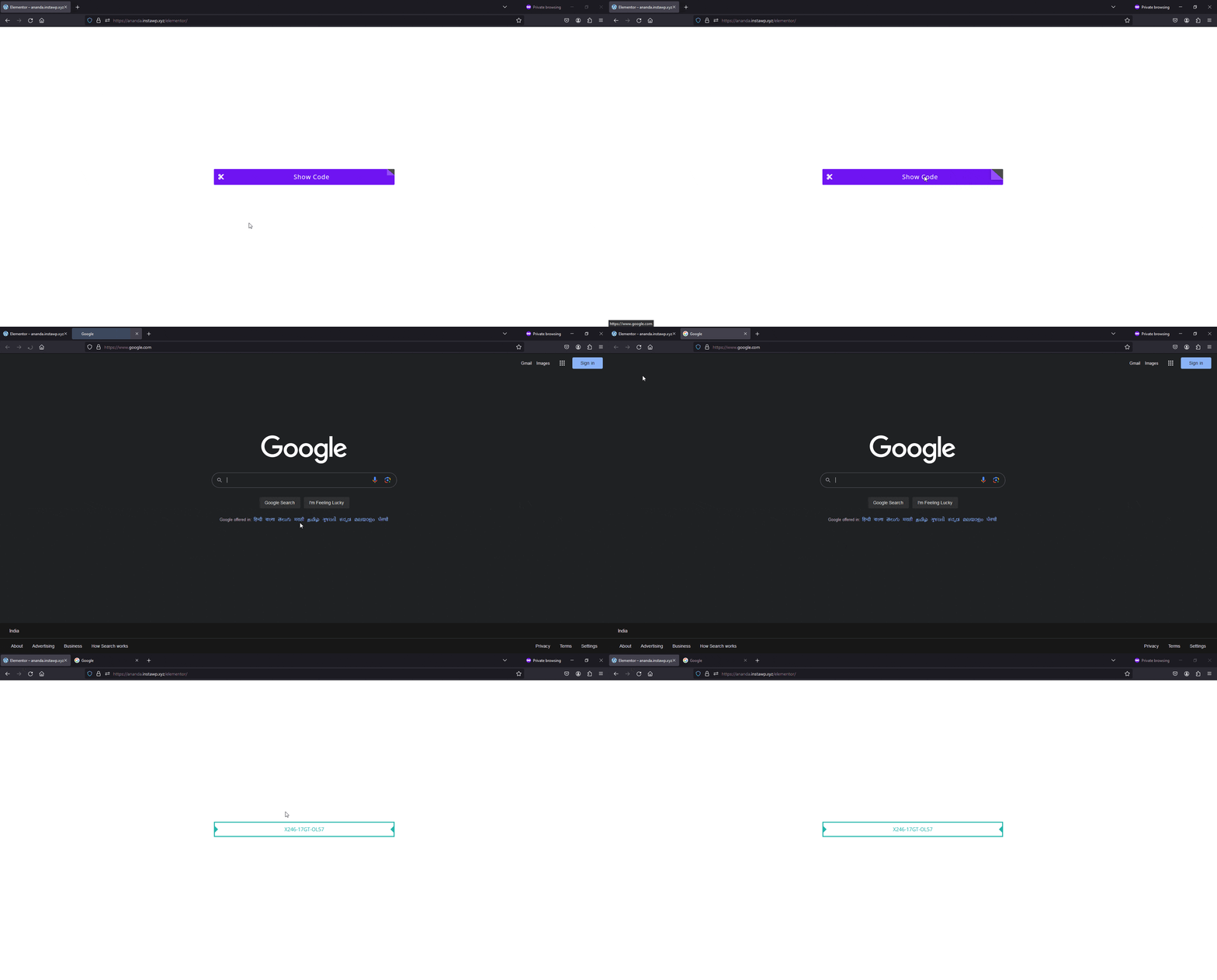
Now, when a user clicks on the coupon code, it will open and redirect users to your specified link in a new tab while revealing the coupon code in the old tab.
Coupon code redirection demo

Open the Link in the Same Tab

To do this, add the Coupon Code widget to the page and follow the steps – 

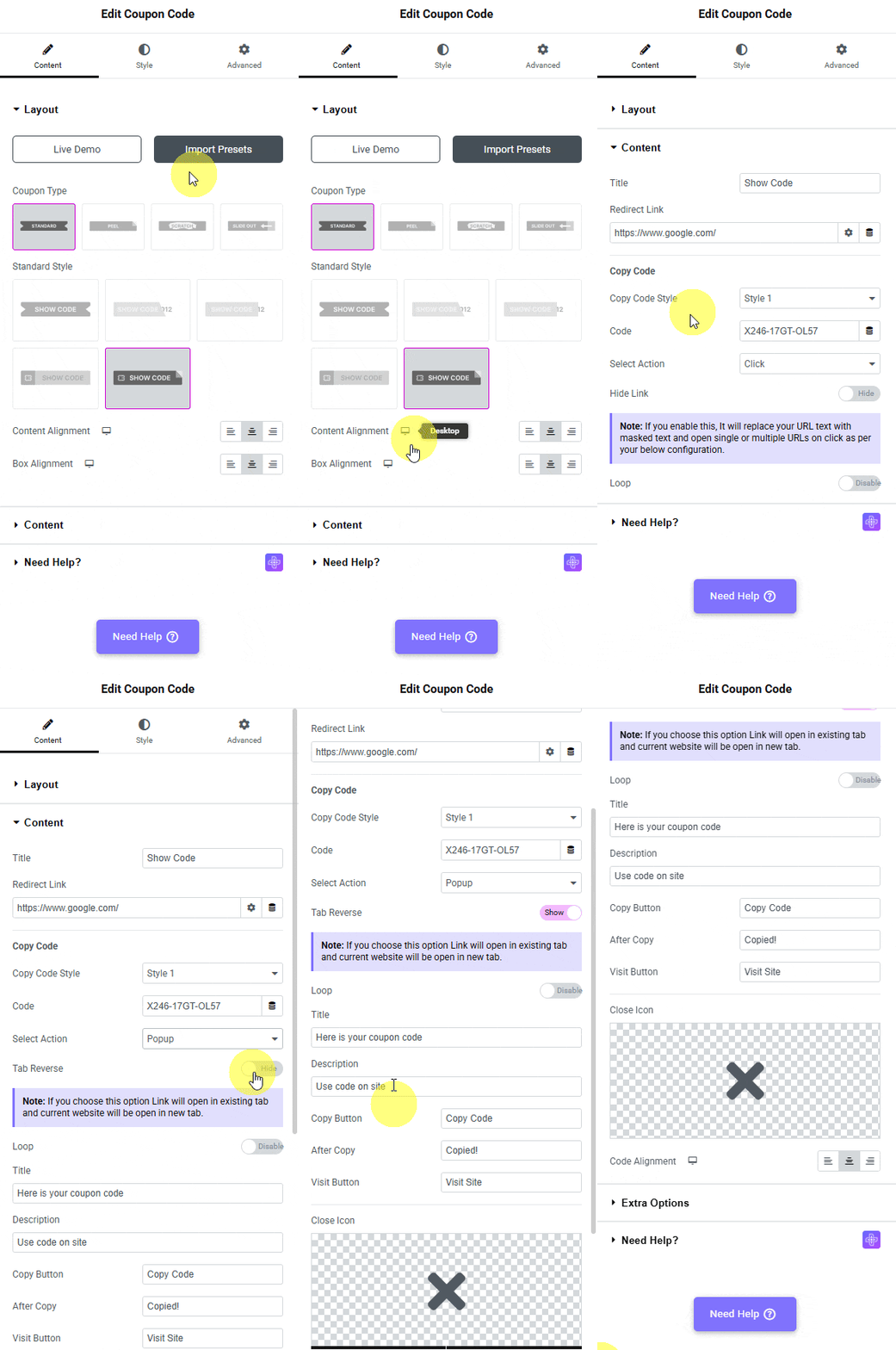
1. In the Layout tab, select Standard from the Coupon Type section. 
Tpae coupon code popup open code new tab 3 how to add a coupon code with redirection in elementor? (new tab or same tab) from the plus addons for elementor

2. After selecting an appropriate style from the Standard Style dropdown, add a title in the Title field.

3. Then, under the Content tab, in the Redirect Link field, you have to add the link where you want to redirect users to.

4. Then go to the Copy Code section and add your coupon code in the Code field.

5. After that, select Popup from the Select Action dropdown.

6. Finally, enable the Tab Reverse toggle.

After that, do the necessary changes in the popup settings.

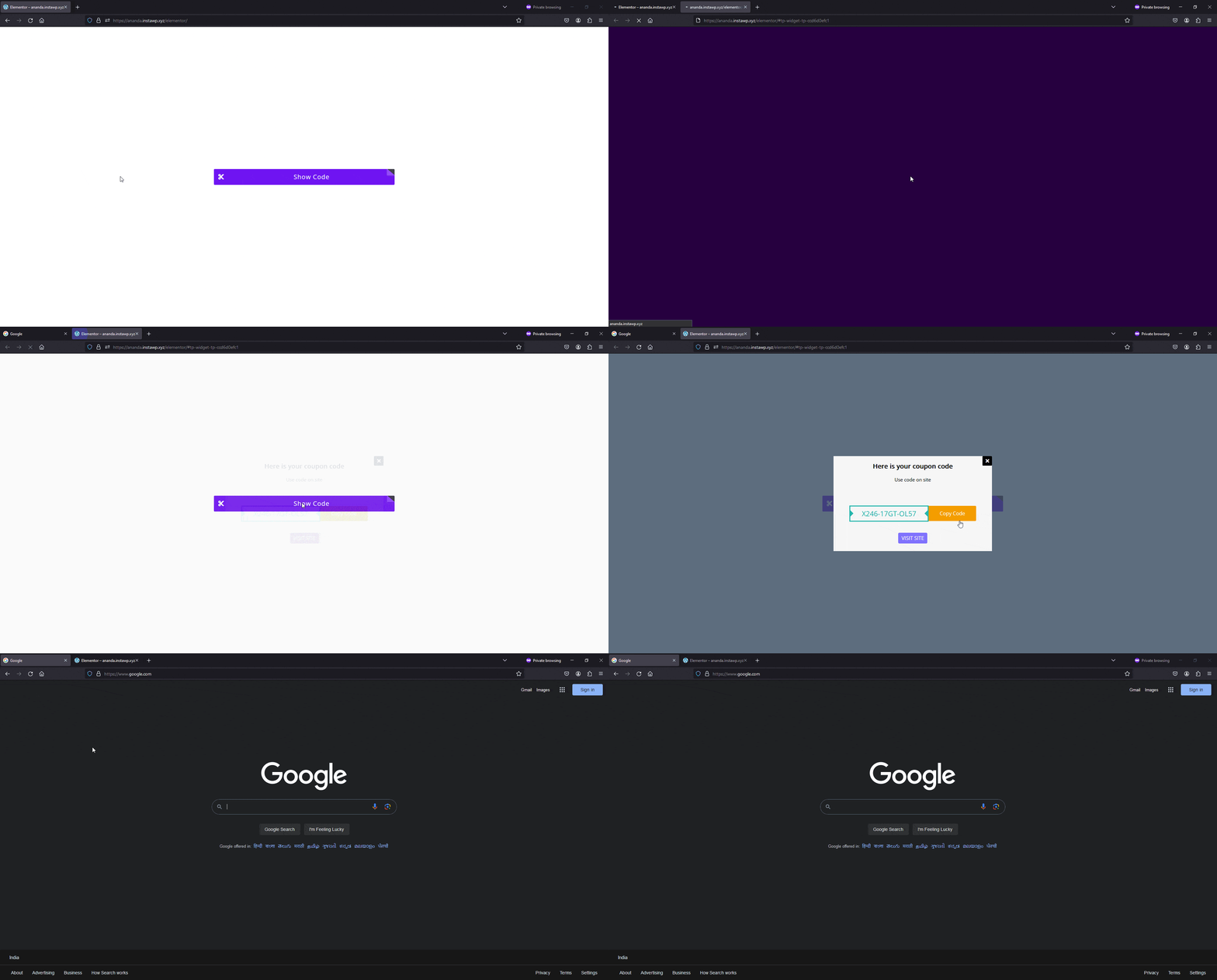
Now, when a user clicks on the coupon code, it will open and redirect users to a new tab showing the discount popup while opening your specified link in the old tab.
Coupon code reverse demo
Get Instant Answers to all your questions about The Plus Addons for Elementor, trained on 1000+ Docs and Videos

Related Frequently Asked Questions

What should I do if the coupon code widget isn't redirecting users as expected?

If the coupon code widget isn't redirecting users, check the Redirect Link field to ensure the URL is correctly entered. Also, verify that you've selected the appropriate action from the Select Action dropdown. For opening in a new tab, ensure that 'Standard' is selected in the Coupon Type section. A common mistake is overlooking these settings, which can prevent the expected redirection.

What is the best practice for setting up a coupon code with redirection in Elementor?

A best practice for setting up a coupon code with redirection is to clearly define your goals for the redirection. If you want to open the link in a new tab, ensure you select 'Standard' in the Coupon Type and configure the Select Action dropdown correctly. This setup allows users to view the coupon code while being redirected, enhancing user experience.

How do I ensure the coupon code displays correctly after redirection?

To ensure the coupon code displays correctly after redirection, make sure to add your coupon code in the Code field and select the right action in the Select Action dropdown. If you're opening the link in the same tab, enable the Tab Reverse toggle to ensure the popup appears as intended. This setup helps maintain visibility of the coupon code during the redirection process.

What happens if I forget to add a coupon code in the widget?

If you forget to add a coupon code in the widget, users will not see the coupon code when they click on the link. This can lead to confusion and a missed opportunity for conversions. Always ensure that the Code field is filled out correctly to provide users with the necessary information when they click the coupon.

Last reviewed: April 9, 2026
