



























How to Add a Wishlist Button to Custom or Any Other Post Type in Elementor?

Key Takeaways

  • Woo Wishlist widget from The Plus Addons for Elementor allows users to add a wishlist button to custom post types like 'Books'.
  • Users must create a custom loop skin for the custom post type before adding the Woo Wishlist widget.
  • To display a wishlist count, users select 'Count' under the Woo Wishlist tab and use the same unique name as the button type.
Table Of Content

Do you want to add a wishlist button to a custom post type or any other post type like posts, pages in Elementor? With the Woo Wishlist widget from The Plus Addons for Elementor, you can easily add a wishlist button to a custom post type or any other post type loop.

To check the complete feature overview documentation of The Plus Addons for Elementor Woo Wishlist widget, click here.

Requirement  – This widget is a part of The Plus Addons for Elementor, make sure its installed & activated to enjoy all its powers.

Let’s add the wishlist button to a custom post type called “Books”.

To do this, make sure you’ve created a custom loop skin for the custom post type. Open the template and add the Woo Wishlist widget to the desired place, then follow the steps – 

Note: For normal posts or pages, you have to use a custom skin as well.

1. Select Button from the Type dropdown under the Woo Wishlist tab.

2. Then from the Post Type dropdown, select your custom post type name i.e. “Books” here.

3. In the Unique Name field, you have to add a unique name to connect with the Wishlist Count type. For instance, we’ve added “tp-wishlist” here.
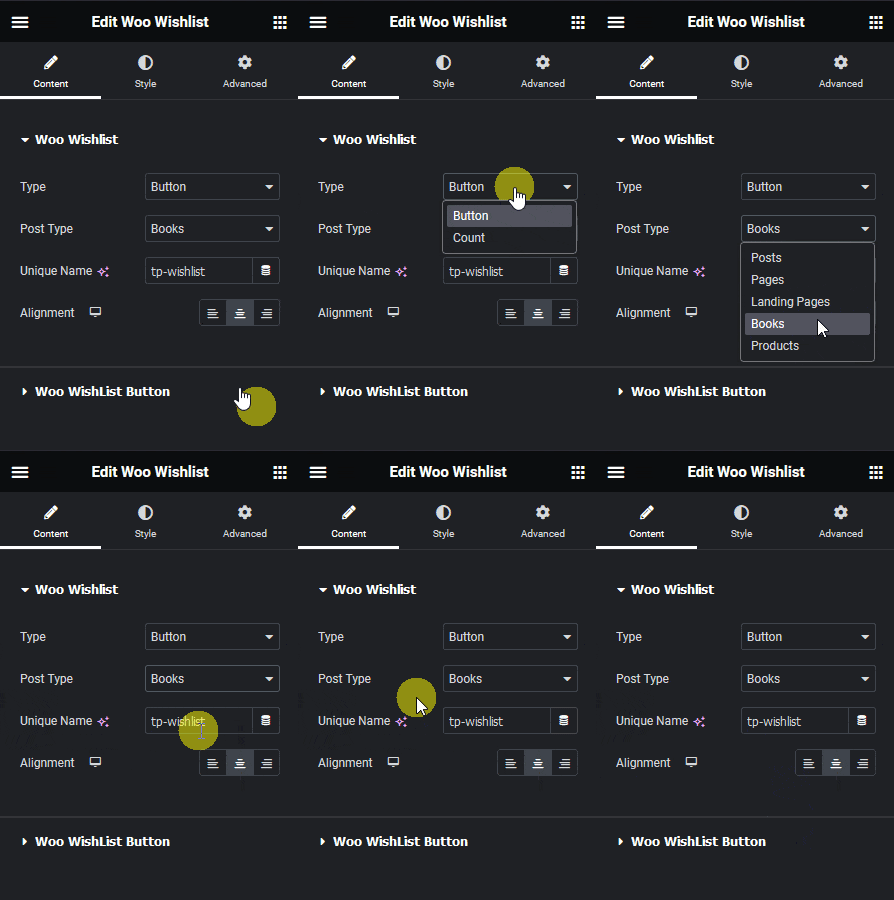
Woo wishlist type button other post types how to add a wishlist button to custom or any other post type in elementor? From the plus addons for elementor

4. After making the necessary adjustments and style to the button update the template

5. Then you have to use this template with the Dynamic Listing widget.

Now you’ll see the wishlist button in the custom post type listing that you can use to add posts to your wishlist. 

Show Wishlist Count

Now if you want to show a wishlist count as well then add the Woo Wishlist widget to the page where you are showing the post listing with the wishlist button or in a common template like header, then follow the steps – 

1. From the Type dropdown, select Count under the Woo Wishlist tab.

2. Then from the Post Type dropdown, select your custom post type name i.e. “Books” here.

3. After that in the Unique Name field, you have to add the same name as added in the Button type above i.e. “tp-wishlist” here.
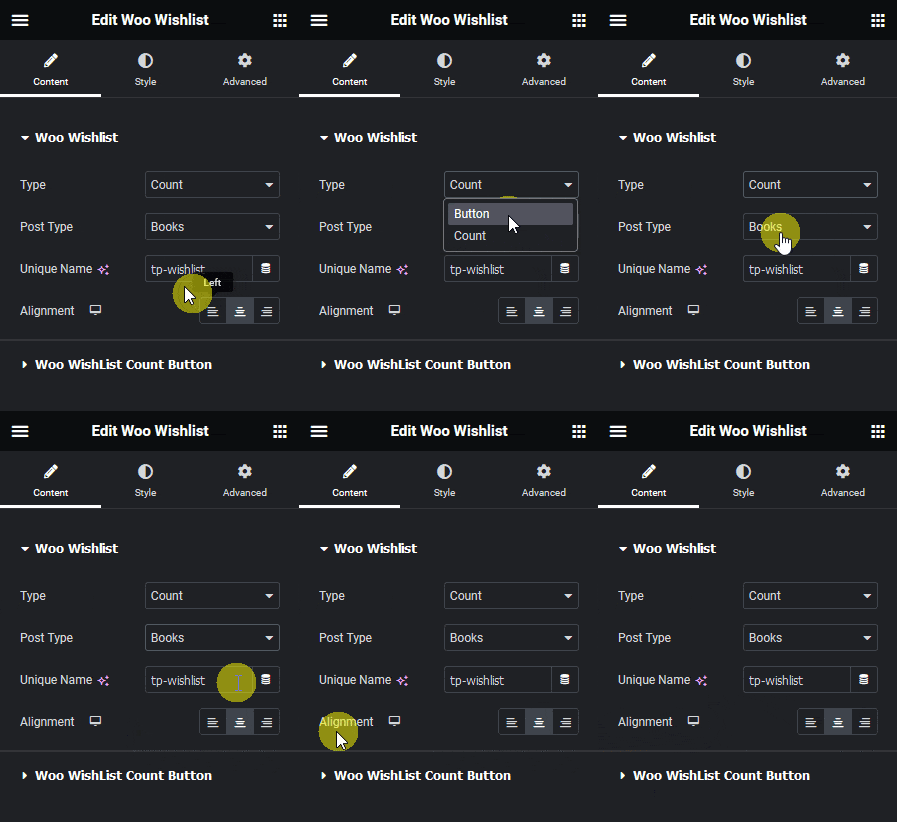
Woo wishlist type count other post types how to add a wishlist button to custom or any other post type in elementor? From the plus addons for elementor

In the URL field under the Woo Wishlist Count Button tab, you can add the wishlist page link, so when users click the wishlist count they can see the items added to their wishlist.

Now when you add a post to the wishlist, it will show the number of posts added to your wishlist.

About the Author

Photo of Aditya Sharma CMO of The Plus Addons for Elementor
CMO · The Plus Addons for Elementor · 10 years experience

He has spent years in the WordPress ecosystem building, breaking, and optimizing sites until they actually perform. He works at the intersection of speed, growth, and usability, helping creators ship websites that load fast and convert. An active WordPress community contributor sharing through tools, tutorials, and direct collaboration. Tested practice, not theory.

WordPressElementorn8nAIClaudeAutomationServer
Get Instant Answers to all your questions about The Plus Addons for Elementor, trained on 1000+ Docs and Videos

Related Frequently Asked Questions

What if the wishlist button doesn't show up on my custom post type?

If the wishlist button isn't visible, ensure you've created a custom loop skin for your custom post type. The Plus Addons for Elementor requires this setup to display the Woo Wishlist widget properly. Additionally, check that you've selected the correct post type in the widget settings, such as 'Books' in this case.

Can I use the wishlist button for any post type in Elementor?

Yes, you can add a wishlist button to any post type, including custom ones like 'Books'. The Woo Wishlist widget from The Plus Addons for Elementor enables this functionality, allowing users to easily manage their wishlist across different content types.

What settings work best for displaying the wishlist count?

To effectively show the wishlist count, select 'Count' from the Type dropdown under the Woo Wishlist tab. It's crucial to use the same unique name in the Unique Name field as you did for the button, like 'tp-wishlist'. This ensures that the count accurately reflects the items added to the wishlist.

How do I link the wishlist count to the actual wishlist page?

You can link the wishlist count to your wishlist page by adding the URL in the URL field under the Woo Wishlist Count Button tab. This allows users to click on the count and view their added items, enhancing the user experience by providing easy access to their wishlist.

What should I do if I want to customize the wishlist button's appearance?

To customize the wishlist button, adjust the style settings after selecting the button type in the Woo Wishlist widget. The Plus Addons for Elementor allows for various styling options, enabling you to match the button's design with your site's aesthetic.

Is it necessary to use a custom skin for normal posts when adding a wishlist button?

Yes, for normal posts or pages, it's necessary to use a custom skin to add the wishlist button. This ensures that the Woo Wishlist widget integrates correctly with your content layout, similar to how you would for a custom post type.

Last reviewed: April 9, 2026