Elementor 4.3.0 landed on 22 September 2026, and within a week it had two patch releases and a steady stream of “my site broke” threads on r/elementor. That is a normal pattern for a feature release this size. 4.3 adds an official AI connector, three new Atomic elements and a site-wide styling system, and it also exposed some sites that were running mismatched Core and Pro versions.
This post covers what is new in Elementor 4.3, the problems people reported after updating, how to fix or roll back each one, and a short checklist for updating client sites safely. Everything here comes from Elementor’s changelog and help center, plus the public threads we link to. If you build with The Plus Addons for Elementor, there is a section on what 4.3 means for your widgets too.
Elementor 4.3 at a Glance
| Version | Date | What it contained |
|---|---|---|
| 4.3.0 | 22 September 2026 | Elementor MCP, Background Video, Atomic Accordion, Default Styles, nav and main tags, plus tweaks and fixes |
| 4.3.1 | 23 September 2026 | Fix for top bar translations on Elementor admin pages |
| 4.3.2 | 24 September 2026 | Editor onboarding tweak; fixes for Background Video HTML tags, HTTP Basic Authentication sites, page styles after regeneration, data handling security and update stability between Core and Pro |
If you are still on 4.3.0 or 4.3.1, update to 4.3.2 or later before troubleshooting anything else. The 4.3.2 line “Improved update stability between Elementor Core and Pro” speaks directly to one of the problems below.
What’s New in Elementor 4.3
Every headline feature in 4.3 belongs to the Atomic editor (Elementor V4). Elementor’s help articles for Background Video, the Atomic Accordion and Default Styles all list the same requirement: Elementor Core and Pro 4.3.0 or higher on WordPress 6.8 or newer.
Elementor MCP
The biggest addition is an official Model Context Protocol connector. From Elementor > Elementor MCP in your dashboard, you pick an AI tool such as Claude Code, Claude Desktop, Codex or Cursor, copy a generated setup prompt, and the tool can then build and edit native Atomic layouts on your site. Everything it creates is saved as a draft. We covered setup, limits and safety in detail in What Is the Elementor MCP?, so we will not repeat it here.
Background Video
Background Video is a new Atomic container element, not a CSS background setting. You drop it onto the canvas, choose a video by selecting, uploading or pasting a URL, and set Start Time, End Time, Autoplay, Mute and Loop. It has a nested content area for overlaying headings and buttons, and optional Play and Pause controls you can style and fill with your own icons. If you drop it outside a container, Elementor wraps it in a Flexbox container automatically.
One practical note from Elementor’s help article: most browsers enforce strict autoplay rules for media. If you want a background video to start on its own, keep it muted, and test it on a real phone as well as on desktop before you rely on it for a hero section.
Atomic Accordion
The new Accordion element gives each item an open container that accepts any Atomic element, including another accordion. You choose a Default State of “First Expanded” or “All Collapsed,” set Max Items Expanded to “One” or “Multiple,” and can switch on FAQ schema. It joins the classic Accordion widget rather than replacing it on existing pages.
Default Styles
Default Styles let you set baseline styling for HTML tags, such as h1 to h6, p, div and button, from a new Defaults tab in the Design System panel. You can style Normal, Hover, Focus and Active states. Elementor’s help article spells out the order of priority: tag defaults override the built-in element fallbacks, while classes, variables and styling applied directly to an element override the tag defaults. One side effect to know: because a Flexbox container renders as a div, a padding default on div overrides the container’s usual 10px default padding.
That makes Default Styles most useful on new V4 sites, where you can set your heading, paragraph and button baselines once and let every new Atomic element inherit them. On an existing site, change one tag at a time and check a few key pages after each change, since a tag default can quietly affect every Atomic element that uses that tag.
Smaller Changes Worth Knowing
- ‘nav’ and ‘main’ HTML tag options on Flexbox and Div Block elements, which helps page semantics and accessibility.
- The WordPress section was removed from the widget panel.
- Text decoration controls in the inline text editing toolbar for Heading and Paragraph.
- Grid layout presets now use Atomic Grid.
- Element duplication was improved to prevent duplicate IDs.
- Minimum supported versions for Chrome, Firefox and Safari were raised.
Also Read: Elementor Atomic Editor Explained if you are still getting used to how V4 differs from classic widgets.
What Broke After the 4.3 Update
Three problems came up repeatedly in the week after release. Each one below includes the public thread where it was reported, what seems to cause it, and what to try.
Fatal Error: “Depending on a Hidden Experiment Is Not Allowed”
A developer on r/elementor reported a critical error on a client site after Elementor Core auto-updated to 4.3.0 while Elementor Pro was still on 3.28.3. The fatal error was Dependency_Exception: Depending on a hidden experiment is not allowed, thrown from Elementor Core.
Cause: a major version gap between Core (4.x) and Pro (3.x). Pro had stopped updating on that site, so the two plugins no longer matched.
Fix: the reporter could not reach wp-admin, so they deactivated both plugins with WP-CLI, updated each one, then reactivated them. If you have shell access, the sequence looks like this:
wp plugin deactivate elementor-pro elementor
wp plugin update elementor
wp plugin update elementor-pro
wp plugin activate elementor elementor-pro
wp plugin list --name=elementor* --fields=name,status,version
If wp plugin update elementor-pro reports no update, Pro’s license is probably not connected on that site, which is often why it fell behind in the first place. Reconnect the license, or upload the latest Pro zip from your Elementor account, before reactivating.
Global Widgets Show Only the Advanced Tab
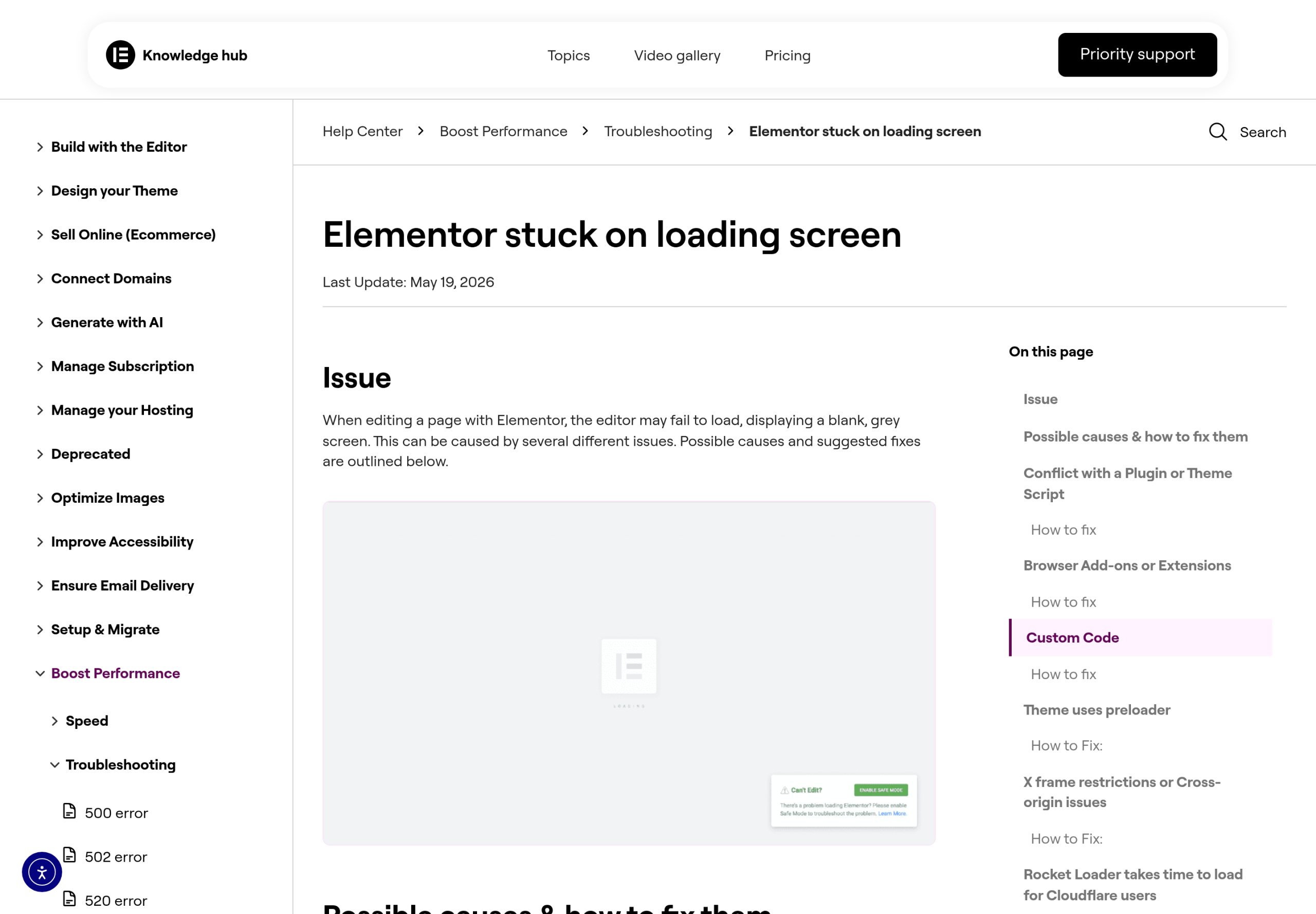
Another user reported that 4.3 broke their global widgets. A globalised Price List widget displayed as a bulleted list in the editor, and opening it showed only the Advanced tab, with the Content and Style tabs missing. They reported that rolling back to 4.2.4 brought the global widgets back.
What to do: first update Core and Pro to the latest 4.3.x and regenerate Elementor’s files (Regenerate Files and Data, in Elementor’s Tools), since 4.3.2 fixed page styles not loading after regeneration. If global widgets are still broken, roll back to 4.2.4 using the steps below and wait for a patch before trying again. Do not edit and save the broken global widget while it is in this state, because you risk saving an empty version over the working one.
“Updating Failed. The Response Is Not a Valid JSON Response”
A third thread describes this error on every client site the poster manages since the update, mainly when saving SEO titles and meta descriptions with both Yoast and Rank Math. The reporter links it to the 4.3 update but had not found a cause at the time of posting.
What to check: this message comes from the WordPress editor when a REST API save returns something other than JSON, often a PHP notice, a firewall block or a security plugin rule. Turn on WP_DEBUG_LOG, reproduce the save, and read wp-content/debug.log for the real error. Also check whether the site sits behind HTTP Basic Authentication, since 4.3.2 includes a fix for sites protected that way. If the log points at Elementor, roll back and report it with the log attached.
How to Roll Back Elementor to 4.2.4
Elementor has a built-in rollback tool. Back up your site first. Elementor’s own help article on rollback puts that note at the top.
- In WP Admin, go to Elementor > Editor > Home.
- Click Tools in the panel.
- Open the Version Control tab. By default, the rollback is set to the previous version of Elementor or Elementor Pro.
- To pick an older version, use the Rollback Version dropdown.
- Click Reinstall v4.2.4, then click Continue in the confirmation window.
If you cannot reach wp-admin, you can download a specific Elementor Core version from the bottom of Elementor’s plugin page on WordPress.org, under “Please select a specific version to download”, or directly from https://downloads.wordpress.org/plugin/elementor.4.2.4.zip. Elementor notes that direct download only works for Core, not Pro. Roll back Core and Pro to matching versions so you do not recreate the version gap that caused the fatal error above.
After rolling back, turn off automatic updates for Elementor and Elementor Pro on that site until you have tested the next release on staging.
A Safe Update Checklist for Client Sites
The users in the threads above ran into trouble through auto-updates on live sites. One of them had turned auto-updates back on only weeks earlier. A short routine prevents most of this.
- Update Core and Pro together. Never let them drift a major version apart. If Pro is not updating, fix the license connection first.
- Stage first. Clone the site, update there, and click through global widgets, templates, popups and forms before touching production.
- Wait for the first patch. For a feature release like 4.3.0, waiting a few days for .1 or .2 is usually worth it. Both patches here arrived within 48 hours.
- Back up, then update. A backup you can restore beats any troubleshooting.
- Regenerate files after updating. Run Regenerate Files and Data from Elementor’s Tools, then clear your page cache and CDN.
- Check the error log. A quick look at the PHP error log after updating catches fatal errors before visitors do.
If 4.3 feels like too much change for a particular site, Elementor also lets you keep working with classic widgets. We explain the options in How to Disable the Elementor Atomic Editor.
Performance After 4.3
Performance questions did not start with 4.3, but they keep coming up. One r/elementor post from the same week, “Elementor v4 and Caching Purgatory”, describes an audit of 72 near-identical V4 landing page sites with an average mobile PageSpeed score of 57, and a dozen or more render-blocking stylesheets on each page even after testing both CSS Print Method settings with LiteSpeed Cache.
That thread is on 4.2.4, so it is not a 4.3 regression, but it is a useful reminder: update day is a good time to rerun your performance checks. Run PageSpeed Insights on a few key templates before and after updating, so you can tell whether a change in score came from the update or from something else. Our guide to speeding up Elementor sites covers the settings that usually matter most.
What 4.3 Means for The Plus Addons for Elementor Users
Our widgets are classic Elementor widgets, and they keep working alongside the new Atomic elements. The 4.3 changelog does not list any change to how classic widgets work. As with any Elementor update, update Elementor first on staging, then check pages that use our widgets.
Two overlaps are worth knowing about. First, the new Atomic Accordion now covers nested content, both expansion modes and FAQ schema natively. If you use our Accordion widget on existing pages, there is no need to change anything, but for new V4 pages it is worth comparing the two and choosing based on the styling and interaction options you need. Second, the official Elementor MCP builds Atomic elements only for now. If you want an AI assistant to build with our widgets, use the MCP Abilities in The Plus Addons for Elementor, which work through the same WordPress Abilities system.
Also Read: How to Build an FAQ Accordion in Elementor for a practical walkthrough of FAQ layouts and schema.
Should You Update to Elementor 4.3 Now?
For most sites, yes, as long as you update to the latest 4.3.x patch, update Core and Pro together, and test on staging first. The new Atomic features are genuinely useful, and 4.3.2 already addresses update stability between Core and Pro.
Hold off on production sites that rely heavily on global widgets until you have confirmed they work on a staging copy, and on any site where Pro’s license is not connected and Pro is not receiving updates. Fix that first, or you risk the hidden-experiment fatal error.