Say you update Elementor, open a page to make a quick edit, and the editor looks different. New panels, renamed elements, a styling workflow you did not ask for.
The natural reaction is to assume version 4 replaced your editor and the only way back is to downgrade to 3.x. It is not. You can keep the classic version 3 editor and workflow while staying on the current release, and this guide shows exactly how, plus what it does and does not change.
What version 4’s Atomic Editor actually changed
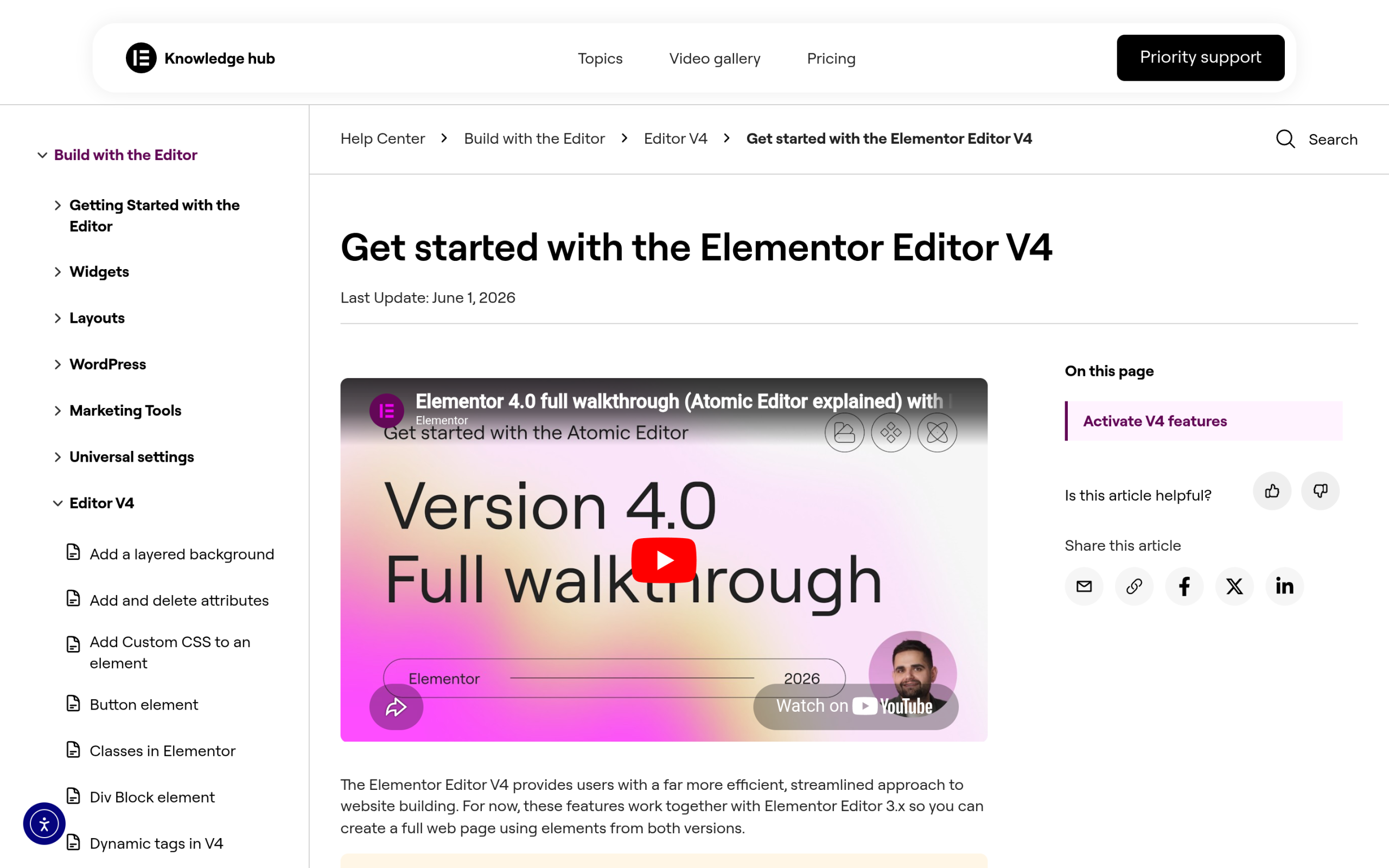
Elementor 4.0 introduced a new foundation called the Atomic Editor. It adds Atomic Elements with a class-based styling system, built for more consistent and scalable design work.
The important part for this article is that it is additive. Atomic Elements sit alongside your existing version 3 widgets rather than replacing them, so nothing about your current build is forced to change.
If you want the full breakdown of what is new, our Atomic Editor explained guide covers it in depth. Here we are only concerned with one thing: how to keep working the way you already do.
You do not need to downgrade to version 3
The most common worry on forums is that updating forces you onto Atomic and the only escape is rolling back to an old release like 3.35. That is a misconception.
According to Elementor, updating to 4.0 does not change your current setup: existing sites are not automatically migrated, and your version 3 widgets keep working exactly as they did before.
Version 3 and version 4 can even run together on the same page.
Adoption is opt-in and gradual, which means you can stay entirely on the classic editor for as long as you want and still be on a current, supported version of the plugin.
How to disable the Atomic Editor and keep the classic editor
Elementor lets you turn the Atomic features off at any time. In your dashboard, go to Elementor > Editor > Settings and switch off the Atomic Editor option, then save.
Your editing experience returns to the familiar version 3 panels and widgets. If you do not see the toggle under Editor on your version, check Elementor > Settings > Features, where Elementor keeps its opt-in feature switches.
Turning Atomic back on later is the same toggle, so this is fully reversible and safe to test.
What happens to your existing pages and widgets
Disabling Atomic does not delete anything. Your version 3 pages render exactly as before, and your widgets, saved templates, and global settings are untouched.
The toggle simply controls whether the new Atomic Elements appear in the editor, not what your published pages contain. That is why turning it off is a low-risk move: you are changing your own editing surface, not rewriting live content.
If a page did lose its styling right after the update, that is usually a separate caching or CSS issue rather than the Atomic change itself, and our guide on why an Elementor page loads without styling walks through those fixes.
Stay classic or adopt Atomic? An honest call
There is no single right answer, so match the choice to your situation.
Staying on the classic editor makes sense if you manage client sites, rely on a settled workflow, or use addons and templates tuned to version 3, and you would rather not retrain during a transition.
Exploring Atomic makes sense if you want the class-based styling system and are ready to learn the new model, in which case the safest path is to try it on a new page or a staging site first.
Because the two can coexist, you do not have to pick once and forever. Many teams keep classic as the default and adopt Atomic gradually as they get comfortable. For a fuller readiness view, see our honest verdict on whether V4 is production ready.
If you truly want to roll back to version 3 entirely
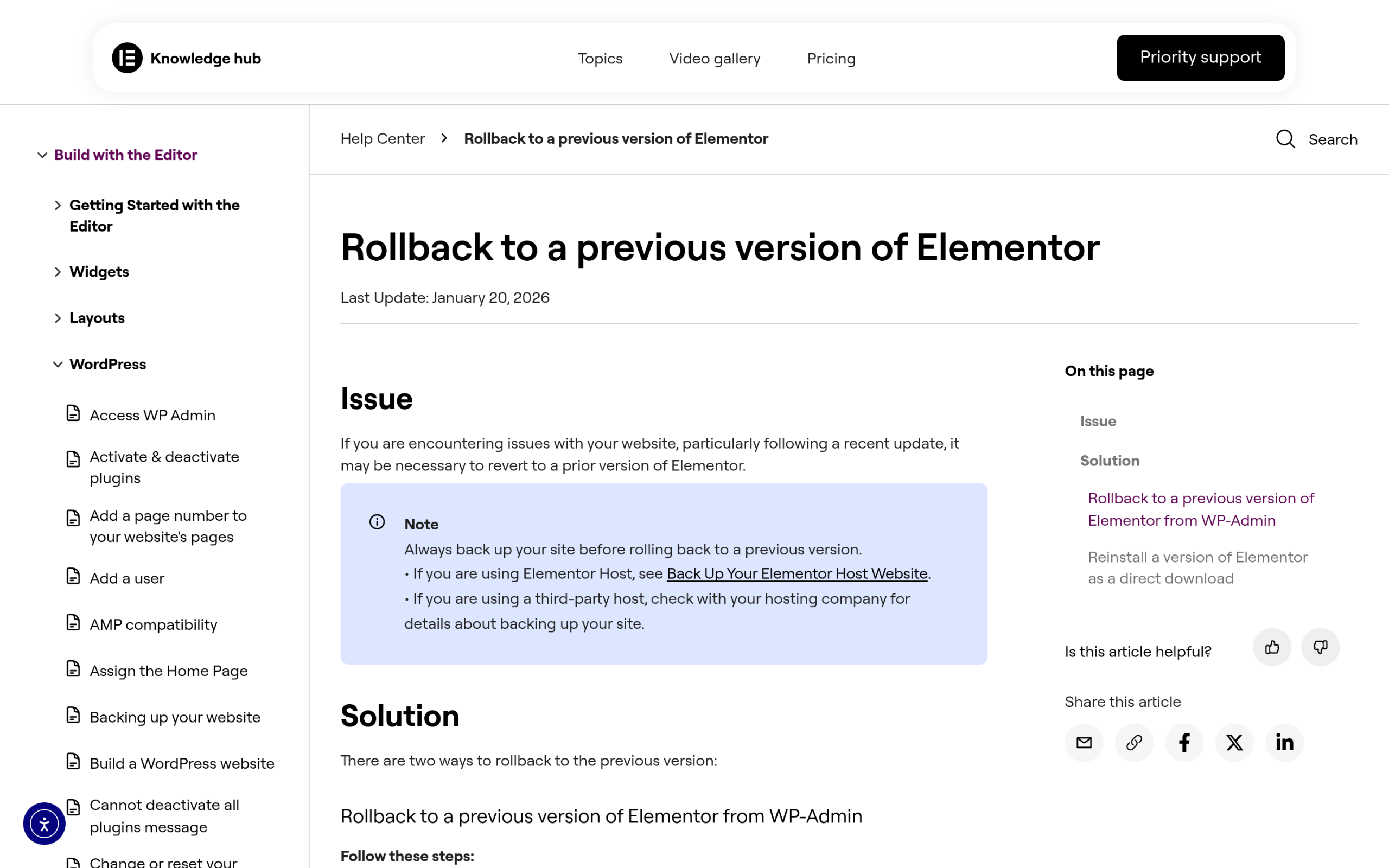
If you would rather remove version 4 from the picture completely, Elementor ships a built-in rollback. Go to Elementor > Tools > Version Control, choose the release you want from the Rollback Version dropdown, click Reinstall, and confirm with Continue.
One caution worth stating plainly: this reverts the entire Elementor plugin to an older release, not just the editor, so you also give up the fixes and features that shipped after that version.
Take a full backup first, and in most cases prefer simply disabling the Atomic Editor over a full rollback unless you have a specific reason. If your real concern is an upgrade breaking a live site, our safe V4 migration guide covers how to update without surprises.
Where The Plus Addons fits
One reason the classic-versus-Atomic decision is lower stakes than it feels: The Plus Addons for Elementor was made ready for Elementor version 4, and its widgets work whether you stay on the classic editor or switch the Atomic features on.
So the choice above is about the editing workflow you prefer, not about losing widget functionality on either side. Pick the workflow your team is most productive in, and keep building.
Suggested reading
- Elementor Atomic Editor explained, what actually changed in version 4.
- Is Elementor V4 ready for production?, an honest 2026 verdict.
- Elementor V4 migration guide, how to upgrade without breaking your site.
- Why your Elementor page loads without styling, if the update left a page unstyled.
- Is your Elementor site safe to upgrade to WordPress 7?, the other big 2026 compatibility question.