

































Are you looking to show an Instagram feed on your Elementor website? Integrating an Instagram feed on your website can help increase engagement, showcase your brand, and connect with your audience in a more visually appealing way.
With the Social Feed widget from The Plus Addons for Elementor, you can easily embed a live Instagram Feed in your Elementor website.
To check the complete feature overview documentation of The Plus Addons for Elementor Social Feed widget, click here
Requirement – This widget is a part of The Plus Addons for Elementor, make sure it’s installed & activated to enjoy all its powers.
To do this add the Social Feed widget on the page and follow the steps.
1. Select the appropriate layout and style for the feed.
2. Then go to the Social Feed section. Here you’ll find an item, open the item, and select Instagram from the Source dropdown.
You can set the maximum number of posts from the Maximum Posts section and exclude posts from the beginning from the Offset Post section.
3. From the Select Option dropdown, you have to select from where you want to show the feeds. Here you’ll find two options –
- Personal – To show feeds from a personal account.
- Business – To show feeds from a business account.
Let’s select Personal here.
4. After that in the Access Token field, you have to add the token key.
From the Profile Image section, you can add a profile image for the posts.
In the Category (For Filter) section, you can add a category to the feed which can be used with the Filter Option to filter posts by category.
From the Max Results field, you can set the maximum number of feeds to be displayed.
How to Show Instagram Feed from a Business Account?
With the Social Feed widget from The Plus Addons for Elementor, you can easily show feeds from an Instagram business account on your Elementor website.
To do this add the Social Feed widget on the page and follow the steps.
1. After selecting the appropriate layout and style for the feed, go to the Social Feed section. Open the item, and select Instagram from the Source dropdown.
2. Then select Business from the Select Option dropdown.
3. After that add the access token in the Access Token field.
4. Then add your Facebook page ID in the Facebook Page Id field.
5. After that from the Feed Type dropdown, you have to select the from where you want to show the feed. Here you’ll find three options –
- Userfeed – To show feeds from a user.
- Hashtag – To show feeds based on a hashtag.(Currently not supported)
- Mentions – To show feeds where your profile is tagged.
Select the option as per your requirements, you’ll see different settings for each option.
In the Category (For Filter) section, you can add a category to the feed which can be used with the Filter Option to filter posts by category.
From the Max Results field, you can set the maximum number of videos to be displayed.
How to Show Instagram Feed from a User Name?
With the Social Feed widget from The Plus Addons for Elementor, you can easily show Instagram feeds from a user name on your Elementor website.
To do so add the Social Feed widget on the page and follow the steps.
1. After selecting the appropriate layout and style for the feed, go to the Social Feed section. Open the item, and select Instagram from the Source dropdown.
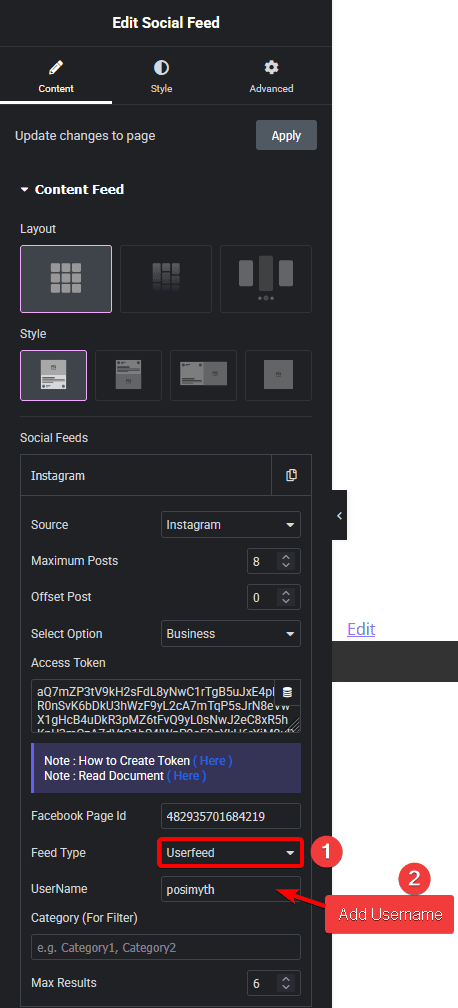
2. Then select Business from the Select Option dropdown.
3. After that add the access token in the Access Token field.
4. Then add your Facebook page ID in the Facebook Page Id field.
5. Select Userfeed from the Feed Type dropdown.
6. Then in the UserName field add the specific user’s username.
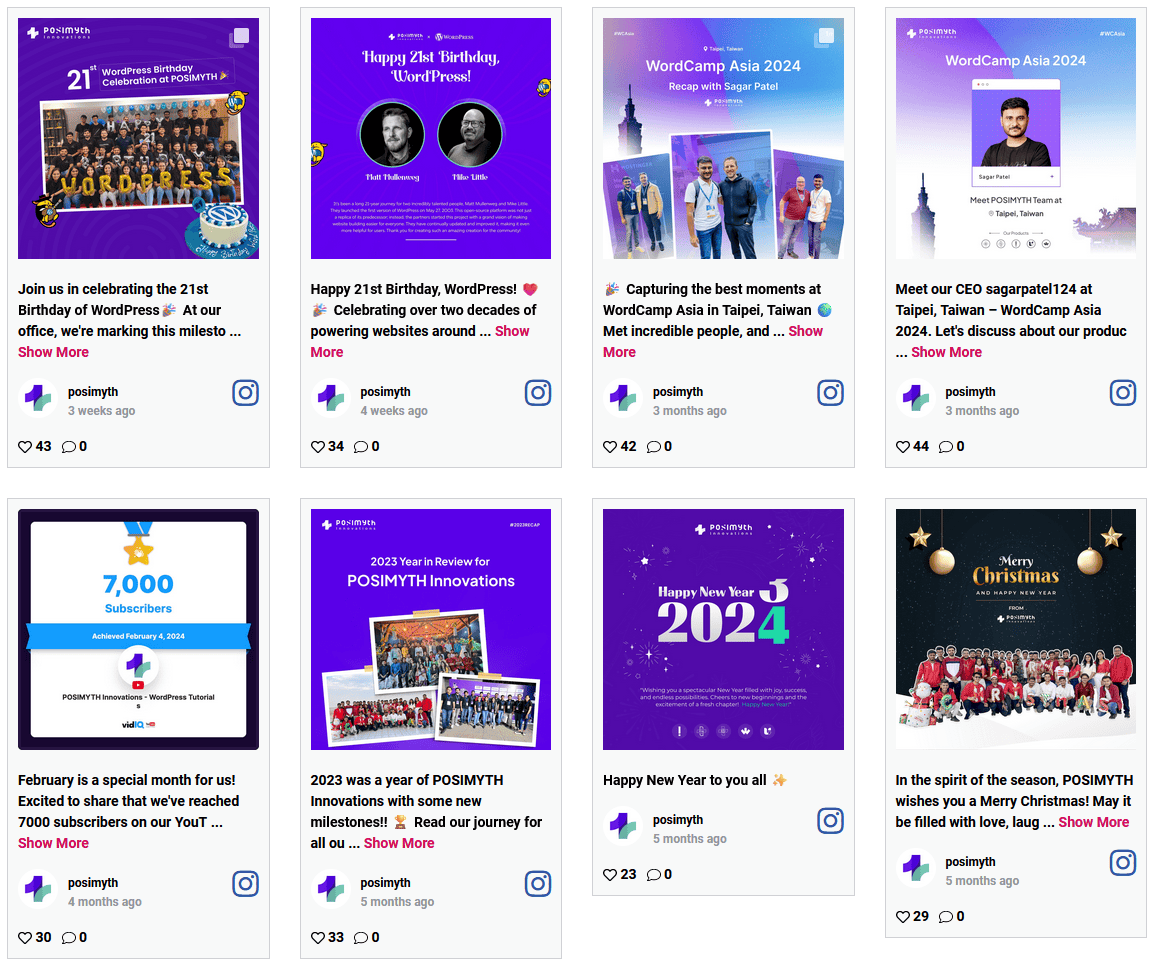
Now you’ll see Instagram feeds from that specific user’s profile.
How to Show Instagram Feeds by Mentions?
With the Social Feed widget from The Plus Addons for Elementor, you can easily show Instagram feeds where your profile has been tagged on your Elementor website.
To do so add the Social Feed widget on the page and follow the steps.
1. After selecting the appropriate layout and style for the feed, go to the Social Feed section. Open the item, and select Instagram from the Source dropdown.
2. Then select Business from the Select Option dropdown.
3. After that add the access token in the Access Token field.
4. Then add your Facebook page ID in the Facebook Page Id field.
5. Select Mentions from the Feed Type dropdown.
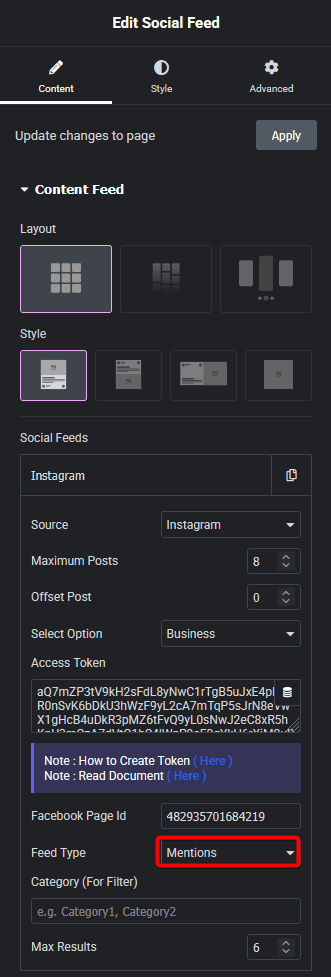
Now you’ll see Instagram feeds where your profile has been tagged.
How to Show Instagram Feed in a Grid Layout?
With the Social Feed widget from The Plus Addons for Elementor, you can show your Instagram feed in a beautiful grid layout.
1. Select Grid from the Layout section of the Social Feed widget.
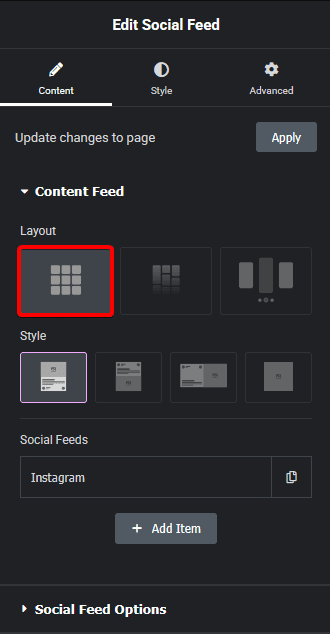
From the Style dropdown, you can select different styles for your grid.
2. Then select Instagram from the Source dropdown under Social Feeds.
3. After that select the appropriate option from the Select Option dropdown. Let’s select Personal.
4. Then add the token key in the Access Token field.
Note: For the Business type you have to add an App ID and App Secret and then generate the token key.
Now your Instagram posts will show in a beautiful grid layout.
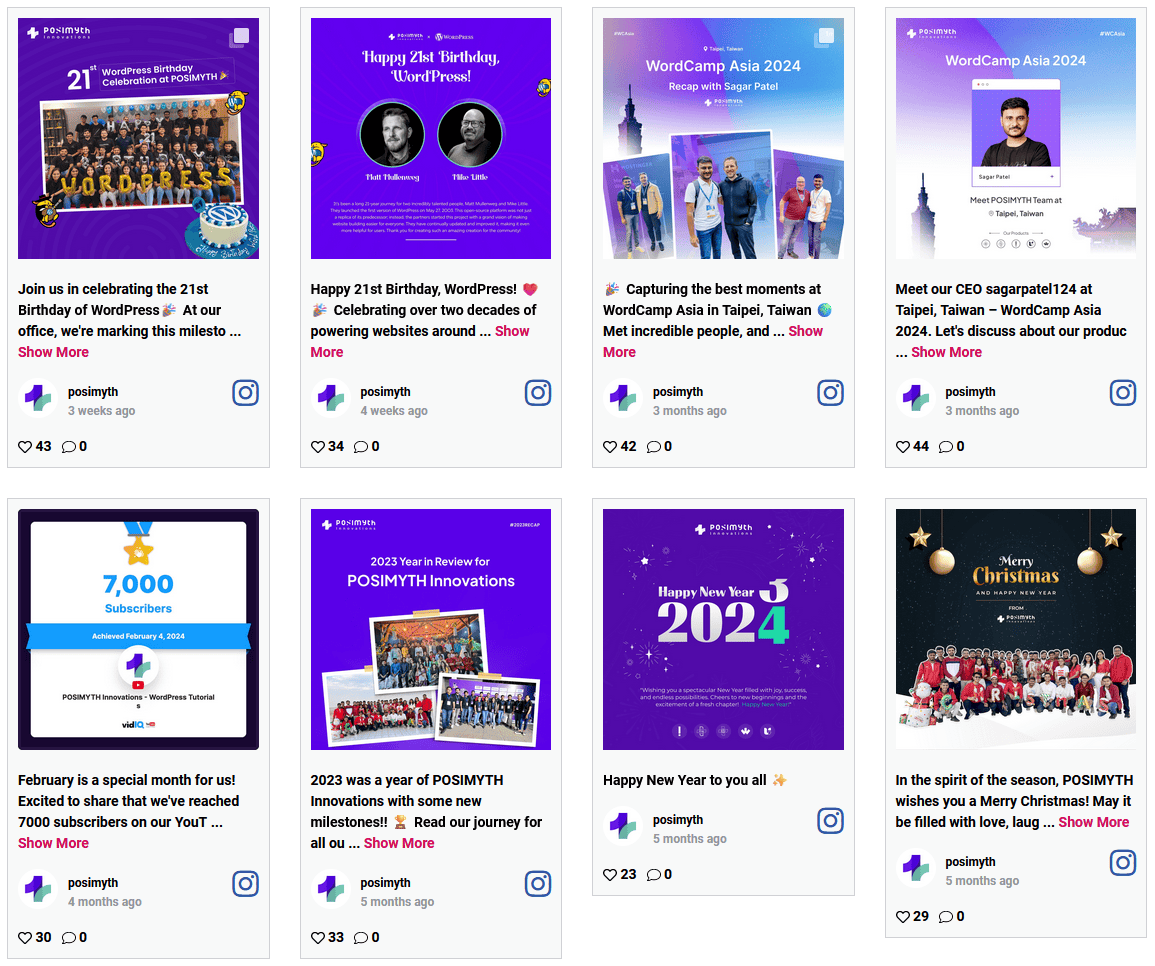
How to Show Instagram Feed in a Masonry Layout?
To display your Instagram feed in a masonry layout on your Elementor website, use The Plus Addons for Elementor’s Social Feed widget.
1. Select Masonry from the Layout section of the Social Feed widget.
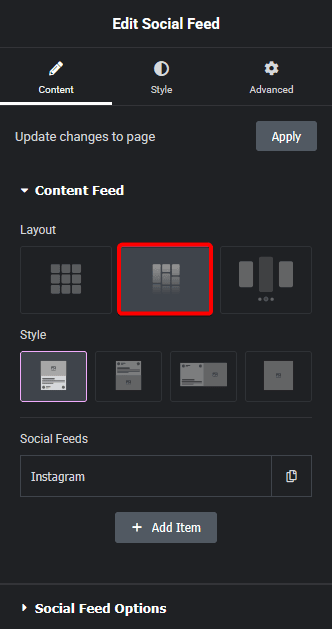
From the Style dropdown, you can select different styles for your masonry layout.
2. Then select Instagram from the Source dropdown under Social Feeds.
3. After that select the appropriate option from the Select Option dropdown. Let’s select Personal.
4. Then add the token key in the Access Token field.
Note: For the Business type you have to add an App ID and App Secret and then generate the token key.
Now your Instagram posts will show in a unique masonry layout.

How to Create an Instagram Feed Carousel?
To display your Instagram feed as a carousel on your Elementor website, use The Plus Addons for Elementor’s Social Feed widget.
1. Select Carousel from the Layout section of the Social Feed widget.
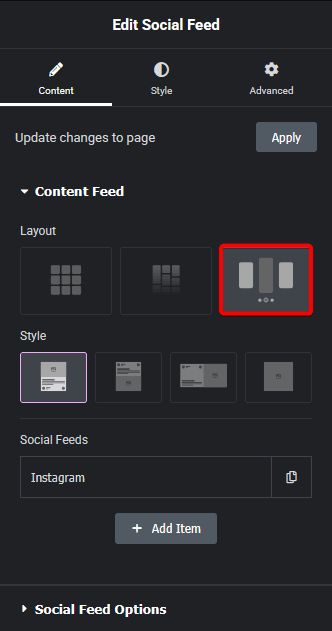
From the Style dropdown, you can select different styles for your carousel layout.
2. Then select Instagram from the Source dropdown under Social Feeds.
3. After that select the appropriate option from the Select Option dropdown. Let’s select Personal.
4. Then add the token key in the Access Token field.
Note: For the Business type you have to add an App ID and App Secret and then generate the token key.
Now your Instagram feed will show as a carousel.
From the Carousel tab under Style, you can manage the carouse settings and some styles.
Suggested Reading: How to Get an Instagram Access Token for WordPress? (Easy Method)
