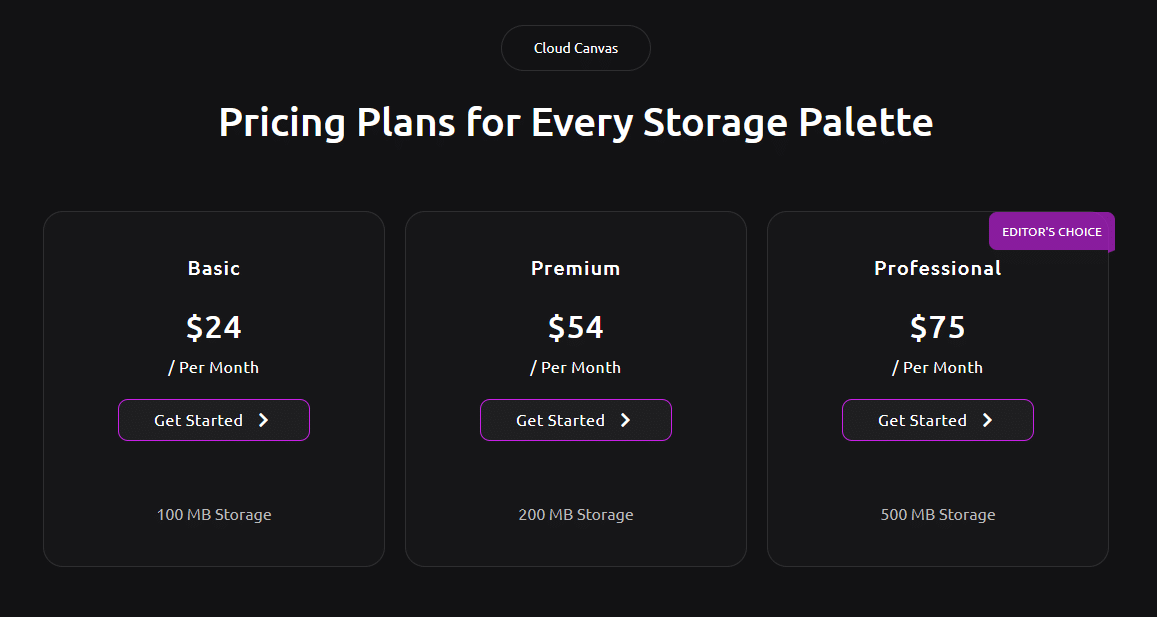
Do you want to add a ribbon to an Elementor pricing table? Adding a ribbon to a pricing table plan, not only adds a visual appeal but also highlights certain features or offers.
With the Pricing Table widget from The Plus Addons for Elementor, you can easily add a ribbon to a pricing table in Elementor.
To check the complete feature overview documentation of The Plus Addons for Elementor Pricing Table widget, click here.
Requirement – This widget is a part of The Plus Addons for Elementor, make sure its installed & activated to enjoy all its powers.
To do this, add the Pricing Table widget to the page and follow the steps –
1. After adding content to the pricing table, go to the Ribbon tab and enable the Display Ribbon toggle.
2. Then select an appropriate ribbon style from the Ribbon Style dropdown.
3. After that add the ribbon text in the Ribbon/Pin Text section.
Now you’ll see a ribbon on the pricing table.