






When three plans sit side by side, readers look for the one you recommend. A ribbon across the card is the shortest way to say it.
The Pricing Table widget from The Plus Addons for Elementor has a ribbon built in, with your own wording and three shapes.
To check the complete feature overview documentation of The Plus Addons for Elementor Pricing Table widget, click here.
Requirement – This widget is a part of The Plus Addons for Elementor, make sure it’s installed & activated to enjoy all its powers.
Before You Start
- Edition: Free — the Pricing Table widget is in the free The Plus Addons for Elementor. Layout Style 2 and Style 3, tooltips, the Show More link, the call-to-action text, Lottie button icons and ribbon Styles 2 and 3 need Pro.
- Widget to enable: Pricing Table, switched on under The Plus Addons > Widgets.
- One widget is one plan: the widget renders a single pricing card. For a three-column pricing section, put three Pricing Table widgets side by side in one container.
- Ribbon editions: the ribbon and Style 1 are free. Style 2 (Pro) and Style 3 (Pro) need the Pro plugin.
How to Add a Ribbon
- Select the Pricing Table widget for the plan you want to flag.
- Open the Ribbon section at the bottom of the Content tab.
- Switch Display Ribbon on.
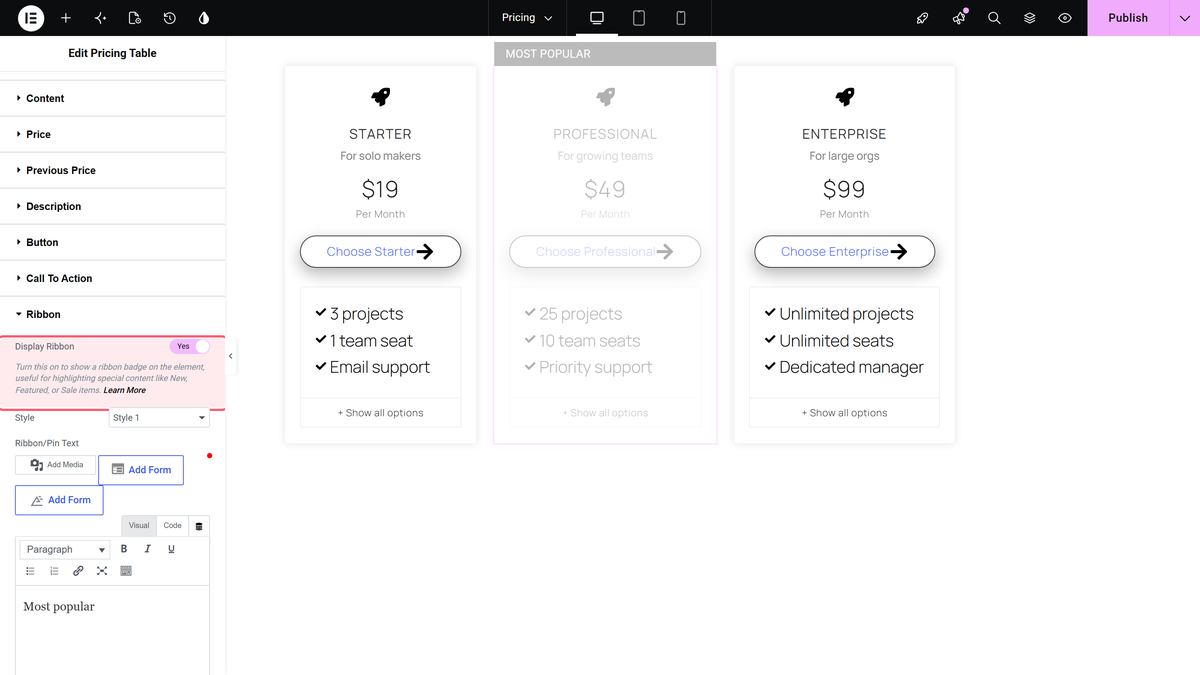
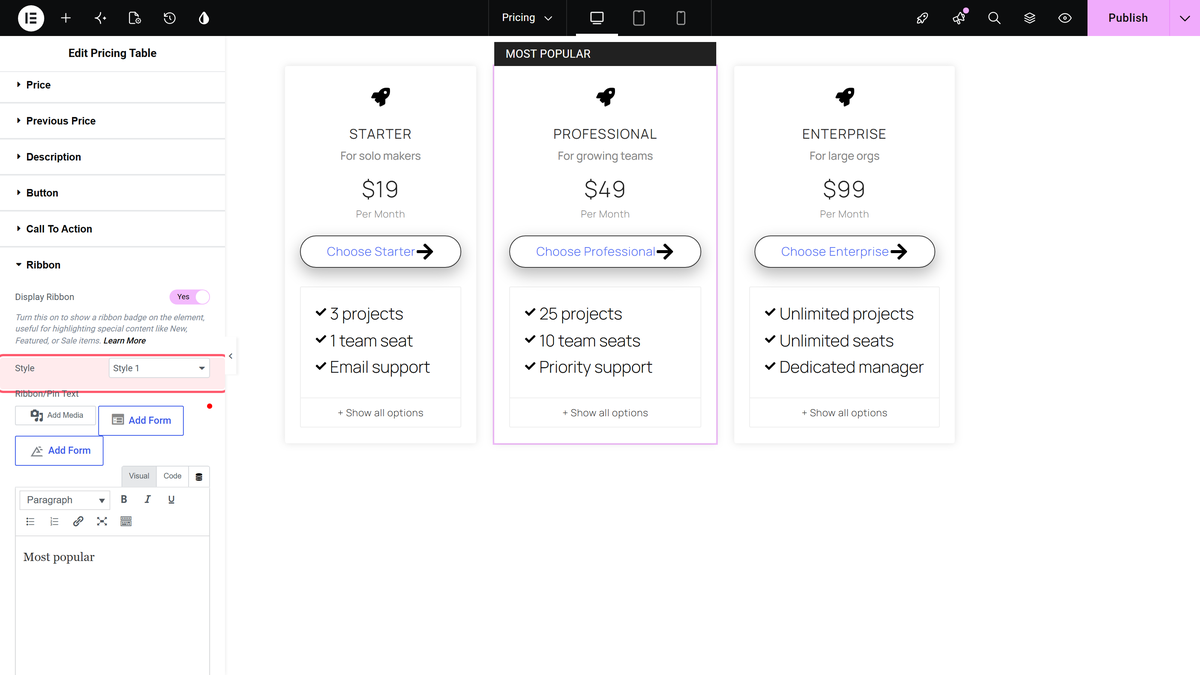
- Pick a shape in Style.
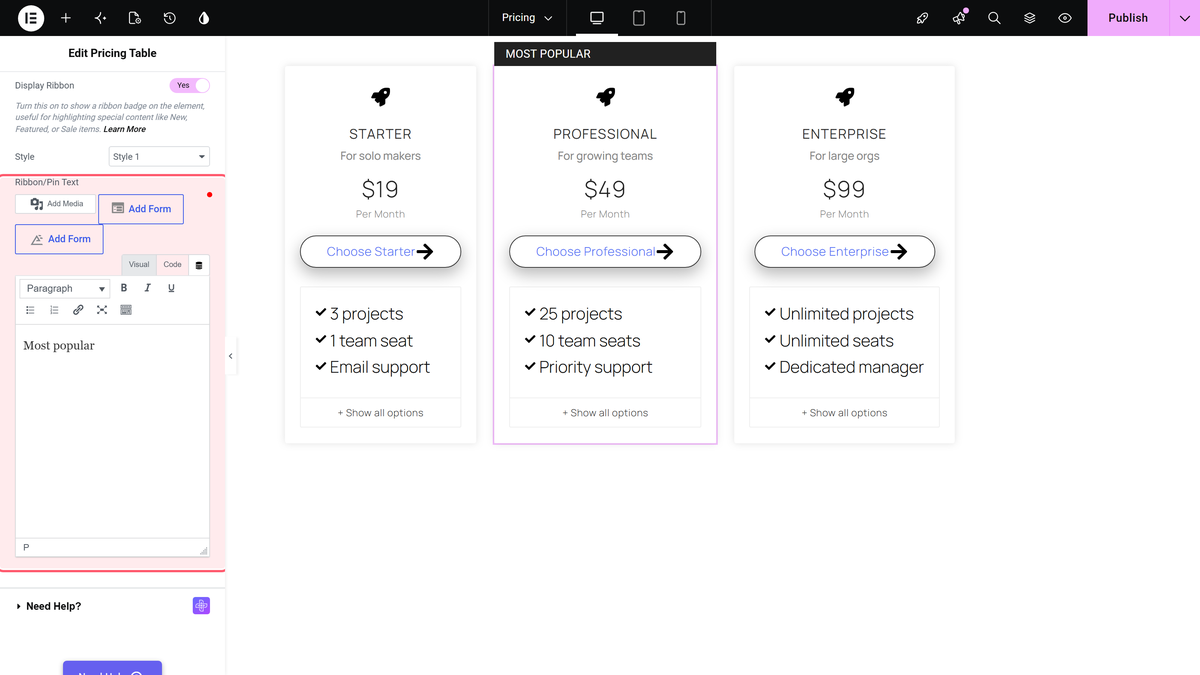
- Type the wording in Ribbon/Pin Text.
- Style it under Style > Ribbon/Pin, which appears once the toggle is on.
The Three Shapes
| Style | What it looks like | Edition |
|---|---|---|
| Style 1 | A bar the full width of the card, sitting directly above it. Measured 295×32 px on a 295 px card. | Free |
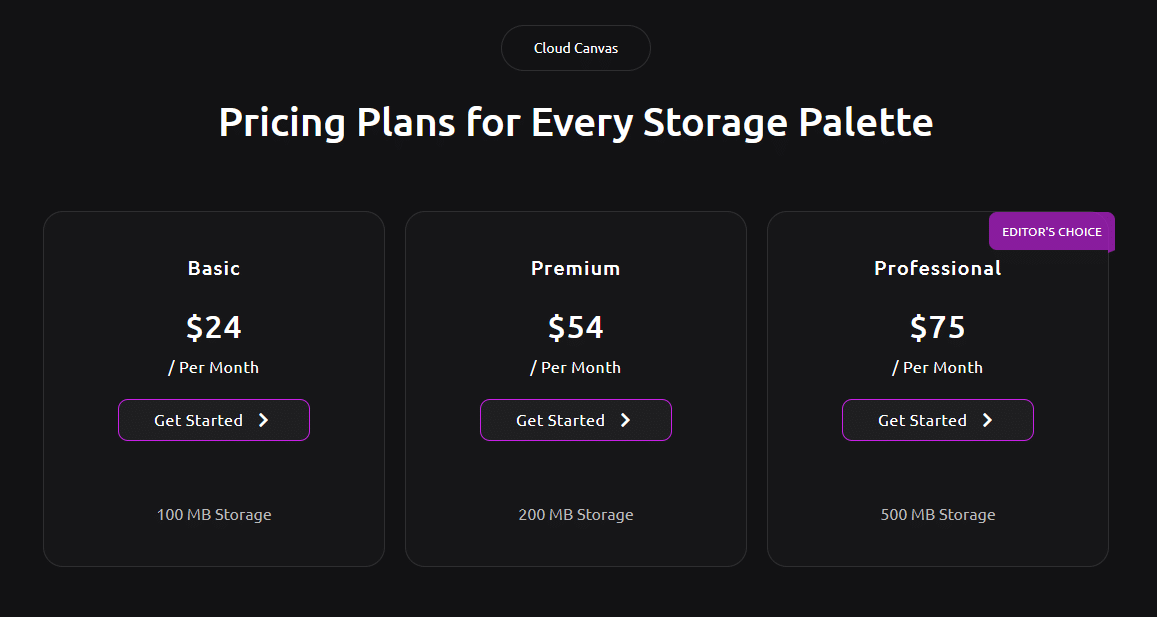
| Style 2 (Pro) | A square badge over the top-right corner of the card, 120×120 px. | Pro |
| Style 3 (Pro) | A small pin over the top right of the card, about 139×40 px. | Pro |
And here is a ribbon on a published page:
How It Behaves
- Style 1 draws the bar in the space directly above the card, and Styles 2 and 3 sit over its top-right corner. None of them pushes the title or the price down.
- The ribbon styling prints the text in capitals. Typing Most popular renders MOST POPULAR.
- Ribbon/Pin Text is a rich-text field, but the ribbon is a small strip, so keep it to two or three words.
- With Pro the ribbon works on all three card layouts — Layout Style 1, Style 2 and Style 3.
- Style > Ribbon/Pin only appears in the panel once Display Ribbon is on.
Limitations
- Only one ribbon per card, and each card is its own widget, so you set it plan by plan.
- Without the Pro plugin, ribbon Style 2 and Style 3 render nothing at all — the card simply has no ribbon, with no warning in the editor.
- There is no setting for which corner the ribbon sits in. Style 1 is always the top bar, and Styles 2 and 3 are always top right.
- The capitalisation comes from the widget’s own styling, so the text will not appear in mixed case unless you override it yourself.
Troubleshooting
I switched the ribbon on and nothing appeared
Check Style. Style 2 and Style 3 are Pro, and without Pro they render nothing. Switch to Style 1.
The Style tab has no Ribbon/Pin section
It is conditional. Switch Display Ribbon on first, then reopen the Style tab.
My ribbon text is cut off
The strip is only as wide as the card. Shorten the wording, or reduce the ribbon font size under Style > Ribbon/Pin.
The Style 2 or Style 3 ribbon covers the icon
Those two shapes are drawn over the top-right corner of the card. Add top padding to the card under Style > Background Options, or move the icon down.
The Style 1 bar is clipped or runs into the row above
It is drawn in the space above the card, outside the card itself. Give the container enough top padding for it.
