Do you want to add a follow image cursor in Elementor? The follow image cursor lets you display a custom image alongside your mouse cursor, giving your website a distinctive and interactive feel.
With the Mouse Cursor widget from The Plus Addons for Elementor, you can add a follow image cursor to any page in the Elementor editor.
To check the complete feature overview documentation of The Plus Addons for Elementor Mouse Cursor widget, click here.
Best Used For:
- Creative portfolios and agency websites that want a memorable, branded cursor interaction
- Photography and art sites where a custom image cursor reinforces the visual theme
- Product landing pages that use cursor interactions to increase engagement and highlight key elements
Requirement – This widget is a part of The Plus Addons for Elementor. Make sure it is installed and activated.
To do this, add the Mouse Cursor widget from The Plus Addons for Elementor to the page and follow the steps.
1. Select the appropriate cursor area from the Cursor Area dropdown. This determines which area of the page the custom cursor applies to. Use Page to apply the follow image cursor across the entire page, or select a specific section if you want the effect only within a part of the layout.
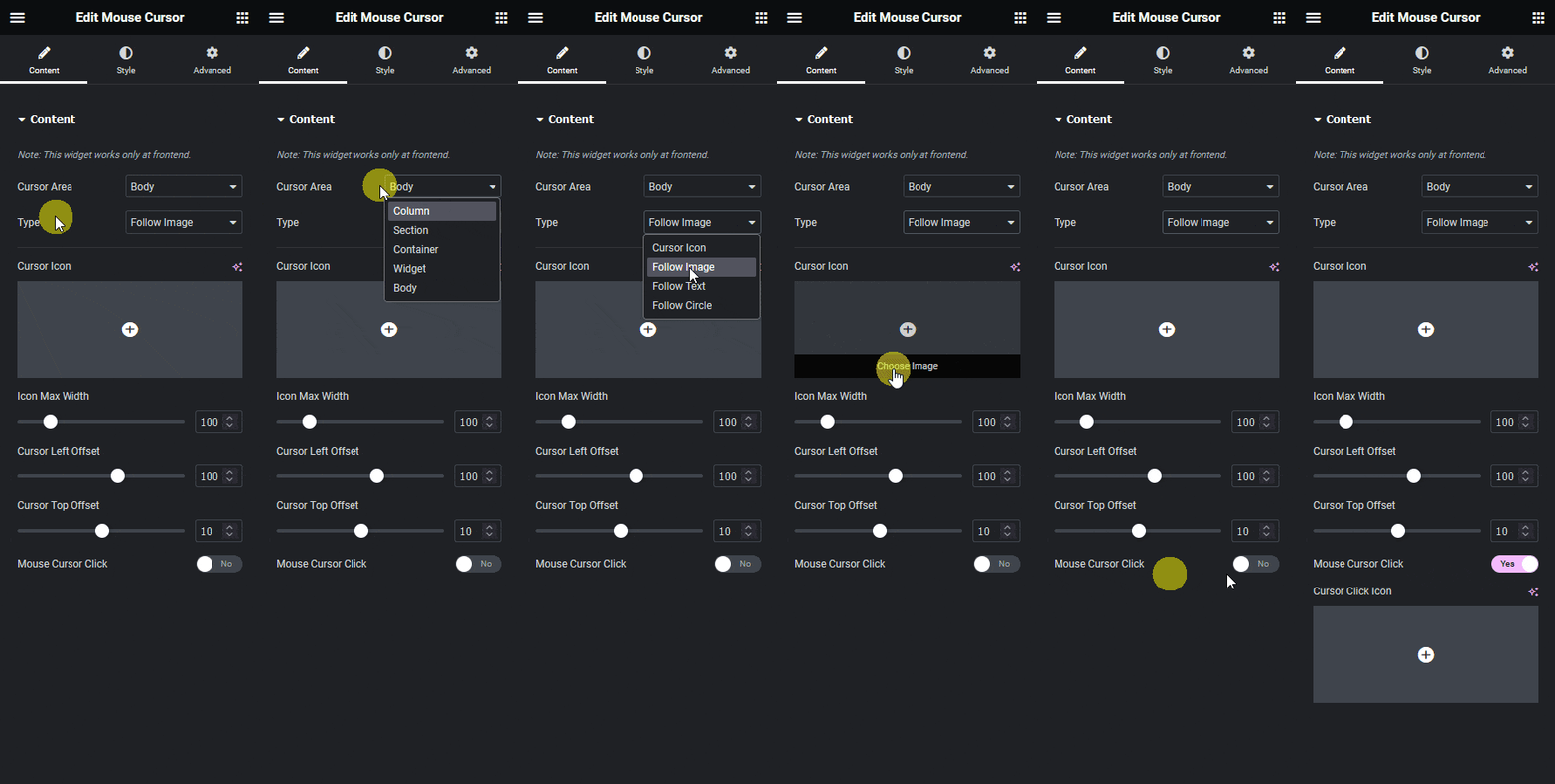
2. Then select Follow Image from the Cursor Type dropdown.
3. Add the image in the Cursor Icon section. Use a PNG with a transparent background so the image blends smoothly with any page background as the cursor moves.
If you prefer a text label following the cursor instead of an image, see How to Add a Follow Text Cursor in Elementor.
From the Icon Max Width section, manage the image width. Set a smaller value when using the cursor on text-heavy pages so the follow image does not obscure content as the visitor reads.
Manage the image’s left and top distance from the mouse cursor using the Cursor Left Offset and Cursor Top Offset sections. Use this when the image overlaps the cursor hotspot so you can offset it and keep the cursor functional.
Enable the Mouse Cursor Click toggle to add a different follow image cursor for a link hover. This is useful on landing pages where you want a visual cue when visitors hover over clickable elements. To create parallax animation effects across your Elementor layout alongside cursor effects, see How To Create Mouse Cursor Parallax Effects in Elementor for FREE.
Now you will see your selected image following the mouse cursor on the page.