You have a product demo, a customer story, or a webinar replay that deserves attention. Dropping the raw video straight onto the page pushes everything else down, adds weight to the initial load, and rarely gets the click it deserves. A video lightbox solves that. Instead of embedding the player inline, you show a clean thumbnail or a button, and the video opens in a focused overlay on top of the page when someone clicks. The visitor watches without leaving, then closes the overlay and carries on.
This guide walks through how to add a video lightbox in Elementor two ways: the quick built-in method, and a more flexible approach using the Video Player from The Plus Addons for Elementor when you want control over the thumbnail, the source, and how the popup behaves. Both keep the heavy video file out of the initial page load, which is better for speed and for the person reading your page.
What Is a Video Lightbox (and Why Use One)?
A video lightbox is an overlay that opens a video in a popup window layered above your page content, usually dimming the background so the video is the only thing in focus. The visitor clicks a thumbnail, an image, or a button, the video plays in the center of the screen, and closing it returns them exactly where they were.
There are three practical reasons to use one instead of an inline embed. It keeps your layout tidy, because a small thumbnail takes far less space than a full-width player. It helps performance, since the video only loads when someone actually asks for it rather than on every page view, which matters for your Core Web Vitals. And it holds attention, because the dimmed overlay removes the surrounding distractions while the video plays.
The Quick Way: Elementor’s Built-In Video Lightbox
Elementor’s own Video widget can do a basic lightbox without any extra plugin. Drag the Video widget onto the page, paste a YouTube or Vimeo link, then open the Video settings and turn on the Lightbox option. Elementor shows an image overlay with a play icon, and clicking it opens the video in a centered popup.
This is enough for a single, simple video. Where it gets limiting is control. The native lightbox gives you a play button over the video poster, but fine control over the thumbnail image, the aspect ratio inside the popup, and how self-hosted files behave is thin. If a lightbox video is central to a landing page, you usually want more say over how it looks and loads.
A Video Lightbox With More Control: The Plus Addons Video Player
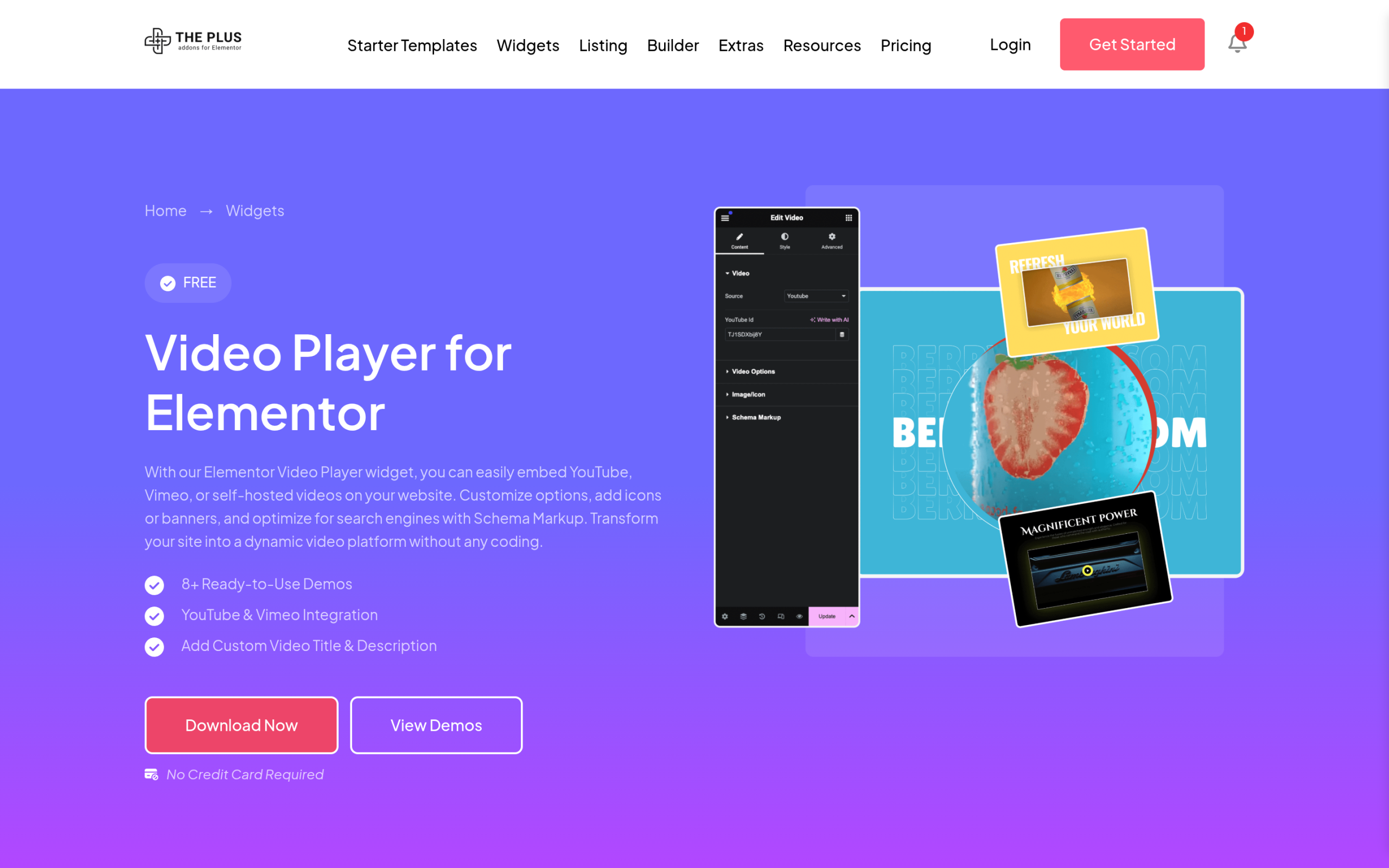
When you want the popup to look intentional, the Video Player widget in The Plus Addons for Elementor is the tool I reach for. With this widget you can embed YouTube, Vimeo, or self-hosted videos, and it is built for exactly this popup-on-click pattern. The Plus Addons publishes a step-by-step guide on how to create a video popup in Elementor with it.
The part that makes the difference for a landing page is the thumbnail. Instead of the default video poster, you can upload a custom banner image for the video, so the closed state matches your design rather than a random YouTube frame. You get player controls for Vimeo, controls for self-hosted files, and the option to run a clean YouTube embed without the platform chrome. Set the video source, choose your custom thumbnail, enable the popup, and the widget handles the overlay.
Because it is part of the same toolkit as the rest of your build, the popup inherits your styling instead of fighting it, the same way the other Elementor add-ons in the plugin do.
Trigger the Video Lightbox From a Button, Image, or Thumbnail
A video lightbox does not have to be triggered by a video thumbnail. Often you want a “Watch the demo” button in your hero, or a play icon over a team photo, to open the video. The Plus Addons handles this through its popup tools, so you can set almost any element as the trigger and load the video inside the popup. If you have built a popup in Elementor before, the flow will feel familiar: design the trigger, point it at the video popup, and you are done.
This is the pattern most product pages want. A calm hero with one clear button, and the demo video one click away in an overlay, rather than a heavy autoplay embed competing with your headline.
Video Lightbox for a Gallery or Multiple Videos
If you have several videos, testimonials, tutorials, or event clips, you do not want six inline players stacked down the page. Lay them out as a grid or an image carousel of thumbnails, and let each one open its own video lightbox on click. The page stays light because nothing loads until a visitor picks a video, and the layout stays scannable.
For a wall of customer stories or a course preview section, this is far friendlier than a long column of embeds, and it reads better on mobile where vertical space is precious.
Video Lightbox Best Practices (Speed and Mobile)
A lightbox is already a performance win because the video is deferred until the click, but a few habits keep it clean. Use a properly sized, compressed thumbnail image so the closed state itself does not become the heavy part of the page. Keep one video per lightbox rather than autoplaying several. And test the popup on a phone: the video should fit the screen, the close control should be easy to tap, and scrolling should lock behind the overlay so the page does not drift while the video plays.
If your page still feels sluggish after this, the video is rarely the cause once it is behind a lightbox. It is usually images and scripts elsewhere, which is worth checking if you have ever wondered whether Elementor slows down your website.
Bringing It Together
A video lightbox is one of those small touches that makes a page feel considered. Elementor’s built-in Video widget covers the simplest case in a couple of clicks. When the video matters, when it is the demo on your landing page or a wall of customer stories, the Video Player in The Plus Addons for Elementor gives you the custom thumbnail, the source flexibility, and the button or image triggers to make the popup feel like part of your design instead of a bolt-on.