How to Create Category Metro Layout in Elementor?

Key Takeaways

  • Dynamic Categories widget from The Plus Addons for Elementor displays post categories in a metro layout.
  • Users select 'Metro' from the Layout section to organize content in box-shaped grids.
  • The Plus Addons for Elementor requires installation and activation to access the Dynamic Categories widget.
Table Of Content

Do you want to display your post categories in a Metro layout in Elementor? This modern style uses box-shaped grids to organize and show content in a neat and attractive way.

With the Dynamic Categories widget from The Plus Addons for Elementor, you can easily show post categories in a metro layout.

To check the complete feature overview documentation of The Plus Addons for Elementor Dynamic Categories widget, click here.

Requirement  – This widget is a part of The Plus Addons for Elementor, make sure it’s installed & activated to enjoy all its powers.

To do this, make sure you’ve created some post categories, then follow the steps – 

1. Add the Dynamic Categories widget on a page and select an appropriate style from the Style section from the Content Layout tab.

2. Then select Metro from the Layout section.

3. After that, select a category from the Taxonomies dropdown.
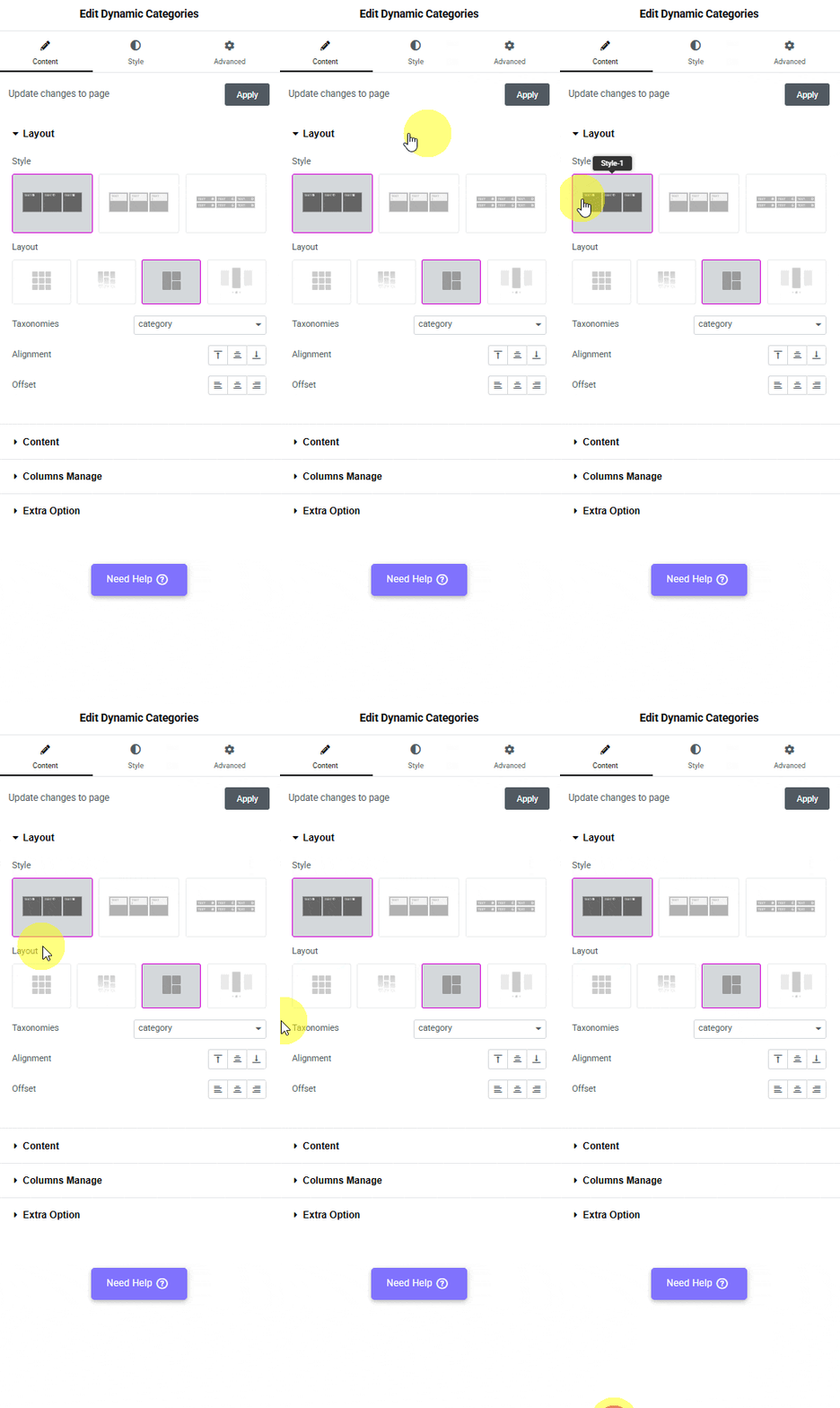
Tpae dynamic categories metro how to create category metro layout in elementor? From the plus addons for elementor

Note: Similarly, you can show tags or other taxonomies in a metro layout by selecting the appropriate option.

Now your post categories will show in a metro layout.
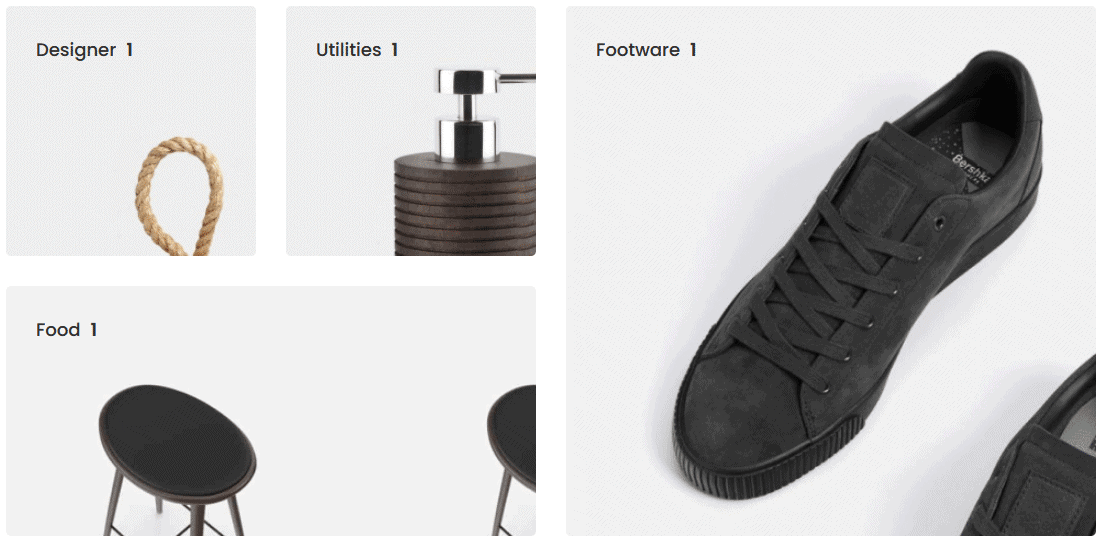
Dynamic categories metro demo how to create category metro layout in elementor? From the plus addons for elementor

About the Author

Photo of Aditya Sharma CMO of The Plus Addons for Elementor
CMO · The Plus Addons for Elementor · 10 years experience

He has spent years in the WordPress ecosystem building, breaking, and optimizing sites until they actually perform. He works at the intersection of speed, growth, and usability, helping creators ship websites that load fast and convert. An active WordPress community contributor sharing through tools, tutorials, and direct collaboration. Tested practice, not theory.

WordPressElementorn8nAIClaudeAutomationServer
Get Instant Answers to all your questions about The Plus Addons for Elementor, trained on 1000+ Docs and Videos

Related Frequently Asked Questions

What should I do if the Dynamic Categories widget isn't displaying my categories?

If the Dynamic Categories widget is not showing your categories, ensure that you have created post categories in WordPress first. The widget relies on these categories to populate the display. Also, verify that The Plus Addons for Elementor is installed and activated, as this widget is part of that plugin. Without activation, the widget won't function properly.

Can I use the Dynamic Categories widget to display tags in a metro layout?

Yes, the Dynamic Categories widget from The Plus Addons for Elementor allows you to display not only post categories but also tags and other taxonomies in a metro layout. Simply select the appropriate option from the Taxonomies dropdown. This flexibility can help you organize various types of content visually.

What layout options are available for the Dynamic Categories widget?

The Dynamic Categories widget offers several layout options, including the Metro layout. To select the Metro layout, go to the Layout section of the widget settings. Choosing the right layout is crucial for matching your site's design aesthetic and enhancing user experience.

Are there any limitations when using the Dynamic Categories widget?

The primary limitation of the Dynamic Categories widget is that it only works with The Plus Addons for Elementor. It does not support other page builders like Gutenberg, Beaver Builder, or Divi. This means if you're using a different builder, you won't be able to utilize this widget's features.

What is the best practice for selecting categories when using the Dynamic Categories widget?

When using the Dynamic Categories widget, it's best to select categories that are relevant and well-organized to ensure a clean and engaging layout. This helps users navigate your content more effectively. Make sure to regularly update your categories to reflect the latest content on your site.

How do I access the feature overview documentation for the Dynamic Categories widget?

You can access the complete feature overview documentation for the Dynamic Categories widget by clicking here. This documentation provides detailed insights into the widget's capabilities, helping you make the most of its features.

Last reviewed: April 9, 2026