


































Are you looking for a way to add a vertical scrollbar to your Elementor table? Sometimes, when your table contains a large amount of data, it can extend beyond the visible area, making it difficult for users to navigate. Adding a vertical scrollbar can enhance the user experience and allow visitors to scroll through the table content effortlessly.
With the Table widget from The Plus Addons for Elemento, you can easily add a vertical scrollbar to your table.
To check the complete feature overview documentation of The Plus Addons for Elementor Table widget, click here.
Requirement – This widget is a part of The Plus Addons for Elementor, make sure it’s installed & activated to enjoy all its powers.
To do this, add the widget on the page, once you’ve added content to your table, go to the Extra Options tab > Table Vertical Scrollbar and turn on the toggle.
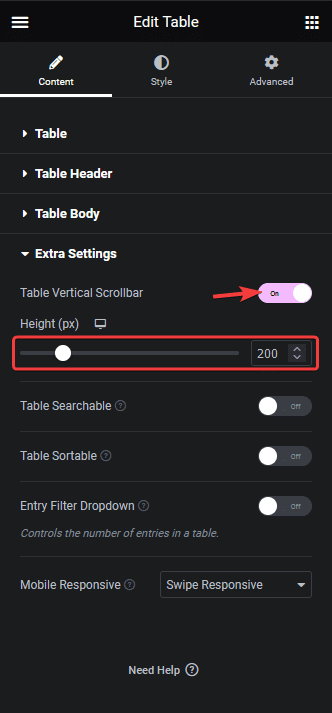
Then in the Height (px) field, you can set the height of the table for different devices, and once the table content crosses that height, a scroll bar will be added.
This is how easily you can add a vertical scrollbar to your Elementor table.
Also, check How to add a search in Elementor Table.

