How to Add iFrame Content in Elementor Timeline?

Key Takeaways

  • The Plus Addons for Elementor Timeline widget allows embedding HTML or iFrame content in each timeline item.
  • Users can display embedded YouTube videos or Google Maps for event or location-based timelines.
  • The widget requires installation and activation of The Plus Addons for Elementor to function.
Table Of Content

Are you looking to add iFrame content in an Elementor timeline? By adding iFrame or HTML content, you can embed external materials such as videos, forms, maps, and web pages directly into each timeline item.

With the Timeline widget from The Plus Addons for Elementor, you can add HTML or iFrame content to any timeline item in the Elementor editor.

Best Used For:

  • Event or company history timelines where each milestone displays an embedded YouTube video
  • Location-based timelines that show an embedded Google Map for each office, store, or project site entry
  • Multi-step process or onboarding timelines that include embedded forms or booking widgets at specific stages

To check the complete feature overview documentation of The Plus Addons for Elementor Timeline widget, click here.

Requirement  – This widget is a part of The Plus Addons for Elementor, make sure it is installed & activated to enjoy all its powers.

To do this, add the Timeline widget from The Plus Addons for Elementor to a page and follow the steps –

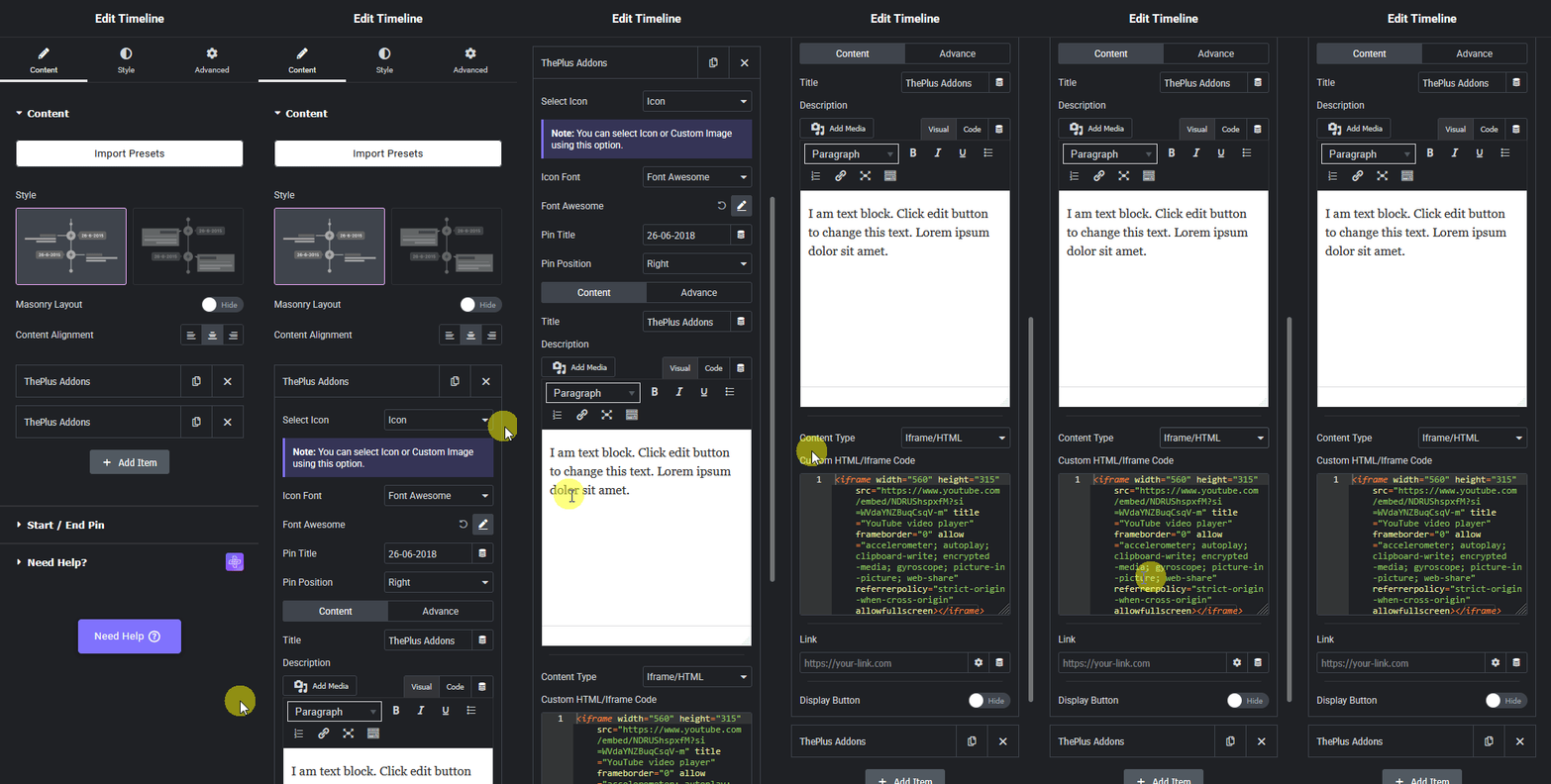
1. Open the repeater item to which you want to add the iFrame content. Each repeater item represents one event or milestone on your timeline.

2. After adding the title and description, select iFrame/HTML from the Content Type dropdown. Use this option when you want to embed external content such as a YouTube video, a Google Map, or a contact form instead of plain text or an image.
Timeline iframe html new how to add iframe content in elementor timeline? From the plus addons for elementor

3. In the Custom HTML/Iframe Code field, add the HTML or iFrame embed code for your external content. For instance, if you want to add a YouTube video, copy the video’s embed code from YouTube and paste it into this field.

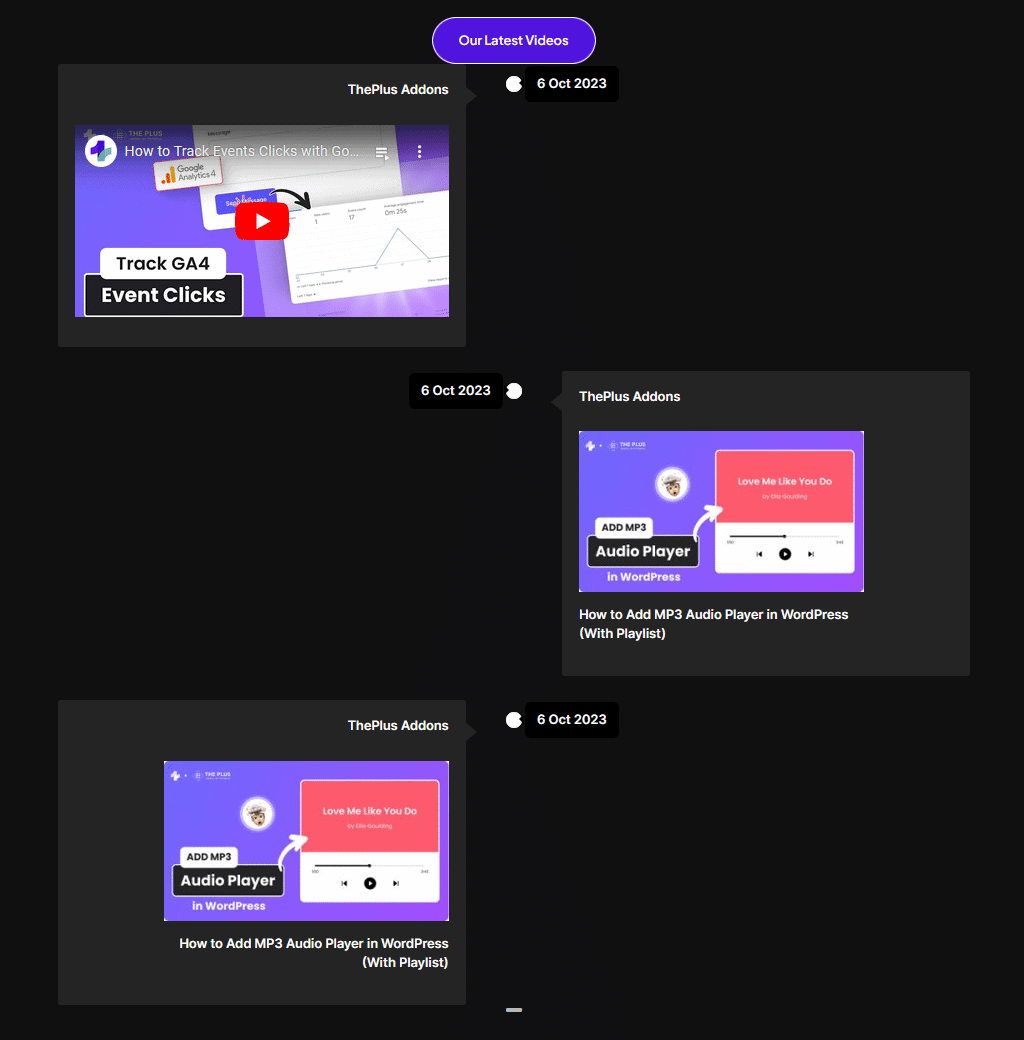
Now you’ll the iFrame content in that specific timeline item.
Timeline iframe html demo how to add iframe content in elementor timeline? From the plus addons for elementor

About the Author

Photo of Aditya Sharma CMO of The Plus Addons for Elementor
CMO · The Plus Addons for Elementor · 10 years experience

He has spent years in the WordPress ecosystem building, breaking, and optimizing sites until they actually perform. He works at the intersection of speed, growth, and usability, helping creators ship websites that load fast and convert. An active WordPress community contributor sharing through tools, tutorials, and direct collaboration. Tested practice, not theory.

WordPressElementorn8nAIClaudeAutomationServer
Get Instant Answers to all your questions about The Plus Addons for Elementor, trained on 1000+ Docs and Videos

Related Frequently Asked Questions

What if my iFrame content doesn't display in the Elementor timeline?

If your iFrame content isn't showing up, first ensure that you've correctly added the HTML or iFrame code in the Custom HTML/Iframe Code field. A common issue is using incorrect embed codes, especially with platforms like YouTube. Double-check the embed code format and make sure there are no typos. This troubleshooting step can save you from frustration when trying to display external content.

Can I embed a Google Map using the Timeline widget?

Yes, you can embed a Google Map in the Elementor timeline using the Timeline widget from The Plus Addons for Elementor. Simply obtain the embed code for the map and insert it into the Custom HTML/Iframe Code field. This allows you to add interactive maps directly into your timeline, enhancing user engagement with location-based content.

What type of content works best for the iFrame in the Elementor timeline?

The best content for iFrame in the Elementor timeline includes videos, forms, maps, and web pages. Using engaging content like YouTube videos can make your timeline more dynamic and informative. Keep in mind that the iFrame content should be relevant to the timeline context to maintain user interest and provide value.

Are there any limitations when using iFrame content in the timeline?

One limitation to consider is that not all websites allow their content to be embedded in an iFrame due to security settings like X-Frame-Options. If you encounter issues with certain URLs, check if they support embedding. This can affect the functionality of your timeline if you're trying to include specific external content.

How do I ensure the iFrame content fits well within the timeline layout?

To ensure your iFrame content fits well within the timeline layout, pay attention to the dimensions of the iFrame in your embed code. Adjust the width and height parameters to match your design. This is crucial for maintaining a visually appealing layout and avoiding scrollbars or cut-off content, which can detract from the user experience.

What are the steps to add iFrame content in the Elementor timeline?

To add iFrame content in the Elementor timeline, first add the Timeline widget from The Plus Addons for Elementor to your page. Open the repeater item where you want the content, select iFrame/HTML from the Content Type dropdown, and paste your HTML or iFrame code into the Custom HTML/Iframe Code field. This process allows for seamless integration of external content into your timeline.

Last reviewed: April 9, 2026