


















How to Add a Tooltip to an Elementor Pricing Table?

Key Takeaways

  • The Plus Addons for Elementor allows users to add tooltips to the description items of an Elementor pricing table.
  • The Pricing Table widget offers two tooltip display options: Box and Icon, which determine where the tooltip appears on hover.
  • Users can choose between Content Text and Content WYSIWYG for adding tooltip content, allowing for simple text or rich content like links and images.
Table Of Content

Do you want to add a tooltip to an Elementor pricing table? By adding a tooltip you can show additional information to the users and make your pricing table more interactive.

With the Pricing Table widget from The Plus Addons for Elementor, you can easily add a tooltip to the description items of an Elementor pricing table.

To check the complete feature overview documentation of The Plus Addons for Elementor Pricing Table widget, click here.

Requirement  – This widget is a part of The Plus Addons for Elementor, make sure its installed & activated to enjoy all its powers.

To do this, add the Pricing Table widget to the page and follow the steps –

1. Add the appropriate title and price of the pricing table.

2. Then in the Description tab, select Stylish List from the Content Style dropdown.

3. After that open the repeater item you want to add the tooltip to and enable the Tooltip Options toggle.

4. From the Tooltip On dropdown, you have to select where to add the tooltip. Here you’ll find two options – 

  • Box – It will show the tooltip when you hover over the entire repeater item content area.
  • Icon – It will add an icon at the end of the repeater item content. It will show the tooltip when you hover over the icon.

Select the option as per your requirements.

5. Then from the Content Type dropdown, you have to select how you want to add the tooltip content. Here you’ll find two options – 

  • Content Text – With this option, you’ll get a text area to add simple text content.
  • Content WYSIWYG – With this option, you’ll get a WYSIWYG editor to add the content. With this, you can add links, images etc. to the tooltip. 

Select the option as per your requirements. Let’s select Content Text here.

6. Then in the Description section, you have to add the tooltip content.

From the Text Alignment section, you can align the content.

Then from the Typography and Text Color sections, you can manage the typography and color.

Now you’ll see a tooltip when you hover over that specific repeater item.
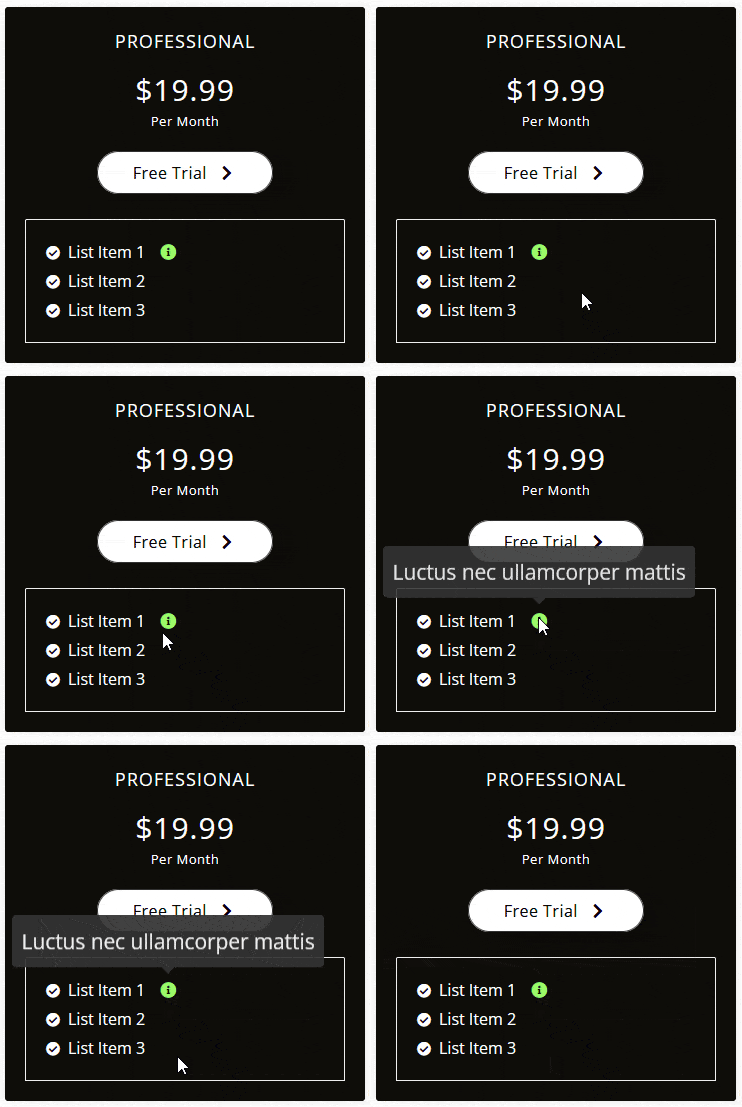
Pricing table tooltip options demo how to add a tooltip to an elementor pricing table? From the plus addons for elementor

About the Author

Photo of Aditya Sharma CMO of The Plus Addons for Elementor
CMO · The Plus Addons for Elementor · 10 years experience

He has spent years in the WordPress ecosystem building, breaking, and optimizing sites until they actually perform. He works at the intersection of speed, growth, and usability, helping creators ship websites that load fast and convert. An active WordPress community contributor sharing through tools, tutorials, and direct collaboration. Tested practice, not theory.

WordPressElementorn8nAIClaudeAutomationServer
Get Instant Answers to all your questions about The Plus Addons for Elementor, trained on 1000+ Docs and Videos

Related Frequently Asked Questions

What if the tooltip doesn't appear after following the steps?

If the tooltip doesn't show up, ensure that the Tooltip Options toggle is enabled for the specific repeater item in the Pricing Table widget. Additionally, check that you have selected an appropriate option in the Tooltip On dropdown, either 'Box' or 'Icon', depending on your preference. If these settings are correct and it still doesn't work, try refreshing the page or clearing your browser cache.

Can I add images or links to the tooltip content?

Yes, you can add images or links to the tooltip content by selecting the Content WYSIWYG option in the Content Type dropdown. This allows for a richer content format compared to the simple text option, enabling you to enhance the user experience with additional media or hyperlinks. Use this feature to provide more informative tooltips that engage users.

What settings work best for adding tooltips to a pricing table?

When adding tooltips to a pricing table, consider using the 'Box' option in the Tooltip On dropdown for a more prominent display that covers the entire repeater item. This is especially useful if you have detailed descriptions. Additionally, align the tooltip content for clarity and adjust typography settings to ensure it matches your overall design. These adjustments help maintain visual consistency and improve readability.

Does the tooltip feature work with all Elementor widgets?

The tooltip feature is specific to the Pricing Table widget from The Plus Addons for Elementor. It is not available for other Elementor widgets or third-party page builders like Gutenberg or Divi. This means you can only utilize this tooltip functionality within the context of the Pricing Table widget provided by The Plus Addons for Elementor.

What happens if I don't enable the Tooltip Options for a repeater item?

If you don't enable the Tooltip Options for a repeater item, users will not see any tooltip when they hover over that item. This means you miss out on the opportunity to provide additional information or context, which can enhance the interactivity and usability of your pricing table. Enabling tooltips can significantly improve user engagement and clarify pricing details.

Can I use the tooltip feature on mobile devices?

The tooltip feature should be functional on mobile devices, but consider that hover interactions are typically less effective on touchscreens. Users may need to tap on the icon or area designated for the tooltip to view the content. Ensure that your design accommodates mobile users by testing how tooltips display and function on various screen sizes.

Last reviewed: April 9, 2026
