The WordPress MCP Adapter is the official plugin that lets an AI client such as Claude call the things your WordPress site can do. It reached the WordPress.org plugin directory on 2 October 2026 as version 0.7.0, and the 0.x number is a fair warning: it works, but the project is young and the setup is manual. There is no settings screen, so you install the plugin, create a credential and write a config file yourself.
This guide covers all three jobs in order: install the MCP Adapter plugin, connect Claude to it, and lock the connection down so an AI agent can only do what you meant it to do. We make The Plus Addons for Elementor, an add-on that registers its own WordPress abilities, so we have an interest in how this plumbing works. Every command and config block below comes from the adapter’s own documentation or the packages it names, checked on 7 October 2026. Where we could not verify something, we say so.
What The WordPress MCP Adapter Does (And Does Not Do)
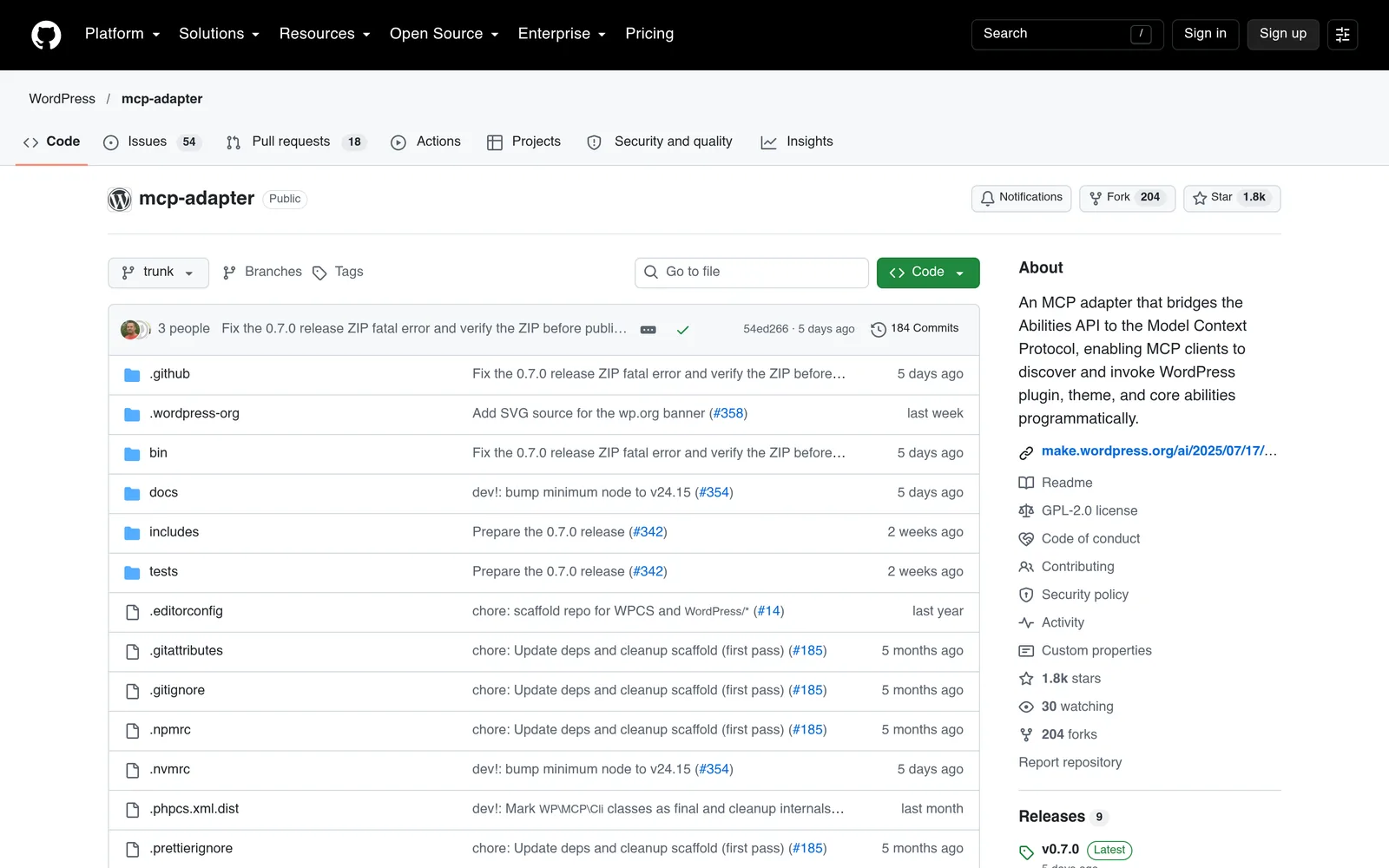
The adapter is a bridge, nothing more. The repository describes it as an adapter that bridges the Abilities API with the Model Context Protocol, so MCP clients can discover and invoke WordPress plugin, theme and core abilities. It adds no AI features of its own, so what an agent can do depends on the abilities your site has registered.
Three separate pieces are involved, and each has a different owner.
| Piece | What It Is | Who Provides It |
|---|---|---|
| Abilities API | A registry where WordPress, plugins and themes declare what they can do, with input schemas and permission checks | WordPress core, from version 6.9 |
| MCP Adapter | A plugin that turns registered abilities into MCP tools, resources and prompts and serves them over HTTP or STDIO | The WordPress project (version 0.7.0 at the time of writing) |
| MCP Client | The app that connects to the server and calls the tools, such as Claude Desktop or Claude Code | You choose it |
The Abilities API is described in the WordPress developer blog as a first-class, cross-context functional API that other tools and applications can use to interface with WordPress, and its first implementation shipped in WordPress 6.9. You can read the original announcement in Introducing the WordPress Abilities API. For the wider WordPress 7 picture, see our guide to WordPress 7 AI features.
The Default Server And Its Three Tools
When the plugin loads, it creates a default MCP server. Its documentation says the server exposes three meta-tools rather than one tool per ability. An agent lists what is available, asks for the full schema of one ability, then runs it.
| MCP Tool Name | What It Does |
|---|---|
mcp-adapter-discover-abilities | Lists the abilities that are public and available to MCP |
mcp-adapter-get-ability-info | Returns the full schema for one ability |
mcp-adapter-execute-ability | Runs an ability with the parameters you pass |
Default Server Or Custom Server
You can also create a custom server on the mcp_adapter_init hook that lists specific abilities as individual tools. Choose that route when you want a small, fixed set of actions and a tighter boundary.
What You Need Before You Install It
Check these first. Most failed first attempts trace back to one of them.
- WordPress 6.9 or newer. The plugin directory lists 6.9 as the minimum, with PHP 7.4 as the minimum PHP version. The adapter’s troubleshooting guide says the Abilities API is included in core from 6.9.
- HTTPS on the live site. WordPress’s own application password guide says the feature may be unavailable when the request is not made over https.
- Pretty permalinks. The troubleshooting guide says permalinks must not be set to Plain, because the server lives under
/wp-json/. - A staging copy. Version 0.7.0 is still a 0.x release, so try it on staging first.
- Abilities worth calling. The adapter registers three discovery tools and nothing else. Your plugins have to register the real abilities, or you have to write one.
How To Install The WordPress MCP Adapter
You have two supported routes. Pick the dashboard if you are on shared hosting without a terminal, and WP-CLI if you manage servers.
Install From The WordPress Dashboard
- Go to Plugins, then Add New Plugin.
- Search for MCP Adapter. Check that the author is the WordPress team, because other plugins use similar names.
- Click Install Now, then Activate.
- Visit Settings, then Permalinks, and click Save Changes once if the endpoint returns a 404 later.
If the search does not show it yet, download the zip from the latest GitHub release and upload it with Upload Plugin. The WordPress.org listing shows version 0.7.0, last updated on 2 October 2026.
Install With WP-CLI
The installation guide gives this one-line command, which downloads the release zip and activates it:
wp plugin install https://github.com/WordPress/mcp-adapter/releases/latest/download/mcp-adapter.zip --activateEither way, the plugin creates the default server on its own, at /wp-json/mcp/mcp-adapter-default-server.
Confirm The Server Exists
Do not move on until you have seen the server listed. From the site root, run:
wp mcp-adapter list
wp mcp-adapter list --format=json
The first command prints a table of registered servers with their tool, resource and prompt counts. If the list is empty, the plugin is inactive or the Abilities API is missing, which means WordPress is older than 6.9. The guide’s fix for an inactive plugin is wp plugin activate mcp-adapter.
Create A Dedicated User And Application Password
Claude needs a WordPress identity to act as. The adapter’s default server requires a logged-in user, and the user’s role decides what the agent can do. Do not use your own administrator account.
- Go to Users, then Add New User.
- Create a user such as
claude-agentwith the lowest role that still covers the work. An Editor is enough for content tasks. - Open that user’s profile and scroll to Application Passwords.
- Type a name that says what it is for, for example
Claude Code on my laptop, and click Add New Application Password. - Copy the 24-character password now. WordPress shows it once, in groups of four characters, and it works with or without the spaces.
The Application Passwords integration guide on Make WordPress notes that each password records when and where it was last used, so you can spot and revoke ones you no longer need.
How To Connect Claude To The WordPress MCP Adapter
There are three ways to connect, and the right one depends on where Claude runs and whether it can speak to a remote HTTP server. The adapter documentation covers all three.
| Method | Best For | Authentication |
|---|---|---|
| Direct HTTP | Claude Code and other clients that support Streamable HTTP | Application password in an Authorization header |
| HTTP Through The Proxy | Clients that only launch local commands, such as Claude Desktop config files | Application password, OAuth 2.1 or JWT set in environment variables |
| STDIO With WP-CLI | A site running on the same machine as the client | A WordPress user you pick with --user |
Connect Claude Code Over HTTP
The proxy package’s README says that if your client supports Streamable HTTP and can authenticate, you can connect straight to the adapter endpoint and skip the proxy. First build the Basic auth value from your username and application password. Remove the spaces from the password first.
printf 'claude-agent:abcdEFGH1234ijklMNOP6789' | base64Then add the server. The command shape below follows the Claude Code MCP documentation, which uses --transport http and repeats --header for each header:
claude mcp add --transport http wordpress \
  https://your-site.com/wp-json/mcp/mcp-adapter-default-server \
  --header "Authorization: Basic PASTE_BASE64_HERE"
Prefer a project file? The proxy README shows the equivalent .mcp.json entry for Claude Code:
{
  "mcpServers": {
    "wordpress": {
      "type": "http",
      "url": "https://your-site.com/wp-json/mcp/mcp-adapter-default-server",
      "headers": {
        "Authorization": "Basic <base64 of username:application-password>"
      }
    }
  }
}
Do not commit a .mcp.json that contains a real credential. Keep it out of version control, or store the header value in an environment variable your client can read.
Connect Claude Desktop Through The Proxy
Claude Desktop reads servers from claude_desktop_config.json. The @automattic/mcp-wordpress-remote package runs locally and translates the client’s STDIO traffic into HTTP calls that WordPress understands. This is the configuration from the adapter’s CLI usage guide:
{
  "mcpServers": {
    "wordpress": {
      "command": "npx",
      "args": ["-y", "@automattic/mcp-wordpress-remote@latest"],
      "env": {
        "WP_API_URL": "https://your-site.com/wp-json/mcp/mcp-adapter-default-server",
        "LOG_FILE": "/path/to/logs/mcp-adapter.log",
        "WP_API_USERNAME": "claude-agent",
        "WP_API_PASSWORD": "your-application-password"
      }
    }
  }
}
The proxy also supports OAuth 2.1 and JWT tokens. Its README labels application passwords the legacy method and OAuth 2.1 the recommended one, but the password is the shortest path for a first connection.
Connect A Local Site Over STDIO
If the site runs on your own machine, skip HTTP and let the client start WP-CLI directly. The adapter documents this configuration:
{
  "mcpServers": {
    "wordpress": {
      "command": "wp",
      "args": [
        "--path=/path/to/your/wordpress/site",
        "mcp-adapter",
        "serve",
        "--server=mcp-adapter-default-server",
        "--user=admin"
      ]
    }
  }
}
The guide says that without --user the server runs unauthenticated with limited capabilities. Give it a user, and avoid admin unless you need it. The guide itself lists “avoid running as admin user unless necessary” under best practices.
Test The Connection From The Command Line
Before blaming Claude, test the endpoint with curl. The troubleshooting guide shows that every request after initialize must carry an Mcp-Session-Id header, and that a missing header returns JSON-RPC error -32600. This request starts a session:
curl -s -D - -X POST "https://your-site.com/wp-json/mcp/mcp-adapter-default-server" \
  --user "claude-agent:your-application-password" \
  -H "Content-Type: application/json" \
  -d '{"jsonrpc":"2.0","id":1,"method":"initialize","params":{"protocolVersion":"2025-11-25","capabilities":{},"clientInfo":{"name":"my-client","version":"1.0.0"}}}'
Look for the session ID in the response headers, then send tools/list with it in an Mcp-Session-Id header. If you see the three discovery tools, the server and the credential both work. Inside Claude Code, claude mcp get wordpress shows the connection status.
Expose Your First Ability To Claude
A fresh install can discover almost nothing, and that is deliberate. The adapter’s README states that WordPress abilities are private by default. To expose one, set meta.public to true in its registration. An explicit meta.mcp.public value overrides that for MCP alone, so you can keep an otherwise public ability away from agents.
Two registration rules catch people out. First, every ability needs a category, and the category must already be registered. WordPress core provides site and user. If the category is missing, the guide says wp_register_ability() returns null and the ability never appears, with only a PHP notice when WP_DEBUG is on. Second, register abilities on the wp_abilities_api_init hook.
Here is a small read-only ability that lists recent post titles. It follows the shape in the adapter’s examples, with a permission check and a read-only hint:
add_action( 'wp_abilities_api_init', function () {
    wp_register_ability( 'my-plugin/list-recent-posts', [
        'label'       => 'List Recent Posts',
        'description' => 'Returns the titles and URLs of the most recent published posts.',
        'category'    => 'site',
        'input_schema' => [
            'type'       => 'object',
            'properties' => [
                'limit' => [
                    'type'        => 'integer',
                    'description' => 'How many posts to return',
                    'minimum'     => 1,
                    'maximum'     => 20,
                    'default'     => 5,
                ],
            ],
        ],
        'execute_callback' => function ( $input ) {
            $limit = isset( $input['limit'] ) ? (int) $input['limit'] : 5;
            $posts = get_posts( [ 'numberposts' => $limit, 'post_status' => 'publish' ] );
            return array_map( function ( $post ) {
                return [
                    'title' => get_the_title( $post ),
                    'url'   => get_permalink( $post ),
                ];
            }, $posts );
        },
        'permission_callback' => function () {
            return current_user_can( 'edit_posts' );
        },
        'meta' => [
            'public'      => true,
            'annotations' => [
                'readOnlyHint'    => true,
                'destructiveHint' => false,
            ],
        ],
    ] );
} );
Put it in a small plugin on staging, ask Claude to list the available abilities, and you should see my-plugin/list-recent-posts in the answer. If it does not appear, work through the troubleshooting table near the end of this guide.
Where Elementor Fits In
If your site runs Elementor, there is a second route to keep in mind, and it overlaps with the adapter. Elementor’s own article, published on 6 October 2026, compares three options: the WordPress MCP Adapter, unofficial servers and the official Elementor MCP. It describes the official one as built into Elementor 4.3.0 or higher, connected from Elementor, then Elementor MCP in the dashboard, where Elementor creates the application password in the background.
The adapter is a general bridge for every ability on the site, while Elementor’s connector is a guided setup for Elementor itself. We explain the second one in detail in What Is the Elementor MCP, and we compare the wider field of connectors in The Best MCP Servers for WordPress.
What The Plus Addons For Elementor Registers
The Plus Addons for Elementor registers WordPress abilities so an MCP client can build and edit Elementor pages through conversation. Our MCP abilities overview lists them by name, and for version 6.5.0 it counts 94 abilities on the free plugin and 151 with Pro. Those are registry counts, not tested runs.
The same documentation is honest about the limits, and they matter for this guide. It says the add-on does not serve MCP itself, so you still need a connector plugin and a configured client. It also says it has not verified which connector plugins work, so test the adapter on staging and run the discovery tool before you plan around it. Our docs also warn that 26 free ability names stop working when Pro is activated, because Pro registers the same widgets under a different prefix. Re-run discovery after any edition change.

If you want the product side of this, the MCP Abilities page explains what an assistant can build, and the Free vs Pro comparison shows which widgets sit in which edition.
How To Lock Down The WordPress MCP Adapter
An MCP connection gives software a way to act on your site, so the credential and the permissions are the whole security story. The adapter ships with sensible defaults, but defaults are only a starting point. This is the checklist we would work through before connecting anything to a live site.
Give The Agent Its Own Least-Privilege User
The user you connect as sets the ceiling. The CLI guide says to use least-privilege accounts and to test with different roles. If Claude only needs to draft posts, connect as an Editor or an Author, not an Administrator. A compromised or confused agent can then only do what that role could do by hand.
Keep Abilities Private Until You Have Read Them
Because abilities are private by default, the safest habit is to opt in one ability at a time, after reading its code and its permission callback. Take extra care with abilities that delete, publish or change settings. Adding meta.mcp.public set to false keeps a public ability away from agents while leaving it available elsewhere.
Use Both Permission Layers
The transport permissions guide describes two layers. The first is a server-wide gate. If it blocks a user, they reach no ability on that server at all. The second is the per-ability permission callback. By default a server only requires a logged-in user, which is a low bar. You can raise it when you create a custom server:
add_action( 'mcp_adapter_init', function ( $adapter ) {
    $adapter->create_server(
        'content-server',
        'my-plugin',
        'mcp-content',
        'Content Server',
        'Content management tools only',
        '1.0.0',
        [ \WP\MCP\Transport\HttpTransport::class ],
        \WP\MCP\Infrastructure\ErrorHandling\ErrorLogMcpErrorHandler::class,
        \WP\MCP\Infrastructure\Observability\NullMcpObservabilityHandler::class,
        [ 'my-plugin/list-recent-posts' ], // tools
        [],                                 // resources
        [],                                 // prompts
        function (): bool {
            return current_user_can( 'edit_posts' );
        }
    );
} );
The guide advises setting the server gate to the broadest capability any ability on it needs, then letting each ability check something narrower, such as edit_post on a specific post.
Treat Annotations As Hints, Not Locks
The readOnlyHint and destructiveHint annotations are behaviour hints for MCP clients. They do not enforce anything on the server, so the permission callback is still the real control.
Protect, Review And Rotate The Credential
- Use HTTPS only. Never send an application password over plain HTTP.
- Create one application password per client and name it clearly, so you can revoke one without breaking the rest.
- Open the user profile now and then and check the Last Used column. Revoke anything you do not recognise.
- Keep the password out of shared repositories, screenshots and chat logs.
- Revoke the password the moment you stop using a client.
Test As The Role You Actually Granted
The CLI guide shows how to check a permission boundary without touching Claude. Pipe a request into the STDIO server as the role you chose, and confirm an admin-only server rejects it:
echo '{"jsonrpc":"2.0","id":1,"method":"tools/list","params":{}}' \
| wp mcp-adapter serve --user=editor --server=admin-server| Check | Why It Matters | Done When |
|---|---|---|
| Dedicated user with a low role | Limits what the agent can do whatever it is told | The agent user is not an Administrator |
| HTTPS enforced | Application passwords may be unavailable without it | The site loads only over https |
| Abilities opted in one at a time | Abilities are private by default | Each public ability has been read |
| Narrow permission callbacks | The per-ability layer is the real control | Callbacks check specific capabilities |
| Credential per client | Lets you revoke without side effects | Each password has its own name |
| Last Used reviewed | Shows credentials nobody uses | Stale passwords are revoked |
| Backup and staging | Write abilities can change real content | A restore point exists before first use |
Troubleshooting The Most Common Problems
The adapter’s troubleshooting guide covers the failures we would expect you to hit first. These are the ones that matter for a first connection.
| Symptom | Likely Cause | Fix |
|---|---|---|
| 404 on the endpoint | Plain permalinks or REST API blocked | Switch away from Plain and check curl https://your-site.com/wp-json/ works |
| Error -32600, missing Mcp-Session-Id | The request skipped the session header | Send initialize first, then repeat the header on every call |
| Invalid or expired session | The session sat idle past the timeout | Initialise again. The default inactivity timeout is 24 hours |
| Permission denied | The user lacks the capability | Test as admin to confirm, then check the role with wp user list |
| Server list is empty | Plugin inactive or WordPress older than 6.9 | Run wp plugin activate mcp-adapter and update WordPress |
| Ability never appears | Missing or unregistered category, or not public | Add a valid category and set meta.public to true |
| Composer autoloader not found | Plugin installed from a source checkout | Install the release zip instead of the repository |
What To Do Next
You now have the whole path: install the plugin, create a limited user, connect Claude, expose one ability on purpose and lock down the rest. The adapter is early software, so re-read the repository migration notes when you update. For the other half of the picture, making your site readable to AI rather than letting AI act on it, see our guides to what an MCP server is and WebMCP for WordPress.
Frequently Asked Questions
Is The WordPress MCP Adapter Free?
Yes. The repository lists a GPL-2.0-or-later license, and the plugin is distributed through WordPress.org and GitHub.
Can Claude Do Anything On My Site Once It Is Connected?
No. Claude can only call abilities that are public and that the connected user has permission to run. A fresh install exposes just the three discovery tools, and every other ability is private until its author opts it in.
Is It Safe To Use On A Live Site?
It can be, if you apply the checklist above: HTTPS, a dedicated low-privilege user, read-only abilities first and a backup. Because the plugin is still at version 0.7.0, we would try it on staging before production.
Suggested Reading
- The Best MCP Servers for WordPress (and How to Make Your Site One)
- What Is the Elementor MCP? The Official 4.3 Connector Explained (2026)
- WordPress 7 AI Features
- What Is an MCP Server? The WordPress Guide to Model Context Protocol for AI Search
- The Plus Addons MCP: Overview of Available Abilities (Free and Pro)