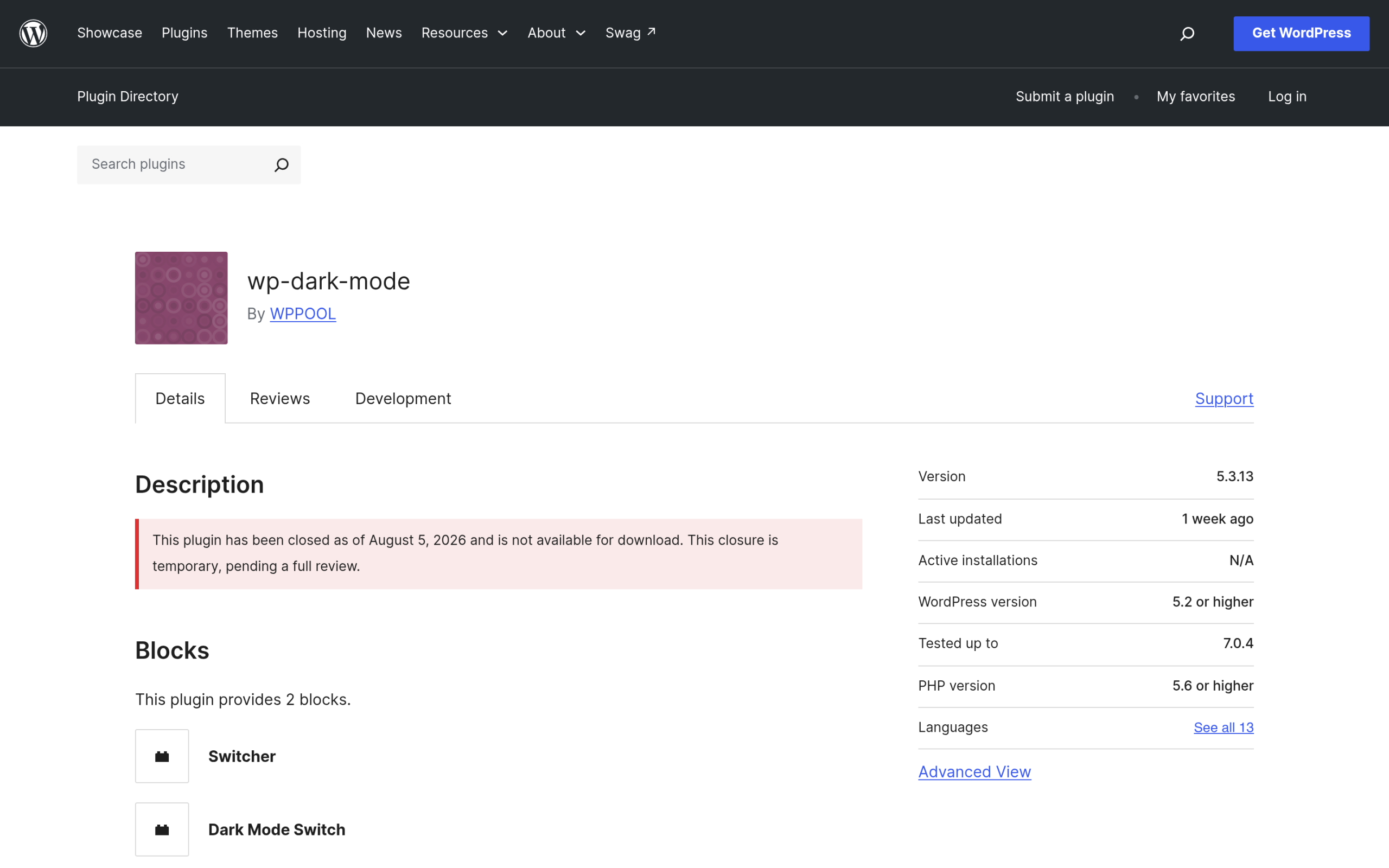
I went looking for a dark mode plugin to recommend in this guide and found that the one most sites actually use, WP Dark Mode, has been closed on the official WordPress.org plugin directory since August 5, 2026, pending a review. It is not deleted, existing installs still work, but nobody can download it fresh right now. That is an unusual thing to happen to a plugin with tens of thousands of installs, and it is exactly the kind of single point of failure worth knowing about before you build a feature around one plugin.
This guide covers what a real site-wide dark mode toggle actually requires, the current state of the WordPress plugin options, and how to add one with or without Elementor.
What a Site-Wide Dark Mode Toggle Actually Needs
A working light/dark toggle is three separate pieces working together, not one setting:
- A dark CSS palette. Every background, text, border, and image needs a dark-mode counterpart, usually written as CSS custom properties (variables) so you can swap the whole set at once.
- A stored preference. The visitor’s choice needs to persist across pages and return visits, typically via
localStorageor a cookie, so they do not have to re-toggle it on every page load. - An instant switch mechanism. Toggling a class on the
<html>or<body>element that the CSS palette responds to, applied before the page paints to avoid a flash of the wrong theme.
Miss the third piece and you get the common “flash of light mode” bug where a returning dark-mode visitor sees a half-second of white background before JavaScript kicks in.
Method 1: The Native Browser Preference (Zero Plugins)
The CSS prefers-color-scheme media query lets your stylesheet automatically match whatever light or dark setting the visitor has already chosen in their own operating system:
@media (prefers-color-scheme: dark) {
  body { background: #121212; color: #e0e0e0; }
}
This costs nothing, needs no plugin, and respects the visitor’s system-level choice. Its limitation is that there is no manual toggle switch. A visitor whose OS is set to light mode but who personally prefers a dark website has no way to override it, which is why most sites still add an explicit on-page switch on top of this baseline.
Method 2: A Dedicated Dark Mode Plugin
Dedicated dark mode plugins add a floating toggle button, an admin-configurable color palette, and localStorage handling without you writing any code. The catch right now is fragmentation: with WP Dark Mode closed pending review, the remaining active alternatives on WordPress.org (Dark Mode Toggle, Darklup, Darkify, Dark Mode for WP Dashboard) each sit at roughly 700 to 3,000 active installs, well short of a single dominant, battle-tested option. One older entrant, Dark Mode for Elementor, was closed permanently back in December 2023 for a guideline violation, so check a plugin’s last-updated date and active-install count before you commit to it, not just its name.
Also Read: before adding any new plugin for a cosmetic feature, it is worth auditing what is already slowing your site down. See how to clean up a bloated Elementor site for a practical plugin-and-database audit.
Method 3: A Theme or Page Builder’s Built-In Dark Mode
Some WordPress themes ship a dark mode toggle natively in their customizer, and it is worth checking Appearance > Customize before installing anything. This is usually the cleanest option when it exists, because the theme author already wrote dark-mode CSS for every one of that theme’s own components, which a generic plugin cannot guarantee.
Method 4: A Custom Toggle Built With Elementor + a Few Lines of JS
On a site already built in Elementor, you do not need a dedicated plugin at all for a basic toggle. Add an icon or switch as an Elementor button widget in your header, give it a unique CSS ID (for example dark-toggle), then add a small custom JavaScript snippet (via Elementor’s own custom code area, or a code snippets plugin) that toggles a dark-mode class on document.body and saves the state to localStorage. Your dark CSS palette then targets body.dark-mode for every color override.
This keeps the feature entirely inside your existing Elementor build with no new plugin dependency, at the cost of writing (or copying) a small amount of code yourself instead of getting an admin settings panel for free.
Also Read: for other small interactive touches you can add the same way, see how to add CSS hover effects in Elementor and how to build an animated toggle switch in CSS and Elementor, which is the exact switch UI a dark mode toggle needs.
Which Method Should You Actually Use?
| Method | Manual toggle | New plugin dependency | Best for |
|---|---|---|---|
| prefers-color-scheme only | No | No | Zero-effort baseline, no admin control needed |
| Dedicated dark mode plugin | Yes | Yes (check install count first) | Non-developers who want an admin settings panel |
| Theme’s built-in dark mode | Usually | No | Themes that already ship one; check first |
| Custom Elementor toggle + JS | Yes | No | Elementor sites wanting no extra plugin weight |