Angie is Elementor’s agentic AI plugin for WordPress. You install it from the plugin directory, sign in with an Elementor account, and describe what you want in a chat panel. It can build pages, custom Elementor widgets and code snippets, and since late May 2026 it can also run PHP on your server through Super Admin Mode. That last feature is the one that changes the risk profile, and it is the reason this guide spends real time on backups, staging and permissions.
Everything about Angie below comes from Elementor’s own pages: the Angie product page, the Angie release posts on the Elementor blog and the Angie section of the Elementor help center. Each claim names its source, because Angie is still changing and some of these pages disagree with each other in small ways. We also compare Angie with the Elementor MCP and with MCP setups driven from Claude or Cursor, and show where The Plus Addons for Elementor fits for third-party widgets. We have not tested Angie ourselves for this article, so nothing here is a hands-on result.
What Angie By Elementor Is
Elementor’s help article What is Angie (updated September 1, 2026) describes Angie as a context-aware assistant for web creation and site maintenance. It runs inside the WordPress dashboard and inside the Elementor Editor, and it reads your active theme, installed plugins, Elementor settings and custom fields before it acts. The same article says it can create pages, draft posts, build custom widgets, configure settings and read attached files such as PDF, CSV, TXT, DOCX and JSON.
The product page is headed Agentic AI for WordPress. It groups Angie into two jobs. Angie Code creates Elementor pages and widgets, WordPress snippets, visual apps and custom post types. Super Admin Mode manages the site itself, through bulk operations, debugging and SEO fixes. The page also lists named integrations: Elementor, WooCommerce, Gutenberg, ACF, WS Form, GiveWP, LearnDash and The Events Calendar.
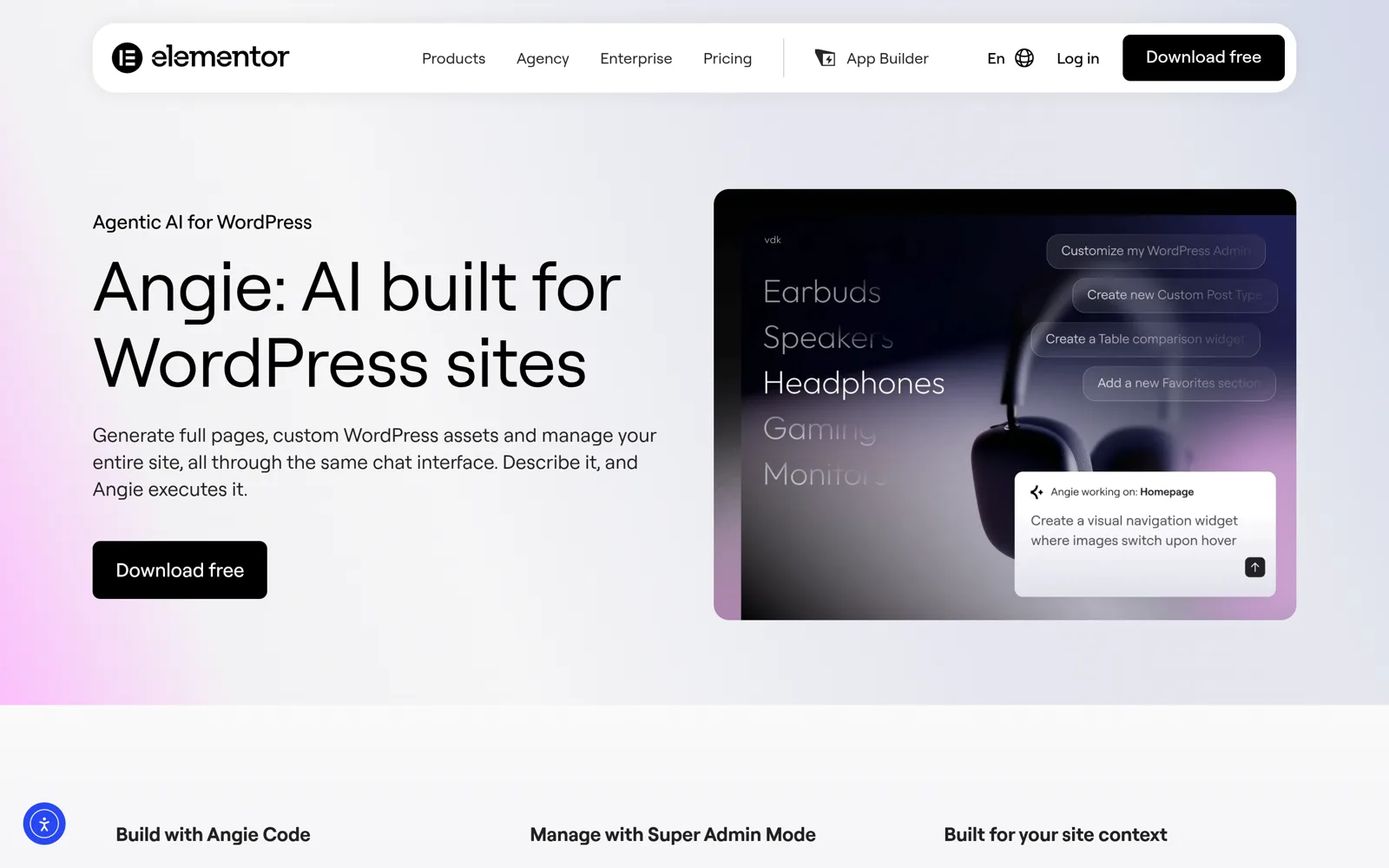
Setup, Accounts And Plan
Setup follows the usual plugin route. The Get started with Angie article says to open Plugins, Add New, search for Angie, install and activate, then agree to the terms and sign in. Logging in requires an Elementor account, and the product page FAQ says Angie works on any WordPress site, with or without the Elementor Editor. The help article adds that an Angie subscription is linked to one account and cannot be shared with other users, and that Angie is separate from Elementor AI and from the AI Site Planner.
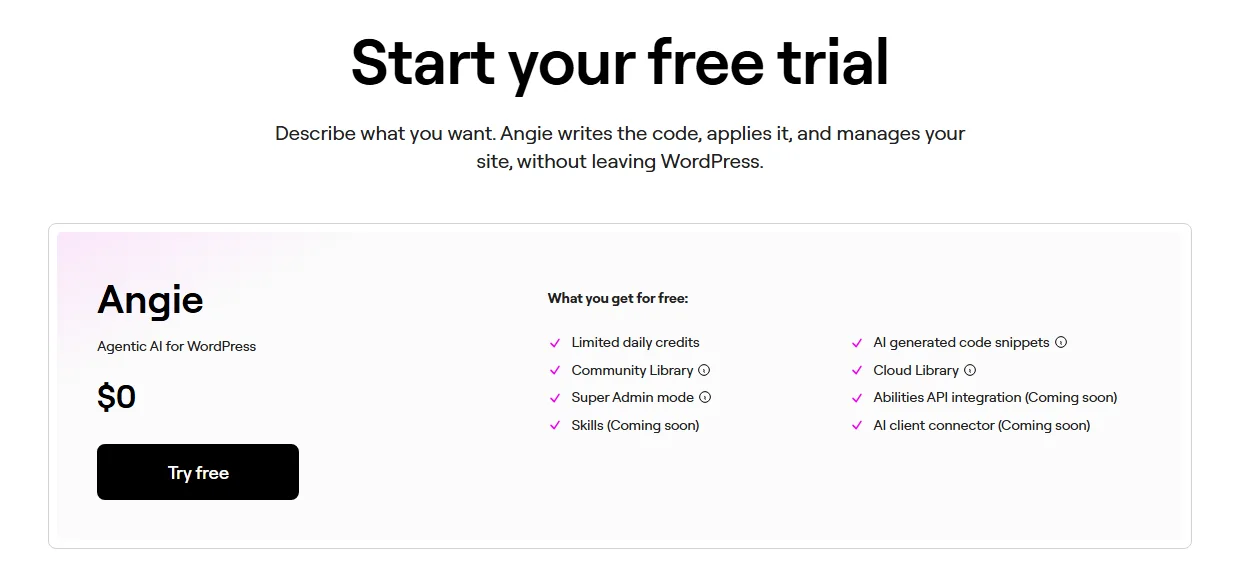
On price, the product page lists “Angie Free” at $0 with limited daily credits that renew. Included on that plan are AI-generated code snippets, the Community Library, the Cloud Library and Super Admin Mode. Three items carry a “Coming soon” label: Abilities API integration, Skills and an AI client connector. The FAQ also says you cannot buy extra Angie credits during this period. Elementor’s Revisions and Cloud Library posts add that Elementor One subscribers can apply their plan credits to Angie beyond the free daily limit. We did not find a paid Angie-only tier on these pages, so check the product page for the current plan list before you budget.
Two Safety Models In One Plugin
Angie Code and Super Admin Mode do not protect your site the same way. The product page says Angie Code runs in a test environment, isolated from the live site, and the help article How to use Angie Test Mode explains the mechanics: new widgets and snippets stay in a Test Mode state until you click Publish to Live in the Snippets menu. A pink frame and an indicator at the bottom of the screen show when you are in it.
Super Admin Mode has no equivalent sandbox. Its help article says it runs on your live server. Building a widget in Test Mode and running a database-wide change through Super Admin Mode are different levels of risk, even though both start from the same chat box.
Angie Release Timeline: Cloud Library, Revisions, Super Admin Mode
Angie has shipped in short steps. This table lists the releases that matter for this decision, with the date shown on each Elementor page.
| Release | Date On Elementor’s Page | What It Adds | Source |
|---|---|---|---|
| Cloud Library | May 12, 2026 | Save any snippet you build with Angie and pull it into other sites you manage | Elementor blog |
| Revisions | May 20, 2026 | Restores exact earlier states of your Angie snippets, not a re-created version | Elementor blog |
| Super Admin Mode | May 28, 2026 | Read-write access to files, database and PHP, driven by chat | Elementor blog, help article |
| Build With Prompts | July 29, 2026 | Full pages, design systems, forms and loops from one prompt | Elementor blog, our earlier post |
| Elementor MCP | September 29, 2026 | Connect Claude, Codex, Cursor and others to Elementor; extra tools when Angie is installed | Elementor blog, help article |
Cloud Library: Reuse Across Sites
Elementor’s Cloud Library post describes saving a snippet once and deploying it to any site connected to your account. It adds that importing a snippet to another site does not consume credits, and that the library works as a backup if a snippet is deleted from a client site. That is a backup of Angie snippets, not of your database or files.
Revisions: Exact Restore For Snippets
The Revisions post says Angie stores a snippet’s state right before it modifies the snippet, including code, structure and configuration. You can open version history and return to that state, which Elementor contrasts with asking the AI to undo a change and getting a reconstruction. The FAQ states that Revisions is specific to Angie snippets and separate from Elementor’s regular revision history. It is a useful net for long build sessions. It is not described as a way to undo changes made to your database or files.
What Angie Super Admin Mode Changes
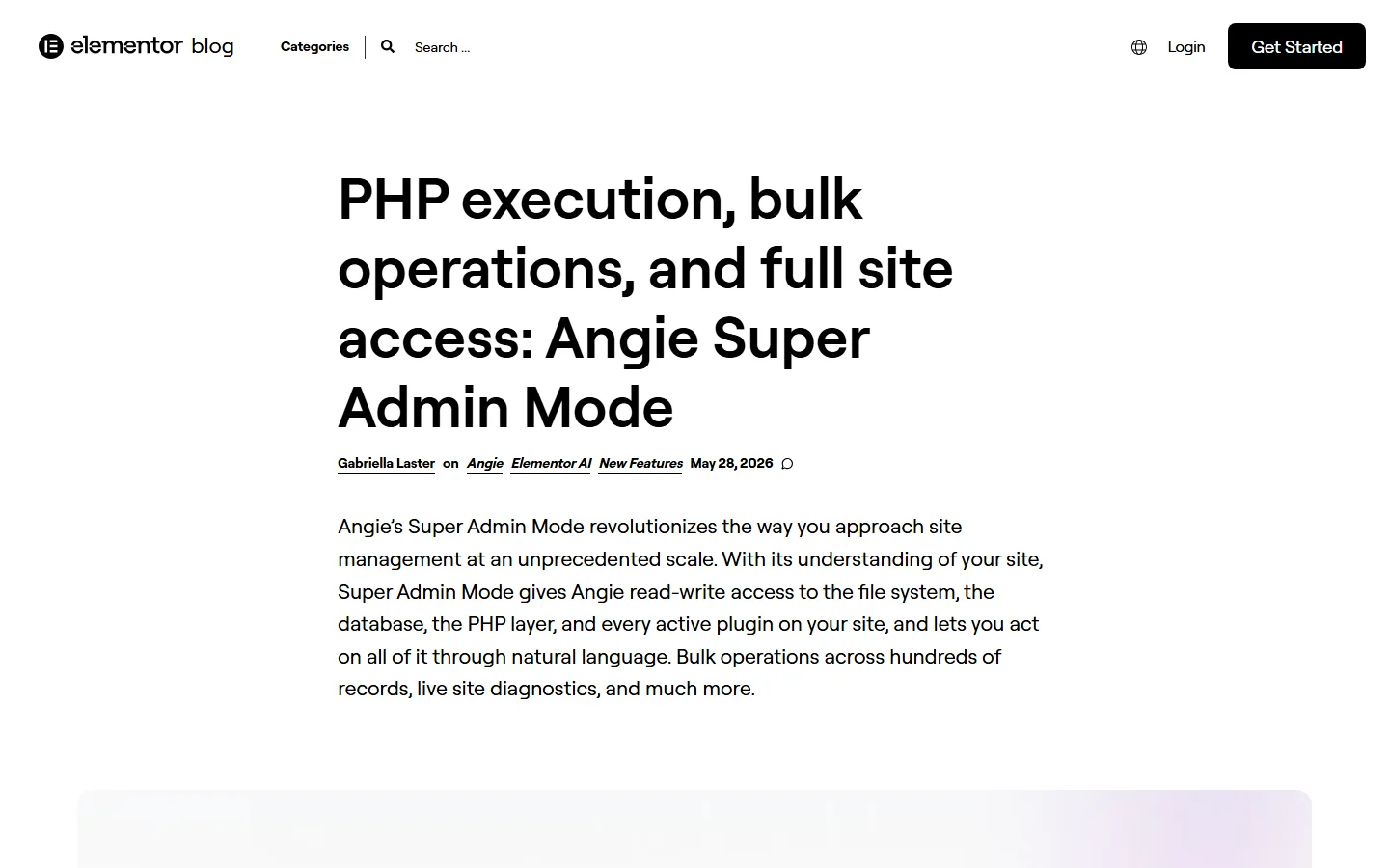
Elementor’s announcement, PHP execution, bulk operations, and full site access: Angie Super Admin Mode, says the mode gives Angie read-write access to the file system, the database, the PHP layer and every active plugin. In practice it replaces work you would otherwise do with WP-CLI, a database client or a custom plugin. The post names agency developers, experienced freelancers and power users as the audience.
The Three Tools Behind It
The help article How to use Super Admin mode with Angie AI is the most precise source. It says that when the mode is active, Angie works with three dedicated tools.
| Tool | What It Does | Requires Confirmation |
|---|---|---|
| Execute PHP | Runs a PHP snippet on the live server with WordPress loaded | Yes |
| Read File | Reads any file under the WordPress root, up to 512 KB | No |
| List Directory | Lists files and subdirectories, up to 1,000 entries | No |
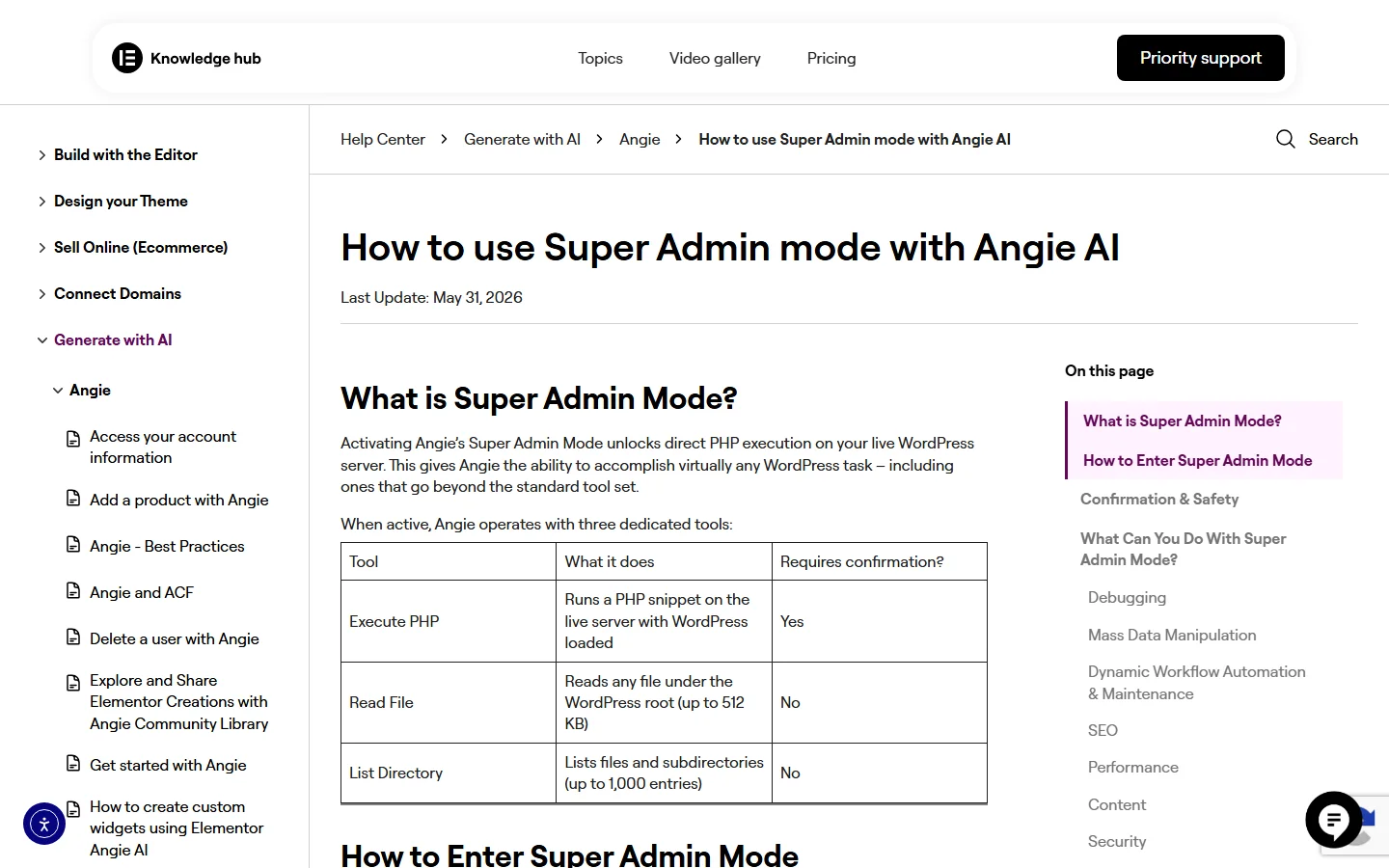
Two details in that table deserve attention. Only Execute PHP is marked as requiring confirmation, so reading files and listing directories happen without a prompt. And the help article lists a 30-second time limit on PHP execution, which is why it advises breaking large jobs into smaller steps.
What You Can Ask It To Do
The announcement and the help article give matching examples, grouped by task. Based on both pages, the main categories are:
- Bulk data changes. Add a meta field to every product over a set price, change prices in one category by a percentage, or downgrade users who have not logged in for a year.
- Debugging. Check why email is not sending, read the debug log and group repeated errors, or fix Elementor images that still point at a staging URL after a move.
- Maintenance. Clear caches, audit wp-config.php settings, or resend form notifications after an SMTP outage.
- SEO at volume. Fill missing meta descriptions, create redirects after a category is deleted, or standardise slugs and register redirects from the old URLs.
- Performance and audits. Clean autoloaded options, remove unused media, scan for injected scripts, review administrator accounts or find broken links.
The pattern is the same throughout: you describe the outcome, Angie reads your data and plugins, writes PHP, and runs it once you confirm. The product page adds the line “Angie can make mistakes, verify results,” which is the most honest sentence in the marketing material.
Where The Elementor Pages Disagree
Two differences between Elementor’s own pages are worth knowing.
- How you switch it on. The announcement says the mode is off by default and is activated under Angie, Settings, Super Admin Mode. The help article describes picking Super Admin from the mode selector in the chat, then accepting a confirmation screen, and leaving by switching back to Agent or Plan. Your installed version decides which you see.
- Where it should run. The announcement says it should only be used on staging sites, after a backup. The help article says to back up and review generated code, and gives staging-first as a tip. The product page says Angie confirms every plan, while the help article marks only Execute PHP as needing confirmation.
When sources differ, take the stricter one. Treat the mode as a root-level tool that needs a restore point and a review step every time.
Risks Of PHP Execution And Full Site Access On A Production Site
The risk is not that the AI is malicious. It is that a plausible-looking script can be wrong in a way you only notice after it has written to every row it matched. Elementor’s help article is explicit that a single PHP snippet can modify your database, change files or alter site behavior, so a restore point should exist before you start. The checks below follow that advice and add a few that follow from how the tools work.
Before You Turn It On
- Take a full backup. Files and database, stored off the server, and confirm it restores. Cloud Library and Revisions only cover Angie snippets.
- Try it on staging first. Both Elementor pages say so. Copy production to staging, run the bulk job there, and compare the result before repeating it live.
- Know who is logged in. The product page FAQ says Angie respects built-in WordPress user roles. Do not hand an administrator login to anyone who should not be able to run PHP.
- Remember what Read File can see. It reads any file under the WordPress root without a prompt. A WordPress install normally keeps wp-config.php there, so treat your credentials and any exported data on the server as reachable by the tool. That is our inference from the help article, not a statement Elementor makes.
While You Use It
- Ask for a dry run. Elementor’s own tip is to have Angie describe the scope before it executes. Say which records it would change, then approve the real run separately.
- Read the generated PHP. The help article tells you not to approve blindly and to review the description and the code.
- Keep jobs small. The 30-second limit is a safety feature as much as a constraint. Batch by category or date range.
- Verify afterwards. Spot-check a sample of changed records, then check the front end, forms and checkout.
A dry-run prompt can be as plain as this. It is our wording, based on the approach Elementor recommends, not a prompt copied from Elementor:
Before you change anything, list every product in the Shoes category
that would be affected by a 10% price increase. Show the count,
three sample rows with old and new prices, and the PHP you plan to run.
Do not execute until I reply "approved".
If you manage client sites, decide in writing whether Super Admin Mode is allowed on production at all, and who signs off.
How Angie Compares To The Elementor MCP
The Elementor MCP launched in September 2026 and is documented in Introducing the Elementor MCP and the help article How to build and edit your site using Elementor MCP. It lets an outside AI client such as Claude Code, Claude Desktop, Codex or Cursor build Elementor pages through WordPress abilities. Angie works from inside WordPress. The two are separate products with an overlap, and the overlap matters.
| Factor | Angie | Elementor MCP With An AI Client |
|---|---|---|
| Where you prompt | Angie chat panel in WP Admin and the Elementor Editor | Claude Code, Claude Desktop, Codex, Cursor or another MCP client |
| Setup | Install the plugin, sign in with an Elementor account | Elementor 4.3.0+ and WordPress 6.8+, then use the Elementor MCP screen to generate a setup prompt |
| Cost | Free plan with daily credits | Connecting is free; you pay your AI tool’s pricing |
| Who can connect | Each WordPress user signs in with an Elementor account; credits are personal to that user | Elementor says access is limited to site admins, per site |
| Permissions | Respects WordPress user roles per the product FAQ | Agent acts with the authorizing WordPress user’s permissions |
| Beyond Elementor | Named integrations such as WooCommerce, ACF and Gutenberg; Super Admin Mode for the whole site | Reaches other plugins’ abilities only with Angie installed, per Elementor |
| Output | Editable Elementor structure, snippets with Test Mode and Revisions | Editable Elementor structure; launch post says drafts, help article also lists publishing |
Where They Overlap
The launch post marks several MCP capabilities as requiring Angie: custom widgets and admin experiences, bulk content management and debugging, and acting as one WordPress entry point to every ability registered through the Abilities API. The help article goes further and lists Super Admin Mode among the tools Angie adds to the MCP. In plain terms, an external AI client connected to a site that also has Angie can be given more reach than the base MCP provides. Elementor does not spell out the permissions model for that combination, so treat the connection as you would an administrator login.
For a longer walkthrough of Elementor’s own route, see our explainer What Is the Elementor MCP?. For a side-by-side of Angie’s page generation against MCP page building, with example prompts, read Elementor Build With Prompts Vs MCP.
Angie Vs MCP-Based Setups With Claude Or Cursor
Elementor’s October 6 post, MCP for WordPress: What each option is and what to install, splits the field into three. The WordPress MCP Adapter is the official bridge from the WordPress project. Unofficial MCP servers are separate plugins or repositories. The Elementor MCP is built into Elementor 4.3.0 and above. The post says the adapter reached the WordPress.org directory on October 2, 2026 as version 0.7.0, needs WordPress 6.9 or newer, and ships without a setup screen, so you generate an application password and edit your client config yourself.
The useful way to read this is by layer. An MCP adapter or server is only the connection. What the AI can do depends on which abilities your plugins register through the WordPress Abilities API. Angie is a different shape: it is an agent with its own chat, its own credits and its own tools, plus a growing set of ways to be reached from outside.
- Choose Angie when you want an in-dashboard assistant, you already have an Elementor account, and you value Test Mode, Revisions and Cloud Library around the code it writes.
- Choose an MCP client when you already work in Claude Code or Cursor, want the same AI to read your Figma, Drive or Notion context, or need to keep using one subscription across many tools.
- Use both when Angie drafts a design system and page and your MCP client handles specific widgets, content and follow-up edits. Both routes produce normal Elementor structure, so you can switch between them and the visual editor.
If you are building the client side yourself, our guides to installing the WordPress MCP Adapter and locking it down and to using Claude Code with WordPress and Elementor cover setup and security in detail. For agencies, Elementor also published a case study, Webgate agency using the Elementor MCP on a production site, where the team used Codex and Claude Code on a live site and kept human review and the visual editor in the loop.
Using AI With Third-Party Widgets: Where The Plus Addons For Elementor Fits
Everything above is about Elementor’s own tools. Most real Elementor sites also run an add-on with extra widgets, and an AI can only place a widget it can see. That is the practical gap this section covers, using only what our documentation and Elementor’s pages state.
What The Plus Addons For Elementor Registers
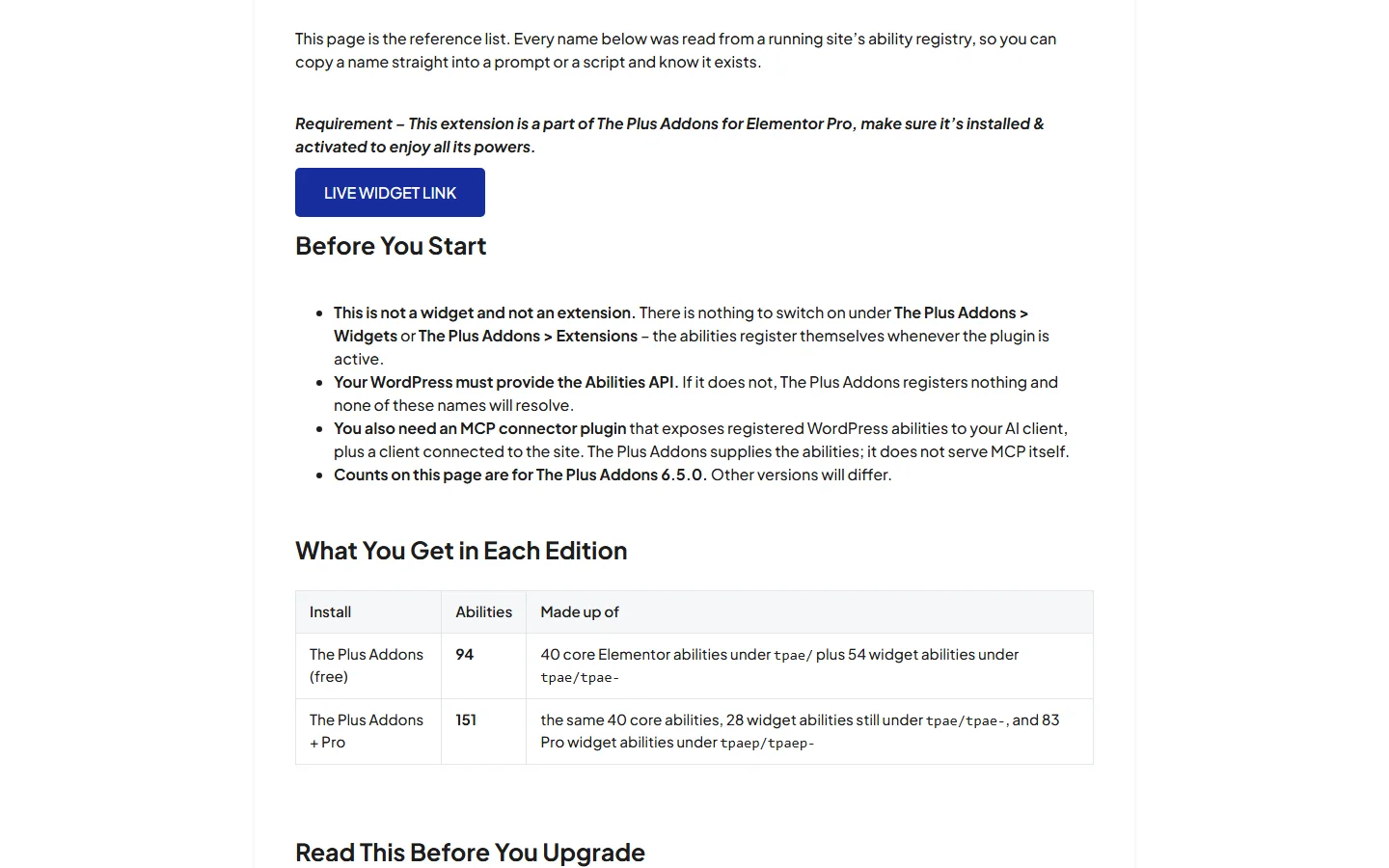
The Plus Addons for Elementor registers WordPress abilities so an MCP client can build and edit Elementor pages through conversation. The reference page, The Plus Addons MCP: Overview of Available Abilities (updated September 21, 2026), lists the names read from a running site’s registry. For version 6.5.0 it counts 94 abilities on the free plugin and 151 with Pro. Those are 40 core Elementor abilities, such as adding containers, building a page and moving elements, plus widget abilities. The widget names follow a pattern, for example tpae/tpae-pricing-table on Free and tpaep/tpaep-pricing-table once Pro is active.
The marketing page at MCP Abilities for The Plus Addons for Elementor describes what this looks like in use: compose a page widget by widget from a plain-English description, rebuild a layout from a screenshot or URL, and set widget controls as ability parameters. It also names a get-theplus-widget-schema ability that returns a widget’s control schema, so the AI reads the real control keys before it writes anything. Its FAQ lists Claude, Cursor, VS Code, Windsurf, Cline and any other MCP-compatible assistant. The ability totals on that page are older than the docs reference, so use the docs for counts.
What This Does Not Do
Our own documentation is careful about limits, and so should this guide be.
- The Plus Addons for Elementor supplies abilities. It does not serve MCP itself, so you still need an MCP connector plugin and a configured AI client.
- Your WordPress must provide the Abilities API. Without it, nothing registers. Elementor’s October 6 post says the WordPress MCP Adapter needs WordPress 6.9 or newer.
- Activating Pro changes 26 ability names from the tpae/ prefix to the tpaep/ prefix, so saved prompts and scripts need renaming.
- The docs state that no ability was executed during that audit and that parameters, return values and required capabilities were not verified. A registered name does not prove every call succeeds.
- Ability access still depends on the WordPress user your connector uses.
What We Could Not Confirm About Angie And Third-Party Widgets
Elementor’s launch post says that with Angie installed, the Elementor MCP gives an AI tool access to every ability registered through the Abilities API, naming WooCommerce, Yoast, WPForms, Jetpack and ACF as examples. In principle that route could reach abilities from add-ons too. But we found no Elementor statement about The Plus Addons for Elementor specifically, and the Angie product page still labels “Abilities API integration” and “AI client connector” as Coming soon on the Angie plan. So we cannot tell you that Angie’s own chat will place our widgets, and we have not tested it. The route we have documented is a connected MCP client plus our abilities.
Elementor’s own page generation also looks limited to its own widget library for now. The Build with prompts announcement from July 29, 2026 lists wider Pro widget coverage, plus widgets that Angie Code builds itself, under what is coming next, so they are not shipped yet. That is the gap an abilities-based setup fills today for third-party widgets.
An Example Prompt For An MCP Client
This is an example of how you might word a request once a client can see both Elementor’s abilities and ours. It is an illustration, not a tested recipe. Naming the widget and asking for the schema first tends to reduce guessed settings.
Create a new draft page called "Pricing Test".
First read the control schema for the pricing table widget.
Then add three plans using that widget, with the middle plan highlighted.
Keep it a draft and tell me which abilities you called.
Pro unlocks the larger widget set, including the WooCommerce widgets, and our pricing page lists the current plans. If you want the broader picture of what Elementor’s native AI tools cover first, our guide to what Elementor AI actually does is the place to start.
Final Thoughts
Angie started as a way to describe widgets and snippets in plain language, with a test mode that keeps experiments away from the live site. Super Admin Mode turned it into something closer to a conversational WP-CLI with full file, database and PHP access. Elementor’s own help article says to back up, review the code and test on staging first, and that advice is the right default.
Against the Elementor MCP, the choice is mostly about where you want to work. Angie keeps everything in the dashboard and adds Test Mode, Revisions and Cloud Library around the code it writes. An MCP client brings your other tools and a wider choice of AI. If you want AI-built pages to include third-party widgets, the abilities route is the one with documentation today, and it comes with the limits listed above. Whichever you pick, keep a restore point, keep outputs as drafts and keep a human review step.
Two related reads: how to hide Elementor’s AI banners and the Angie button if Angie appeared in your editor unasked, and our review of Sticklight, Elementor’s AI app builder, another Elementor AI product that sits next to Angie.