Elementor’s native Image widget does one job well: it places a picture on the page. For a plain photo that is enough. The moment you want that image to scroll inside a fixed frame, mask into a custom shape, tilt with the mouse, or parallax against the rest of the section, the native controls run out fast and most builders reach for custom CSS or a second plugin.
The Creative Images widget in The Plus Addons for Elementor bundles those effects into one widget: image masking, super parallax, mouse-tracked 3D tilt, magic scroll, scroll reveal, hover tooltips, overlays, and responsive visibility, all from toggles in the editor panel. This guide walks through every control with real settings-panel screenshots, so you know exactly where each option lives before you build.
What The Creative Images Widget Actually Does
Creative Images is a PRO widget included with The Plus Addons for Elementor’s paid plans. Drop it onto any section the same way you would drop in the native Image widget, then work through three tabs: Content (the image itself and which mode you are using), Style (every visual effect covered below), and Advanced (standard Elementor spacing, motion and responsive controls). Everything in this guide lives in the Content and Style tabs.
Two Image Modes: Creative Image Vs Scroll Reveal Image
On the Content tab, the first choice is the image mode. Creative Image is the standard mode: upload an image, optionally add a link, and apply any of the Style tab effects described below. Scroll Reveal Image is a second mode built for a specific effect: the image reveals itself (wipes, fades, or slides into place) as the visitor scrolls it into the viewport, rather than just appearing. Pick Scroll Reveal Image when the reveal itself is the point, such as a hero photo or a portfolio piece you want to introduce with motion; pick Creative Image for everything else, including masking, parallax and tilt.
Both modes share the same Upload Image and Add Link To Image controls, so switching between them later does not mean rebuilding the widget from scratch.
How To Mask An Image Into Any Shape
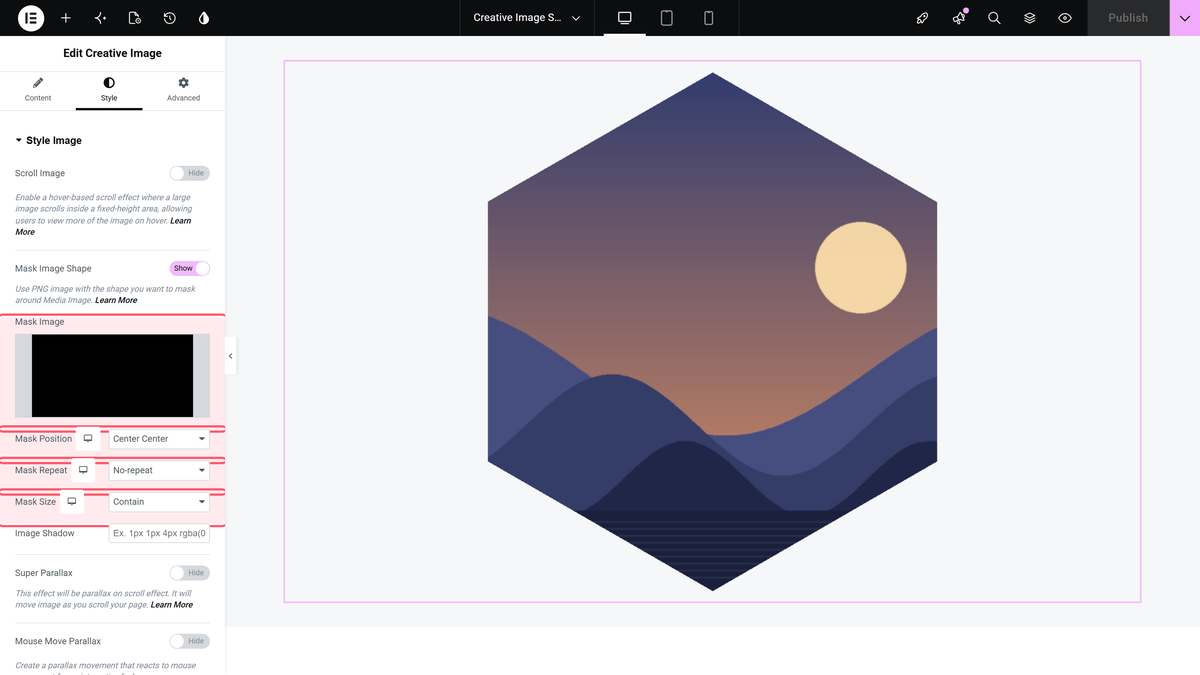
Open the Style tab and switch on Mask Image Shape. A new Mask Image upload field appears below it: drop in a PNG silhouette (a hexagon, a blob, a star, an arrow, anything with a transparent background) and the widget clips the photo to that shape. Three supporting fields control how the photo sits inside the mask: Mask Position (Center Center by default), Mask Repeat, and Mask Size (Contain, Cover, or a custom value).
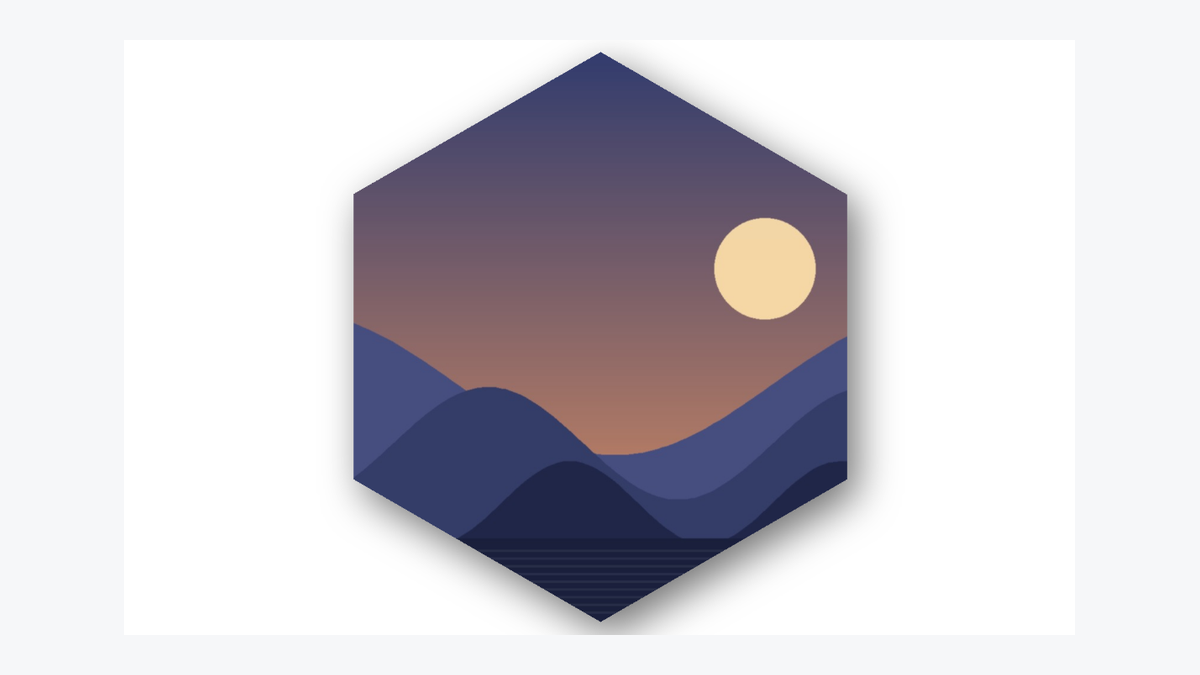
The result is a photo that reads as a custom-shaped graphic rather than a rectangle, without touching CSS clip-path by hand. The image masking documentation covers where to source shape PNGs and how to keep the mask crisp at different screen sizes.
How To Add A Super Parallax Effect On Scroll
Switch on Super Parallax and a Move Scroll (X) slider appears underneath it. That value sets how far the image travels as the visitor scrolls the page, which gives the image a depth effect against the rest of the section without any JavaScript you have to write yourself. It is the same category of effect as Elementor’s own Motion Effects panel, except it lives on the image itself and combines with masking, tilt and overlays in one place instead of being configured separately on the Advanced tab.
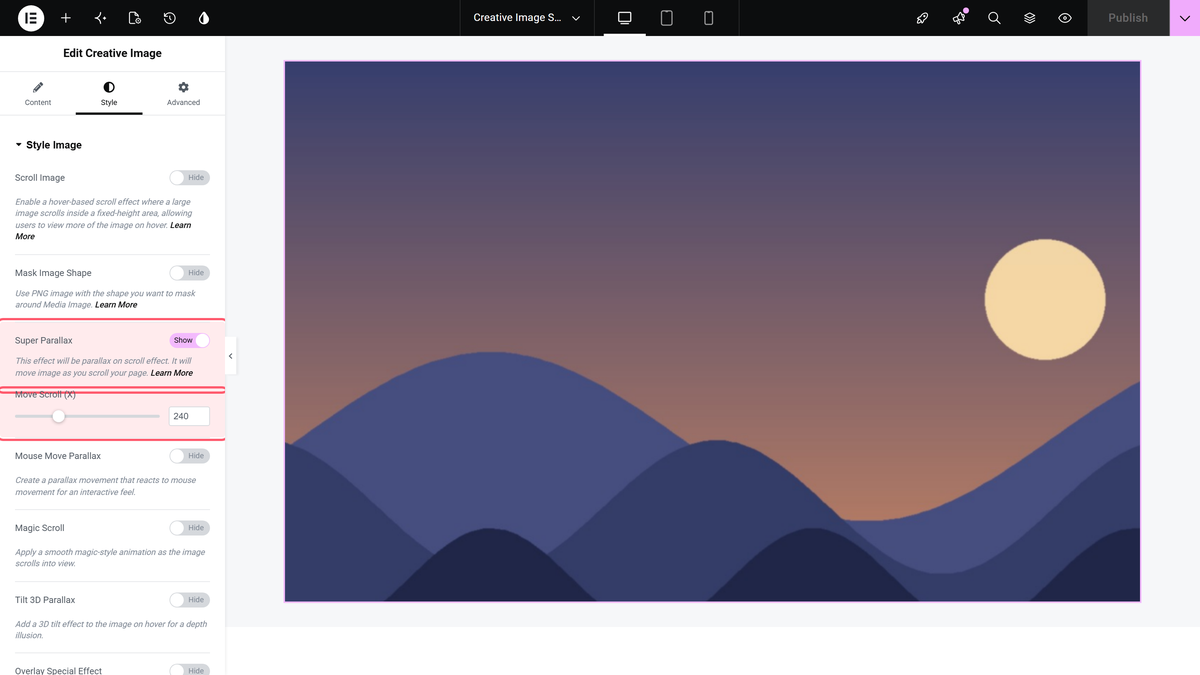
For a step-by-step walkthrough with more scroll-speed examples, see how to add a parallax image in Elementor. If you want parallax on a background row instead of a single image, the separate parallax effect guide covers that case.
Mouse-Interactive Tilt And Magic Scroll
Below Super Parallax sit four more Style tab toggles, all visible together in the panel:
- Mouse Move Parallax: the image shifts slightly as the cursor moves over it, for an interactive feel on product shots or hero images.
- Magic Scroll: a smooth, magic-style entrance animation as the image scrolls into view, separate from the reveal effects in Scroll Reveal Image mode.
- Tilt 3D Parallax: adds a 3D tilt on hover, so the image appears to lift and rotate slightly toward the cursor.
- Overlay Special Effect: applies a dual-color animated overlay when the image enters the viewport.
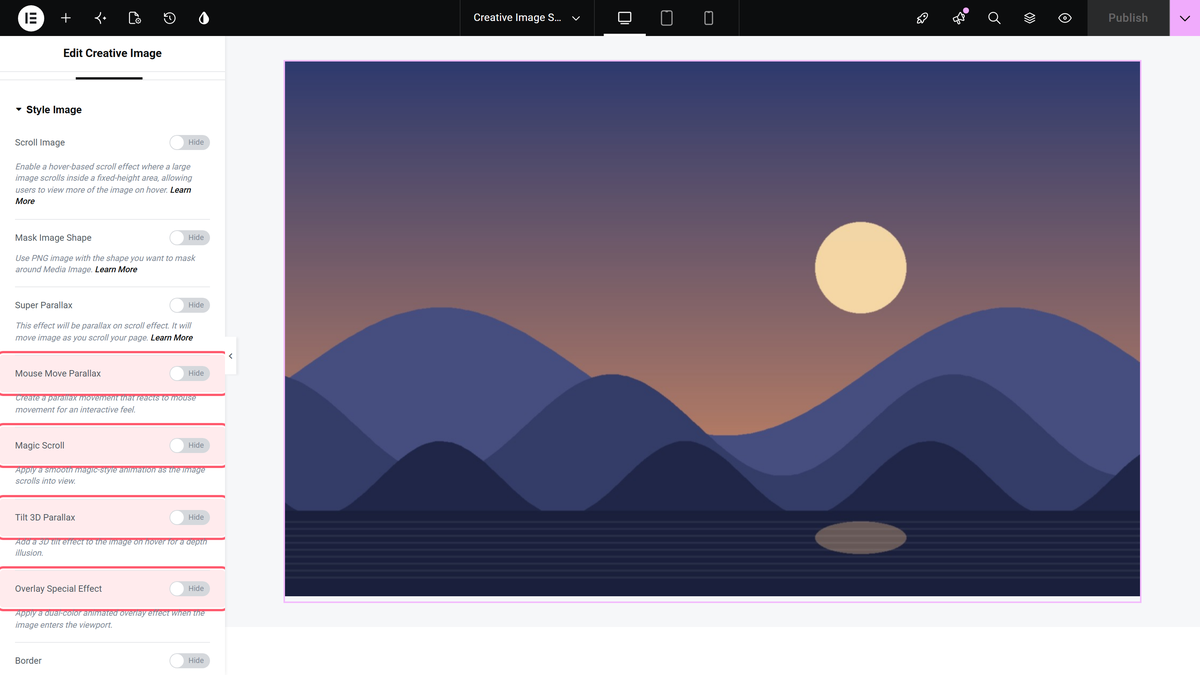
These four are independent toggles, not a dropdown, so you can combine two or three on the same image (tilt plus overlay is a common pairing for product or portfolio cards) rather than picking only one effect per image.
Practical Use Cases For Each Effect
With eight effects on one widget it helps to match the effect to the layout rather than switching everything on at once. A few patterns that hold up well in practice:
- Hero section photo: Super Parallax with a Move Scroll (X) value between 150 and 300, paired with Magic Scroll for the entrance. Skip Tilt 3D Parallax here; it reads as noisy on a full-width hero.
- Team or portfolio grid: Mask Image Shape with a consistent silhouette across every card (a hexagon or rounded blob), so the grid reads as a deliberate shape rather than mismatched crops.
- Product or feature card: Tilt 3D Parallax combined with Image Shadow, so the card lifts toward the cursor and the shadow sells the depth.
- Long screenshot or infographic: Scroll Image, so visitors can hover and scroll the full image inside a fixed-height frame instead of scrolling the whole page.
- Before a call-to-action: Overlay Special Effect on a background-style image, since the animated dual-color overlay draws the eye without hiding the photo underneath.
Text Or Media Tooltips On Hover
Creative Images can also attach a tooltip to the image itself, shown on hover: either plain text or richer media content, positioned relative to the image rather than requiring a separate hotspot widget. This is a lighter-weight option than Hotspots when you only need one message tied to the whole image, for example a short caption on a product photo or a credit line on a photography portfolio piece. If you need several pinned points on a single image, each with its own label, the dedicated image hotspots widget is the better tool, since it is built around multiple pins rather than one tooltip per image.
Performance Notes Before You Stack Effects
Scroll-linked and mouse-tracked effects run JavaScript on every scroll or mouse-move event, so a page with a dozen images all running Super Parallax plus Mouse Move Parallax plus Tilt 3D Parallax will feel heavier than a page that uses one effect per image deliberately. A few habits keep this in check:
- Reserve Mouse Move Parallax and Tilt 3D Parallax for above-the-fold images visitors are likely to interact with, not every photo on a long page.
- Use Responsive Visibility to turn off Tilt 3D Parallax and Mouse Move Parallax on mobile, where there is no mouse to track and the hover state cannot trigger anyway.
- Compress the source image before upload. None of these effects reduce file size, and a 4 MB hero photo with Super Parallax on top is still a 4 MB hero photo.
- If a section already has a lot of other motion (an entrance animation on the row, a Lottie animation nearby), consider dropping Magic Scroll on the image in that same section so the two animations do not compete for attention at once.
Common Mistakes When Setting Up Creative Images
A few issues come up repeatedly when builders first try this widget:
- Using a JPEG or flat-color PNG as the mask shape. The Mask Image field needs a PNG with real transparency outside the shape; a rectangular photo used as a mask just produces a rectangle, which looks identical to not masking at all.
- Setting Move Scroll (X) too high. A large Super Parallax value on a short section can scroll the image out of its container before the visitor has finished reading the text next to it. Preview at the exact section height you are using, not just in the editor’s default viewport.
- Forgetting Mask Size. If the mask shape and the source photo have very different aspect ratios, leaving Mask Size on a default that does not match can crop the subject out of frame. Contain keeps the whole photo visible inside the shape; Cover fills the shape but can crop edges.
- Stacking Tilt 3D Parallax with Scroll Image on the same photo. These two are built for different layouts (a static card versus a tall scrolling frame) and combining them on one image tends to fight rather than complement.
Image Animation Timing: Duration And Delay
Separately from the Style tab effects, Creative Images has its own Image Animation section with GSAP-powered controls: Enable Animation, an Animation preset dropdown (Basic or a global animation defined in Site Settings), a Trigger Type (On Load, on scroll, or on hover), optional Transform Effects, and Animation Controls for custom Duration and Delay in seconds.
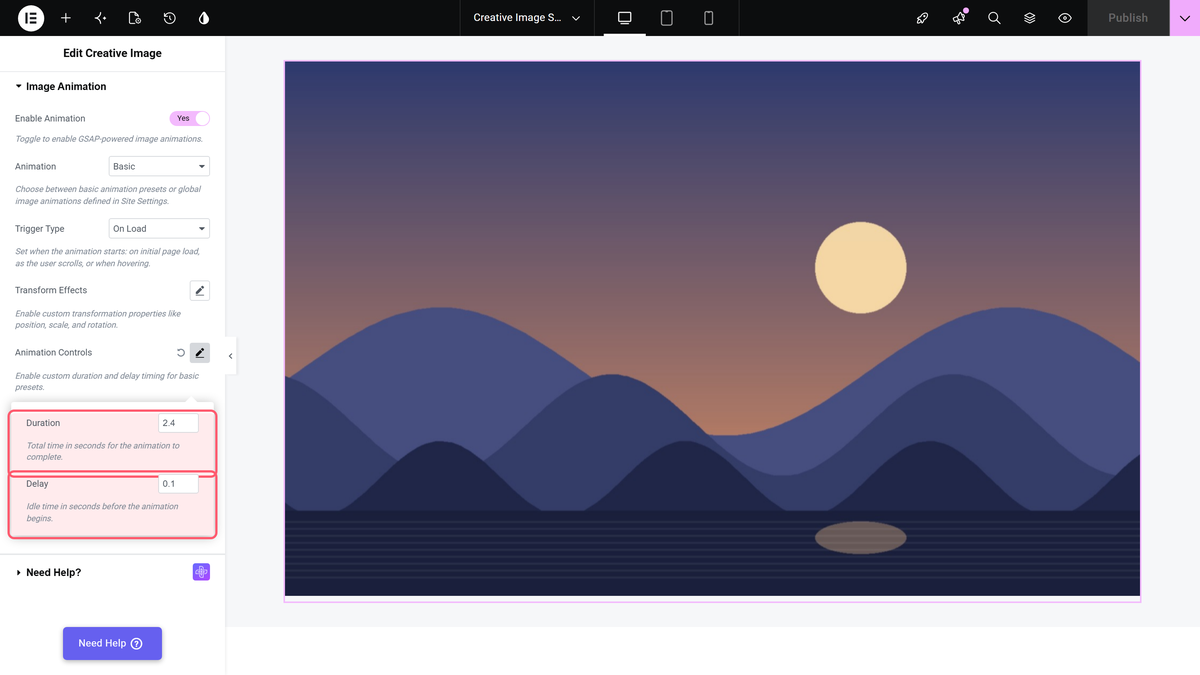
Keep Duration short (under 1 second) for small UI accents and longer (2 to 3 seconds) for hero images where a slower reveal reads as intentional rather than slow-loading. The image animation documentation lists every preset by name, and the scroll reveal animation guide covers the Scroll Reveal Image mode specifically.
Style Controls At A Glance
| Control | What It Does |
|---|---|
| Scroll Image | Hover-based scroll where a large image scrolls inside a fixed-height frame |
| Mask Image Shape | Clips the image into any PNG silhouette |
| Super Parallax | Moves the image as the visitor scrolls the page |
| Mouse Move Parallax | Shifts the image based on cursor position |
| Magic Scroll | Smooth entrance-style animation as the image scrolls into view |
| Tilt 3D Parallax | Adds a 3D tilt on hover for a sense of depth |
| Overlay Special Effect | Dual-color animated overlay when the image enters the viewport |
| Image Shadow, Border | Standard shadow and border styling |
| Responsive Visibility | Hide or show the image per breakpoint |
How To Add A Scroll-On-Hover Image
The Scroll Image toggle at the top of the Style tab is a different effect from Super Parallax: it enables a hover-based scroll where a large image (think a long screenshot or an oversized portrait) scrolls inside a fixed-height container as the visitor hovers over it, instead of being cropped or shrunk to fit. It is a common pattern for showing a full webpage screenshot or a tall infographic without sending visitors to a separate lightbox. The scroll-on-hover documentation walks through the container height and scroll-speed settings; the full control reference for every tab is in the Creative Image widget settings overview.
For a related but distinct interaction, where visitors drag a handle to compare two images rather than scroll one, see how to create a before-after image slider in Elementor. If what you actually need is a label that appears on hover rather than motion on the image itself, interactive image hotspots is the closer fit; Creative Images can still add a text or media tooltip to the whole image through its own tooltip field, but hotspots are built for multiple pinned points on one photo.
Where This Fits: Free Vs Pro
Creative Images is marked PRO on the widget page, meaning it ships with The Plus Addons for Elementor’s paid plans rather than the free WordPress.org version. If you are deciding whether to upgrade for this widget alone, compare what else moves from free to paid on the Free vs Pro page, and check current plan limits on the pricing page before buying, since plan tiers and site counts change over time. The Plus Addons for Elementor itself is one of the larger Elementor add-ons, listed with over 100,000 active installs and a 4.6-star average on WordPress.org as of this writing.
For a wider view of what else ships free versus Pro across the whole plugin, not just this widget, Elementor Pro widgets: free and add-on alternatives maps out the comparable native Elementor Pro controls widget by widget.