WordPress has shipped three security releases in under three weeks. WordPress 7.1.1 arrived on 17 September 2026 with 11 security fixes, WordPress 7.1.2 followed on 22 September with a fix for a critical vulnerability, and WordPress 7.1.3 landed on 6 October with seven more. If you run an Elementor site, the question behind every WordPress security update is the same: how do you install it quickly without breaking the pages that pay your bills?
This guide answers that. It covers what each release actually fixed, why waiting is the riskier choice, which updates your site probably installs on its own, and the order to update everything else. It also covers what to check afterwards and how to roll back when a plugin misbehaves. Where the details come from the official release posts, we link them so you can read the source.
What The Last Three WordPress Security Releases Fixed
Before deciding how fast to move, it helps to know what is in the releases. The table below summarises the three most recent ones, based on the official WordPress.org announcements.
| Release | Date | Security Fixes | What Stood Out |
|---|---|---|---|
| 7.1.1 | 17 September 2026 | 11 (plus 17 Core and 19 Block Editor bug fixes) | Stored XSS in wpautop(), path traversal in the REST Templates controller, Contributor+ post overwrite |
| 7.1.2 | 22 September 2026 | 1, rated critical | Unauthenticated attacker could, under certain conditions, include a local PHP file during template resolution, which can lead to remote code execution |
| 7.1.3 | 6 October 2026 | 7 (plus 4 bug fixes) | Stored XSS on the Comments admin page, second-order SQL injection in WXR export, unauthenticated disclosure of comments on private posts |
WordPress 7.1.1: A Wide Release
The 7.1.1 announcement lists 11 fixes, and they cover very different parts of WordPress. They include a stored cross-site scripting issue in wpautop() that an unauthenticated visitor could trigger (subject to comment approval), a path traversal in the REST Templates controller, and an XML-RPC bypass of the edit_css capability check. Several others depend on a logged-in account, such as the Contributor+ arbitrary post overwrite and the Contributor+ slug disclosure for draft and pending posts.
That mix matters. It is tempting to read “requires Contributor” as “does not affect me,” but at least one issue in the same release needs no account at all. If your site has guest authors, a membership flow, or a comment form, the lower roles are not hypothetical. You can read every item in the official 7.1.1 announcement.
WordPress 7.1.2: One Critical Fix
The 7.1.2 release contains a single fix, but it is rated critical. The announcement describes an unauthenticated attacker who can, under certain conditions, make page template resolution include a chosen readable local PHP file from outside the active theme directories. If the relevant conditions on both the server and the active theme are met, that can lead to remote code execution. The advisory is tracked as CVE-2026-87902 and GHSA-7hp8-65ch-5whp.
The words “under certain conditions” deserve care. They mean not every site is exposed, but you cannot tell from the outside which ones are, so the safe move is to treat the update as mandatory. The WordPress team also backported the fix to every branch that still receives security fixes, currently through 4.7.
WordPress 7.1.3: Comments, Exports And Embeds
The 7.1.3 release adds seven fixes. Three involve comments or embeds: a stored XSS on the Comments administration page that is exploitable through pending comments, unauthenticated disclosure of comments on private and unpublished posts, and an XSS in Imgur embeds. The others include a denial-of-service issue in WP_Http::make_absolute_url(), a second-order SQL injection in the WXR export, and a weakness that let Author-role users sticky posts. The full list is in the 7.1.3 announcement. It also notes that backports to older branches were still in progress at publication.
Why Elementor And Addon Sites Should Not Delay
None of these fixes are in Elementor. They are in WordPress core, which means every site is a candidate no matter which builder it uses. What changes for an Elementor site is the habit around updating. Page builder sites tend to have many plugins, heavy templates and clients who hate surprises, so updates get postponed “until there is time to test.”
That instinct is reasonable for a feature release and wrong for a security release. A feature release can wait for the first patch, which is the approach we describe in our Elementor 4.3 update guide. A security release is the reverse: the longer the gap between the public announcement and your update, the more time anyone has to study what was fixed. The announcements themselves say it plainly: because these are security releases, update immediately.
| Common Reason To Wait | What To Weigh | Better Move |
|---|---|---|
| “I need to test everything first” | Testing is valuable, but a full regression pass is not needed for a minor release | Run a short staging smoke test (covered below), then update production the same day |
| “Only Contributors are affected” | The 7.1.1 list includes at least one fix that needs no account | Treat every release as applying to you |
| “My host patches it for me” | Some hosts do, but the behaviour varies and is not guaranteed | Check your Updates screen and confirm the running version yourself |
| “The last update broke a plugin” | Core minor releases are small and focused, unlike feature releases | Keep a rollback path ready instead of postponing |
| “It is an old branch, I will skip it” | Only the most recent WordPress version is actively supported, even though fixes are backported as a courtesy | Plan the move to the current branch |
If you are weighing a bigger jump, such as moving to 7.1 itself, that is a different decision with its own checklist. We cover it in WordPress 7.1 and Elementor and in the earlier WordPress 7.0 compatibility guide. This post assumes you are already on 7.1 and only need the point releases.
What Your Site Probably Updates Automatically
WordPress has applied minor core updates automatically since version 3.7, and the developer documentation says existing installations still receive minor releases by default. Security releases like 7.1.1, 7.1.2 and 7.1.3 are minor releases, so on many sites they install in the background. Fresh installs created on WordPress 5.6 or later also receive major releases by default, unless WordPress detects a version control checkout.
Do not assume yours is one of them. Hosts, security plugins and some agencies disable background updates, and a single line in wp-config.php can switch them off. Check the constants the WordPress upgrade documentation describes:
| Setting | Effect | When To Use It |
|---|---|---|
WP_AUTO_UPDATE_CORE set to 'minor' | Minor updates on, development and major updates off | Recommended for client sites that should get security releases automatically |
WP_AUTO_UPDATE_CORE set to true | Development, minor and major updates all on | Personal or low-risk sites only |
WP_AUTO_UPDATE_CORE set to false | All core auto-updates off | Only if you update by hand within a day or two of every release |
AUTOMATIC_UPDATER_DISABLED set to true | Turns off every type of automatic update, including plugins and themes | Avoid. The docs strongly discourage disabling these updates |
// wp-config.php
// Apply minor and security core releases automatically,
// leave major releases for you to schedule.
define( 'WP_AUTO_UPDATE_CORE', 'minor' );
Core is the easy part. Plugins are where Elementor sites get nervous. A reasonable split is to keep core minor updates automatic, and to handle Elementor, Elementor Pro and your addons manually on a staging copy first. Our Elementor 4.3 write-up shows why: one reported case hit a fatal error after Elementor Core updated on its own while Pro stayed behind.
The Safe Update Order For An Elementor Site
The sequence matters more than the speed. Updating in the wrong order is how a routine patch turns into a white screen. Here is the order we recommend, and the reason behind each step.
| Step | What To Do | Why It Comes Here |
|---|---|---|
| 1 | Take a full backup and confirm you can restore it | Everything else assumes you can undo it |
| 2 | Clone the site to staging | You find problems where visitors cannot |
| 3 | Update WordPress core on staging | Plugins are tested against the new core, not the other way round |
| 4 | Update your theme | Theme templates run during template resolution, so they should match the new core |
| 5 | Update Elementor and Elementor Pro together | A major version gap between them can cause fatal errors |
| 6 | Update addons, including The Plus Addons for Elementor | Addons build on Elementor, so Elementor goes first |
| 7 | Regenerate Elementor files and purge caches | Stale CSS and cached HTML hide or fake problems |
| 8 | Run the post-update checks, then repeat on production | Production gets the same sequence you just proved |
Step 1: Back Up And Test The Restore
A backup that has never been restored is a hope, not a plan. Use your host snapshot or a backup plugin, then confirm you know where the files are and how long a restore takes. If you have not chosen a tool yet, our comparison of WordPress backup plugins is a good place to start. WordPress documentation also asks you to back up before upgrading, and the Elementor rollback guide opens with the same warning.
Step 2: Clone To Staging
Most managed hosts offer one-click staging. If yours does not, a clone plugin or a local copy works. The goal is a copy that runs the same PHP version, the same plugins and the same theme as production. Our WordPress 7.1 staging checklist covers how to set it up, so we will not repeat it here.
Step 3: Update Core, Then The Theme
Open Dashboard, then Updates, and install the newest WordPress release. Because a security release is small, this step usually takes a minute. Then update your theme. The 7.1.2 advisory says exploitation depends on conditions in the active theme, which is one more reason to keep it current and to remove themes you do not use.
Step 4: Update Elementor And Elementor Pro Together
Update Elementor Core and Elementor Pro in the same session. If Pro is not offering an update, fix the license connection first, because a Core that moves ahead of Pro is a known source of fatal errors. After updating, open the editor on a few key pages and confirm they load and save. Elementor currently lists version 4.3.4 on WordPress.org as tested up to WordPress 7.1.3, which we checked on 12 October 2026.
Step 5: Update Your Addons
Addon updates come last because they depend on Elementor. For The Plus Addons for Elementor, the free plugin on WordPress.org is at version 6.5.3, updated on 7 October 2026, and its listing shows it tested up to WordPress 7.1.3. If you run the Pro edition and an update fails with a license or download error, our guide to the “Invalid License, Update Failed” error walks through the fix. For release-level detail, see the notes on The Plus Addons for Elementor 6.5.0, which introduced the current front end.
Step 6: Regenerate And Purge
Finish by running Regenerate Files and Data from Elementor Tools, then clear your page cache, object cache and CDN. This removes the most common false alarm after an update, which is a page that looks broken only because the browser or CDN is serving old CSS.
The Same Sequence With WP-CLI
If you have shell access, WP-CLI keeps the order explicit and makes it easy to script across sites. The commands below follow the order above. Run them on staging first, and replace the plugin slugs with the ones installed on your site.
# 1. Check what is installed and what is out of date
wp core version
wp core check-update
wp plugin list --update=available --fields=name,version,update_version

# 2. Core: apply only minor and security releases
wp core update --minor
wp core update-db

# 3. Elementor Core and Pro together, then addons
wp plugin update elementor elementor-pro
wp plugin update the-plus-addons-for-elementor-page-builder

# 4. Rebuild Elementor CSS and clear caches
wp elementor flush-css
wp cache flush
The --minor flag limits the core update to minor releases, as the WP-CLI core update reference describes. The wp elementor flush-css command is added by Elementor itself, so it only works while Elementor is active. If a command is missing on your install, regenerate files from the Elementor Tools screen instead.
What To Check After A Security Update
You do not need a two-hour regression run for a point release. A ten-minute pass over the parts of the site that make money or collect data catches nearly everything. Work through this list on staging, then repeat the quick version on production.
| Area | What To Test | What A Problem Looks Like |
|---|---|---|
| Editor | Open, edit and save a page in Elementor | Infinite loading, or a red “Updating failed” notice |
| Theme templates | Visit the homepage, a post, an archive and a 404 page | Missing header or footer, wrong template, blank screen |
| Forms | Submit each important form and confirm the email arrives | Form submits but nothing is delivered, or a validation error |
| Popups and menus | Trigger each popup and open the mega menu on desktop and mobile | Popup never opens, menu overlaps content |
| Comments | Post a test comment and approve it in the admin | Comment admin page errors, formatting looks wrong |
| Checkout | Add a product to the cart and reach the payment step | Cart empties, fields missing, style breaks |
| Login and roles | Log in as an Editor and a Contributor | Redirect loop, missing menu items |
| Error log | Read the PHP error log after browsing the pages above | New fatal errors or repeated notices |
One failure deserves special mention. If the editor reports “Updating failed. The response is not a valid JSON response,” turn on WP_DEBUG_LOG, repeat the save, and read wp-content/debug.log. The message usually hides a PHP notice, a firewall rule or a security plugin block rather than a bug in the update itself. For broader troubleshooting, our guide to fixing an Elementor update that breaks your site lists the usual suspects.
How To Roll Back When Something Breaks
Rollback is your safety net, and it is also the reason you can update fast. The important rule is to roll back the smallest thing that fixes the problem. Rolling back a plugin is routine. Rolling back WordPress core after a security release puts the vulnerabilities back, so do it only as a short-term step while you fix the real conflict.
Roll Back Elementor Or Elementor Pro
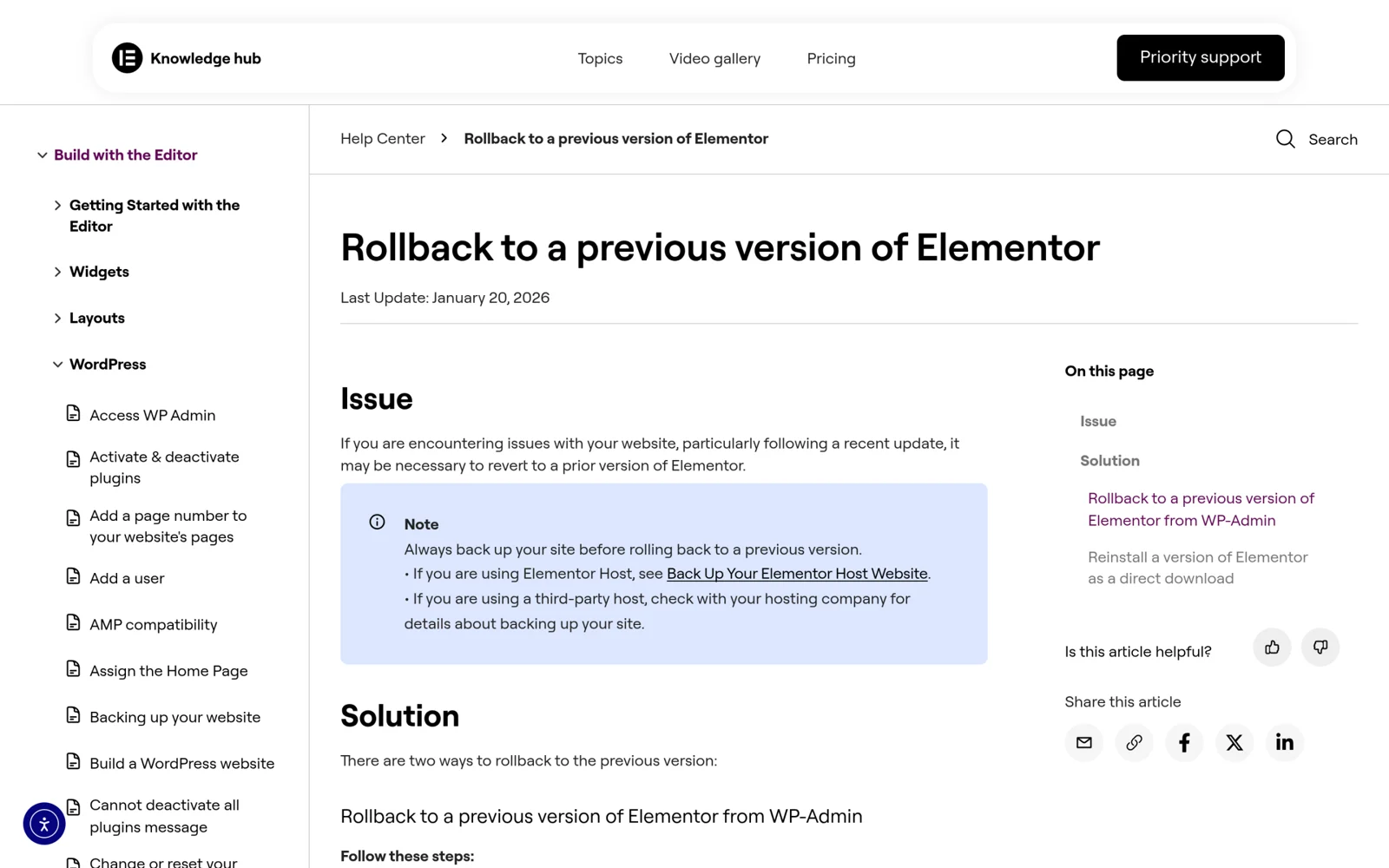
Elementor has a built-in rollback tool. Open Elementor, go to the Tools screen, choose the Version Control tab, pick the previous version and confirm. Elementor’s own rollback help article opens with a reminder to back up first, and it also explains how to reinstall a version as a direct download. Roll Core and Pro back together so they stay matched.
Roll Back An Addon Or Any Plugin By Uploading A Zip
If you cannot reach wp-admin, or a vendor gives you a specific version file, you can replace the installed plugin by uploading its zip. WordPress compares the current and uploaded versions and asks you to confirm before overwriting, as the screenshot shows.
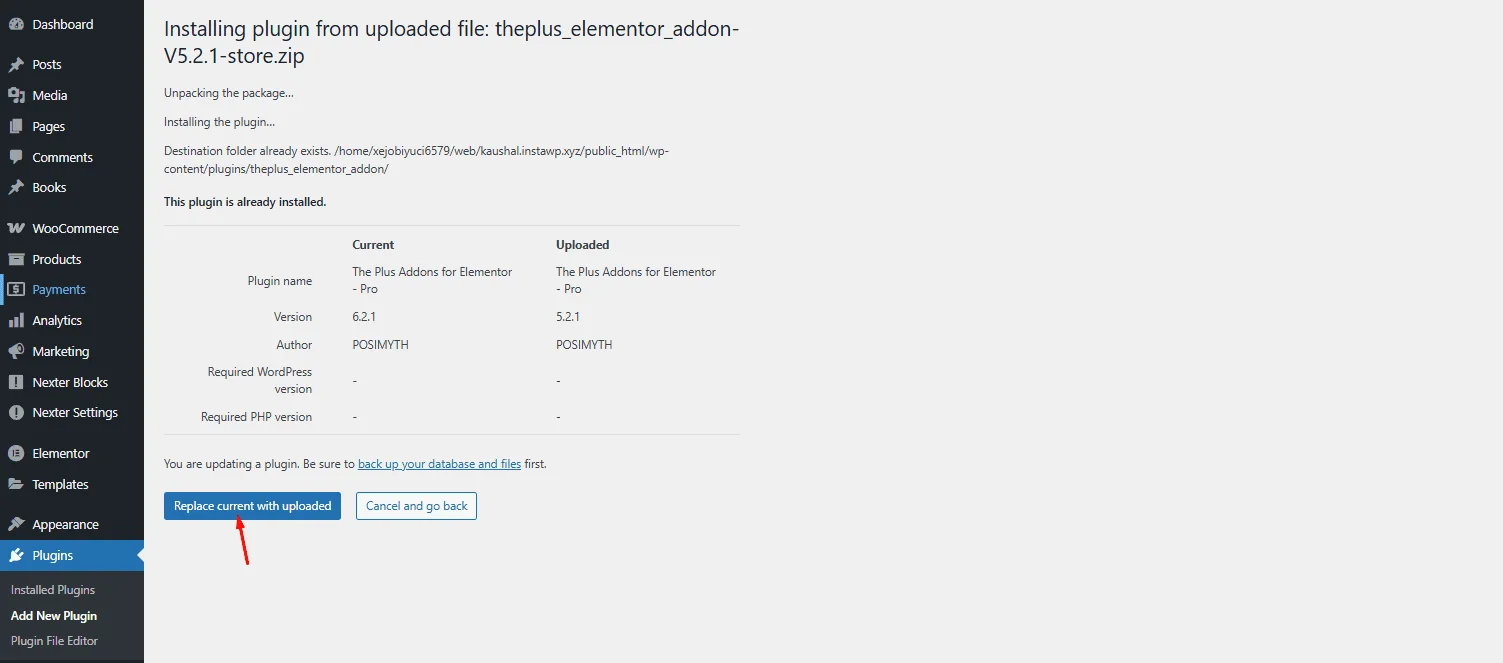
With WP-CLI, the equivalent is a forced install of a pinned version. This works for plugins hosted on WordPress.org, so for premium plugins use the zip from your account.
# Pin a plugin to a specific earlier version
wp plugin install elementor --version=4.3.3 --force

# Confirm what is running
wp plugin list --name=elementor --fields=name,status,version
The version number above is an example. Use the last version that worked on your site, which is why it helps to note versions before you update. After any rollback, turn off automatic updates for that plugin until you have tested the next release on staging, and report the problem to the plugin author with your debug log attached.
If You Must Roll Back WordPress Itself
Core rollback should be rare after a security release. If a plugin conflict forces it, restore the pre-update backup or snapshot, which is cleaner than downgrading files by hand. Then fix the conflicting plugin on staging and apply the security release again as soon as the conflict is resolved. Do not leave a public site on an unpatched version for longer than you must.
Updating Many Sites: Agencies And Freelancers
Everything above multiplies when you manage ten or fifty sites. The same order applies, but you need a single view of which sites are behind. Dashboards such as Elementor Manage list each plugin with its version, update status and a security status per site, and let you select several sites for a bulk update.
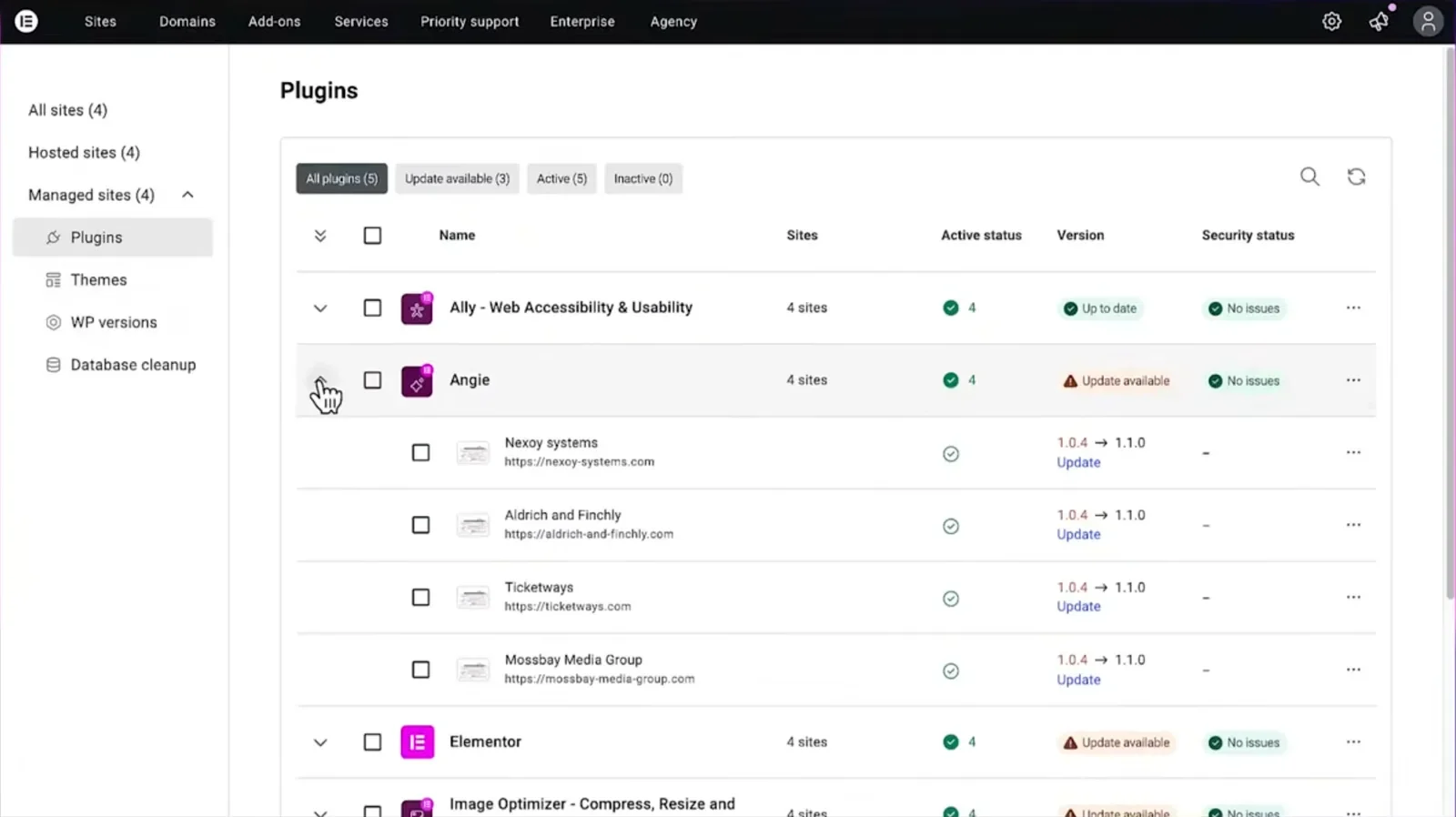
Bulk updating is convenient, but it removes the staging step unless you build it in. A workable compromise is to update one low-risk site first, run the ten-minute test plan, and then roll the same update across the rest of the group. Keep a short log of which version each client site runs, so a rollback never involves guessing. Our guide to updating WordPress plugins step by step covers the manual and bulk methods in more detail.
Should You Update Right Now?
Yes. If your site is still on 7.1.0, 7.1.1 or 7.1.2, move to 7.1.3 today using the order in this guide. If background updates already installed it, confirm the version on the Updates screen and spend ten minutes on the post-update checks. If you are on the 7.0 branch, plan the move to a supported release soon, since the project supports only the latest version.
The habit worth building is simple: automatic minor core updates, staged plugin updates, a restore you have tested, and a rollback you know how to run. With those four in place, a security release becomes a calm ten-minute job instead of an emergency. If you want to check an Elementor-specific risk list next, start with our look at whether Elementor is safe to use.
Suggested Reading
- WordPress 7.1 “Mary Lou” and Elementor: What Actually Changes for Your Site
- Is Your Elementor Site Safe to Upgrade to WordPress 7.0? An Honest Compatibility Guide
- Elementor 4.3 Update: What’s New, What Broke and How to Update Safely
- Elementor V4 Migration: Will Your Site Break? A Safe Upgrade Guide for 2026
- How to Force Check WordPress Plugin Updates